
1. Introduction
The Yakiter WiFi Extender Model B is designed to expand the coverage of your existing wireless network, eliminating Wi-Fi dead zones and providing a stronger, more reliable signal throughout your home or office. This device supports wireless speeds of up to 300Mbps and is compatible with 802.11N/B/G standards, ensuring broad compatibility with most routers and Wi-Fi enabled devices.
2. Package Contents
- Yakiter WiFi Extender Model B
- User Manual (this document)
3. Product Overview
Familiarize yourself with the key components of your Yakiter WiFi Extender.
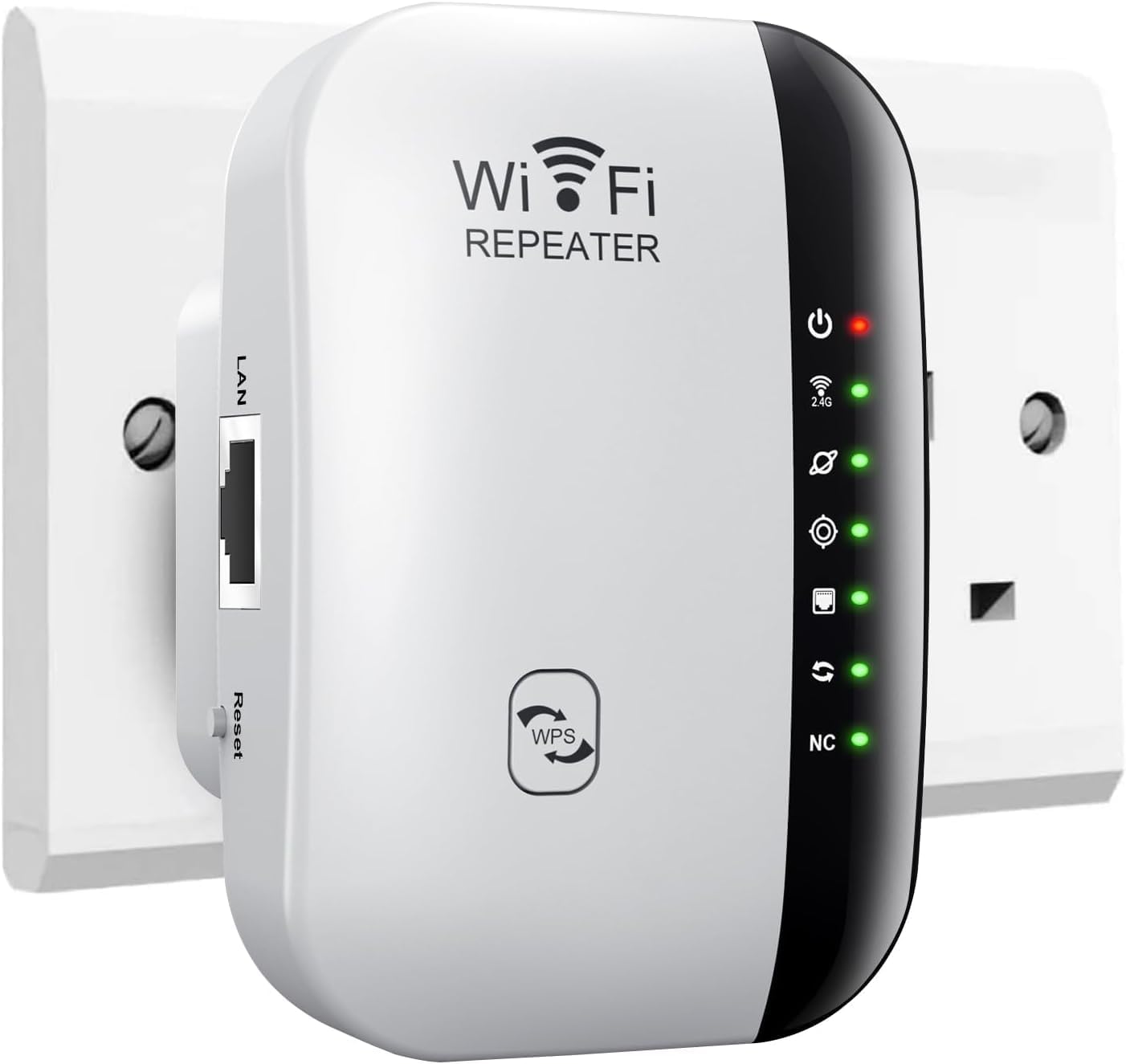
Image: Front view of the Yakiter WiFi Extender Model B, showing the Wi-Fi Repeater logo, WPS button, and LED indicators.
3.1. Device Components
- LAN Port: Used for wired connections in AP mode or to connect a wired device.
- Reset Button: Press and hold to restore factory default settings.
- WPS Button: For quick, one-touch setup with WPS-enabled routers.
- LED Indicators: Display power status, Wi-Fi signal strength, and connection status.

Image: Close-up view of the Yakiter WiFi Extender, highlighting the LAN port and the recessed Reset button on the side.

Image: Close-up view of the Yakiter WiFi Extender's front panel, displaying the various LED indicators for power, Wi-Fi signal, and connection status.
4. Setup Instructions
The Yakiter WiFi Extender offers two primary setup methods: WPS (Wi-Fi Protected Setup) and Web Browser configuration.
4.1. WPS (One-Key Connection) Setup
This is the quickest method if your main router supports WPS.
- Plug the Yakiter WiFi Extender into a power outlet near your main router.
- Wait for the Power LED on the extender to light up.
- Press the WPS button on your main router.
- Within 30 seconds, press the WPS button on the Yakiter WiFi Extender for 3-5 seconds.
- Wait for a few moments. The Extender LED should turn solid, indicating a successful connection.
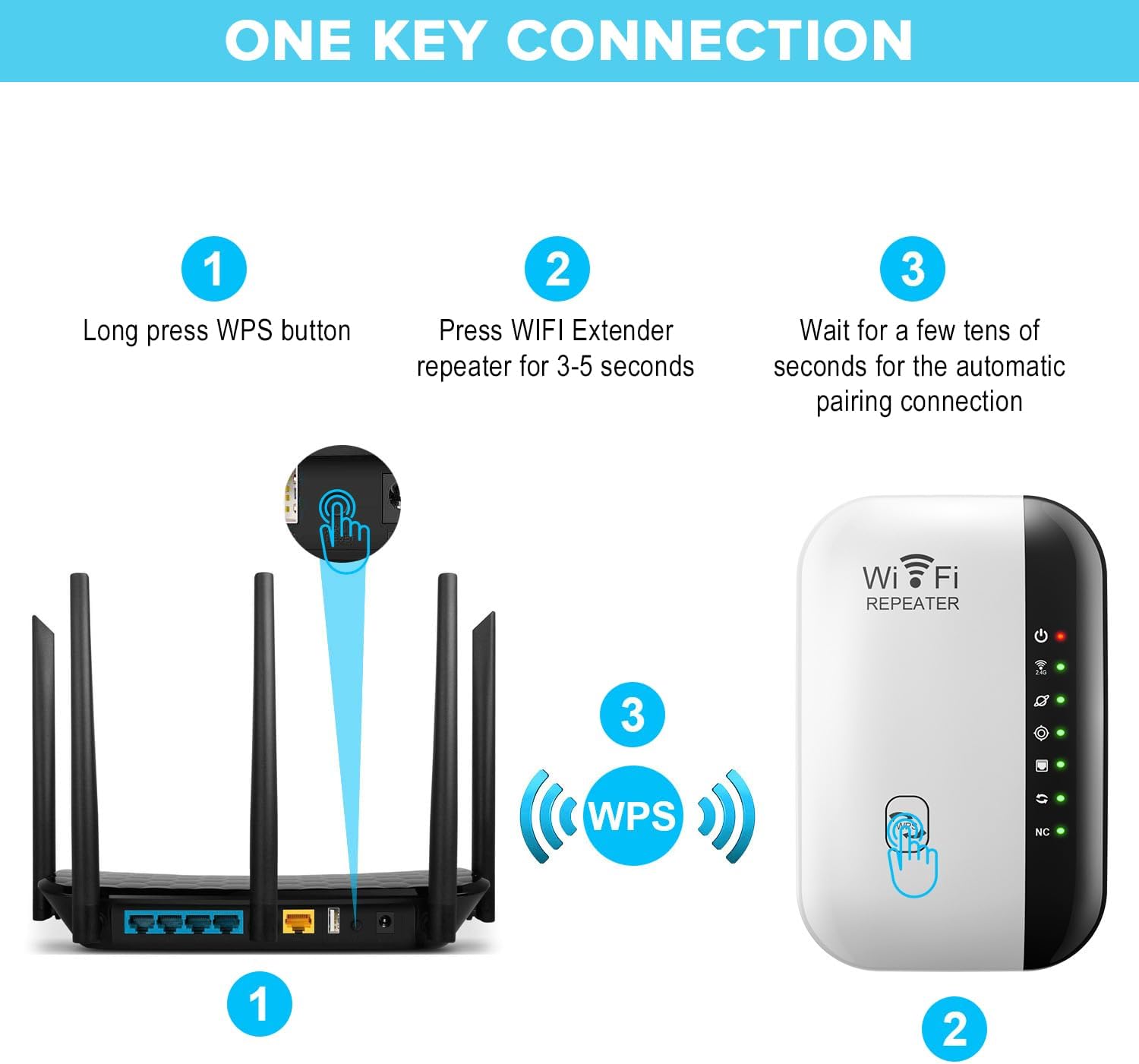
Image: A diagram illustrating the WPS setup process, showing a router and the Yakiter WiFi Extender with arrows indicating pressing the WPS buttons on both devices for automatic pairing.
4.2. Web Browser Setup
If your router does not have a WPS button or if WPS setup fails, use this method.
- Plug the Yakiter WiFi Extender into a power outlet.
- On your computer, smartphone, or tablet, connect to the extender's default Wi-Fi network (e.g., "WiFi-Repeater" or similar, usually found on a label on the device). No password is required initially.
- Open a web browser and enter the default IP address or domain name (e.g.,
192.168.10.1orrepeater.net) provided in the quick start guide (if available) or on the device label. - Follow the on-screen instructions to select your main Wi-Fi network and enter its password.
- The extender will restart. Once restarted, the Extender LED should turn solid, indicating a successful connection.
- You can now disconnect from the extender's default network and connect to the new extended network (usually your original network name with "_EXT" or "_Plus" appended).
5. Operating Modes
The Yakiter WiFi Extender supports two main operating modes to suit different network requirements.
5.1. Repeater Mode
In Repeater Mode, the extender wirelessly connects to your existing Wi-Fi network and re-broadcasts the signal, extending its range. This is ideal for eliminating Wi-Fi dead zones.
5.2. Access Point (AP) Mode
In AP Mode, the extender connects to your router via an Ethernet cable and then broadcasts a new wireless network. This can convert a wired internet connection into a wireless access point, useful in areas where only wired access is available.

Image: A diagram showing two working modes. Mode 1 depicts the extender wirelessly receiving a signal from a router and extending it to devices. Mode 2 shows the extender connected via an Ethernet cable to the internet and broadcasting a Wi-Fi signal.
6. Optimal Placement
Proper placement is crucial for maximizing the performance of your WiFi Extender.
- Place the extender in an area where your main router's Wi-Fi signal is still strong. Avoid areas with no signal.
- Position the extender roughly halfway between your router and the area where you need improved Wi-Fi coverage.
- Avoid physical obstructions like thick walls, metal objects, or large appliances that can interfere with the signal.
- Keep the extender away from other electronic devices that might cause interference (e.g., microwaves, cordless phones).
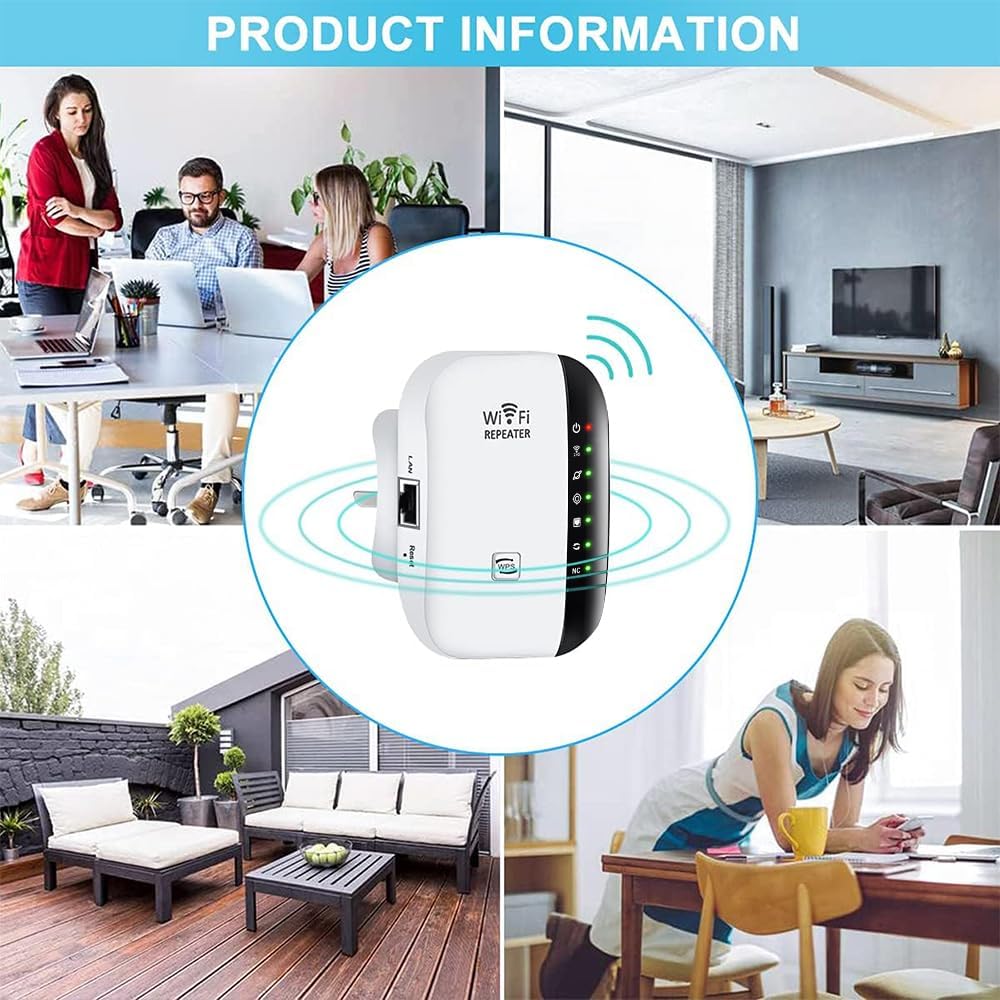
Image: A series of illustrations demonstrating considerations for WiFi extender placement. It shows scenarios where the extender is too far from the router or the user, resulting in poor signal, and a correct placement for optimal signal boost.
7. Troubleshooting
If you encounter issues with your Yakiter WiFi Extender, refer to the following common solutions.
- No Internet Access: Ensure the extender is successfully connected to your main router (check LED indicators). Try repositioning the extender closer to the router.
- Slow Speed: Verify optimal placement. Interference from other devices or physical obstructions can reduce speed. Ensure your main router's internet speed is adequate.
- Cannot Connect to Extender's Wi-Fi: Double-check the Wi-Fi password for the extended network. If using WPS, ensure both WPS buttons were pressed within the time limit.
- Setup Failure: Try resetting the extender to factory defaults by pressing and holding the Reset button for 5-10 seconds, then attempt setup again.
- Intermittent Connection: This could be due to signal interference or the extender being too far from the main router. Adjust placement.
8. Maintenance
To ensure the longevity and optimal performance of your Yakiter WiFi Extender:
- Keep the device in a cool, dry place, away from direct sunlight and moisture.
- Clean the exterior with a soft, dry cloth. Do not use liquid cleaners or aerosols.
- Periodically check the manufacturer's website for firmware updates to ensure the best performance and security.
9. Specifications
| Feature | Detail |
|---|---|
| Brand | Yakiter |
| Model Number | B |
| Wireless Standard | 802.11n |
| Data Transfer Rate | 300 Megabits Per Second |
| Frequency Band Class | Dual-Band (Supports 2.4 GHz, 5 GHz) |
| Compatible Devices | Wi-Fi enabled devices (routers, smartphones, tablets, laptops, smart TVs, gaming consoles, printers, security cameras, etc.) |
| Color | White |
| Item Weight | 0.12 Kilograms |
| Package Dimensions | 11.5 x 10 x 7.5 cm |
| Manufacturer | Yakiter |
| Country of Origin | China |
10. Warranty and Support
For warranty information, technical support, or further assistance, please refer to the contact details provided on the product packaging or visit the official Yakiter website. Keep your purchase receipt for warranty claims.