
Holy Stone HS175G
Holy Stone HS175G GPS Drone User Manual
Model: HS175G
Introduction
Welcome to the Holy Stone HS175G GPS Drone User Manual. This manual provides essential information for the safe operation, maintenance, and troubleshooting of your Holy Stone HS175G drone. The HS175G is an advanced, foldable RC quadcopter designed for adults, featuring a 4K EIS camera for high-quality aerial photography and videography, GPS-assisted flight, and extended flight times. Please read this manual thoroughly before operating your drone to ensure a safe and enjoyable flight experience.
What's Included

Image: The Holy Stone HS175G drone, remote controller, two batteries, charging cables, spare propellers, screwdriver, and carrying case are displayed.
Your Holy Stone HS175G package should contain the following items:
- Holy Stone HS175G Drone x 1
- Remote Controller x 1
- Drone Battery x 2
- USB Charging Cable x 1
- Spare Propellers x 8
- Spare Propeller Screws x 8
- Small Screwdriver x 1
- Spare Joystick x 2
- User Manual x 1
- Carrying Case x 1
Product Overview
The Holy Stone HS175G drone is engineered for performance and ease of use. Familiarize yourself with its key components and features.
4K EIS Anti-Shake Camera

Image: A detailed view of the drone's camera module, highlighting its 4K resolution, 120-degree wide-angle lens, 90-degree adjustable tilt, and Electronic Image Stabilization (EIS) capabilities.
The HS175G is equipped with a 4K EIS (Electronic Image Stabilization) camera featuring a SONY CMOS Sensor. This camera provides high-resolution images and smoother video stabilization. It boasts a 120° wide-angle lens and a 90° adjustable tilt, allowing for versatile shot composition. The 5G FPV transmission ensures stable video feed even in dynamic flight conditions.
Intelligent Flight Batteries

Image: Two intelligent flight batteries for the Holy Stone HS175G drone, emphasizing longer lasting power, faster charging, power display, and enhanced security features.
The drone comes with two intelligent flight batteries, providing a combined flight time of up to 60 minutes (30 minutes per battery). These batteries support fast charging, minimizing downtime between flights.
Powerful Brushless Motors

Image: A close-up view of the drone's powerful brushless motor, indicating high speed and longer lifespan compared to brushed motors.
Equipped with robust brushless motors, the HS175G delivers impressive power and performance while operating with lower noise levels and requiring less maintenance.
5G WiFi Transmission

Image: The drone's remote controller with a smartphone mounted, showing a live feed, illustrating the low latency and stable signals provided by 5G WiFi transmission.
The 5G WiFi transmission system ensures stabilized and smooth live video feeds directly to your smartphone via the HS Fly App, with a maximum range of up to 800 meters (2624 feet).
Optical Flow Positioning
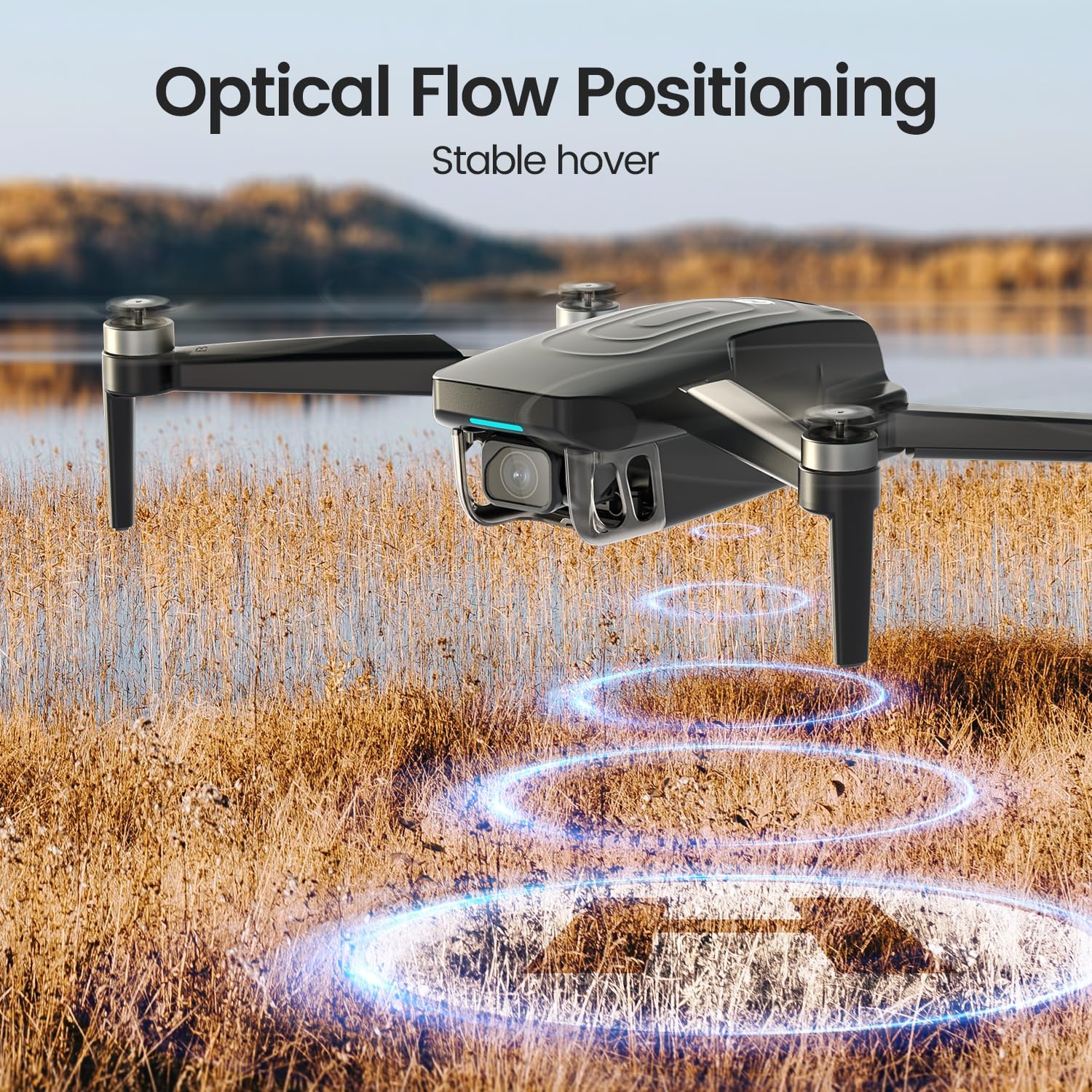
Image: The Holy Stone HS175G drone hovering above a field, with glowing circles on the ground indicating its stable hover capability due to optical flow positioning.
Combined with GPS, the optical flow positioning system allows the drone to maintain a stable hover, even indoors or in areas with weak GPS signals, ensuring precise flight control.
Setup Guide
1. Charging the Batteries
Before first use, fully charge both drone batteries and the remote controller.
- Connect the USB charging cable to the drone battery and a USB power adapter (5V/2A recommended).
- The battery indicator lights will show charging progress. All lights will be solid when fully charged.
- Charging time for each drone battery is approximately 90 minutes.
- Charge the remote controller using its dedicated USB cable.
2. Installing Propellers
Ensure propellers are installed correctly according to their markings (A and B) on the corresponding motor arms.
- Match propeller A to motor A, and propeller B to motor B.
- Secure each propeller with the provided screws using the small screwdriver.
- Check that all propellers are firmly attached and can rotate freely.
3. Unfolding the Drone
Gently unfold the front arms first, then the rear arms until they click into place. Ensure all arms are fully extended.
4. Downloading the HS Fly App
Search for "HS Fly" in your smartphone's app store (App Store for iOS or Google Play Store for Android) and install the application.
Operating Instructions
1. Pre-Flight Checklist
- Ensure drone and remote controller batteries are fully charged.
- Check that propellers are correctly installed and undamaged.
- Verify that the drone arms are fully unfolded and locked.
- Ensure you are in an open area, free from obstacles, people, and animals.
- Check local regulations for drone flight. The HS175G is under 249g, often exempting it from FAA registration in some regions.
- Connect your smartphone to the drone's Wi-Fi network (named "HolyStone-HS175G-XXXXXX").
- Open the HS Fly App and confirm live video feed.
2. Calibration
Perform compass and gyroscope calibration before each flight for stable operation. Follow the instructions in the HS Fly App for precise calibration steps.
3. Takeoff and Landing
- One-Key Takeoff: Press the One-Key Takeoff/Landing button on the remote controller or in the app. The drone will automatically ascend to a safe hovering altitude.
- Manual Takeoff: Push both joysticks down and outwards simultaneously to start the motors. Then, push the left joystick up to ascend.
- One-Key Landing: Press the One-Key Takeoff/Landing button again. The drone will automatically descend and land.
- Manual Landing: Slowly pull the left joystick down to descend. Once landed, push both joysticks down and inwards to stop the motors.
4. Intelligent Flight Modes

Image: Visual representations of the drone's intelligent flight modes: Follow Me, where the drone tracks a moving subject; Point of Interest, where it orbits a central point; and Tap Fly, allowing flight along a user-defined path on a map.
- GPS Auto Return (RTH): The drone will automatically return to its takeoff point if it loses signal, goes out of range, or has low battery.
- Follow Me Mode: The drone will automatically track and follow you, adjusting its position to capture photos and videos. Activate this feature via the HS Fly App.
- Tap Fly (Waypoint Flight): Draw a desired flight path on the map within the HS Fly App, and the drone will fly along the designated route.
- Point of Interest: Select a central point on the map, and the drone will circle around it at a specified radius and altitude, capturing cinematic footage.
- Headless Mode: In this mode, the drone's orientation is irrelevant to the control inputs, making it easier for beginners to fly without worrying about the drone's front direction.
- Speed Adjustment: The drone features two-speed modes (low/high) for different flying experiences and skill levels.
Maintenance
- Cleaning: After each flight, gently wipe the drone body and camera lens with a soft, dry cloth. Avoid using harsh chemicals.
- Propeller Inspection: Regularly check propellers for cracks, bends, or damage. Replace any damaged propellers immediately using the provided spares.
- Battery Care: Store batteries in a cool, dry place. Do not overcharge or over-discharge. If storing for extended periods, charge batteries to about 50-60% capacity.
- Storage: When not in use, fold the drone and store it in its carrying case to protect it from dust and physical damage. Keep it away from direct sunlight and extreme temperatures.
Troubleshooting
| Problem | Solution |
|---|---|
| Drone does not respond to remote controller. | Ensure both drone and remote controller are powered on and properly paired. Re-pair if necessary according to the manual's pairing instructions. Check battery levels. |
| Drone drifts during flight. | Perform gyroscope and compass calibration. Check for strong winds or electromagnetic interference. Inspect propellers for damage. |
| No live video feed in app. | Ensure your smartphone is connected to the drone's Wi-Fi network. Restart the app and drone. Check Wi-Fi signal strength. |
| Drone fails to take off. | Check battery levels. Ensure propellers are installed correctly and not obstructed. Perform calibration. Ensure GPS signal is strong if flying outdoors. |
| Short flight time. | Ensure batteries are fully charged. Flight time can be affected by aggressive flying, strong winds, or low temperatures. |
Specifications
| Feature | Detail |
|---|---|
| Brand | Holy Stone |
| Model Name | HS175G |
| Special Features | 4K EIS Camera, GPS-Assisted Flight, Auto Return, Follow Me Mode, 60-Minute Flight Time |
| Age Range (Description) | Adult |
| Color | Black |
| Video Capture Resolution | 4K |
| Connectivity Technology | Wi-Fi |
| Item Weight | 249 Grams (8.8 ounces) |
| Video Capture Format | MP4 |
| Control Type | Remote Control |
| Maximum Range | 800 Meters (2624 feet) |
| Material | Nylon, Plastic |
| Battery Cell Composition | Lithium Polymer |
| Batteries Included | Yes (2 Lithium Polymer batteries) |
| Product Dimensions | 1"L x 1"W x 1"H (Unfolded: 13.14" x 9.21", Folded: 4.92" x 2.36") |
| Optical Sensor Technology | CMOS |

Image: The Holy Stone HS175G drone shown with its dimensions (unfolded: 13.14" x 9.21", folded: 4.92" x 2.36") and the carrying case.
Warranty and Support
Holy Stone is committed to providing high-quality products and excellent customer service. For any questions, technical assistance, or warranty inquiries regarding your HS175G drone, please contact Holy Stone customer support.
Refer to the official Holy Stone website or the contact information provided in your product packaging for the most up-to-date support channels.
Related documentsHS175G


Ask a question about this manual
Ask about setup, troubleshooting, compatibility, parts, safety, or missing instructions. Manuals+ will review the question and use this page’s manual context to help answer it.