
1. Introduction
This manual provides essential instructions for the safe and effective use of your Fujifilm Instax Pal Digital Camera. Please read this manual thoroughly before using the product and retain it for future reference. The Instax Pal is a compact digital camera designed to capture moments and seamlessly integrate with the Instax Pal Smartphone App for digital image management and printing via compatible Instax Link series printers or hybrid instant cameras.
2. Product Overview
Familiarize yourself with the components of your Instax Pal Digital Camera.
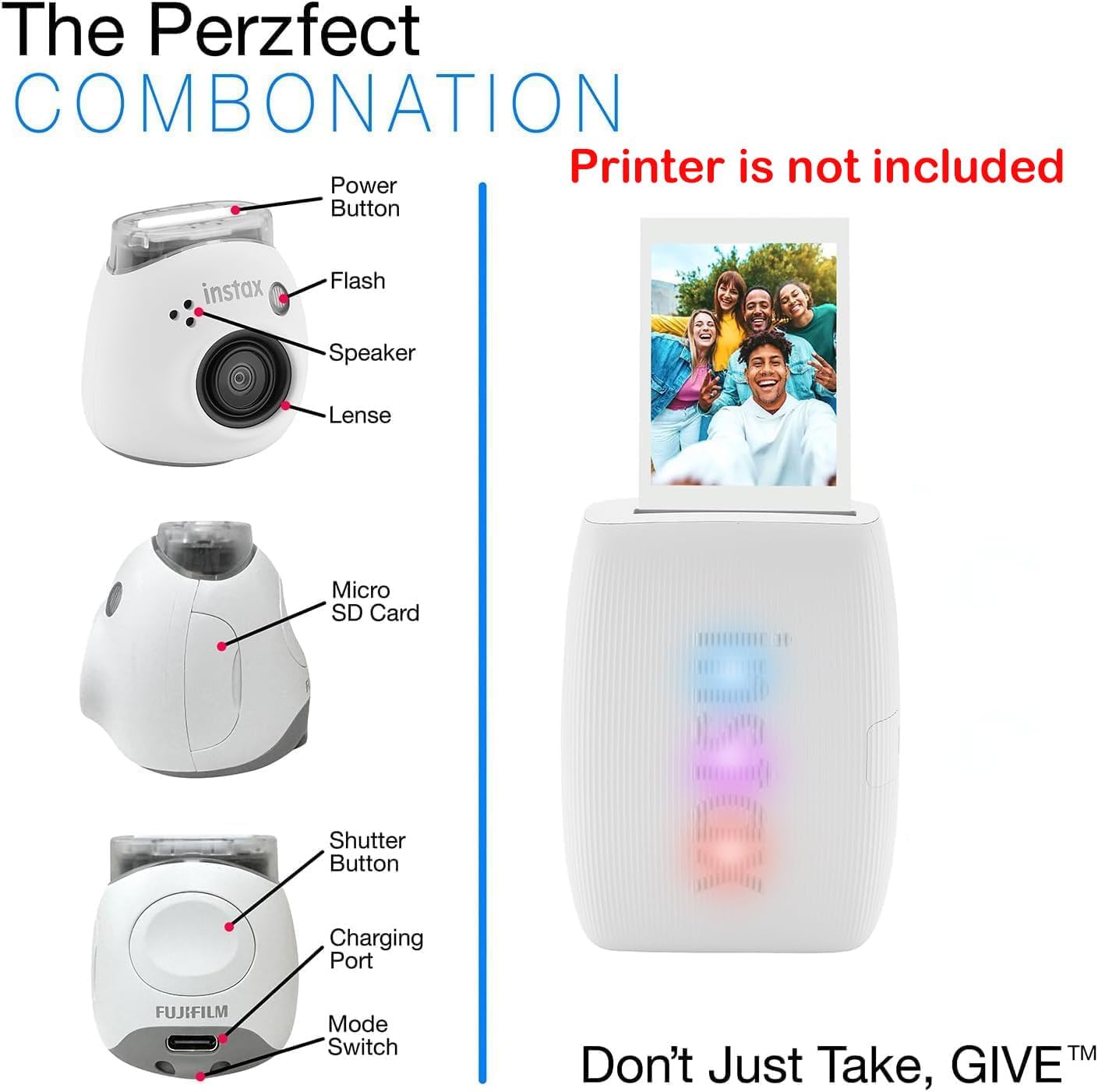
Figure 2.1: Instax Pal Digital Camera Components
This image illustrates the key components of the Instax Pal Digital Camera, including the Power Button, Flash, Speaker, Lens, Micro SD Card slot, Shutter Button, Charging Port, and Mode Switch. Note that the printer shown in the image is for illustrative purposes of connectivity and is not included with the camera.
- Power Button: Turns the camera on or off.
- Flash: Provides illumination in low-light conditions.
- Speaker: For customizable pre-shutter sounds.
- Lens: Captures images.
- Micro SD Card Slot: For expanding storage capacity.
- Shutter Button: To take photographs.
- Charging Port: For connecting the charging cable.
- Mode Switch: To select different camera modes.

Figure 2.2: Instax Pal Digital Camera and Included Film
This image displays the Fujifilm Instax Pal Digital Camera in Lavender Blue alongside a pack of Fujifilm Instax Mini Instant Film, which is included with this bundle. A small cleaning cloth is also visible.
3. Setup
3.1 Initial Charging
Before first use, fully charge the Instax Pal Digital Camera. Connect the camera to a USB power source using the provided charging cable. The charging indicator light will show the charging status.
3.2 Installing the Instax Pal Smartphone App
- Download the free "INSTAX Pal" Smartphone App from your device's app store (iOS App Store or Google Play Store).
- Install the app on your smartphone.
3.3 Pairing with the App
- Turn on your Instax Pal Digital Camera.
- Open the INSTAX Pal app on your smartphone.
- Follow the on-screen instructions within the app to pair your camera via Bluetooth.
- Ensure Bluetooth is enabled on your smartphone.
3.4 Inserting a MicroSD Card (Optional)
To expand storage for more photos, insert a MicroSD card into the designated slot on the camera. Ensure the camera is powered off before inserting or removing the card.
4. Operating Instructions
4.1 Taking Photos
- Power on the Instax Pal camera.
- Point the camera at your subject.
- Press the Shutter Button to capture an image.
- Captured images are automatically sent to the Instax Pal app on your paired smartphone.

Figure 4.1: Compact Design for Easy Handling
This image demonstrates the compact and portable nature of the Instax Pal Digital Camera, easily held in one hand, making it convenient for on-the-go photography.
4.2 Using the Instax Pal App
The Instax Pal app offers various features to enhance your photography experience:
- Image Management: View, organize, and edit your captured digital Instax images.
- Pre-Shutter Sounds: Record up to 5 personalized phrases or sounds to play before taking a photo.
- Remote Shooting: Use your smartphone as a remote control for the camera.
- Printing: Connect to an INSTAX Link series Smartphone Printer or an INSTAX mini LiPlay or INSTAX Mini Evo Hybrid Instant camera to print your photos.
4.3 Printing Photos
To print your digital Instax images:
- Ensure your Instax Pal camera is connected to the app.
- Connect your smartphone to a compatible Instax Link series printer (e.g., Instax Mini Link, Instax Square Link, Instax Wide Link) or an Instax mini LiPlay/Instax Mini Evo Hybrid Instant camera via Bluetooth.
- Select the desired image(s) within the Instax Pal app.
- Follow the app's instructions to send the image(s) to the connected printer for physical output.
5. Maintenance
5.1 Cleaning the Camera
- Use a soft, dry cloth to clean the camera body.
- For the lens, use a lens cleaning cloth specifically designed for optical surfaces. Avoid abrasive materials.
- Do not use alcohol, thinner, or other solvents to clean the camera.

Figure 5.1: Cleaning Cloth
A soft cleaning cloth, such as the one pictured, is recommended for maintaining the camera's exterior and lens.
5.2 Storage
- Store the camera in a cool, dry place away from direct sunlight and extreme temperatures.
- Avoid storing the camera in dusty or humid environments.
- If storing for an extended period, ensure the battery is partially charged (around 50%) to prolong battery life.
6. Troubleshooting
If you encounter issues with your Instax Pal Digital Camera, refer to the following common solutions:
- Camera not turning on: Ensure the battery is charged. Connect to a power source and try again.
- Cannot connect to the app:
- Verify Bluetooth is enabled on your smartphone and the camera.
- Restart both the camera and the smartphone.
- Ensure the Instax Pal app is updated to the latest version.
- Images not transferring:
- Check the camera-app connection.
- Ensure sufficient storage space on your smartphone or MicroSD card.
- Poor image quality:
- Ensure the lens is clean.
- Check lighting conditions; use flash if necessary.
For further assistance, please contact Fujifilm customer support.
7. Specifications
| Feature | Detail |
|---|---|
| Model Name | INSTAX Pal |
| Item Model Number | Pal Digital |
| Brand | Fujifilm |
| Special Feature | Digital Camera |
| Film Format Type | Instax Mini (for printing via compatible printers) |
| Included Components | Camera, Films |
| Compatible Devices | INSTAX Link series Smartphone Printer, Mini LiPlay, Evo Hybrid Instant camera |
| Min Shutter Speed | 0.001 seconds |
| Max Shutter Speed | 1/2000 seconds |
| Item Weight | 11.2 ounces |
| Package Dimensions | 6.5 x 4.5 x 4 inches |
8. Warranty and Support
For information regarding the product warranty, please refer to the warranty card included with your purchase or visit the official Fujifilm website. For technical support, product inquiries, or service, please contact Fujifilm customer support through their official channels.
Fujifilm Official Website: www.fujifilm.com


