Introduction
This manual provides detailed instructions for the installation, operation, and maintenance of your SIXWIN Android 13 Car Radio. Please read this manual thoroughly before using the product to ensure proper function and safety. This unit is designed specifically for BMW X1 models manufactured between 2010 and 2016.
Safety Information
- Ensure the vehicle is turned off and the battery is disconnected before beginning installation to prevent electrical shorts or damage.
- Professional installation is recommended for optimal performance and to avoid damage to your vehicle or the product.
- Do not operate the device in a way that distracts you from driving. Always prioritize road safety.
- Keep the device away from water, moisture, and extreme temperatures.
- Use only accessories and parts specified by the manufacturer.
Setup and Installation
1. Package Contents
Before installation, verify that all components are present in the package. Refer to the 'Packing List & Size' image for a visual guide.

Image: Packing List & Size. This image displays the dimensions of the 10.1-inch car radio unit and illustrates all included accessories: AHD rear camera, radio antenna, power cable, RCA cable, microphone, user manuals, 6-pin and 4-pin USB cables, camera input cable, installation tool, and GPS antenna.
2. Pre-Installation Check
Ensure your BMW X1 is from the 2010-2016 model years. This unit is designed for basic and navigation versions of these vehicles.
3. Installation Process
The unit features a plug-and-play design for simplified installation. Carefully remove your existing car radio and connect the new unit using the provided cables. Ensure all connections are secure.
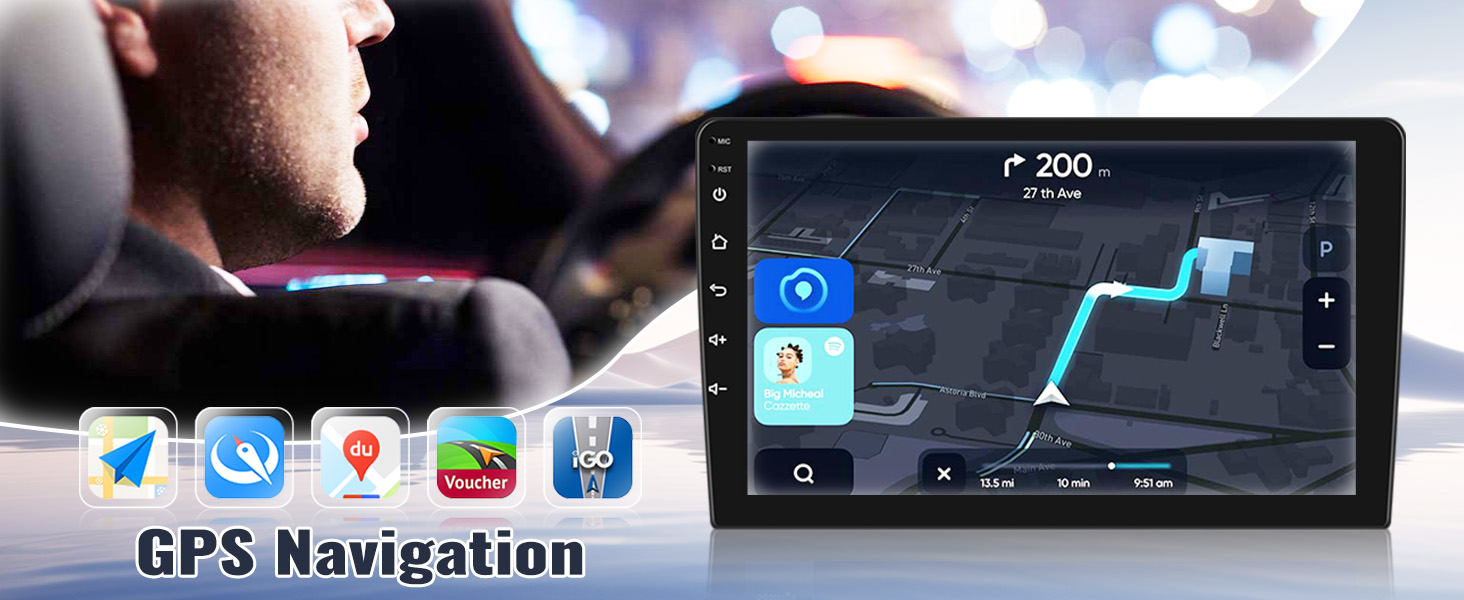
Image: Before and After Installation. This image provides a visual comparison of the BMW X1 dashboard, demonstrating the appearance before and after the SIXWIN Android 13 car radio is installed.
4. Initial Setup and CANBUS Configuration
After installation, power on the unit. You may need to set the CANBUS configuration for proper vehicle integration. Navigate to the CANBUS settings and enter the password: 8888-Hiworld. If you encounter issues, please contact customer support for online assistance.
Operating Instructions
1. Touchscreen Operation
The unit features a 10.1-inch 1080P HD touchscreen. Use standard touch gestures (tap, swipe, pinch-to-zoom) to navigate the interface.
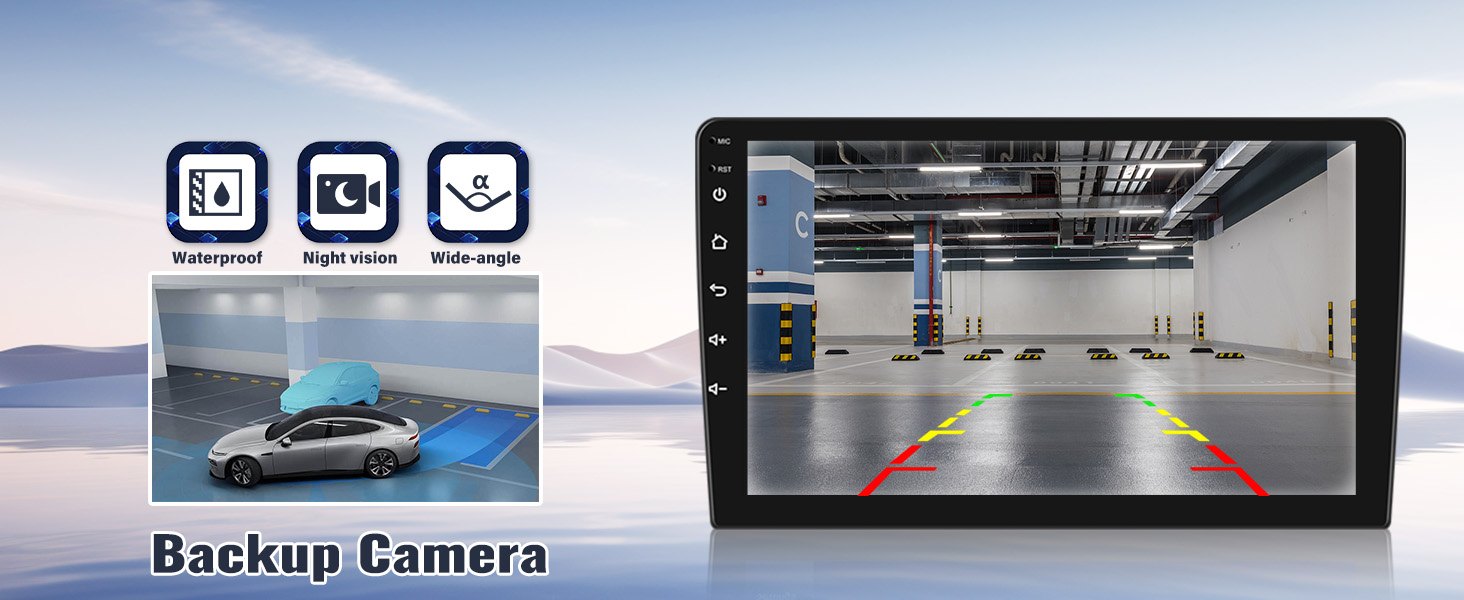
Image: 1080P Touchscreen. This image highlights the 1080P Full HD touchscreen display and demonstrates common touch gestures for interaction.
2. CarPlay & Android Auto (Wireless & Wired)
Connect your smartphone for seamless integration. This unit supports both wireless and wired CarPlay and Android Auto.
- For CarPlay: Establish a Bluetooth connection between the car stereo and your iPhone. Then, open the 'Zlink5' app on the car stereo to initiate wireless Apple CarPlay.
- For Android Auto: Download the Android Auto app on your phone. Connect via Bluetooth, then open the 'Zlink5' app on the car stereo for wireless Android Auto. (Note: Samsung phones are not supported for Mirror Link functionality, please check compatibility for Android Auto if issues arise).
Once connected, you can access navigation, phone contacts, messages, and music directly from the car stereo screen. Voice control (Siri/Google Assistant) is also available.
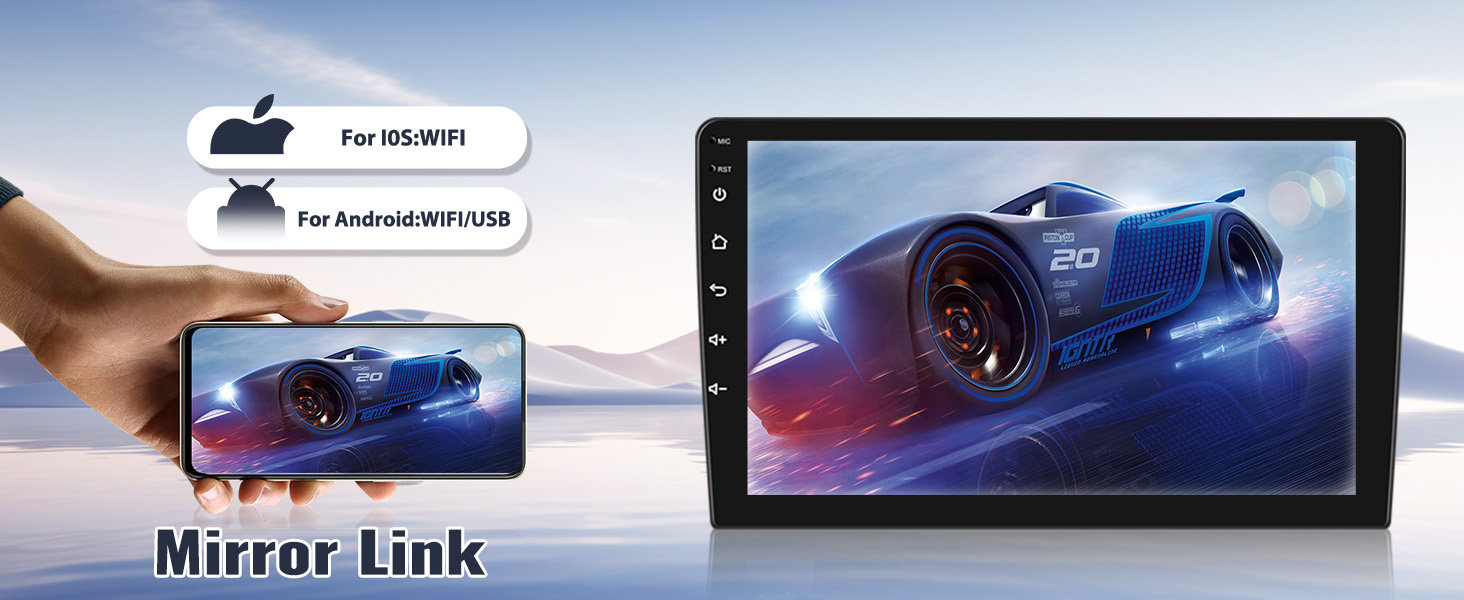
Image: Wireless CarPlay & Android Auto. This image illustrates the user interfaces for both Apple CarPlay and Android Auto on the car radio screen, along with steps for establishing wireless and wired connections.
3. GPS Navigation
The unit has built-in GPS navigation and supports both online and offline maps. Download necessary offline maps for navigation without an internet connection. Real-time traffic conditions can be accessed with an internet connection to help avoid congestion.

Image: GPS Navigation. This image displays the GPS navigation interface on the car radio, showing a map with a highlighted route and icons for various navigation applications.
4. Bluetooth Connectivity
Connect your phone via Bluetooth for hands-free calling, playing music, and downloading phonebooks.
- Pairing: Go to Bluetooth settings on the car stereo and your phone, search for the device, and pair.
- Hands-free Calling: Make and receive calls directly from the car stereo.
- Bluetooth Music: Stream audio from your paired device.

Image: Bluetooth. This image illustrates the Bluetooth interface on the car radio, showing options for phone calls and music streaming.
5. FM Radio
The FM radio provides 18 preset stations (FM 87.50-108.0 MHz). Scan for stations and save your favorites.

Image: FM Radio. This image displays the FM radio interface on the car radio screen, showing frequency tuning and station selection options.
6. Mirror Link
Mirror your smartphone screen onto the car radio display. This feature supports both iOS (via WiFi) and Android (via WiFi/USB).

Image: Mirror Link. This image demonstrates the Mirror Link function, showing a smartphone screen duplicated on the car radio display, with indicators for iOS (WiFi) and Android (WiFi/USB) compatibility.
7. Split Screen Function
Utilize the split-screen feature to run two applications simultaneously, such as navigation and music playback.

Image: Split Screen. This image demonstrates the split-screen functionality, showing the car radio display simultaneously running a navigation app and a music player.
8. Steering Wheel Control (SWC)
The unit supports steering wheel controls. To configure, navigate to the Steering Wheel Control settings and enter the password: 8888. You can then assign functions like volume adjustment, track skipping, and answering calls to your steering wheel buttons.
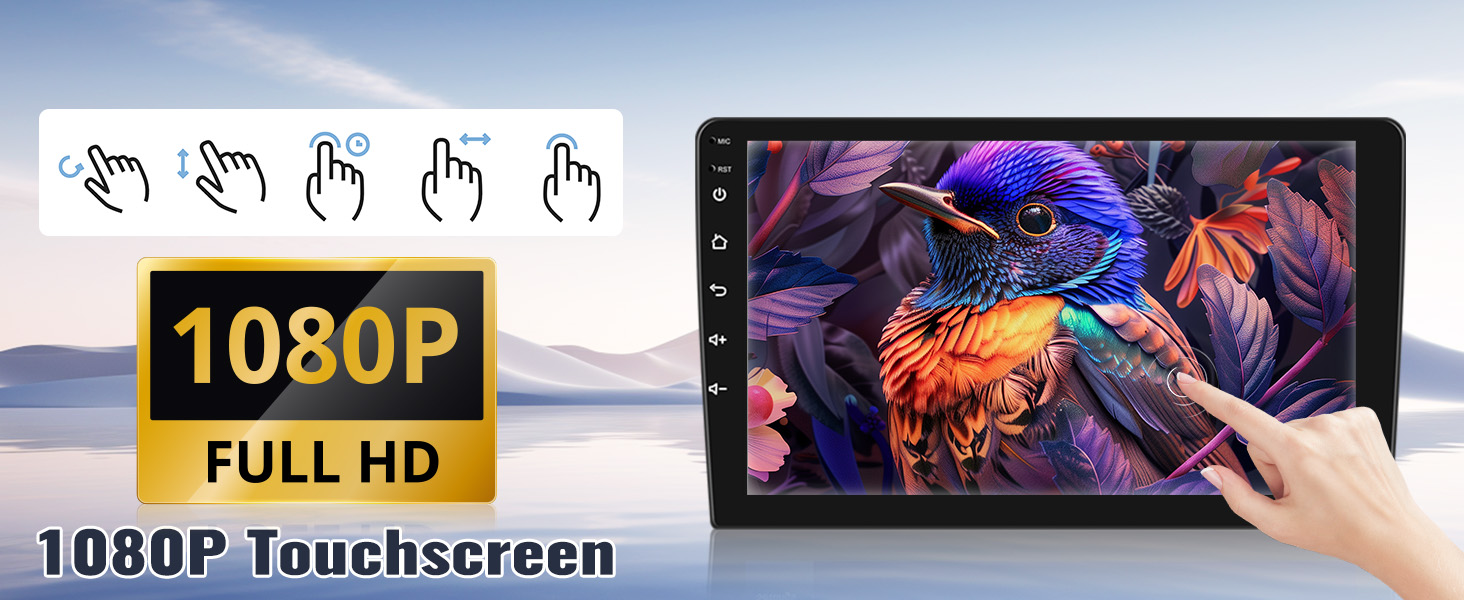
Image: Steering Wheel Control. This image illustrates the process of learning steering wheel controls, showing a driver interacting with the steering wheel and the corresponding settings interface on the car radio.
9. HiFi Function
Experience enhanced audio quality with the built-in HiFi function, providing clear and original sound during your drives.

Image: HiFi Function. This image displays the audio equalizer interface on the car radio screen, demonstrating the HiFi sound quality adjustment feature.
10. WiFi Connectivity
Connect to available WiFi networks to access online content, browse the internet, and use online services directly from your car radio.
11. Backup Camera
The unit includes an AHD backup camera for safer parking. The camera provides a wide-angle view with clear night vision and is waterproof.

Image: Backup Camera. This image shows the car radio display with the backup camera feed, including parking guidelines, and a separate image of the AHD backup camera unit.
Maintenance
- Cleaning: Use a soft, dry cloth to clean the screen and exterior. Avoid abrasive cleaners or solvents.
- Software Updates: Periodically check for software updates to ensure optimal performance and access to new features. Updates can typically be found through the system settings when connected to WiFi.
- General Care: Avoid exposing the unit to direct sunlight for extended periods or extreme temperatures.
Troubleshooting
| Problem | Possible Solution |
|---|---|
| Unit does not power on. | Check all power connections. Ensure the vehicle's ignition is on. Verify fuses. |
| No sound from speakers. | Check speaker wiring. Ensure volume is not muted or set too low. Verify audio output settings. |
| CarPlay/Android Auto not connecting. | Ensure Bluetooth is enabled and paired. Open the 'Zlink5' app. For Android Auto, ensure the app is installed on your phone. Note that some Samsung phones may have compatibility issues with Mirror Link. |
| GPS navigation is inaccurate or not working. | Ensure the GPS antenna is properly connected and has a clear view of the sky. Check GPS settings and ensure maps are downloaded or an internet connection is active for online maps. |
| Steering Wheel Controls not responding. | Go to Steering Wheel Control settings and re-learn the buttons. The password for SWC settings is 8888. |
| CANBUS features (e.g., climate control display) not working. | Verify CANBUS settings. The password for CANBUS configuration is 8888-Hiworld. |
| Touchscreen unresponsive or slow. | Restart the unit. Ensure the screen is clean. If persistent, a factory reset might be necessary (back up data first). |
Specifications
| Feature | Detail |
|---|---|
| Model Number | A7235A3013 |
| Operating System | Android 13 |
| RAM + ROM | 1GB + 32GB |
| Display Size | 10.1 Inches |
| Resolution | 1024 x 600 |
| Connectivity | Wireless (WiFi, Bluetooth), USB |
| Special Features | Touchscreen, CarPlay, Android Auto, Mirror Link, Bluetooth, FM Radio, GPS Navigation, HiFi, WiFi, Steering Wheel Control, Backup Camera Support |
| Vehicle Service Type | Car (BMW X1 2010-2016) |
| Item Weight | 4.05 pounds |
| Product Dimensions | 1 x 1 x 1 inches (packaging dimensions may vary) |
Warranty Information
This SIXWIN Car Radio comes with a 1-year warranty from the date of purchase. The warranty covers manufacturing defects and malfunctions under normal use. It does not cover damage caused by improper installation, misuse, accidents, or unauthorized modifications. Please retain your proof of purchase for warranty claims.
Customer Support
For technical assistance, troubleshooting, or any questions regarding your SIXWIN Android 13 Car Radio, please refer to the contact information provided with your product packaging or visit the official SIXWIN support website. Online help is available for installation and setup queries, including CANBUS configuration.