
Lockin Q3
Lockin 4-in-1 Fingerprint Door Lock
Model: Q3
User Instruction Manual
Introduction
This manual provides detailed instructions for the installation, setup, operation, and maintenance of your Lockin 4-in-1 Fingerprint Door Lock. Please read this manual thoroughly before installation and use to ensure proper function and safety. Keep this manual for future reference.
Safety Information
Always follow basic safety precautions when installing and operating electronic devices. Failure to do so may result in damage to the product, property, or personal injury.
- Ensure the door thickness and hole dimensions are compatible with the lock before installation. Refer to the "Compatibility Check" section.
- Do not attempt to disassemble or modify the lock. This may void the warranty and compromise security.
- Keep physical keys in a secure location away from the lock.
- Regularly check battery levels and replace or recharge as needed to prevent unexpected lockouts.
- Protect the fingerprint sensor and keypad from excessive moisture or harsh chemicals.
Product Overview
The Lockin 4-in-1 Fingerprint Door Lock offers multiple access methods for enhanced security and convenience.
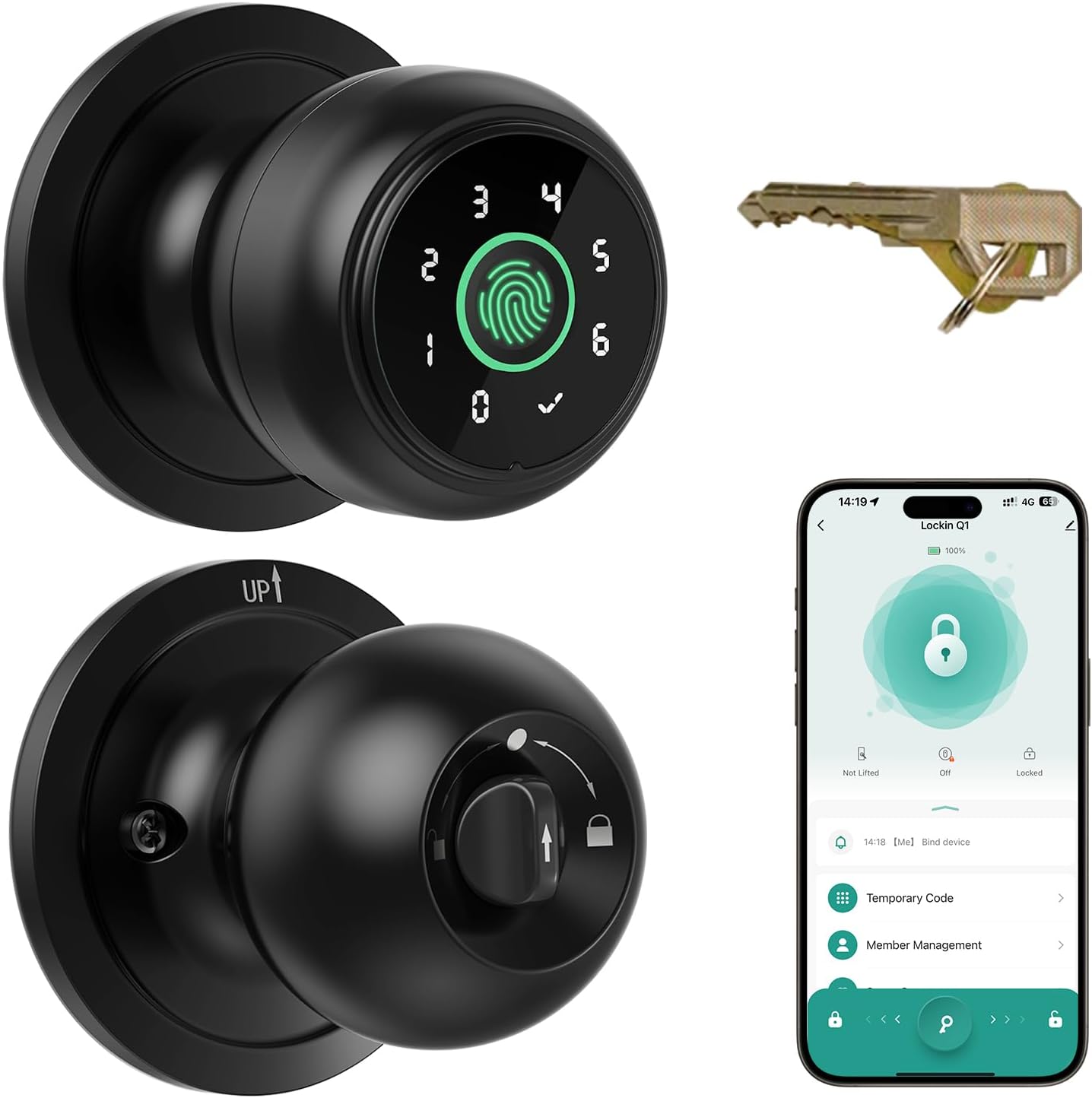
Image: The Lockin 4-in-1 Fingerprint Door Lock, showing the exterior knob with fingerprint sensor and keypad, the interior knob, and physical keys.
Key Features:
- 4-in-1 Smart Access: Unlocking via fingerprint, passcode entry, the Lockin Home App (remote access requires a gateway), or a backup physical key.
- Effortless APP Management: Biometric technology for swift fingerprint recognition (0.2 seconds), supports up to 20 personalized fingerprints and passcodes. Manage users, share access, and track unlocking history through the app.
- Auto-Lock & Privacy Protection: Automatically engages within 5 seconds after closing or fingerprint use. Activate privacy mode with a simple thumb turn for enhanced protection.
- Reliable Power with Emergency Options: 400mAh rechargeable battery, Type-C port for recharging (3-5 hours for full charge). Emergency USB power and low-battery alerts ensure 24/7 operation.
- Enhanced Security Modes: Passage mode for unrestricted access, privacy mode (admin's fingerprint only), and anti-peep technology (entering random numbers before actual passcode).
Installation Guide
Follow these steps carefully for proper installation of your Lockin Smart Door Knob Q1.
Compatibility Check:
Before installation, ensure your door meets the following specifications:
- Door thickness: 1-3/8" to 2-1/8" (35mm-54mm)
- Door hole diameter: 2-1/8" (54mm)
- Backset: 2-3/8" or 2-3/4" (60mm-70mm)
- Latch hole diameter: 1" (25.4mm)

Image: Diagram illustrating door thickness, door hole size, backset, and latch hole diameter requirements for installation.
Installation Steps:
For a visual guide, please refer to the installation video below.
Video: Official installation guide for the Lockin 4-in-1 Smart Door Knob. This video demonstrates the step-by-step process of installing the lock on a door, including preparing the door, attaching components, and securing the unit.
- Prepare the Door: Remove your existing door lock. Ensure the door is clean and free of debris.
- Install the Latch: Adjust the latch length based on your door's backset (60mm or 70mm). Ensure the square hole is centered in the door cutout. Position the latch according to whether your door swings inward or outward. Secure the latch with the provided screws.
- Install Exterior Knob: Insert the exterior knob onto the door from the outside. The rod bolts should go through the circular holes on the latch, and the spindle through the square-shaped (center) hole.
- Install Rosette: Ensure the "UP ↑" mark on the rosette is facing upward. Install the rosette on the door, aligning the rod bolts with the circular holes and the spindle with the square hole. Insert screws into the circular holes and tighten to secure the rosette.
- Attach Interior Knob: Bring the interior knob. Ensure the spindle bar is vertical. Rotate the thumb turn to the circular mark. Insert the interior knob into the rosette, aligning the rectangular hole on the knob with the circular hole on the rosette. Test if the lock works properly by turning the thumb turn.
Setup and App Configuration
After physical installation, configure your smart lock using the Lockin Home App.
- Download the App: Scan the QR code on the gift box or user manual (physical copy) to download and install the Lockin Home application from the App Store or Google Play.
- Pair the Device: Open the app and log in to your account. Click on "Add Device" and follow the in-app instructions to complete the device installation and setup.
- Set Up Administrator Password and Fingerprint:
- Click on "Member Management" to enter the member management interface.
- Then click on "Me", select "Fingerprint Settings" and follow the system guide to complete the fingerprint setup.
- Click on "Password Settings" to set up your unlock password and complete the setup.

Image: A user interacting with the Lockin Home App on a smartphone, demonstrating how to manage access and view unlock records.
Operating Instructions
Unlocking Methods:
- Fingerprint Unlock: Place your registered finger on the sensor. The lock recognizes fingerprints in 0.2 seconds and supports up to 20 unique fingerprints.

Image: Illustration of fingerprint unlocking, highlighting the sensor on the door knob.
- Passcode Entry: Enter your registered passcode on the keypad. Supports up to 20 passcodes. Utilize anti-peep technology by entering random numbers before or after your actual passcode to prevent others from guessing it.

Image: A hand entering a passcode on the door knob's keypad for unlocking.
- App Control: Unlock your door via the Lockin Home App. Remote unlocking requires a separate gateway (sold separately). Bluetooth range for direct app control is up to 10 meters.

Image: A user operating the Lockin Home App on a smartphone to unlock the door.
- Physical Key: Use the provided physical keys as a backup. This method works even if the lock loses power.

Image: A hand inserting a physical key into the door knob for manual unlocking.
Lock Modes:
The lock supports three operating modes to suit different needs:
- Passage Mode: No verification is needed to open the door. Ideal for high-traffic areas or when you want the door to remain unlocked.
- Normal Mode: The lock automatically engages within 5 seconds after closing or fingerprint use.
- Privacy Mode: Double-lock mode where only the administrator's fingerprint can unlock the door. Provides enhanced security for personal spaces.

Image: Visual representation of the three lock modes (Passage, Normal, Privacy) and their corresponding thumb turn positions.
Additional Features:
- Auto Lock: The lock automatically secures itself, eliminating worries about forgetting to lock your door.

Image: A visual depicting the auto-lock function of the door knob as someone walks away from the door.
- Silent Mode: Operate the lock without disturbing others, ideal for bedrooms or quiet environments.

Image: A person quietly operating the door knob, with a sleeping child in the background, illustrating the silent mode feature.
- Temporary/Timed/Recurring Passwords: Generate one-time passwords (up to 10 sets within 6 hours), unlimited offline timed passwords, and recurring passwords (up to 20 sets) for visitors or service providers.

Image: A user managing temporary, timed, and recurring passwords through the Lockin Home App.
- Anti-Picking Protection: Designed to prevent unlocking with a card through the door gap, enhancing security.

Image: A close-up of the door lock mechanism, illustrating its anti-picking design.
Maintenance
Battery Management:
- The lock is equipped with a 400mAh rechargeable battery, offering up to six months of battery life.
- When the battery is low, you will receive alerts.
- To charge, use the included Type-C cable. A full charge takes approximately 3-5 hours.
- In case of complete battery depletion, you can use an emergency power bank (supports Type A to C charge cables) via the external Type-C port for temporary power to unlock.

Image: The door knob being charged via a Type-C cable, illustrating the emergency charging capability.
Cleaning:
- Use a soft, dry cloth to clean the lock's surface and fingerprint sensor.
- Avoid using abrasive cleaners, solvents, or harsh chemicals, as these can damage the finish and electronic components.
Troubleshooting
If you encounter issues with your Lockin Smart Door Lock, refer to the common problems and solutions below:
| Problem | Possible Cause | Solution |
|---|---|---|
| Fingerprint not recognized. | Finger is dirty, wet, or sensor is obstructed. Fingerprint not properly registered. | Clean your finger and the sensor. Try different angles. Re-register your fingerprint if necessary, ensuring multiple scans. |
| Keypad unresponsive. | Low battery. Keypad dirty. | Charge the lock battery. Clean the keypad surface. |
| Lock does not respond. | Completely dead battery. | Use a physical key or connect an emergency power bank via the Type-C port to power the lock temporarily. |
| App cannot connect to the lock. | Bluetooth is off. Lock is out of range. App issue. | Ensure Bluetooth is enabled on your phone. Move closer to the lock (within 10 meters). Restart the app or your phone. |
| Auto-lock not working. | Lock mode set to Passage. Sensor obstruction. | Check the lock mode in the app and ensure it's not set to Passage Mode. Clear any obstructions around the latch. |
If the problem persists, please contact Lockin customer support for assistance.
Specifications
| Feature | Detail |
|---|---|
| Brand | Lockin |
| Model Number | Q3 |
| Material | Aluminum |
| Color | Black |
| Product Dimensions | 9.07"L x 3.39"W |
| Item Weight | 1.83 pounds |
| Power Source | 400mAh Rechargeable Battery (Type-C charging) |
| Battery Cell Type | Zinc Carbon |
| Unlocking Methods | Fingerprint, Passcode, App, Physical Key |
| Fingerprint Capacity | Up to 20 |
| Passcode Capacity | Up to 20 |
| Door Thickness Compatibility | 1-3/8" to 2-1/8" (35mm-54mm) |
| Backset Compatibility | 2-3/8" or 2-3/4" (60mm-70mm) |
| Indoor/Outdoor Usage | Indoor |
Warranty and Support
Lockin provides a limited warranty for this product. Please refer to the warranty card included in your product packaging for specific terms and conditions. For technical support, troubleshooting assistance, or warranty claims, please contact Lockin customer service.
Contact Information:
- Visit the official Lockin website for support resources.
- Refer to the contact details provided in your product packaging.
Related documentsQ3


Ask a question about this manual
Ask about setup, troubleshooting, compatibility, parts, safety, or missing instructions. Manuals+ will review the question and use this page’s manual context to help answer it.