Introduction
This manual provides essential information for setting up, operating, and maintaining your Lenovo ThinkPad P16s Gen 3 mobile workstation. Please read these instructions carefully to ensure proper use and to maximize the performance and longevity of your device.
For additional support and detailed documentation, please visit the official Lenovo support website.
Package Contents
Verify that all items are present in the package:
- Lenovo ThinkPad P16s Gen 3 Laptop
- 135W Power Adapter
- Quick Start Guide (if included)
- Warranty Information (if included)

Image: The Lenovo ThinkPad P16s Gen 3 laptop, open and displaying a video editing application on its screen, showcasing its powerful processing capabilities.
Setup
1. Initial Power-Up
- Connect the Power Adapter: Plug the 135W power adapter into the laptop's power port and then into a wall outlet.
- Open the Laptop: Carefully open the display lid.
- Power On: Press the power button, typically located on the top right of the keyboard deck or on the side.
- Initial Windows Setup: Follow the on-screen prompts to complete the Windows 11 Pro setup, including language selection, network connection, and user account creation.
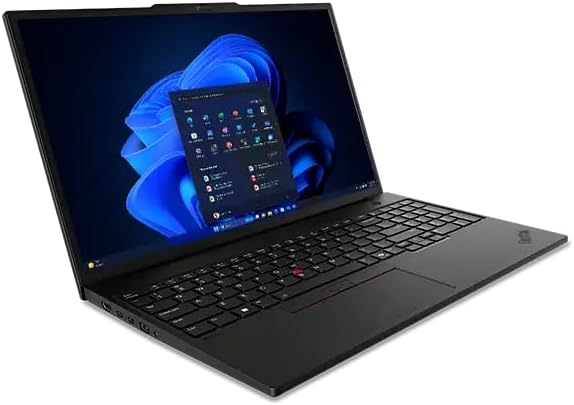
Image: The Lenovo ThinkPad P16s Gen 3 laptop displaying the Windows 11 Pro desktop environment, ready for initial configuration.
2. Connecting Peripherals
Your ThinkPad P16s Gen 3 offers various ports for connecting external devices:
- USB Ports: Connect USB devices such as mice, keyboards, or external storage drives. The laptop features multiple USB 3.0 ports.
- Display Ports: Use the available display output ports (e.g., HDMI, Thunderbolt/USB-C) to connect external monitors.
- Audio Jack: Connect headphones or external speakers to the audio jack.
- Ethernet Port: For a wired network connection, use the Ethernet port (if available on your specific model or via an adapter).

Image: Left side profile of the ThinkPad P16s Gen 3, highlighting its various input/output ports for connecting peripherals.

Image: Right side profile of the ThinkPad P16s Gen 3, displaying additional input/output ports.
Operating Instructions
Keyboard and TrackPoint/Trackpad
- Keyboard: The backlit keyboard provides comfortable typing. Use the Fn key combinations for special functions (e.g., brightness, volume, keyboard backlight).
- TrackPoint: The red TrackPoint in the center of the keyboard allows for precise cursor control. Use the associated buttons below the spacebar for left, right, and middle-click functions.
- Trackpad: The multi-touch trackpad supports gestures for navigation, scrolling, and zooming.

Image: A top-down view of the Lenovo ThinkPad P16s Gen 3, showcasing its full-sized keyboard, TrackPoint, and large trackpad.
Fingerprint Reader
The integrated fingerprint reader provides secure and convenient login. Configure your fingerprints through Windows Settings > Accounts > Sign-in options.
Display Settings
Your laptop features a 16-inch WQUXGA (3840 x 2400) OLED display. Adjust display settings such as brightness, resolution, and color profiles through Windows Display Settings. The display supports Dolby Vision and HDR 500 True Black for enhanced visual quality.

Image: The Lenovo ThinkPad P16s Gen 3 display showcasing a vibrant, high-resolution image, demonstrating its OLED panel capabilities.
Maintenance
Cleaning the Laptop
- Screen: Use a soft, lint-free cloth slightly dampened with water or a screen-cleaning solution. Avoid harsh chemicals.
- Keyboard and Chassis: Use a soft, dry cloth. For stubborn dirt, a slightly damp cloth with mild soap can be used, ensuring no liquid enters openings.
- Ventilation: Ensure ventilation openings are clear of dust and debris to prevent overheating. Use compressed air to gently clear dust from vents.
Battery Care
- Avoid extreme temperatures.
- For optimal battery longevity, avoid constantly keeping the laptop at 100% charge or letting it fully discharge frequently.
- Refer to Lenovo Vantage software for battery health management features.
Software Updates
Regularly update your operating system (Windows 11 Pro) and drivers (via Lenovo Vantage or Lenovo Support website) to ensure optimal performance, security, and compatibility.
Troubleshooting
Common Issues and Solutions
- Laptop does not power on:
- Ensure the power adapter is securely connected to both the laptop and a working power outlet.
- Try a different power outlet.
- If the battery is completely drained, allow it to charge for a few minutes before attempting to power on.
- Screen is blank or black:
- Check if the laptop is powered on (indicator lights).
- Press Fn + F7 (or the appropriate function key for display toggle) to ensure the display is not turned off.
- Connect an external monitor to check if the issue is with the laptop's internal display.
- Wi-Fi connection issues:
- Ensure Wi-Fi is enabled in Windows settings.
- Restart your router and modem.
- Update Wi-Fi drivers.
- Slow performance:
- Close unnecessary applications.
- Check for background processes consuming high resources (Task Manager).
- Ensure sufficient free storage space on the SSD.
- Run a system scan for malware.
For more complex issues, refer to the Lenovo support website or contact technical support.
Specifications
| Feature | Detail |
|---|---|
| Model | Lenovo ThinkPad P16s Gen 3 |
| Processor | Intel Core Ultra 7 155H (E-cores up to 3.80 GHz, P-cores up to 4.80 GHz) |
| Operating System | Windows 11 Pro 64 |
| Graphics Card | NVIDIA RTX 500 Ada Generation Laptop GPU 4GB GDDR6 |
| Memory (RAM) | 64 GB DDR5 (SODIMM) |
| Storage | 1 TB SSD M.2 2280 PCIe Gen4 |
| Display | 16" WQUXGA (3840 x 2400) OLED, Anti-Reflection/Anti-Smudge, Dolby Vision, Non-Touch, HDR 500 True Black, 100% DCI-P3, 400 nits, 60Hz |
| AC Adapter | 135W |
| Dimensions (H x W x D) | 21.13mm x 361.50mm x 248.60mm / 0.81” x 14.24” x 10.06” |
| Weight | Starting at 1.82kg / 4.01lbs |
| Wireless Connectivity | 802.11ax |
| USB Ports | 2x USB 3.0 (additional ports may vary by configuration) |
| Color | Black |
Warranty Information
Your Lenovo ThinkPad P16s Gen 3 comes with a 1-Year Courier or Carry-in Warranty. This warranty covers manufacturing defects and hardware failures under normal use conditions.
For detailed terms and conditions, warranty registration, or to initiate a warranty claim, please visit the official Lenovo support website or refer to the warranty documentation included with your product.
Note: Upgrades to RAM and hard drive performed by authorized service providers will not affect the manufacturer's warranty.
Support
For further assistance, technical support, driver downloads, or additional documentation, please visit the official Lenovo Support website:
You can also find contact information for Lenovo customer service and technical support in your region on the support website.


