
1. Introduction
The BuzzTV HD5 Android 11 TV Box is a high-performance streaming device designed to transform your television into a smart entertainment hub. Featuring 4GB RAM, 128GB storage, a quad-core processor, and dual-band Wi-Fi, it delivers smooth 4K streaming and responsive navigation. This manual provides essential information for setting up, operating, and maintaining your device.
2. What's in the Box
Please ensure all items are present before proceeding with the setup:
- BuzzTV HD5 Android 11 TV Box
- Voice Remote Control
- HDMI Cable
- Power Adapter
- Type-C Cable
- User Manual (this document)
3. Setup Guide
3.1 Connecting the Device
- Connect HDMI Cable: Insert one end of the HDMI cable into the HDMI port on the BuzzTV HD5 and the other end into an available HDMI input on your television.
- Connect Power Adapter: Plug the power adapter into the DC-12V port on the BuzzTV HD5 and then into a power outlet. The device will typically power on automatically.
- Connect to Network (Optional): For a wired connection, connect an Ethernet cable from your router to the LAN port on the BuzzTV HD5. For Wi-Fi, you will configure this during the initial software setup.
- Insert Batteries into Remote: Open the battery compartment on the back of the voice remote control and insert the provided batteries, ensuring correct polarity.

Image: The BuzzTV HD5 device and its accompanying remote control, showcasing their compact design.
Video: A demonstration of connecting an Android TV box to a monitor, including HDMI and power connections. Note: This video is for a related product (UGOOS AM9) and illustrates the general connection process.
3.2 Initial Software Setup
- Select TV Input: Turn on your television and select the correct HDMI input source corresponding to where your BuzzTV HD5 is connected.
- Follow On-Screen Prompts: The device will guide you through the initial setup process, which includes language selection, connecting to Wi-Fi (if not using Ethernet), and logging into your Google account (optional for basic functionality, but required for Google Play Store access).
- Remote Pairing: If your voice remote is not automatically paired, follow the on-screen instructions to pair it via Bluetooth. This usually involves holding down specific buttons on the remote.
4. Operating Your BuzzTV HD5
4.1 Remote Control Functions
The voice remote control provides intuitive navigation and control over your BuzzTV HD5. Key functions include:
- Power Button: Turns the device on/off or puts it into standby mode.
- Navigation Pad (Directional Buttons & OK): Used to move through menus and select items.
- Back Button: Returns to the previous screen or menu.
- Home Button: Returns to the main home screen.
- Voice Assistant Button: Activates the Google Assistant for voice commands.
- Volume Buttons: Adjusts the television volume.
- Customizable Buttons: Four programmable buttons on the bottom can be assigned to frequently used apps or functions.

Image: Close-up of the BuzzTV HD5 remote control, highlighting its layout and customizable buttons.
4.2 Navigating the User Interface
The BuzzTV HD5 runs on Android 11, offering a user-friendly interface. The home screen typically displays your favorite apps, recommended content, and quick access to settings. You can customize the app rows and shortcuts for personalized access.
4.3 Installing Applications
Access the Google Play Store from the home screen to download and install a wide variety of streaming apps, games, and utilities. A Google account is required for Play Store access.
Video: Demonstration of installing applications from the Google Play Store on a similar Android TV box. Note: This video is for a related product (MECOOL KM9 Pro Max) and illustrates the general process.
5. Key Features
- High-Performance Android 11: Enjoy smooth operation and access to a wide range of apps with the latest Android 11 OS.
- Powerful Quad-Core Processor: Provides fast processing speeds for seamless multitasking and responsive navigation.
- 4K Streaming Device: Watch your favorite movies and shows in stunning 4K resolution for crisp visuals and vibrant colors.
- Voice Remote Control: Navigate through menus, search for content, and control your TV box with voice commands, offering hands-free operation.
- Ample Storage: 4GB RAM and 128GB internal storage for apps, media, and recordings.
- Dual-Band Wi-Fi & BT 5: Ensures fast, stable connectivity and easy pairing with Bluetooth devices.
- Compact and Stylish Design: Sleek design that complements any entertainment setup, blending seamlessly into your living space.
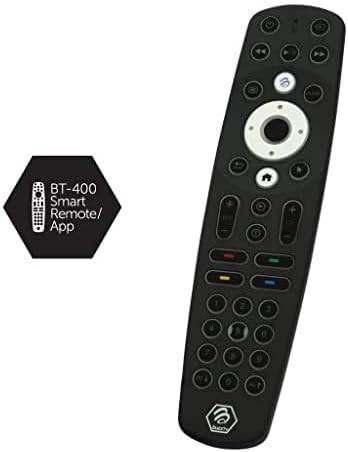
Image: The BuzzTV HD5 device with an overlay highlighting its key specifications like Android 11, 4K, 4GB RAM, and 128GB storage.
6. Maintenance
- Software Updates: Regularly check for and install system updates to ensure optimal performance and security. Navigate to Settings > Device Preferences > About > System Update.
- Cleaning: Use a soft, dry cloth to clean the device and remote. Avoid liquid cleaners or abrasive materials.
- Storage Management: Periodically review installed apps and media to free up storage space if needed.
7. Troubleshooting
| Problem | Solution |
|---|---|
| No power/device not turning on | Ensure the power adapter is securely connected to the device and a working power outlet. Try a different outlet. |
| No picture on TV | Verify the HDMI cable is securely connected to both the device and the TV. Ensure the correct HDMI input is selected on your TV. Try a different HDMI cable or port. |
| Remote control not responding | Check battery levels and replace if necessary. Re-pair the remote control with the device following the initial setup instructions. |
| Wi-Fi connection issues | Ensure your router is on and working. Re-enter the Wi-Fi password. Try moving the device closer to the router or using a wired Ethernet connection. |
8. Specifications
| Feature | Detail |
|---|---|
| Brand | BuzzTV |
| Model Name | HD5 |
| Operating System | Android 11 |
| RAM | 4GB |
| Internal Storage | 128GB |
| Processor | Quad-Core Processor |
| Resolution | 4K |
| Connectivity | Dual-Band Wi-Fi, Bluetooth 5.0, HDMI, Ethernet |
| Dimensions | 10 x 10 x 1 inches |
| Weight | 1.21 pounds |
9. Warranty and Support
For warranty information and technical support, please refer to the official BuzzTV website or contact their customer service. Keep your purchase receipt as proof of purchase.
You can find more information and support resources on the BuzzTV Amazon Store.


