
1. Introduction
This manual provides detailed instructions for the installation, operation, and maintenance of your SIXWIN Android 13 Car Stereo. This unit is designed to enhance your driving experience with advanced features such as Wireless CarPlay, Android Auto, GPS navigation, and multimedia capabilities. Please read this manual thoroughly before installation and use to ensure proper functionality and safety.
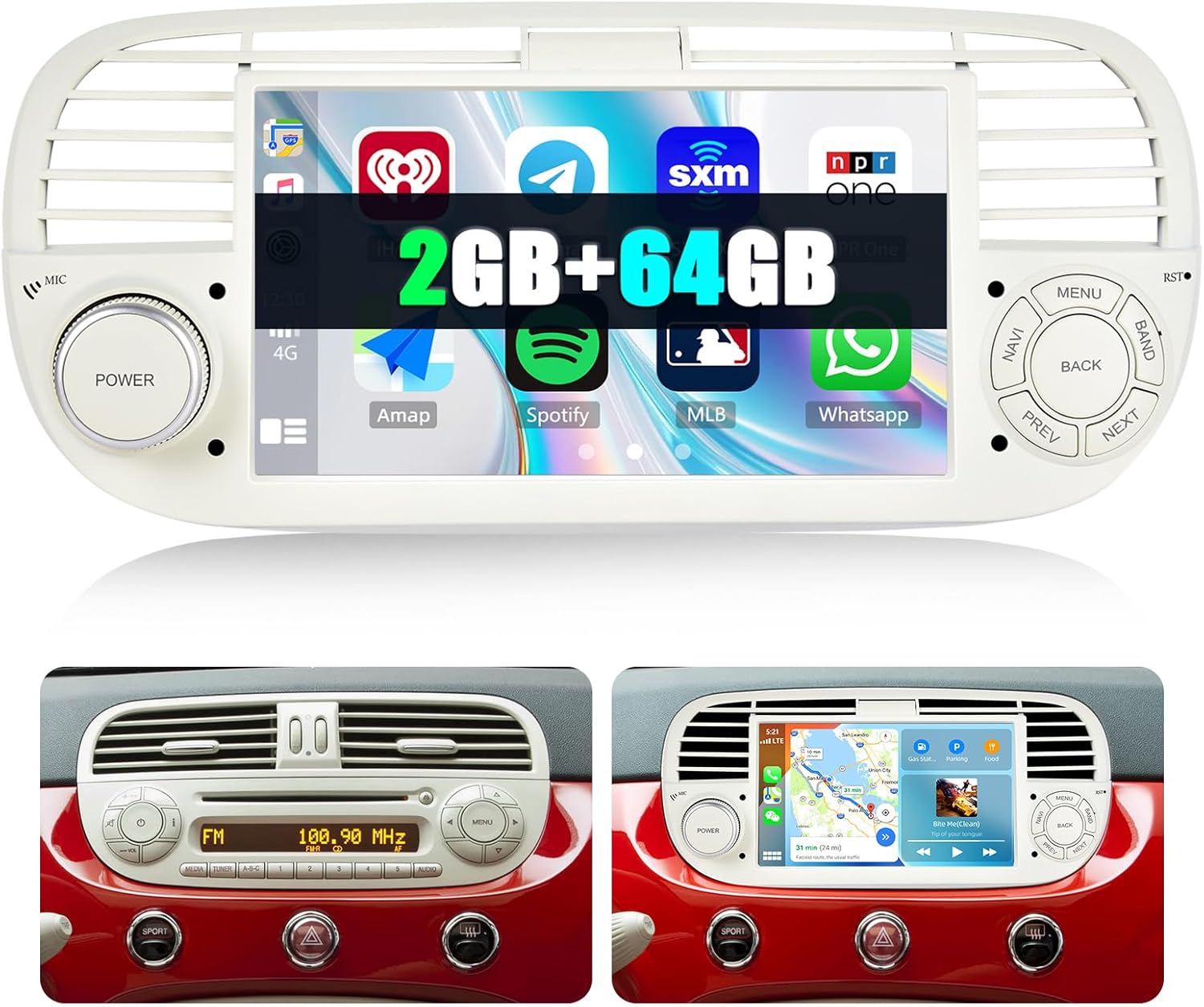
Image 1.1: SIXWIN Android 13 Car Stereo Front View
The image displays the front view of the SIXWIN Android 13 Car Stereo, highlighting its 7-inch touchscreen display. The screen shows a modern user interface with icons for various applications like radio, navigation, music streaming, and messaging. Physical buttons for power, volume, menu, navigation, and track control are visible on the white bezel surrounding the screen. The unit also features integrated air vents, designed to seamlessly fit into the Fiat 500 dashboard.
2. Compatibility
This SIXWIN Android 13 Car Stereo is specifically designed for Fiat 500 models manufactured between 2007 and 2015.
Important Compatibility Note:
Before purchasing and installing, it is crucial to confirm your original car's system configuration, year, and central control map. This step helps prevent installation incompatibility. If your vehicle's dashboard configuration matches option 'B' in the image below, this unit may not be compatible. Please consult the provided user manual or contact customer support for recommendations if you are unsure.

Image 2.1: Dashboard Compatibility Check
The image illustrates two types of Fiat 500 dashboards. Option 'A' (left) shows a dashboard with a standard radio unit, indicating compatibility with the SIXWIN car stereo. Option 'B' (right) displays a dashboard with a factory-integrated multimedia screen, which is incompatible with this product. Users should verify their vehicle's dashboard configuration against these examples.
3. Package Contents
Please verify that all the following items are included in your package:
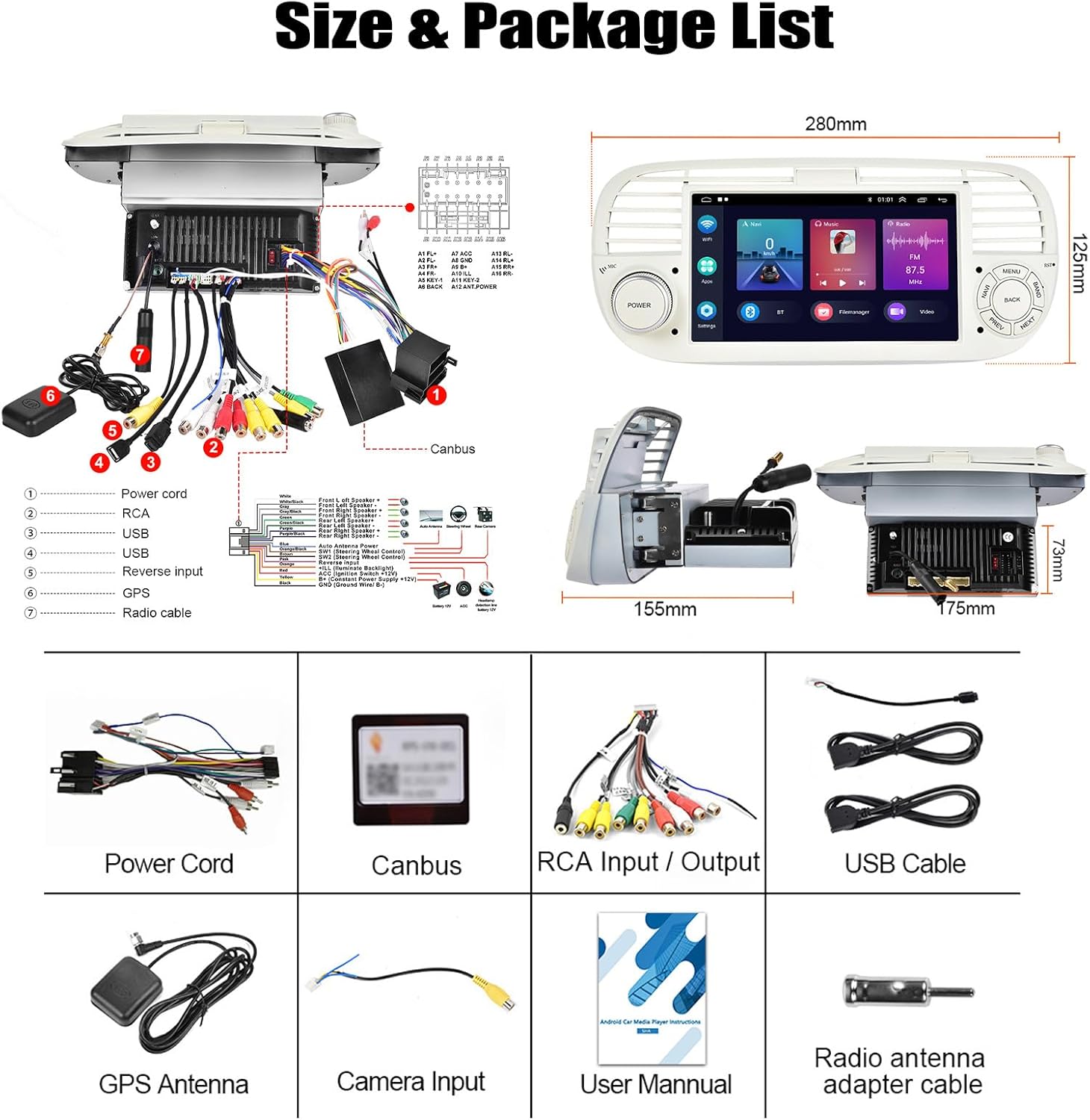
Image 3.1: Package List and Dimensions
The image provides a visual representation of the car stereo's dimensions (280mm width, 125mm height, 79mm depth for the main unit) and a detailed list of included accessories. These accessories are essential for installation and include the Power Cord, Canbus decoder, RCA Input/Output cables, USB Cable, GPS Antenna, Camera Input cable, the User Manual, and a Radio antenna adapter cable. A wiring diagram is also shown, illustrating the various connections for power, USB, RCA, and GPS.
- Power Cord
- Canbus Decoder
- RCA Input / Output Cables
- USB Cable
- GPS Antenna
- Camera Input Cable
- User Manual
- Radio Antenna Adapter Cable
4. Setup and Installation
Installation of the car stereo requires careful attention to wiring and dashboard integration. It is recommended that installation be performed by a qualified professional.

Image 4.1: Before and After Installation
This image provides a visual comparison of the Fiat 500 dashboard before and after the installation of the SIXWIN Android 13 Car Stereo. The 'Before Installation' panel shows the original factory radio, while the 'After Installation' panel displays the new 7-inch multimedia unit seamlessly integrated into the dashboard, demonstrating a clean and modern upgrade.
4.1 General Installation Steps:
- Preparation: Disconnect the vehicle's battery to prevent electrical shorts.
- Remove Original Unit: Carefully remove the existing car stereo and dashboard trim.
- Wiring Connections: Connect the provided power cord, RCA cables, USB cables, GPS antenna, and camera input cable to the corresponding ports on the new head unit and the vehicle's wiring harness. Ensure the Canbus decoder is correctly connected to enable steering wheel controls and other vehicle data integration. Refer to the detailed wiring diagram in the included user manual for specific connections.
- Test Functionality: Before fully reassembling the dashboard, temporarily connect the battery and test the stereo's basic functions (power, audio, touchscreen, steering wheel controls).
- Secure Unit: Mount the new car stereo securely into the dashboard opening.
- Reassemble: Reinstall all dashboard trim pieces.
- Final Check: Reconnect the battery and perform a comprehensive test of all features.
Caution:
Incorrect wiring can damage the unit or the vehicle's electrical system. If you are not confident in performing the installation, seek professional assistance.
5. Operating Instructions
5.1 Wireless CarPlay & Android Auto
Connect your smartphone wirelessly to access CarPlay (for iOS) or Android Auto (for Android devices). This feature allows for voice control, GPS navigation, music playback, phone calls, and other compatible applications directly from the car stereo display.

Image 5.1: Wireless CarPlay & Android Auto Interface
This image displays the user interfaces for both Wireless CarPlay and Android Auto on the car stereo screen. The CarPlay interface shows familiar iOS app icons, while the Android Auto interface presents a clean layout optimized for driving. Below the main screen, a smartphone is shown with the respective CarPlay and Android Auto connection icons, indicating successful wireless pairing.
5.2 Mirror Link Function
The Mirror Link function allows you to display your smartphone's screen directly onto the car stereo. For iOS devices, this typically uses Wi-Fi. For Android devices, both USB and Wi-Fi connections are supported.
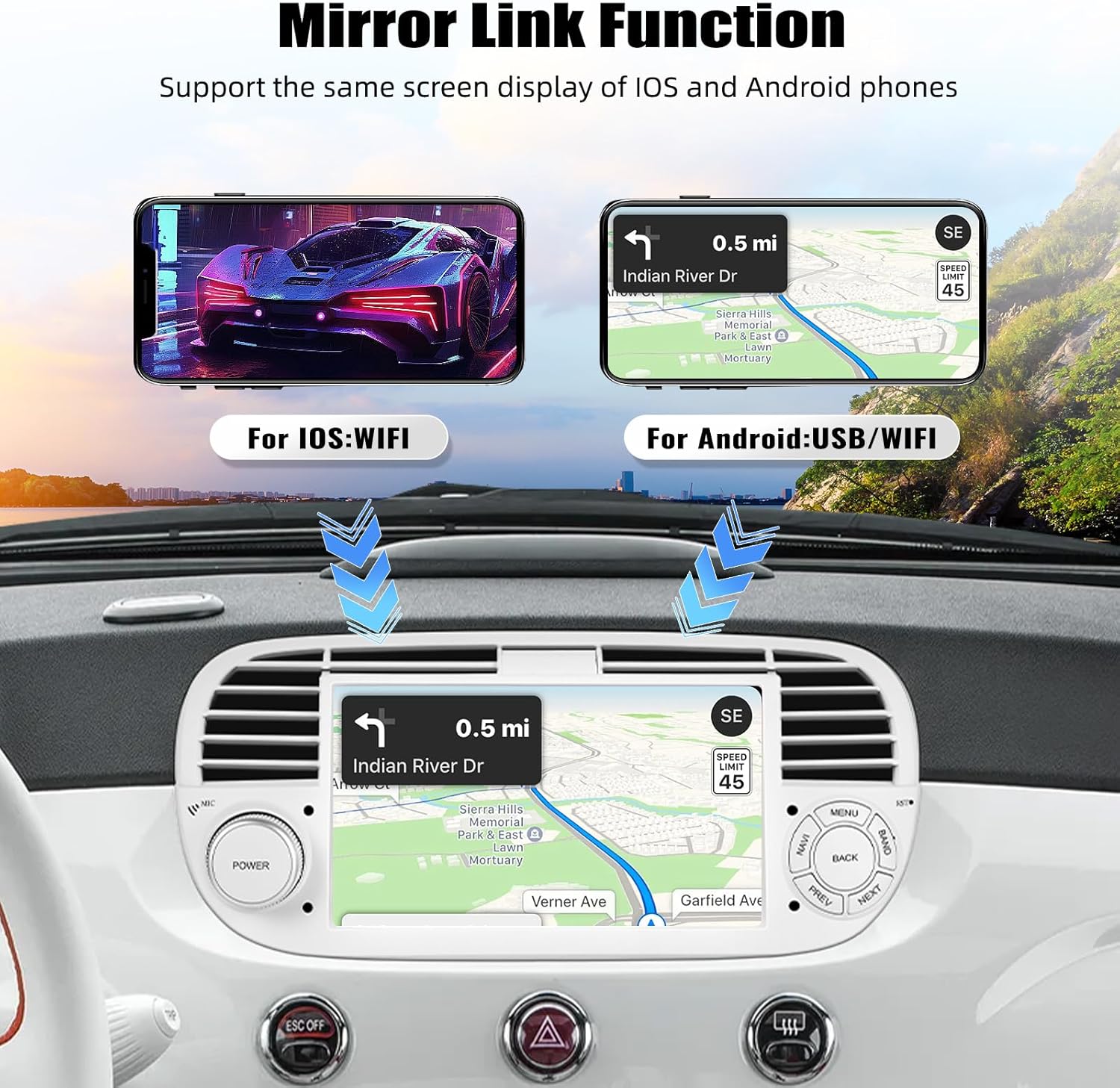
Image 5.2: Mirror Link Functionality
The image illustrates the Mirror Link function, showing a smartphone screen (one for iOS, one for Android) being duplicated onto the car stereo's display. This feature allows users to view their phone's content, such as navigation or media, on the larger car stereo screen.
5.3 Audio Equalizer (EQ)
The unit features a built-in 16-band equalizer, allowing you to customize the audio output to your preference. Select from various sound styles such as Flat, Rock, Pop, Jazz, or Classic, and fine-tune individual frequency bands.
5.4 FM/RDS Radio
Access 18 preset radio stations and utilize FM (3*6) channels for reception. The built-in RDS (Radio Data System) receiver displays station information, song titles, and other relevant data where available.
5.5 Built-in Bluetooth 4.2
Connect your smartphone via Bluetooth 4.2 for hands-free calling, automatic phone book loading, and wireless music playback.

Image 5.3: Audio, Radio, and Bluetooth Features
This image combines three key features: the 16-band equalizer interface for sound customization, the FM/RDS radio display showing station frequencies and presets, and the Bluetooth connection screen, illustrating hands-free calling and music playback options.
5.6 Built-in GPS Navigation
The unit comes with a pre-installed map for your country and supports other online navigation applications. Enjoy safe and convenient navigation to your destination.
5.7 WiFi Connection
Connect to a Wi-Fi network to access the internet, enjoy online entertainment, and download additional applications such as YouTube, Facebook, and TikTok.
5.8 Reversing Function Support
The car stereo supports an external AHD rear view camera (optional accessory) to provide a clear picture for safe reversing at any time.

Image 5.4: Navigation, Connectivity, and Reversing Features
This image illustrates the built-in GPS navigation interface, showing a map with route information. It also displays the WiFi connection screen, indicating internet access and app download capabilities. Additionally, a diagram demonstrates the reversing function with an optional external AHD rear view camera, showing the camera unit and a simulated view of the car's rear with guide lines.
6. Specifications
- Operating System: Android 13
- Memory: 2GB RAM + 64GB Internal Storage
- Screen Size: 7 Inches
- Connections: USB, Wi-Fi, Bluetooth, Wireless CarPlay & Android Auto
- Special Features: Built-in GPS Navigation, Built-in Bluetooth, Built-in Wi-Fi, 16-Band EQ
- Compatible Devices: Smartphone, Tablet
- Audio Output Mode: Stereo
- Surround Sound Channel Configuration: 4.0
- Color: White
7. Optional Accessories
The car stereo is compatible with various optional accessories that can enhance its functionality and your driving experience. These accessories are sold separately.

Image 7.1: Optional Accessories
This image displays several optional accessories that can be connected to the SIXWIN car stereo. These include a Back up Camera for enhanced reversing safety, an OBD Scanner for vehicle diagnostics, Video Output devices for connecting external screens, a DVR (Digital Video Recorder) for dashcam functionality, a DAB (Digital Audio Broadcasting) module for digital radio, and a Carplay Dongle (though the unit already supports wireless CarPlay, this might be for specific wired needs or older models).
- Back up Camera
- OBD Scanner
- Video Output Devices
- DVR (Digital Video Recorder)
- DAB (Digital Audio Broadcasting) Module
- CarPlay Dongle
8. Troubleshooting
If you encounter issues with your car stereo, please refer to the following common troubleshooting steps:
- No Power / Unit Does Not Turn On:
- Check all power connections to ensure they are secure and correctly wired.
- Verify the vehicle's fuse for the stereo is intact.
- Ensure the vehicle's battery is properly connected and charged.
- Touchscreen Not Responding Correctly:
- Perform a soft reset of the unit (refer to the full user manual for instructions).
- Ensure the screen is clean and free from debris or moisture.
- Compatibility Issues (e.g., Odometer Flickering, Warning Lights, Steering Wheel Controls Not Working):
- This often indicates an incorrect Canbus setting. For Fiat 500 models, try setting the Canbus to SIMPLE / FIAT DOBLO (instead of HiWorld) in the system settings.
- Within the 'Car Info' app, navigate to Settings and select the appropriate model (e.g., 'Model 3' has been reported to work for some Fiat 500 users).
- After changing Canbus settings, turn the ignition off and then back on to apply changes.
- Ensure your vehicle's dashboard configuration matches the compatible 'A' option as described in the Compatibility section.
- Poor Performance (Slow CPU, Low Memory):
- Disable graphic effects in the system settings to improve responsiveness.
- Close unnecessary background applications.
- Display Visibility Issues (e.g., Scarcity under sunlight):
- Adjust screen brightness settings.
- Consider using a screen protector with anti-glare properties.
- Audio Quality Issues (Low Power, Minimal Equalizer):
- Utilize the built-in 16-band EQ to fine-tune sound.
- Ensure speaker connections are secure.
For more detailed troubleshooting or issues not covered here, please refer to the comprehensive user manual included with your product or contact customer support.
9. Maintenance
To ensure the longevity and optimal performance of your SIXWIN Android 13 Car Stereo, follow these maintenance guidelines:
- Cleaning: Use a soft, dry cloth to clean the screen and exterior surfaces. For stubborn smudges, lightly dampen the cloth with water or a screen-safe cleaner. Avoid abrasive materials or harsh chemicals.
- Software Updates: Periodically check for available software updates through the unit's settings or the manufacturer's website. Keeping the software updated can improve performance and add new features.
- Environmental Conditions: Avoid exposing the unit to extreme temperatures, direct sunlight for prolonged periods, or excessive moisture.
- Cable Connections: Periodically check that all cables are securely connected to prevent intermittent issues.
10. Warranty and Support
10.1 Manufacturer's Warranty
This SIXWIN Android 13 Car Stereo comes with a 1-year manufacturer's warranty from the date of purchase. This warranty covers defects in materials and workmanship under normal use. Please retain your proof of purchase for warranty claims.
10.2 Customer Support
For any questions, technical assistance, or warranty inquiries, please contact SIXWIN customer support:
Email: sum6987778@163.com

Image 10.1: Customer Support Information
The image shows a customer service representative with a headset, symbolizing support availability. The accompanying text indicates 24-hour service and provides the email address `sum6987778@163.com` for customer inquiries and support.

