
1. Introduction
Thank you for choosing the R.W.FLAME 2K HD Outdoor Floodlight Security Camera. This manual provides essential information for the proper installation, operation, and maintenance of your device. Please read it thoroughly before use and retain it for future reference.
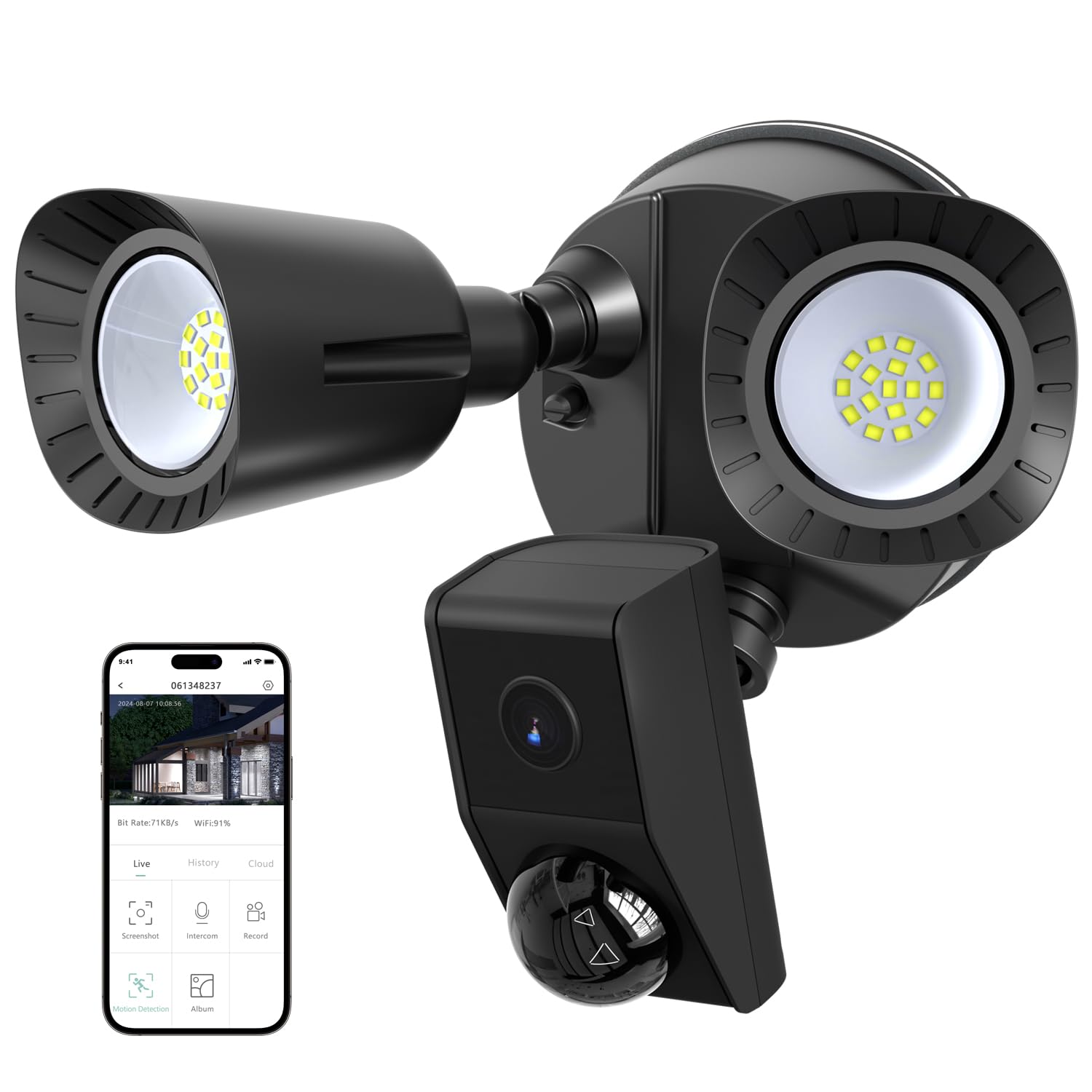
Image: The R.W.FLAME 2K HD Outdoor Floodlight Security Camera, showcasing its dual floodlights and integrated camera unit.
2. Key Features
- 2K HD Video Quality: Equipped with a 1/2.9'' CMOS sensor, delivering sharp images with 2304 (H) × 1296 (V) effective pixels.
- Powerful Floodlight: 22W light with a maximum 5W camera, offering up to 1650lm of adjustable 5700K lighting.
- PIR Motion Detection: Detects motion up to 32.8 feet (10 meters) with a 120° detection angle, supporting manual, motion, and scheduled control options.
- Two-Way Audio & Siren: Built-in microphone for seamless audio monitoring and a 110dB alarm volume for deterrence.
- HD Night Vision: Automatic day/night switching with a 32.8 feet (10 meters) infrared range for clear monitoring in various lighting conditions.
- Weatherproof Design: IP65 protection rating, built to withstand temperatures from -20°C to 50°C.
- Flexible Storage: Supports SD card (up to 256GB), cloud storage, and NVR compatibility.
- Wireless Connectivity: Connects via 2.4GHz Wi-Fi (IEEE802.11b/g/n/ax) and is compatible with iOS 9+ and Android 5.0+ via the CloudEdge app.

Image: Visual representation of the floodlight camera's key specifications and features.
3. Package Contents
Please check the package for the following items:
- R.W.FLAME Floodlight Camera
- Mounting Hardware
- User Manual
4. Specifications
| Brand | R.W.FLAME |
| Model Number | 2870-CAM |
| Indoor/Outdoor Usage | Outdoor |
| Power Source | Corded Electric (AC 100V-240V) |
| Mounting Type | Wall Mount or Pole Mount |
| Color | BLACK |
| Enclosure Material | Aluminum |
| Light Source | LED |
| Control Method | App (CloudEdge) |
| Voltage | 110 Volts |
| Wattage | 22 watts |
| Item Dimensions | 19.3 x 21.3 x 24.5 inches |
| Waterproof Rating | IP65 |
| Wi-Fi Frequency | 2.4GHz (Does not support 5G Wi-Fi) |
5. Setup and Installation
5.1 Physical Installation
The R.W.FLAME Floodlight Camera is designed for outdoor use and can be wall-mounted or pole-mounted. Ensure the installation location provides a clear view of the area you wish to monitor and has access to a power source (AC 100V-240V).
- Choose Location: Select a suitable outdoor location that offers optimal coverage and a strong Wi-Fi signal. Avoid directing the camera lens directly towards the sun or highly reflective surfaces to prevent glare.
- Mounting: Use the provided mounting hardware to securely attach the floodlight camera to a wall or pole. Ensure all connections are tight and weather-sealed.
- Power Connection: Connect the camera to a compatible power source.

Image: Illustration of the easy installation process for the floodlight camera.
5.2 App Connection and Configuration
To fully utilize your floodlight camera, you need to connect it to the CloudEdge app. The app is available for both iOS and Android devices.
- Download the App: Search for "CloudEdge" in your device's App Store (iOS) or Google Play Store (Android), or scan the QR code provided in the product packaging.
- Power On & Reset: Turn on the main power switch of the camera. If necessary, use a small tool to press the restart button for 4-5 seconds until the indicator light flashes red.
- Add Device: Open the CloudEdge app, tap 'Add Device', and select 'Floodlight Camera'.
- Wi-Fi Setup: Select your 2.4GHz Wi-Fi network and enter the password. Note: The device does not work with 5G Wi-Fi networks.
- Scan QR Code: Hold your phone with the generated QR code about 6-8 inches away from the camera lens. A tone will be heard when successfully scanned.
- Connect Network: The app will then connect to the device. The indicator light will turn blue and flash during the connection process.
- Completion: Once connected, you can name your device and complete the setup.
Video: A detailed guide on how to connect the R.W.FLAME Floodlight Camera to the CloudEdge app, including initial setup and network configuration.
6. Operation
6.1 Live View and Controls
From the CloudEdge app, you can access the live feed from your camera and control various functions:
- Adjust Brightness: Control the intensity of the floodlight from low to high.
- Activate Siren: Manually trigger the 110dB siren to deter intruders.
- Two-Way Audio: Use the 'Hold to talk' function to communicate through the camera's built-in speaker and microphone.

Image: App interface demonstrating light adjustment, IP65 weather resistance, and noise detection features.
6.2 Motion Detection and Alerts
The camera features PIR human detection and can send alerts to your phone.
- Motion Detection: Configure detection sensitivity (Low, Medium, High) in the app's Alarm Management settings.
- Humane Detection: Enable this feature to specifically detect human shapes, reducing false alarms.
- Alert Notifications: Receive instant notifications on your smartphone when motion is detected.
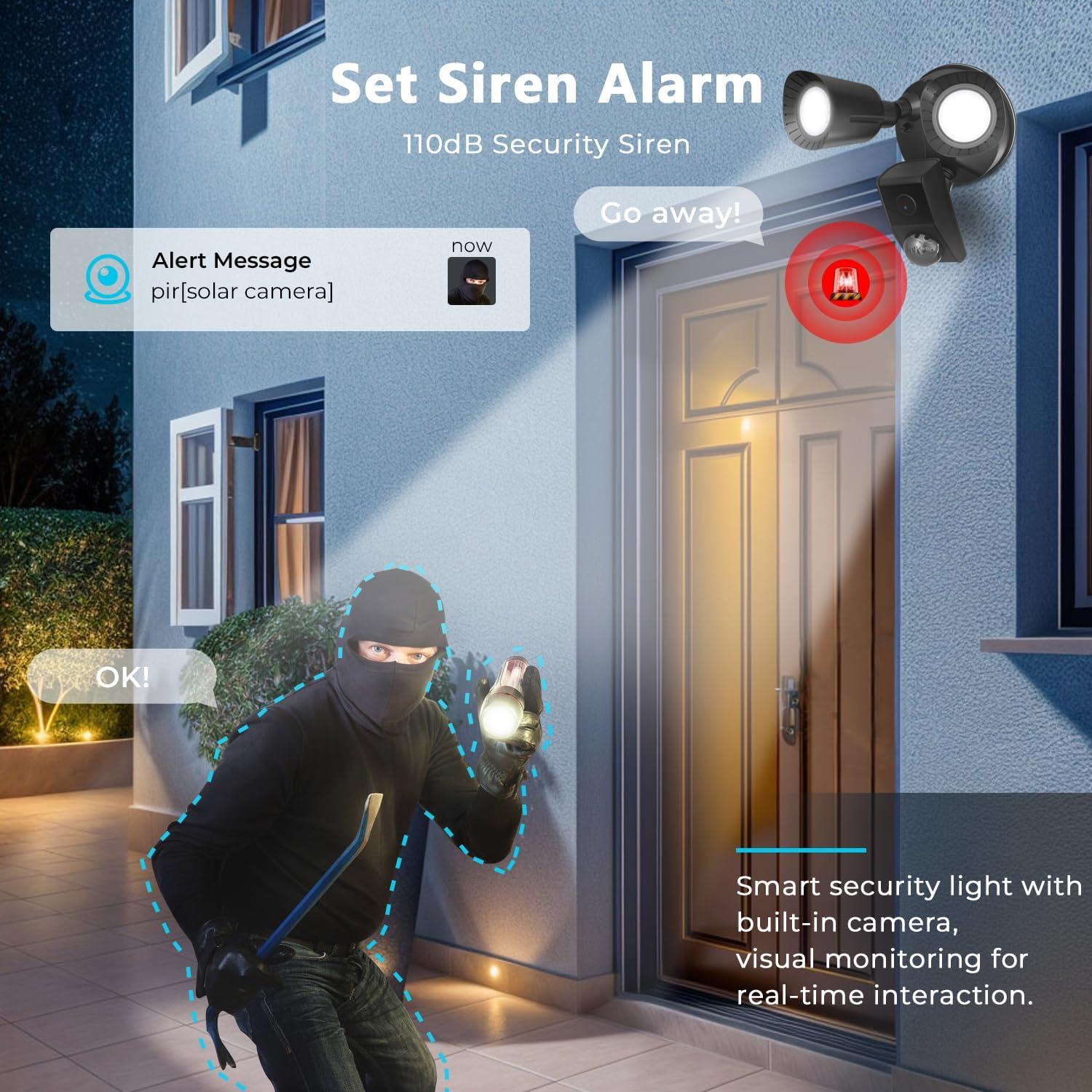
Image: The camera's siren alarm and alert message feature in action, deterring a potential intruder.
6.3 Night Vision
The camera automatically switches between day and night modes to provide clear surveillance 24/7.
- Automatic Switching: The camera uses an infrared cut filter to automatically adjust based on ambient light.
- Infrared Range: Provides clear black and white video up to 32.8 feet (10 meters) in low-light conditions.
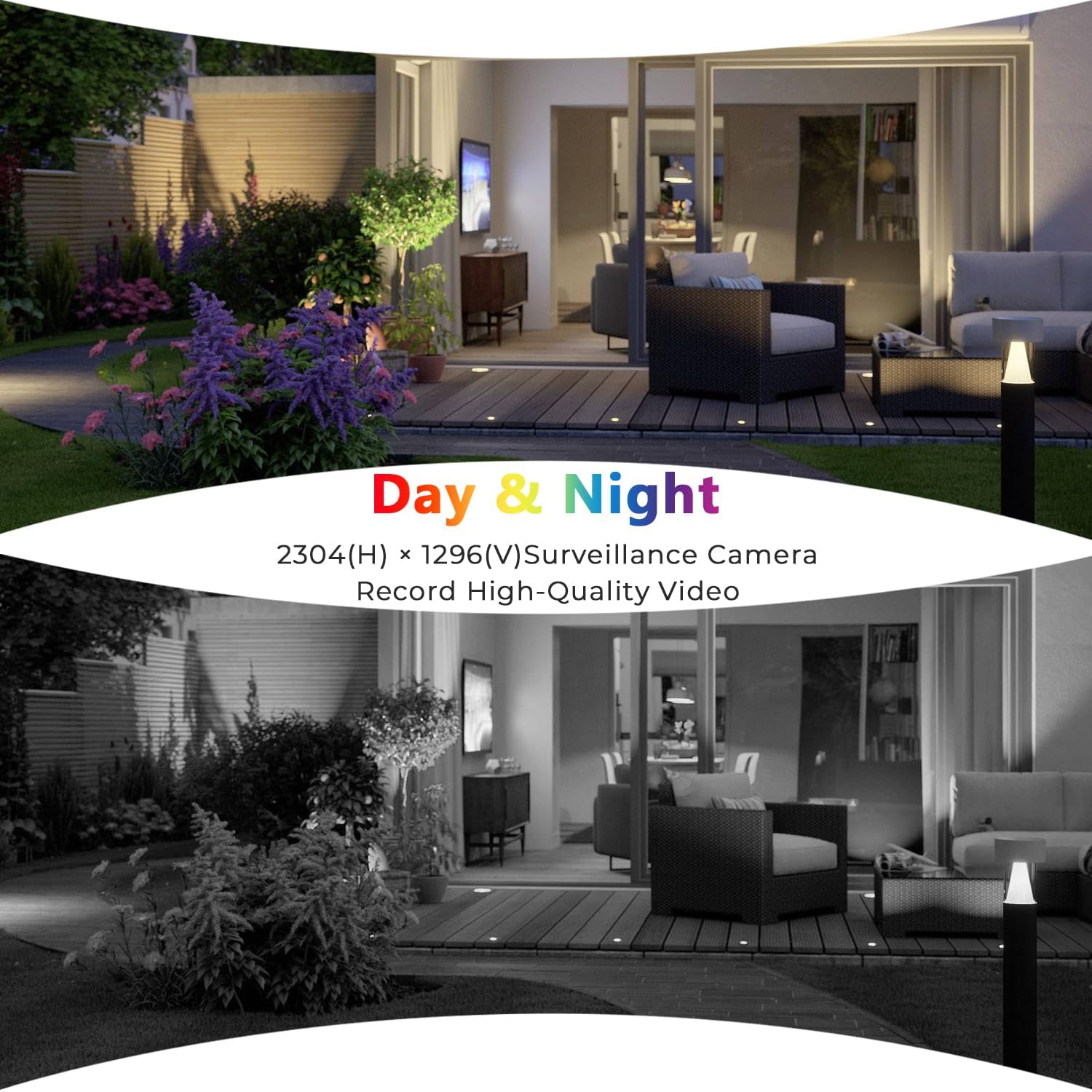
Image: Comparison of day and night vision capabilities of the camera, showing clear 2K resolution in both modes.
6.4 Light Schedule
You can set a schedule for the floodlight to turn on and off automatically via the app.
- Custom Schedule: Configure specific times for the light to activate and deactivate.
- Motion Activated Light: Set the light to turn on for a specified duration (e.g., 20s, 40s, 60s) when motion is detected.
6.5 Storage Options
Your camera supports multiple recording and storage methods:
- SD Card Storage: Insert a microSD card (up to 256GB) for local storage of recordings.
- Cloud Storage: Subscribe to cloud storage services for secure, remote backup of your video footage.
- NVR Compatibility: The camera is compatible with Network Video Recorders for expanded storage and integration into existing security systems.

Image: The camera's SD card slot and indicators for cloud and local storage capabilities.
6.6 Device Sharing
You can share access to your camera with family members or trusted individuals through the CloudEdge app.
- Family Management: Add users to your family group within the app.
- Share Access: Grant specific permissions to shared users, allowing them to view live feeds, receive alerts, or access recordings.
7. Maintenance
- Regular Cleaning: Periodically clean the camera lens and floodlight covers with a soft, damp cloth to ensure optimal performance and clear image quality.
- Firmware Updates: Check the CloudEdge app regularly for firmware updates to ensure your device has the latest features and security enhancements.
- Wi-Fi Signal Strength: Monitor your Wi-Fi signal strength in the app to ensure a stable connection for reliable operation.
- Storage Management: Regularly review and manage your recorded footage on the SD card or cloud storage to prevent storage overflow.
8. Troubleshooting
- Camera Not Connecting to Wi-Fi: Ensure your Wi-Fi network is 2.4GHz. Verify the Wi-Fi password is correct. Check the camera's distance from the router and consider signal strength.
- No Motion Detection Alerts: Check the motion detection settings in the app (sensitivity, humanoid detection). Ensure notifications are enabled for the app on your smartphone.
- Poor Image Quality: Clean the camera lens. Ensure there are no obstructions. Check for strong light sources directly facing the camera.
- Siren Not Activating: Verify the siren settings in the app. Ensure the camera has power.
- Two-Way Audio Issues: Check your phone's microphone and speaker settings. Ensure the camera's microphone is not obstructed.
9. Warranty and Support
Your R.W.FLAME Floodlight Security Camera comes with a manufacturer's warranty. For specific warranty details, please refer to the product documentation or contact R.W.FLAME customer support.
For technical assistance, troubleshooting, or further inquiries, please visit the R.W.FLAME official website or contact their customer service team. Contact information can typically be found on the product packaging or the brand's Amazon store page.
Online Resources:
- R.W.FLAME Store: Visit Store