
Product Overview
The Q02 Auto Tracking Gimbal is an innovative device designed to enhance your smartphone videography. It offers 360-degree rotation and advanced AI face tracking, ensuring you capture smooth, professional-quality footage effortlessly. Its compact and portable design makes it ideal for various scenarios, from documenting family events to creating engaging content for social media.
Key features include:
- Immersive 360° Video: Capture stunning panoramic footage.
- Seamless Integration: Easily attaches to your iPhone for hands-free filming.
- Stabilization Technology: Ensures smooth and steady footage.
- Compact and Portable: Lightweight design for on-the-go use.
- Versatile Compatibility: Designed for iPhone X/XS/XS Max/XR models.
Key Features and Components
AI Recognition and Tracking
The Q02 gimbal utilizes advanced AI recognition for smoother and more precise tracking. It can automatically follow your face or body, keeping you in the frame as you move.
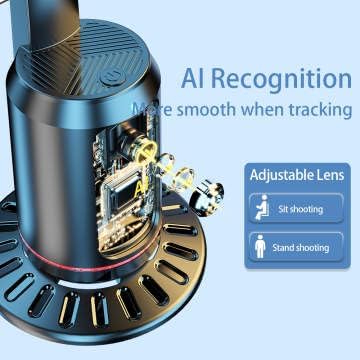
Image: Detail of the Q02 gimbal's base, highlighting its AI recognition capabilities for smooth tracking and the adjustable lens feature for both sitting and standing shooting positions.
360° Rotation and Auto Following
Experience full 360-degree rotation with quick response and automatic following, ensuring no moment is missed. The gimbal keeps the camera centered on the subject.

Image: The Q02 gimbal demonstrating its 360-degree tracking capability, emphasizing smooth and steady auto-following.
AI Gesture Control
Control the gimbal's tracking functions using simple hand gestures. This allows for convenient pause, start, and other functions without needing to touch your phone.

Image: Visual guide to AI gesture controls, illustrating how to use hand signals to control the Q02 gimbal's tracking features.
Setup Guide
Unboxing and Initial Inspection
Carefully remove all components from the packaging. Verify that all parts are present and undamaged. The package should include the Q02 gimbal unit and its detachable base.
Attaching Your Smartphone
Gently expand the phone clamp on the Q02 gimbal and insert your smartphone. Ensure the phone is securely seated and balanced in the clamp. The gimbal is compatible with iPhone X/XS/XS Max/XR models.

Image: The Q02 gimbal with a smartphone attached, ready for use, demonstrating the face tracking feature.
Powering On and Charging
To power on the device, press and hold the power button located on the unit. For charging, connect the provided Type-C cable to the charging port. A red light will indicate that the device is charging.
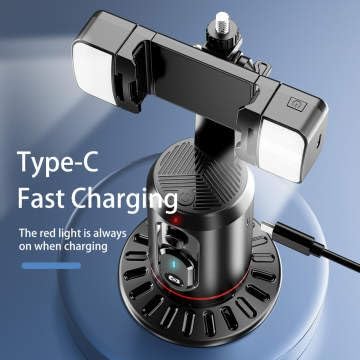
Image: The Q02 gimbal connected via its Type-C port for fast charging, with the charging indicator light visible.
Detachable Base and Tripod Compatibility
The Q02 features a detachable base, allowing it to be paired with a standard tripod for increased stability and versatility. To remove the base, twist and pull. To install on a tripod, screw the gimbal directly onto the tripod's mounting screw.

Image: Instructions for detaching the base and mounting the Q02 gimbal onto a tripod for enhanced stability.
Operating Instructions
Activating Face Tracking
Once your smartphone is mounted and the gimbal is powered on, the AI face tracking feature will automatically activate. Position yourself in front of the camera, and the gimbal will begin to follow your movements.
Using Gesture Controls
The Q02 supports AI gesture control for convenient operation:
- "OK" Gesture: Use this gesture to start tracking.
- Open Palm Gesture: Use this gesture to pause tracking.
- Thumbs Up / Circle Gesture: This gesture can activate specific functions (refer to your smartphone's camera app settings for compatibility).
Adjusting Shooting Angle
The gimbal's lens is adjustable to accommodate different shooting scenarios, such as sitting or standing. Manually adjust the angle of the phone holder as needed.
Maintenance and Care
- Cleaning: Use a soft, dry cloth to clean the surface of the gimbal. Avoid using harsh chemicals or abrasive materials.
- Storage: Store the gimbal in a cool, dry place away from direct sunlight and extreme temperatures.
- Battery Care: To prolong battery life, avoid fully discharging the battery frequently. Charge the device regularly, even if not in use for extended periods.
- Handling: Handle the gimbal with care. Avoid dropping or subjecting it to strong impacts, which can damage internal components.
Troubleshooting
Gimbal Not Powering On
- Ensure the battery is charged. Connect the Type-C charging cable and allow it to charge for at least 30 minutes before attempting to power on again.
- Press and hold the power button for a few seconds to ensure it's not just a short press.
Tracking Is Not Smooth or Responsive
- Ensure adequate lighting in the environment. Poor lighting can affect AI recognition.
- Make sure there are no obstructions between the gimbal's camera and the subject.
- Ensure your smartphone is securely mounted and balanced.
- Check for any firmware updates for the gimbal (if applicable, refer to manufacturer's website).
Phone Not Fitting in Clamp
- Verify your smartphone model is compatible (iPhone X/XS/XS Max/XR).
- Ensure no bulky phone cases are preventing proper fit.
Gesture Controls Not Working
- Perform gestures clearly and within the camera's field of view.
- Ensure sufficient lighting.
- Check if your smartphone's camera app settings interfere with gesture recognition.
Product Specifications
| Feature | Detail |
|---|---|
| Brand | Generic |
| Model | Q02 |
| Color | Teal/white |
| Compatible Devices | Cellphone, Smartphone (specifically iPhone X/XS/XS Max/XR) |
| Item Weight | 12.3 ounces |
| Package Dimensions | 8.07 x 3.94 x 3.94 inches |
| Folded Size | 10 inches (l) x 2 inches (w) x 2 inches (h) |
| Manufacturer | Shenzhen Quanhuazhi Electronics Co., Ltd. |
| Country of Origin | China |
| ASIN | B0D9FZMXRQ |
Warranty and Support
For specific warranty information and support, please refer to the documentation included with your purchase or contact the manufacturer directly. General product support may be available through the manufacturer's official website.


