
Introduction
Thank you for choosing the HP Series 5 527sf Monitor. This manual provides essential information for the safe and efficient use of your new display. Please read this manual thoroughly before operating the monitor and retain it for future reference.
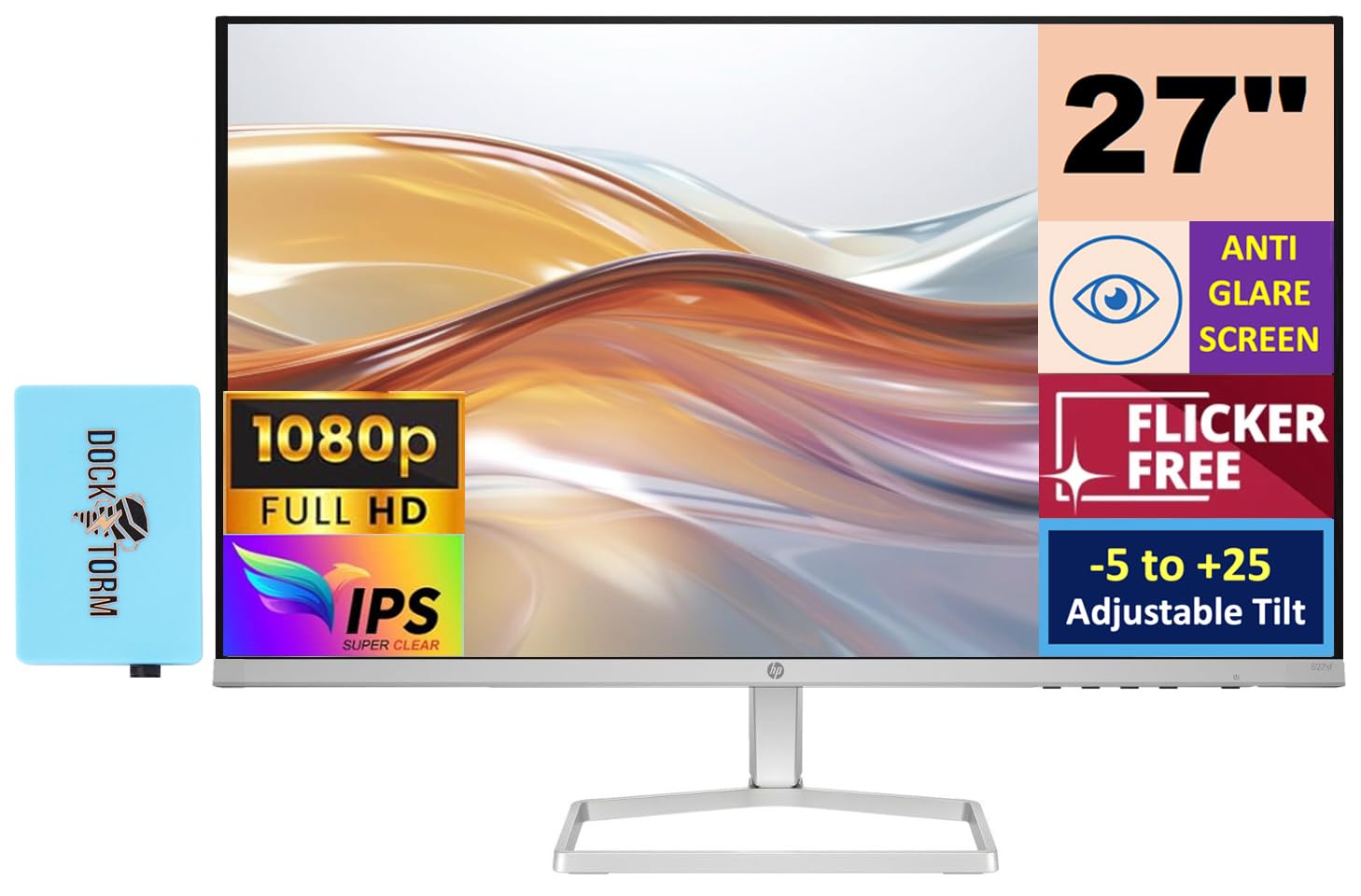
Figure 1: Front view of the HP Series 5 527sf Monitor.
Safety Information
To ensure safe operation and prevent damage, observe the following safety precautions:
- Do not expose the monitor to rain or moisture.
- Do not block ventilation openings.
- Use only the power adapter supplied with the monitor.
- Avoid placing the monitor on an unstable surface.
- Disconnect the power cable during lightning storms or when unused for long periods.
- Refer all servicing to qualified service personnel.
What's in the Box
Verify that all items are present upon unpacking:
- HP Series 5 527sf Monitor
- Monitor Stand (Base and Neck)
- Power Adapter and AC Power Cord
- HDMI Cable
- Quick Setup Guide / Document Kit
- Docztorm Dock (Special Edition Portable Docztorm Data Hub)

Figure 2: Included Docztorm Portable USB Hub.
Setup
1. Assembling the Monitor Stand
- Carefully remove the monitor and stand components from the packaging.
- Attach the stand neck to the monitor panel. Ensure it clicks securely into place.
- Attach the stand base to the stand neck. Tighten any screws if provided.
2. Connecting Cables
The HP Series 5 527sf Monitor offers multiple connectivity options. Refer to the rear view of the monitor for port locations.

Figure 3: Rear view with power, VGA, and HDMI ports.
- Power Connection: Connect the power adapter to the monitor's power input, then plug the AC power cord into a wall outlet.
- HDMI Connection: Use the provided HDMI cable to connect your computer's HDMI output to one of the monitor's HDMI ports (HDMI 1 or HDMI 2).
- VGA Connection: If your computer uses VGA, connect a VGA cable from your computer's VGA output to the monitor's VGA port.
3. Initial Power-On
- Press the power button on the monitor.
- Turn on your computer. The monitor should automatically detect the input signal.
- If no image appears, ensure cables are securely connected and select the correct input source using the monitor's OSD (On-Screen Display) menu.
Operating the Monitor
Monitor Controls
The monitor controls are typically located on the bottom right bezel or rear of the monitor. These buttons allow you to navigate the On-Screen Display (OSD) menu to adjust various settings.
Adjusting Display Settings
Use the OSD menu to customize your viewing experience:
- Brightness/Contrast: Adjust these settings to suit your environment and preference.
- Color Settings: Select from preset color modes or manually adjust color temperature and RGB values.
- Input Selection: Manually switch between HDMI 1, HDMI 2, and VGA inputs if auto-detection fails.
- HP Eye Ease (Low-Blue Light Filter): This feature is always-on and reduces blue light emissions without impacting color accuracy, contributing to eye comfort.

Figure 4: HP Eye Ease technology for reduced blue light.
Tilt Adjustment
The monitor stand allows for tilt adjustment from -5 to +25 degrees. Gently hold the top and bottom edges of the monitor panel and tilt it to your desired viewing angle. No buttons or levers are required for this adjustment.
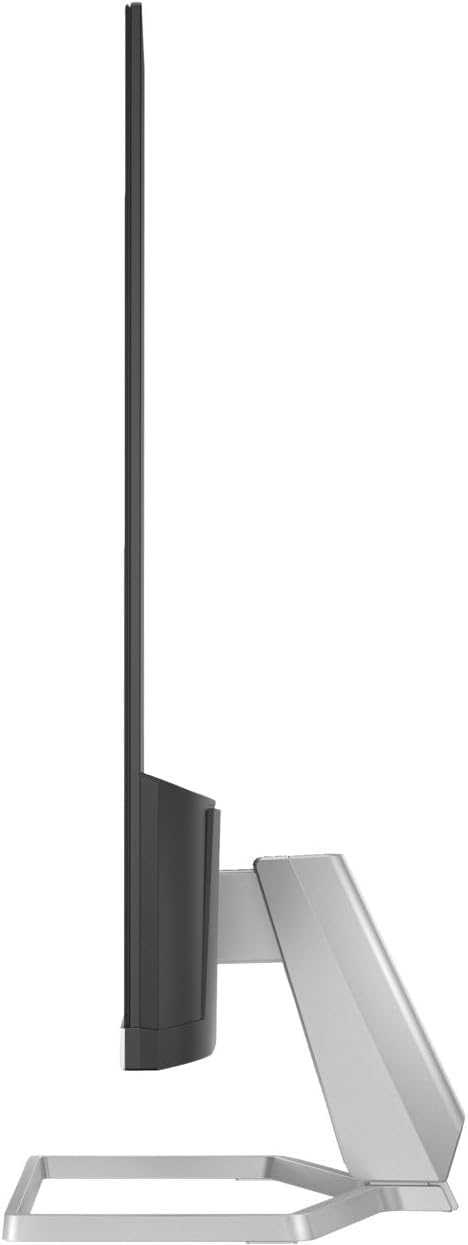
Figure 5: Side profile illustrating the monitor's tilt capability.
Maintenance
Cleaning the Monitor
- Always unplug the monitor before cleaning.
- Use a soft, lint-free cloth lightly dampened with water or a non-abrasive screen cleaner.
- Do not spray cleaner directly onto the screen.
- Avoid using harsh chemicals or abrasive materials.
General Care
- Keep the monitor away from direct sunlight and heat sources.
- Ensure adequate ventilation around the monitor.
- Do not place heavy objects on the monitor or its cables.
Troubleshooting
If you encounter issues with your monitor, try the following solutions:
| Problem | Possible Solution |
|---|---|
| No image on screen | Check power cable connection. Verify video cable is securely connected to both monitor and computer. Ensure correct input source is selected in OSD menu. |
| Flickering or unstable image | Check video cable for damage or loose connections. Ensure display resolution and refresh rate are supported by your computer's graphics card. |
| Colors appear incorrect | Adjust color settings in the OSD menu. Ensure your graphics card drivers are up to date. |
| Monitor does not turn on | Confirm power cable is plugged into a working outlet. Check power adapter connection to the monitor. |
If the problem persists after trying these steps, please contact HP customer support.
Specifications
| Feature | Detail |
|---|---|
| Brand | HP |
| Model Name | 527sf |
| Model Number | Series 5 527sf |
| Screen Size | 27 Inches |
| Resolution | FHD 1080p (1920x1080) |
| Display Type | IPS |
| Refresh Rate | 100 Hz |
| Response Time | 5 Milliseconds |
| Brightness | 300 nits |
| Contrast Ratio | 1500:1 |
| Viewing Angle | 178 Degrees |
| Connectivity | 2x HDMI 1.4, 1x VGA |
| Adaptive Sync | FreeSync |
| Additional Features | Anti-glare Screen, Flicker-Free, Tilt Adjustment (-5 to +25 degrees), HP Eye Ease (Low-Blue Light) |
| VESA Mount Support | No |
| Item Dimensions (D x W x H) | 7.4"D x 23.93"W x 17.21"H |
| Item Weight | 7.05 Pounds |
| UPC | 196384005196 |
Warranty and Support
Warranty Information
Your HP Series 5 527sf Monitor is covered by a limited warranty. Please refer to the warranty card included in your product packaging or visit the official HP website for detailed terms and conditions.
Customer Support
For technical assistance, troubleshooting, or warranty claims, please contact HP customer support through their official website or the contact information provided in your product documentation. Have your monitor's model number and serial number ready when contacting support.


