
ANFIER M3, W09
ANFIER M3 Translator Earbuds + W09 Handheld Translator User Manual
Comprehensive Guide for Optimal Use
Introduction
Welcome to the user manual for your ANFIER M3 Translator Earbuds and W09 Handheld Translator. This guide provides detailed instructions on setting up, operating, and maintaining your devices to ensure a seamless translation experience. Please read this manual thoroughly before using the products.
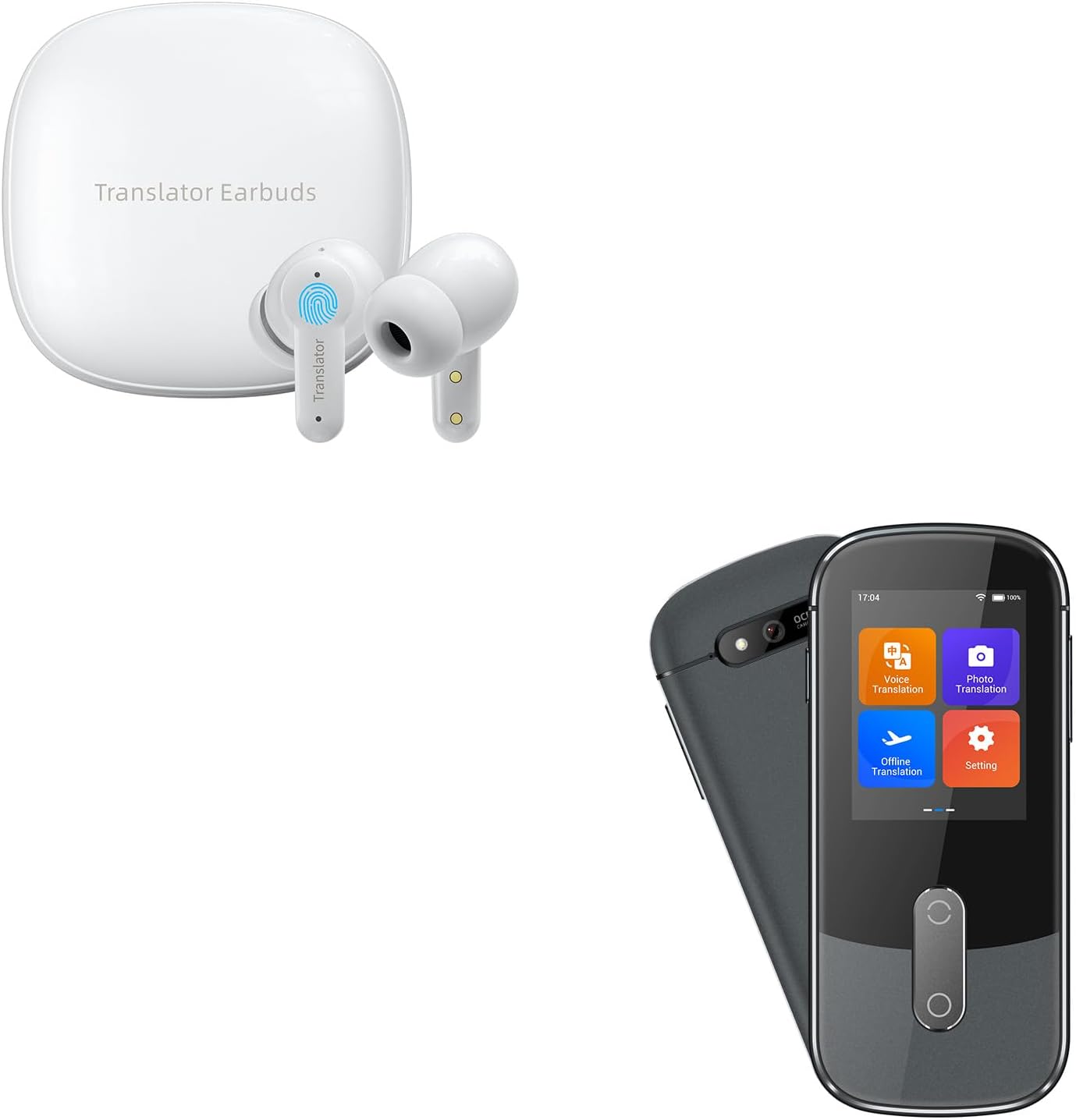
Image: The ANFIER M3 Translator Earbuds in their charging case alongside the W09 Handheld Translator.
What's in the Box
Upon unboxing, please verify that all components are present:
- M3 Translator Earbuds (Left and Right)
- Charging Case for M3 Earbuds
- W09 Handheld Translator
- USB Charging Cable
- Multiple Sizes of Ear Cushions (S, M, L)
- User Manual (This Document)
- Lanyard/Strap for W09 Handheld Translator
Setup Guide
1. Initial Charging
Before first use, fully charge both the M3 Translator Earbuds and the W09 Handheld Translator.
- M3 Earbuds: Place the earbuds into their charging case. Connect the USB charging cable to the charging case and a power source. The indicator light on the case will show charging status.
- W09 Handheld Translator: Connect the USB charging cable directly to the W09 device and a power source. The screen will indicate charging progress.
2. W09 Handheld Translator Setup
Power on the W09 Handheld Translator by pressing and holding the power button.
2.1. Network Connection
The W09 Handheld Translator requires an internet connection for most translation functions. It supports both Wi-Fi and Hotspot connections.
- From the main screen, tap on the Settings icon (gear symbol).
- Select WLAN or Hotspot.
- Choose your desired network from the list and enter the password if prompted.
- Confirm connection.

Image: The W09 Handheld Translator displaying its Wi-Fi and Hotspot connection settings.
2.2. System Language and Time Settings
Configure the device's interface language and time settings for optimal usability.
- Navigate to Settings.
- Select System language to choose your preferred interface language.
- Select Time and date to adjust these settings as needed.

Image: The W09 Handheld Translator's HD touch screen displaying the main menu with options for Voice Translation, Photo Translation, Offline Translation, and Settings, along with a detailed view of the Settings menu.
3. M3 Translator Earbuds Setup
The M3 Earbuds are designed for comfort and secure fit. Choose the ear cushions that best suit your ear canal.

Image: A diagram illustrating the ergonomic design of the M3 Earbuds and how they seamlessly conform to the ear for a secure and comfortable fit, along with a note about three sizes of skin-friendly silicone earplugs.
The M3 Earbuds connect to your smartphone via Bluetooth. Ensure your phone's Bluetooth is enabled.
- Open the charging case and remove the M3 Earbuds. They will automatically enter pairing mode.
- On your smartphone, go to Bluetooth settings and select "ANFIER M3" from the list of available devices.
- Once paired, you can use the earbuds with the dedicated ANFIER translation app on your smartphone.
Operating Instructions
1. W09 Handheld Translator Operation
The W09 Handheld Translator offers various translation modes via its HD touch screen.
1.1. Voice Translation
This mode allows for real-time spoken language translation.
- From the main screen, tap Voice Translation.
- Select the source and target languages. The device supports 74 languages and 70 accents.
- Press and hold the designated button (usually indicated on screen) and speak clearly into the microphone. Release the button when finished speaking.
- The device will translate and play the audio in the target language, displaying the text on screen.

Image: The W09 Handheld Translator showcasing its extensive language support, listing 74 languages and 70 accents available for translation.
1.2. Photo Translation
Translate text from images, signs, or documents.
- Tap Photo Translation on the main screen.
- Align the text you wish to translate within the camera frame.
- Tap the capture button. The device will process the image and display the translated text.
1.3. Offline Translation
For situations without internet access, the W09 supports offline translation for a selection of languages.
- Before going offline, navigate to Settings > Offline download.
- Download the language packs you require.
- Once downloaded, select Offline Translation from the main screen.
- Choose your downloaded languages and proceed with voice translation as usual.

Image: Two individuals on an airplane demonstrating the W09 Handheld Translator's offline translation capability, with flags indicating support for 16 languages in offline mode.
2. M3 Translator Earbuds Operation
The M3 Earbuds provide simultaneous translation with high accuracy and rapid response when paired with the ANFIER app.
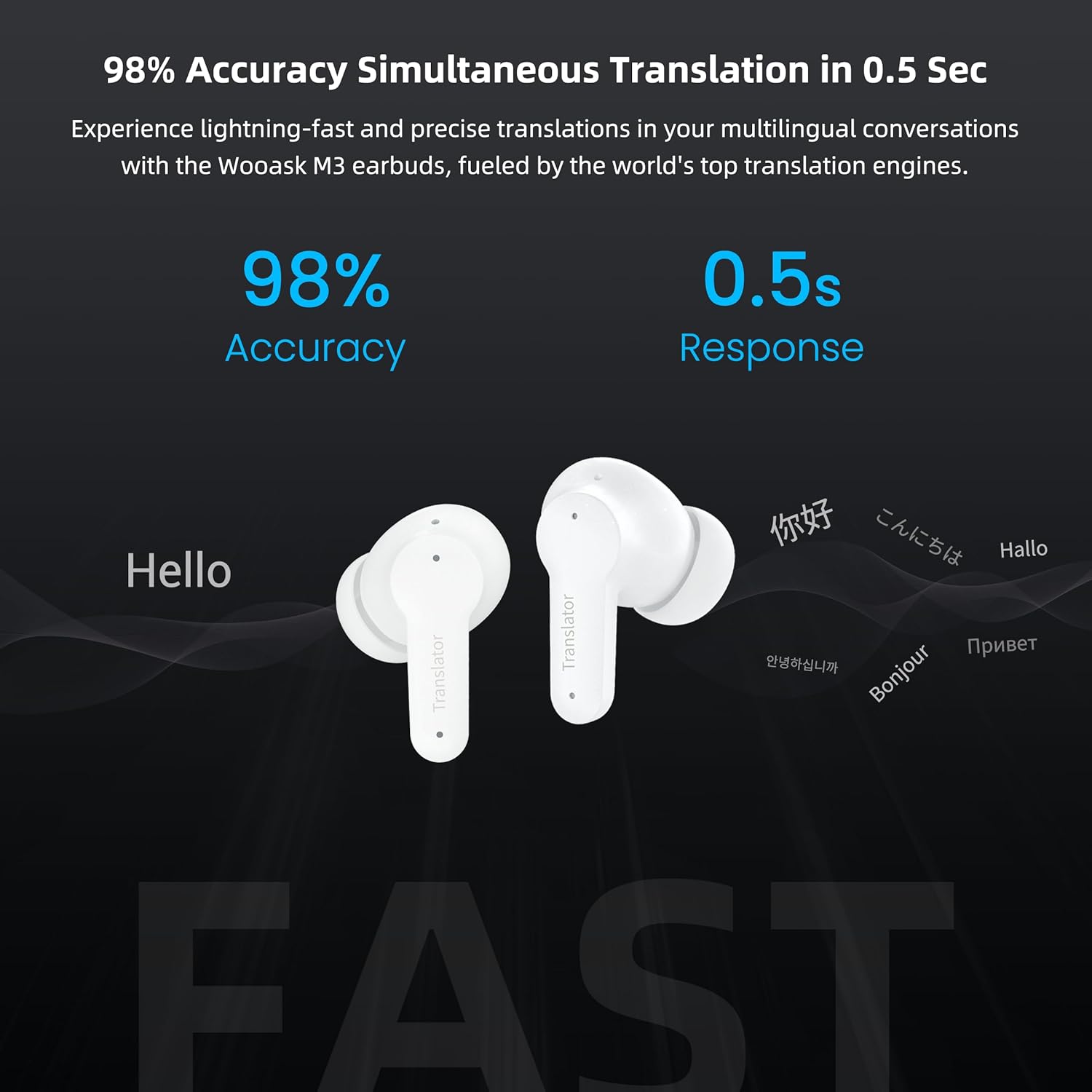
Image: The M3 Earbuds highlighted with text indicating 98% accuracy and 0.5-second response time for simultaneous translation, demonstrating their speed and precision.
2.1. Real-time Conversation Translation
Use the earbuds for natural, two-way conversations with language barriers.
- Ensure your M3 Earbuds are connected to your smartphone via Bluetooth and the ANFIER translation app is open.
- In the app, select the two languages for the conversation.
- One person wears an earbud, the other wears the second earbud (or uses the phone's speaker).
- Speak naturally. The app will translate and play the audio in the respective earbud/speaker.

Image: A man on an airplane using the M3 Earbuds, illustrating their capability for offline voice translation between 8 languages, indicated by various country flags.
2.2. Noise Reduction Feature
The M3 Earbuds incorporate high-precision ENC (Environmental Noise Cancellation) technology, reducing ambient noise by up to 35dB for clearer audio during translation and listening.

Image: A visual representation of the M3 Earbuds' noise reduction capability, showing a sound wave before and after filtering, highlighting a 35dB reduction in noise.
Maintenance and Care
Proper maintenance ensures the longevity and optimal performance of your ANFIER devices.
- Cleaning: Use a soft, dry, lint-free cloth to clean the surfaces of both the earbuds and the handheld translator. For the ear cushions, remove them and gently wipe with a slightly damp cloth, then dry completely before reattaching. Do not use harsh chemicals or abrasive materials.
- Storage: Store devices in a cool, dry place away from direct sunlight and extreme temperatures. Always keep the M3 Earbuds in their charging case when not in use.
- Water Resistance: These devices are not waterproof. Avoid exposure to water, rain, or excessive moisture.
- Battery Care: To preserve battery life, avoid fully discharging the devices frequently. Charge them regularly, even if not in constant use.
Troubleshooting
If you encounter issues, refer to the following common problems and solutions:
| Problem | Possible Cause | Solution |
|---|---|---|
| W09 Handheld Translator not powering on. | Low battery. | Connect to charger and allow to charge for at least 30 minutes before attempting to power on again. |
| No translation output from W09. | No internet connection (for online modes); Incorrect language selection; Microphone blocked. | Ensure Wi-Fi/Hotspot is connected. Verify source and target languages. Check microphone for obstructions. |
| M3 Earbuds not pairing with phone. | Earbuds not in pairing mode; Bluetooth off on phone; Low earbud battery. | Ensure earbuds are in case, then remove to activate pairing. Turn phone's Bluetooth off and on. Charge earbuds. |
| Poor translation accuracy. | Unclear speech; Background noise; Internet connection issues. | Speak clearly and at a moderate pace. Reduce background noise. Ensure stable internet connection. |
| Offline translation not working. | Required language pack not downloaded. | Connect to Wi-Fi and download the necessary offline language packs via Settings. |
Specifications
Key technical specifications for the ANFIER M3 Translator Earbuds and W09 Handheld Translator:
- Product Name: ANFIER M3 Translator Earbuds + W09 Handheld Translator
- Brand: ANFIER
- Model Numbers: M3 (Earbuds), W09 (Handheld Translator)
- Supported Online Languages: 74 Languages, 70 Accents
- Supported Offline Languages: 16 Languages (for W09 Handheld Translator)
- Translation Accuracy: Up to 98% (Simultaneous Translation)
- Translation Response Time: 0.5 seconds
- W09 Display: 2.4" HD Touch Screen (480*854 resolution)
- Connectivity: Wi-Fi, Hotspot (W09), Bluetooth (M3 Earbuds)
- Earbuds Noise Reduction: Up to 35dB ENC (Environmental Noise Cancellation)
- Manufacturer: ANFIER
- First Available: July 13, 2024
Warranty and Support
ANFIER products are designed for reliability and performance. For specific warranty details, please refer to the warranty card included with your purchase or visit the official ANFIER website.
For technical support, troubleshooting assistance beyond this manual, or inquiries regarding your product, please contact ANFIER customer service through the following channels:
- ANFIER Official Website: Visit ANFIER Store on Amazon (for general inquiries and product information)
- Customer Service Email: (Please refer to packaging or official website for current email address)
- Online Support: (Check ANFIER website for chat or FAQ sections)
When contacting support, please have your product model (M3 Earbuds, W09 Handheld Translator) and purchase date ready.
Related documentsM3, W09


Ask a question about this manual
Ask about setup, troubleshooting, compatibility, parts, safety, or missing instructions. Manuals+ will review the question and use this page’s manual context to help answer it.