
Kuephom PM21-GY
User Manual: Kuephom Portable CD Player with Speakers and Headphones
Model: PM21-GY
1. Important Safety Instructions
Please read these instructions carefully before using the device and retain them for future reference. Incorrect use may result in electric shock, fire, or other hazards.
- Do not expose the device to rain, moisture, or extreme temperatures.
- Avoid dropping or subjecting the device to strong impacts.
- Do not disassemble, repair, or modify the device yourself. Refer all servicing to qualified personnel.
- Keep the device away from heat sources such as radiators, heat registers, stoves, or other apparatus (including amplifiers) that produce heat.
- Use only attachments/accessories specified by the manufacturer.
- Clean only with a dry cloth.
- Dispose of batteries and electronic components responsibly according to local regulations.
2. Package Contents
Verify that all items are present in the package:
- CD player X 1
- Earbuds X 1
- Audio cable X 1
- Charging cable X 1
- Pouch X 1

Image: The Kuephom Portable CD Player shown with all its accessories: the player itself, a pair of wired earbuds, a USB charging cable, a 3.5mm audio cable, and a soft carrying pouch.
3. Product Overview
Familiarize yourself with the main components and controls of your portable CD player.

Image: An illustrative diagram showcasing the key features of the portable CD player, including its CD and USB playback capabilities, LCD display, rechargeable Type-C port, earphone jack, dual speakers, and both Bluetooth playback and transmitting functions.
Controls and Ports:
- LCD Display: Shows track number, time, mode, and battery status.
- Control Buttons: Play/Pause, Skip Forward/Backward, Volume Up/Down, Mode, REP/EQ, Transmit.
- Power Switch: Located on the side (ON/OFF).
- USB Port: For USB stick playback.
- 3.5mm AUX/Headphone Jack: For wired headphones or AUX connection.
- DC 5V Charging Port: For charging the device.
- Built-in Speakers: Dual speakers for direct audio output.
4. Setup
4.1 Charging the Device
The CD player has a built-in rechargeable battery. Before first use, fully charge the device.
- Connect the provided charging cable to the DC 5V port on the CD player.
- Connect the other end of the charging cable to a USB power source (e.g., wall charger, car charger, power bank, or computer USB port). Note: Chargers are not included.
- The battery indicator on the LCD display will show charging status. Once fully charged, the indicator will change.
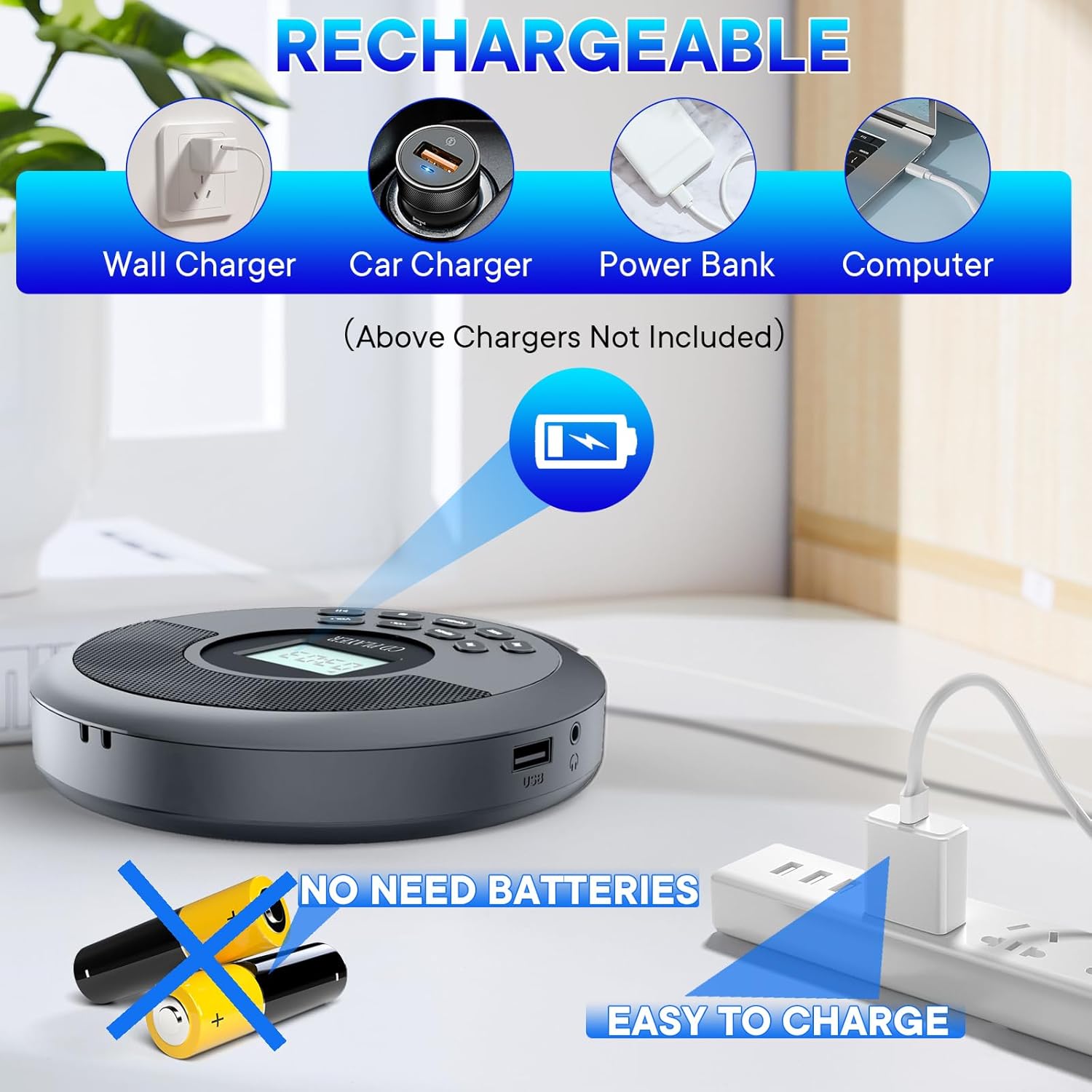
Image: The portable CD player connected to a wall charger, illustrating its rechargeable nature. Icons depict various compatible charging sources such as car chargers, power banks, and computers. The image emphasizes that the device does not require disposable batteries.
4.2 Powering On/Off
- To power on, slide the ON/OFF switch to the "ON" position. The LCD display will light up.
- To power off, slide the ON/OFF switch to the "OFF" position.
5. Operating Instructions
5.1 CD Playback
The player supports CD, MP3, CD-R, and CD-RW formats.
- Open the CD compartment cover.
- Carefully place a CD with the label side facing up onto the spindle.
- Close the CD compartment cover firmly until it clicks.
- The player will automatically detect the disc and begin playback. If not, press the Play/Pause button.
- Use the Skip Forward/Backward buttons to navigate tracks.
- Press the Play/Pause button to pause or resume playback.

Image: A user playing a guitar with the portable CD player in the foreground, demonstrating its compatibility with multiple audio formats such as standard CDs, MP3s, audiobooks, USB sticks, CD-RWs, and Bluetooth connectivity.
5.2 USB Playback
Insert a USB flash drive into the USB port. The player will automatically switch to USB mode and begin playback of compatible audio files.
5.3 Bluetooth Connectivity
The device supports both Bluetooth transmitting (connecting to external Bluetooth speakers/headphones) and receiving (connecting to a mobile phone/tablet).
5.3.1 Bluetooth Transmitting (Connecting to External Speakers/Headphones)
- Ensure the external Bluetooth speaker or headphones are in pairing mode.
- Turn on the CD player.
- Press the "TRANSMIT" button on the CD player. The Bluetooth icon on the LCD display will flash, indicating it's searching for devices.
- Once connected, the Bluetooth icon will stop flashing and remain solid. Audio will now play through the connected Bluetooth device.

Image: A visual guide demonstrating the four steps to connect the portable CD player to an external Bluetooth speaker. This includes preparing the speaker, activating the CD player, initiating pairing via the 'TRANSMIT' button, and confirming audio output from the speaker.
5.3.2 Bluetooth Receiving (Connecting to Mobile Phone/Tablet)
- Ensure the CD player is powered on.
- On your mobile phone or tablet, enable Bluetooth and search for available devices.
- Select "Kuephom PM21-GY" (or similar device name) from the list of found devices.
- Once connected, audio from your phone/tablet will play through the CD player's built-in speakers.

Image: An illustration of the CD player's dual Bluetooth functionality. It shows the player receiving audio wirelessly from a mobile phone or tablet, and simultaneously transmitting audio to an external Bluetooth speaker or headphones.
5.4 AUX Car Connection
Connect your CD player to your car's audio system using the provided 3.5mm audio cable.
- Step 1: Connect one end of the 3.5mm audio cable to the Earphone Jack on the Portable CD Player.
- Step 2: Connect the other end of the 3.5mm audio cable to the AUX port in your car.
- Step 3: Set your car's audio system to AUX Mode.
- Step 4: Increase the volume on both the car system and the Portable CD Player for optimal sound.
Note: Your car must have an AUX In port. Do not connect to the car's USB port for audio. The CD player's USB port is for USB stick plug and play only.

Image: A step-by-step visual guide demonstrating how to connect the portable CD player to a car's audio system using a 3.5mm AUX cable. It highlights connecting the player's headphone jack to the car's AUX input, selecting AUX mode on the car stereo, and adjusting volume levels.
5.5 Anti-Skip Protection
The player features advanced anti-skip and anti-vibration technology, ensuring uninterrupted playback even during movement or on bumpy surfaces. This makes it ideal for use during sports, travel, or in a car.

Image: A collage illustrating the versatility of the portable CD player. It depicts users enjoying music via Bluetooth headphones, the device's anti-skip protection during physical activity, and its utility for listening to audiobooks, bedtime stories, and educational content in various relaxed and active environments.
5.6 Audio Modes (REP/EQ)
Press the "REP/EQ" button to cycle through different playback modes (e.g., repeat one, repeat all) and equalizer presets (e.g., Rock, Pop, Jazz, Classical, Flat) to customize your listening experience.

Image: The portable CD player with its LCD screen showing a time of '03:03', surrounded by visual representations of different equalizer settings such as Rock, Pop, Jazz, Classical, and Flat, indicating its audio customization options. Earbuds are also visible, highlighting the stereo output capability.
5.7 Volume Control
Use the "VOL+" and "VOL-" buttons to adjust the playback volume.
6. Maintenance
- Cleaning: Use a soft, dry cloth to clean the exterior of the player. Do not use liquid cleaners or aerosols. For the optical lens, use a specialized CD lens cleaner if necessary, following its instructions.
- Storage: When not in use, store the player in a cool, dry place, away from direct sunlight and extreme temperatures. Use the provided pouch for protection.
- Battery Care: To prolong battery life, avoid fully discharging the battery frequently. Charge the device regularly, even if not in constant use.
7. Troubleshooting
| Problem | Possible Cause | Solution |
|---|---|---|
| Device does not power on. | Battery is depleted; Power switch is OFF. | Charge the device; Slide the power switch to "ON". |
| Disc not playing / "NO DISC" error. | Disc inserted incorrectly; Disc is dirty or scratched; Unsupported disc format. | Reinsert disc correctly; Clean or replace disc; Ensure disc is CD, MP3, CD-R, or CD-RW. |
| Skipping during playback. | Severe vibration; Disc is dirty or scratched. | Minimize movement if possible; Clean or replace disc. |
| No sound from speakers/headphones. | Volume too low; Headphones not fully plugged in; Bluetooth not connected. | Increase volume; Re-plug headphones firmly; Re-pair Bluetooth device. |
| Bluetooth pairing fails. | Device too far; Target device not in pairing mode; Interference. | Move devices closer; Ensure target device is in pairing mode; Turn off other Bluetooth devices. |
8. Specifications
| Feature | Detail |
|---|---|
| Model Number | PM21-GY |
| Product Dimensions | 6 x 5 x 1 inches |
| Item Weight | 15.8 ounces |
| Supported Disc Formats | CD, MP3, CD-R, CD-RW |
| Connectivity Technology | Bluetooth, USB, 3.5mm AUX |
| Special Features | CD-R/RW Compatible, Bluetooth Transmit/Receive, Battery Level Indicator, Rechargeable, Anti-Skip Protection, Dual Speakers |
| Battery Type | 1 Lithium Ion battery (included) |
| Manufacturer | Kuephom |
| Country of Origin | China |
9. Warranty and Support
For warranty information and customer support, please refer to the contact details provided with your purchase or visit the official Kuephom website. If you encounter any issues not covered in this manual, please contact customer service for assistance.
The product is designed for reliable performance. For any defects or malfunctions under normal use, please reach out to the manufacturer's support team.
Ask a question about this manual
Ask about setup, troubleshooting, compatibility, parts, safety, or missing instructions. Manuals+ will review the question and use this page’s manual context to help answer it.