
Introduction to the iPhone SE 3rd Generation
The iPhone SE 3rd Generation, released on March 18, 2022, is a powerful and compact smartphone. It features a 4.7-inch widescreen Retina HD display with 1334 x 750 pixels, powered by an A15 Bionic chip. Key features include a high-resolution 4K camera, Haptic Touch, dust and water resistance, wireless charging, and 5G connectivity. This model retains the classic Home button with Touch ID, offering a secure and convenient way to unlock the device, authenticate apps, and use Apple Pay.
This manual provides step-by-step instructions for both new and experienced users to effectively set up, operate, and manage their iPhone SE 3rd Generation, maximizing its impressive features.
1. Device Setup
1.1 Initial iPhone Setup
To begin using your iPhone SE, follow these steps for initial setup:
- Power On: Press and hold the Side button until the Apple logo appears.
- Hello Screen: Swipe up from the bottom of the screen or press the Home button.
- Language and Region: Select your preferred language and region.
- Quick Start: If you have another iOS device, you can use Quick Start to set up your new iPhone automatically. Bring your old device near your new iPhone and follow the on-screen instructions.
- Set Up Manually: If not using Quick Start, tap "Set Up Manually."
- Wi-Fi Network: Connect to a Wi-Fi network.
- Data & Privacy: Review the Data & Privacy information.
- Touch ID: Set up Touch ID for fingerprint recognition.
- Passcode: Create a six-digit passcode.
- Apps & Data: Choose how to transfer apps and data (e.g., Restore from iCloud Backup, Restore from Mac or PC, Transfer Directly from iPhone, Don't Transfer Apps & Data).
- Apple ID: Sign in with your Apple ID or create a new one.
- Siri, Screen Time, and other settings: Follow the prompts to configure these features.
1.2 Cellular Service Setup
To activate cellular service on your iPhone SE:
- Physical SIM: Insert your nano-SIM card into the SIM tray using a SIM ejector tool. Ensure the tray is fully inserted.
- eSIM: If your carrier supports eSIM, you can activate it digitally. Go to Settings > Cellular > Add Cellular Plan and follow the instructions provided by your carrier.
1.3 Apple ID Login
Your Apple ID is essential for accessing Apple services like the App Store, iCloud, iMessage, and FaceTime. During initial setup, you will be prompted to sign in. If you skipped this, go to Settings > Sign in to your iPhone and enter your Apple ID and password.
2. Basic Operation
2.1 Waking, Unlocking, and Locking Your iPhone
- Wake: Press the Side button or the Home button. You can also raise your iPhone to wake it (if enabled in Settings > Display & Brightness > Raise to Wake).
- Unlock:
- Touch ID: Place your registered finger on the Home button.
- Passcode: If Touch ID is not set up or fails, enter your passcode.
- Lock: Press the Side button once. Your iPhone will automatically lock after a period of inactivity (configurable in Settings > Display & Brightness > Auto-Lock).
2.2 Managing Dual SIM
If your iPhone SE supports Dual SIM (eSIM and nano-SIM), you can manage two phone numbers on one device. Go to Settings > Cellular to label your plans, choose a default line for calls and messages, and select which line to use for cellular data.
2.3 Wi-Fi and Personal Hotspot
- Wi-Fi: To connect to Wi-Fi, go to Settings > Wi-Fi, turn Wi-Fi on, and select a network. Enter the password if required.
- Personal Hotspot: To share your iPhone's cellular data connection, go to Settings > Personal Hotspot and turn it on. Other devices can then connect via Wi-Fi, Bluetooth, or USB.
2.4 iCloud Management
- Keep Files Up To Date: iCloud automatically backs up your device and keeps your photos, documents, and other data synchronized across your Apple devices. Ensure iCloud Backup is enabled in Settings > [Your Name] > iCloud > iCloud Backup.
- iCloud+: To get more storage and premium features like Private Relay and Hide My Email, you can subscribe to iCloud+. Go to Settings > [Your Name] > iCloud > Manage Storage > Change Storage Plan.
2.5 Gestures and Motion
The iPhone SE uses various gestures and motions for navigation:
- Tap: Select an item.
- Double-tap: Zoom in/out on web pages or photos.
- Pinch: Zoom in/out.
- Swipe: Scroll through content or navigate between screens.
- Haptic Touch: Press and hold an icon or item to reveal contextual menus or previews.
- Reachability: Double-tap the Home button to bring the top of the screen down for easier access with one hand (if enabled in Settings > Accessibility > Touch > Reachability).
2.6 Managing Running Apps
To view or close running applications:
- View Apps: Double-press the Home button to open the App Switcher, showing all recently used apps.
- Close Apps: In the App Switcher, swipe an app's preview card upwards to close it.
2.7 Keyboard and Text Input
- Onscreen Keyboard: Tap any text field to bring up the onscreen keyboard.
- VoiceOver with Keyboard: If VoiceOver is enabled (Settings > Accessibility > VoiceOver), the keyboard will provide spoken feedback as you type.
- Dictate Text: Tap the microphone icon on the keyboard to dictate text.
- Markup: Use Markup to add text, shapes, signatures, and more to documents and images. When viewing a compatible file, tap the Markup icon (a pen tip).
2.8 Customizing Home Screen and Settings
- Customize Home Screen: Press and hold an empty area on the Home Screen until app icons jiggle. You can then rearrange apps, create folders, or add widgets.
- Travel Settings: Adjust settings for travel in Settings, such as turning on Airplane Mode, managing cellular data roaming, or setting up a VPN.
2.9 Camera and Video Settings
Access the Camera app from the Home Screen or Control Center. You can adjust various settings:
- Modes: Swipe left or right to switch between Photo, Video, Portrait, Pano, and other modes.
- Zoom: Pinch the screen or tap the 1x/0.5x button (if available) to zoom.
- Flash: Tap the flash icon to toggle between Auto, On, or Off.
- Live Photos: Tap the Live Photos icon (concentric circles) to enable or disable.
- Video Resolution: In Settings > Camera > Record Video, choose your preferred resolution and frame rate (e.g., 4K at 60 fps).
3. Maintenance and Battery Care
3.1 Charging and Battery Health
To ensure optimal battery life and performance:
- Charging: Connect your iPhone to a power adapter using the Lightning to USB cable. The iPhone SE also supports wireless charging with Qi-certified chargers.
- Battery Health: Monitor your battery's health in Settings > Battery > Battery Health & Charging. Enable "Optimized Battery Charging" to reduce battery aging.
- Avoid Extreme Temperatures: Do not expose your iPhone to extreme heat or cold, as this can degrade battery performance.
- Software Updates: Keep your iPhone's software updated to benefit from battery optimizations.
4. Troubleshooting Common Issues
This section addresses common issues you might encounter with your iPhone SE 3rd Generation.
4.1 Device Not Responding
If your iPhone is unresponsive or frozen:
- Force Restart: Press and quickly release the Volume Up button. Press and quickly release the Volume Down button. Then, press and hold the Side button until you see the Apple logo.
4.2 Wi-Fi or Cellular Connectivity Problems
- Toggle On/Off: Try turning Wi-Fi or Cellular Data off and then on again in Control Center or Settings.
- Restart Router/iPhone: For Wi-Fi issues, restart your Wi-Fi router. For cellular issues, restart your iPhone.
- Reset Network Settings: Go to Settings > General > Transfer or Reset iPhone > Reset > Reset Network Settings. This will reset Wi-Fi passwords and cellular settings.
4.3 App Crashing or Not Loading
- Close and Reopen: Close the app from the App Switcher and reopen it.
- Restart iPhone: A full device restart can resolve many app-related issues.
- Update App: Check the App Store for updates to the problematic app.
- Reinstall App: Delete the app and reinstall it from the App Store.
5. Specifications
Key technical specifications for the iPhone SE 3rd Generation:
- Display: 4.7-inch Retina HD display (1334 x 750 pixels)
- Processor: A15 Bionic chip
- Camera: 12MP Wide camera, 7MP Front camera
- Video Recording: 4K video recording up to 60 fps
- Security: Touch ID (fingerprint sensor in Home button)
- Connectivity: 5G, Wi-Fi 6, Bluetooth 5.0, NFC
- Water and Dust Resistance: IP67 rating (maximum depth of 1 meter up to 30 minutes)
- Charging: Wireless charging (Qi-compatible), Fast-charge capable
- Operating System: iOS (latest version supported)
- Dimensions: 5.45 inches (138.4 mm) x 2.65 inches (67.3 mm) x 0.29 inch (7.3 mm)
- Weight: 5.09 ounces (144 grams)
6. Warranty and Support
For warranty information and official support for your Apple iPhone SE 3rd Generation, please refer to Apple's official website or contact Apple Support directly. Typically, Apple products come with a one-year limited warranty covering manufacturing defects.
Online Resources: Visit support.apple.com/iphone for comprehensive guides, troubleshooting articles, and community forums.
Contact Support: You can contact Apple Support via phone, chat, or by scheduling an appointment at an Apple Store or authorized service provider.
Related Images
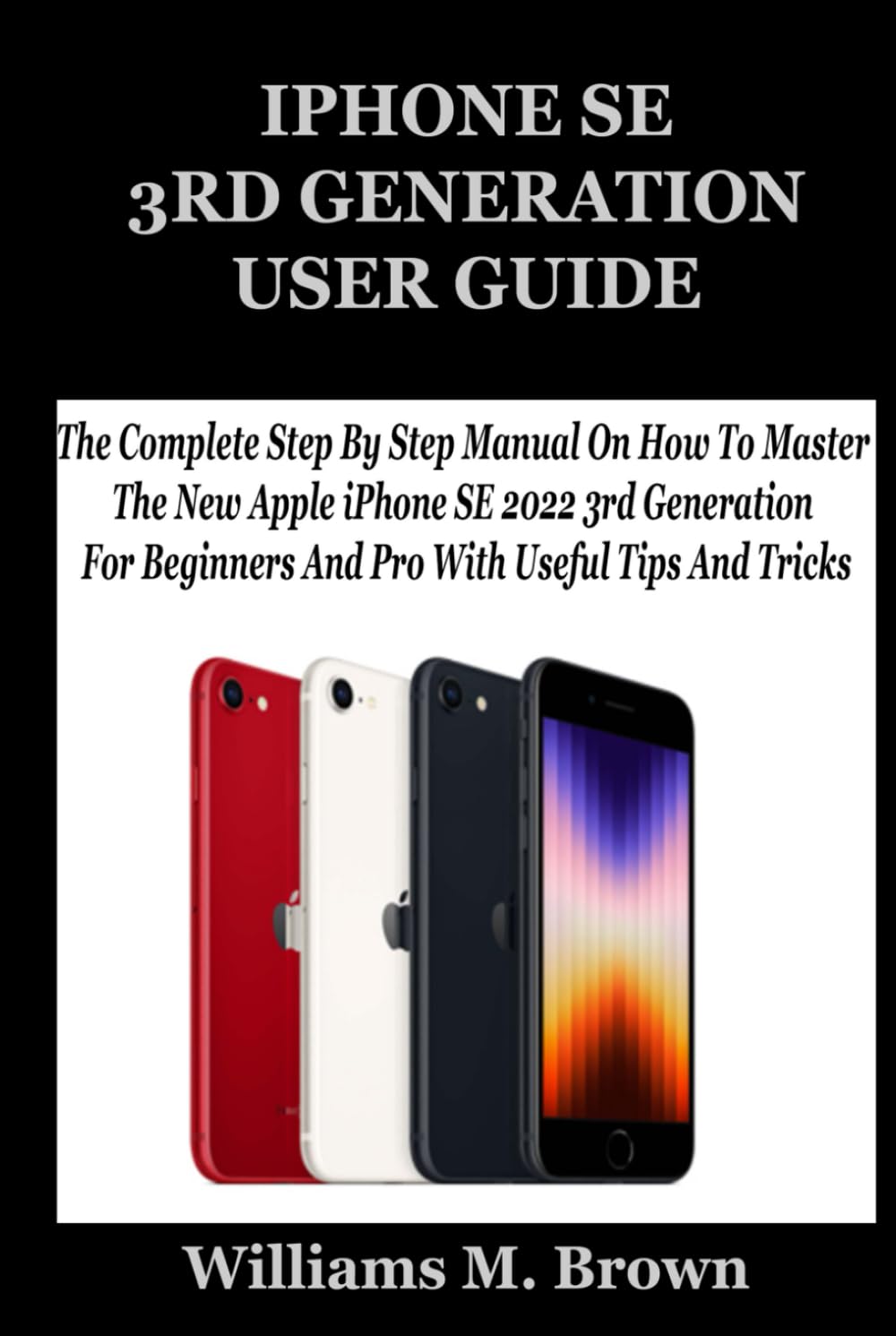
Image Description: Front cover of the "IPHONE SE 3RD GENERATION USER GUIDE" book. The cover features the title in bold text, indicating it is a manual for the Apple iPhone SE 2022 3rd Generation. This image represents the physical manual itself.

Image Description: Back cover of the "IPHONE SE 3RD GENERATION USER GUIDE" book. It displays the ISBN barcode (979-8332901652) and the price, along with "Copyrighted Material" text. This image shows the reverse side of the physical manual.


