1. Introduction
Thank you for choosing the Redragon K677 PRO RGB Mechanical Gaming Keyboard. This compact 60% keyboard is designed for versatility and performance, offering three connectivity modes: wired USB-C, 2.4GHz wireless, and Bluetooth. It features hot-swappable switches, customizable RGB lighting, and a durable design, making it suitable for both gaming and typing.
This manual will guide you through the setup, operation, maintenance, and troubleshooting of your new keyboard to ensure optimal performance and user experience.
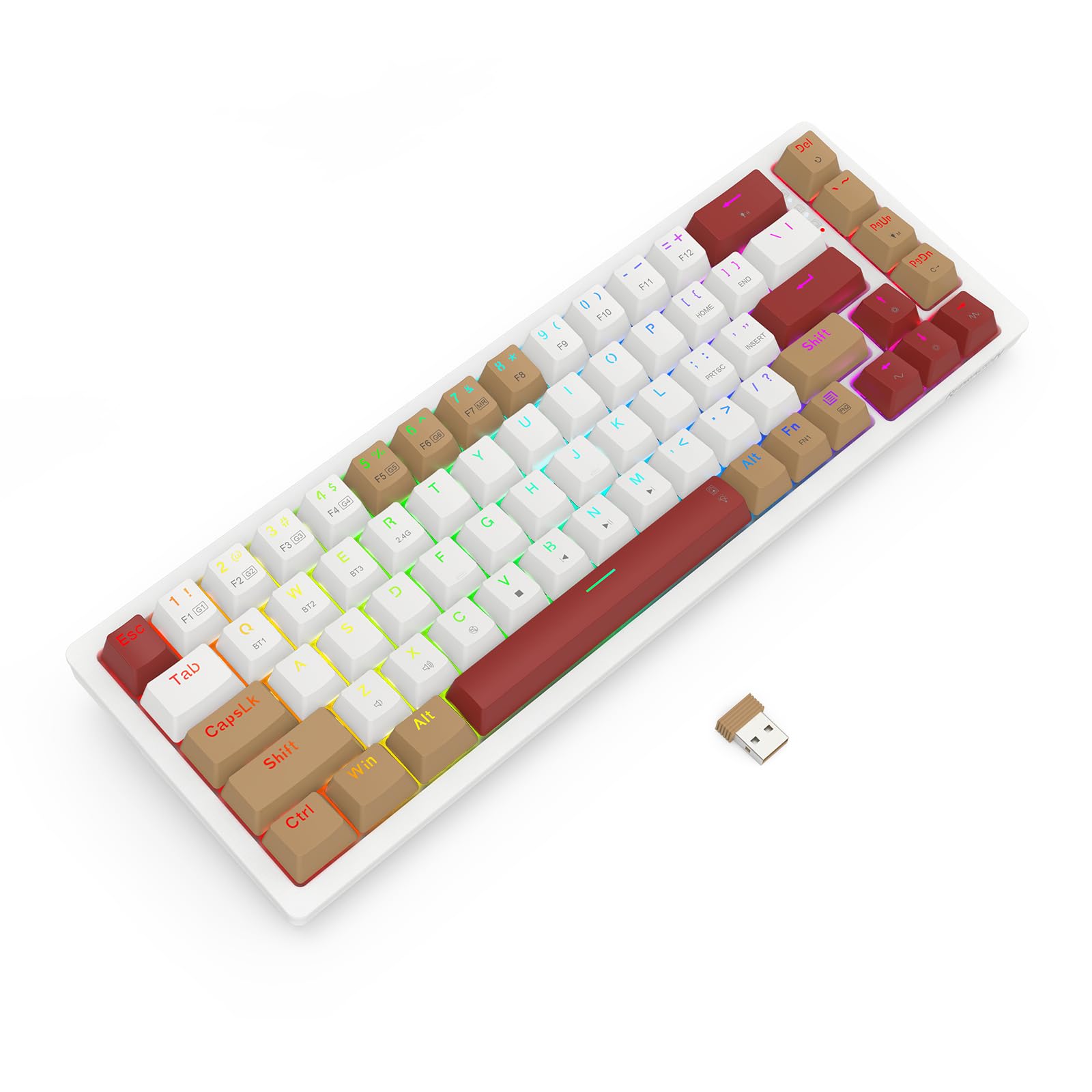
Image 1.1: The Redragon K677 PRO keyboard, showcasing its compact 60% layout and included 2.4GHz wireless dongle.
2. Setup
2.1 Package Contents
- Redragon K677 PRO Mechanical Gaming Keyboard
- Detachable USB Type-C Cable
- 2.4GHz Wireless Dongle
- Keycap Puller (may be included)
- Switch Puller (may be included)
- User Manual
2.2 Initial Charging
Before first use, it is recommended to fully charge the keyboard. Connect the provided USB Type-C cable to the keyboard's port and the other end to a USB power source (e.g., computer USB port, wall adapter). The charging indicator (usually an LED) will show charging status and turn off or change color when fully charged.
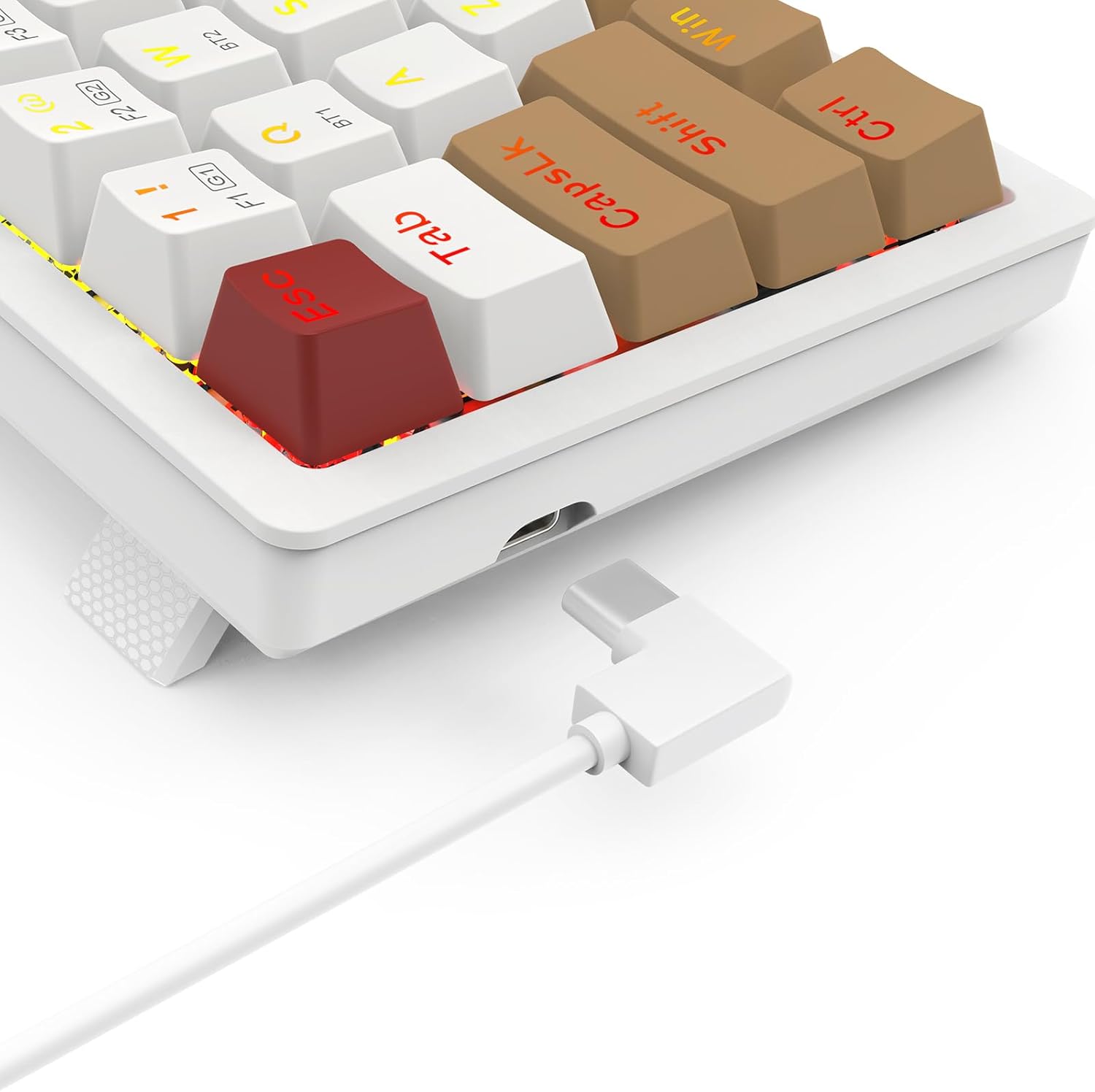
Image 2.1: The USB Type-C port located on the keyboard for wired connection and charging.
2.3 Connectivity Modes
The K677 PRO supports three connection modes:
- Wired Mode: Connect the keyboard directly to your computer using the USB Type-C cable.
- 2.4GHz Wireless Mode: Use the included USB dongle for a stable wireless connection.
- Bluetooth Mode: Connect wirelessly to up to three Bluetooth-enabled devices.
2.3.1 Switching Modes
Locate the mode switch on the bottom or side of the keyboard. Switch it to the desired mode: 2.4G for wireless dongle, BT for Bluetooth, or ensure the cable is connected for Wired mode.

Image 2.2: The underside of the keyboard, showing the 2.4G/OFF/BT mode switch and the dedicated slot for storing the 2.4GHz wireless dongle.
2.3.2 2.4GHz Wireless Setup
- Set the keyboard mode switch to 2.4G.
- Insert the 2.4GHz USB dongle into an available USB port on your computer.
- The keyboard should automatically connect. An indicator light may flash and then become solid to confirm connection.
2.3.3 Bluetooth Pairing
- Set the keyboard mode switch to BT.
- Press and hold Fn + BT1 (or BT2/BT3) for 3-5 seconds until the corresponding key's backlight flashes rapidly. This indicates pairing mode.
- On your device (computer, tablet, phone), open Bluetooth settings and search for new devices.
- Select "Redragon K677 PRO" (or similar name) from the list of available devices.
- Once connected, the key's backlight will stop flashing and remain solid.
- Repeat for BT2 and BT3 to pair with additional devices. To switch between paired devices, press Fn + BT1/BT2/BT3.
3. Operating Instructions
3.1 Basic Keyboard Functions
The K677 PRO features a 60% layout, meaning some standard keys are accessed via function (Fn) key combinations. Refer to the keycap legends for secondary functions.

Image 3.1: Full layout of the Redragon K677 PRO keyboard, highlighting the compact design and RGB backlighting.
3.2 RGB Backlighting Control
The keyboard offers various RGB lighting effects and customization options. Use the following Fn key combinations to control the backlighting:
- Fn + \|: Cycle through different backlight modes.
- Fn + [{: Decrease backlight brightness.
- Fn + ]}: Increase backlight brightness.
- Fn + ;:: Decrease backlight speed/animation.
- Fn + '"': Increase backlight speed/animation.
- Fn + <, : Change backlight color (in certain modes).
- Fn + >. : Change backlight color (in certain modes).

Image 3.2: The Redragon K677 PRO keyboard displaying its customizable RGB lighting effects.
3.3 Programmable Features
The K677 PRO is highly programmable. Advanced customization, including key remapping and macro creation, can typically be done using dedicated software available from the Redragon website. Refer to the software's instructions for detailed guidance.
4. Maintenance
4.1 Cleaning the Keyboard
To maintain your keyboard's performance and appearance:
- Disconnect the keyboard from your computer before cleaning.
- Use a soft, lint-free cloth slightly dampened with water or a mild cleaning solution to wipe the keycaps and chassis.
- For dust and debris between keys, use compressed air.
- Avoid using harsh chemicals or abrasive materials.
4.2 Hot-Swappable Switches
The K677 PRO features hot-swappable switches, allowing you to change switches without soldering. This enables customization of typing feel and easy replacement of faulty switches.
- Using the provided switch puller, carefully grip the switch and pull it straight up to remove it.
- Align the pins of the new switch with the holes on the PCB.
- Gently press the new switch into place until it clicks. Ensure it is seated firmly and evenly.
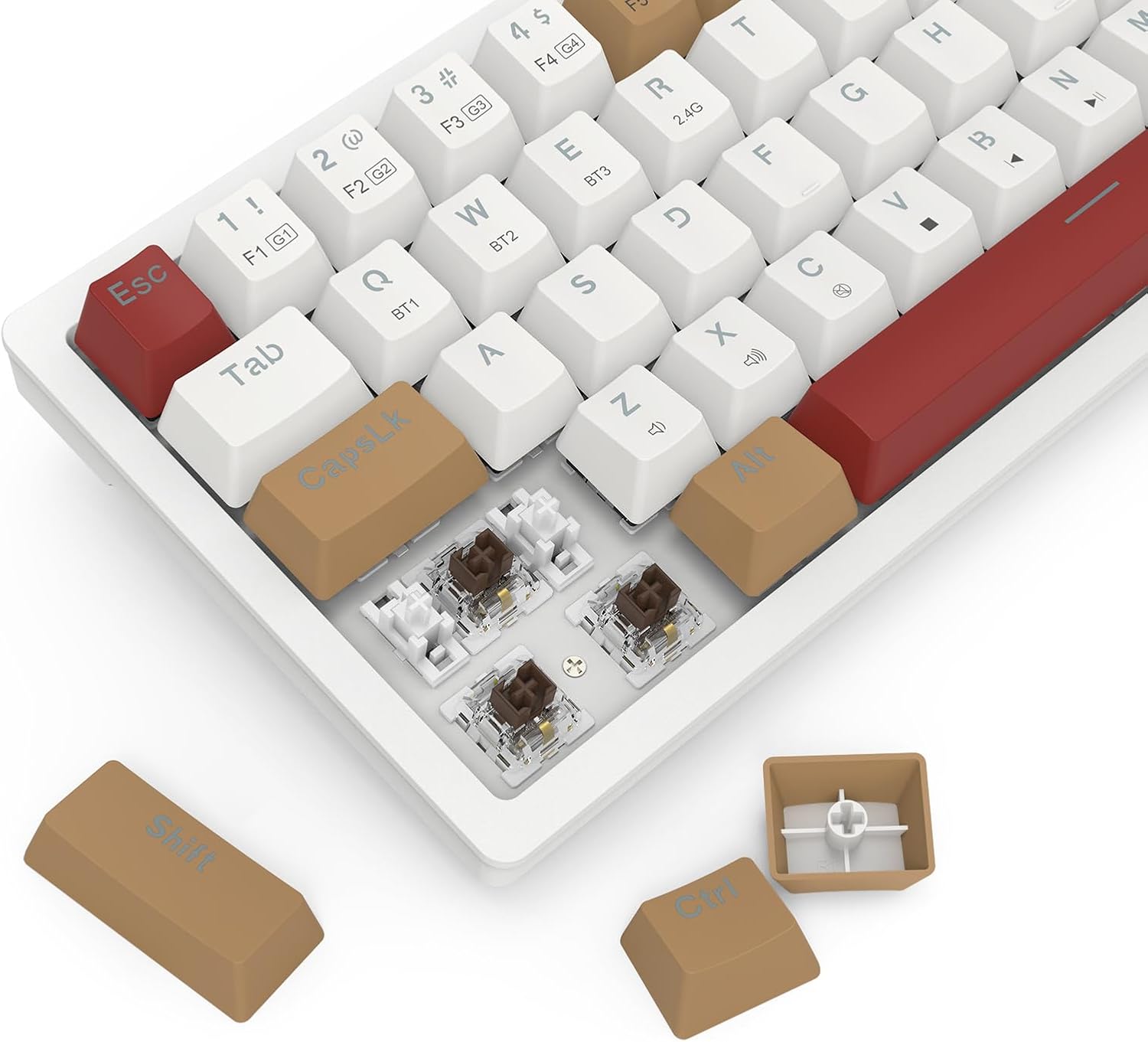
Image 4.1: Detail of the hot-swappable switch sockets, with a keycap and switch removed for illustration.
5. Troubleshooting
5.1 Keyboard Not Responding
- Wired Mode: Ensure the USB-C cable is securely connected to both the keyboard and the computer. Try a different USB port or cable.
- 2.4GHz Wireless: Ensure the 2.4G dongle is properly inserted into a USB port and the keyboard switch is set to 2.4G. Check battery level.
- Bluetooth Mode: Ensure the keyboard switch is set to BT and it is paired correctly (see Section 2.3.3). Check battery level. Try re-pairing.
- All Modes: Restart your computer.
5.2 Keys Not Working or Double-Typing
- Clean around the affected key to remove any debris.
- If the keyboard has hot-swappable switches, try removing and re-inserting the switch for the problematic key. If the issue persists, consider replacing the switch.
5.3 RGB Backlight Not Working or Flickering
- Ensure the backlight is not turned off (check brightness settings using Fn key combinations).
- Check for firmware updates on the Redragon website.
- If using wireless mode, ensure the battery is sufficiently charged.
5.4 Connectivity Issues (Lag, Disconnections)
- Wireless Modes: Ensure there are no strong interference sources (e.g., other wireless devices, large metal objects) between the keyboard and your device.
- Move closer to your device if using Bluetooth.
- Ensure the keyboard battery is charged.
6. Specifications
| Feature | Detail |
|---|---|
| Brand | Redragon |
| Model Number | K677 PRO |
| Connectivity Technology | USB (Wired), 2.4GHz Wireless, Bluetooth |
| Keyboard Description | Mechanical |
| Recommended Uses | Gaming |
| Special Features | Mechanical Keyboard, Customizable Display Keys, Hot-Swappable Switches, RGB Backlight |
| Backlight Color Support | RGB (Red, Green, Blue model) |
| Style | Gaming Keyboard |
| Material | Plastic |
| Product Dimensions | 34.01 x 14 x 3.99 cm |
| Item Weight | 689 grams |
| Compatible Devices | Computer |
| Country of Origin | China |
7. Warranty and Support
7.1 Warranty Information
For detailed warranty information, please refer to the warranty card included with your product or visit the official Redragon website. Warranty terms and conditions may vary by region.
7.2 Customer Support
If you encounter any issues not covered in this manual or require further assistance, please contact Redragon customer support through their official website or the contact information provided in your product packaging.


