
ZYWUOY Y7Y54800KJ96COSQ0M285
ZYWUOY Smart Button Pusher User Manual
Model: Y7Y54800KJ96COSQ0M285
1. Introduction
The ZYWUOY Smart Button Pusher is designed to transform traditional switches and buttons into smart, app-controlled devices. This compact robot button pusher integrates with the Tuya Smart Life app, allowing for remote control, scheduling, and voice commands for your existing appliances and switches. It offers an effortless way to automate your home without requiring complex installations or modifications to your original devices.
2. Safety Information
- Keep the device away from water and high humidity environments.
- Do not expose the device to extreme temperatures or direct sunlight.
- Do not attempt to disassemble or repair the device yourself. Refer to qualified personnel for service.
- Ensure the device is securely attached to the switch or button to prevent accidental detachment.
- Use only the specified battery type (CR2) and ensure correct polarity during installation.
3. Product Overview
The ZYWUOY Smart Button Pusher is a compact, black device designed to physically press buttons or flip switches. It features a movable arm that extends and retracts to operate traditional controls.

Figure 3.1: Main view of the ZYWUOY Smart Button Pusher, a black cube-shaped device with a movable arm.
Key Features:
- Smart Control: Transforms traditional switches and buttons into smart devices controllable via the Tuya Smart Life app.
- Easy Installation: Attaches with adhesive tape, no wiring or tools required.
- Wi-Fi Connectivity: Connects directly to 2.4G Wi-Fi, no separate hub needed.
- Voice Control: Compatible with voice assistants for hands-free operation.
- Scheduling: Program specific times for devices to turn on or off.
- Adjustable Movement: Customizable push movement (0-100%) and hold time.
- Wide Compatibility: Works with various buttons and rocker switches.
- Battery Monitoring: Real-time battery level display in the app.

Figure 3.2: Detailed view highlighting the components of the Smart Button Pusher, including the push arm and adhesive area.
4. Setup
4.1 Battery Installation
The device requires one CR2 battery (included). Open the battery compartment, insert the CR2 battery ensuring correct polarity, and close the compartment securely.
4.2 App Download and Pairing
- Download the Tuya Smart Life app from your smartphone's app store (iOS or Android).
- Register or log in to your account.
- Ensure your phone is connected to a 2.4GHz Wi-Fi network. The device does not support 5GHz networks.
- Open the Tuya Smart Life app, tap the "+" icon to add a device.
- Follow the on-screen instructions to put the Smart Button Pusher into pairing mode (usually by pressing and holding a button on the device until an indicator light flashes).
- Once detected, confirm the device in the app and complete the pairing process.
4.3 Physical Installation
The Smart Button Pusher is designed for easy, non-invasive installation.
- Clean the surface around the target switch or button to ensure good adhesion.
- Peel off the protective film from the adhesive tape on the back of the Smart Button Pusher.
- Carefully position the device next to the switch or button, ensuring the movable arm aligns correctly with the control you wish to operate.
- Press firmly to secure the device in place.
- For rocker switches, an included accessory can be used to allow the device to flip the switch in both directions.
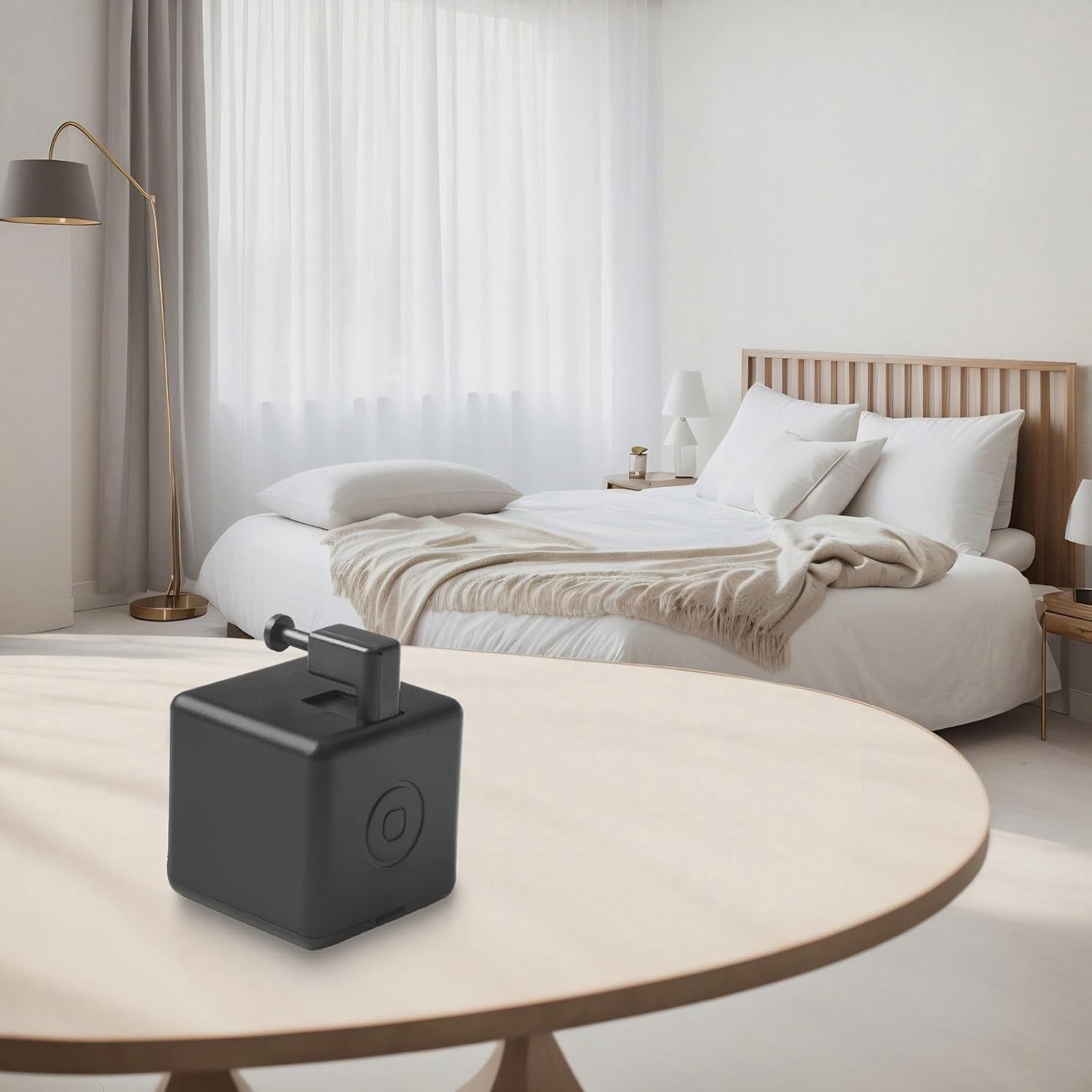
Figure 4.1: Example of the Smart Button Pusher placed on a surface, ready to operate a nearby switch or button.
5. Operating Instructions
5.1 Basic Control via App
Once paired, you can control the Smart Button Pusher directly from the Tuya Smart Life app:
- Open the app and select your Smart Button Pusher from the device list.
- Tap the virtual button to activate the push arm, turning your connected device on or off.
5.2 Advanced App Settings
- Movement Adjustment: Adjust the push arm's travel distance from 0% to 100% to suit different button types. This ensures the arm presses the button sufficiently without over-extending.
- Hold Time: Set the duration the push arm remains extended. This is useful for devices that require a longer press.
- Inversion Option: If the device is installed in an inverted position, use the "Inversion" setting in the app to correct the push direction.
5.3 Voice Control
Integrate the Tuya Smart Life app with popular voice assistants (e.g., Amazon Alexa, Google Assistant) to control your devices with voice commands. Follow the instructions within the Smart Life app to link your account with your preferred voice assistant.
5.4 Scheduling and Automation
Use the scheduling feature in the Tuya Smart Life app to automate your devices:
- Set specific times for the Smart Button Pusher to activate, turning devices on or off automatically.
- Create smart scenes or automations based on conditions like sunrise/sunset, temperature, or other smart devices in your home.
5.5 Device Sharing and Group Control
- Device Sharing: Share control of the Smart Button Pusher with family members through the Tuya Smart Life app, allowing multiple users to operate the device.
- Group Control: If you have multiple Smart Button Pushers or other Tuya-compatible devices, you can group them together for simultaneous control.
6. Maintenance
6.1 Battery Replacement
The app provides real-time battery level monitoring. When the battery is low, replace it with a new CR2 battery. Follow the instructions in Section 4.1 for battery installation.
6.2 Cleaning
Wipe the device with a soft, dry cloth. Do not use abrasive cleaners or immerse the device in water.
7. Troubleshooting
| Problem | Possible Cause | Solution |
|---|---|---|
| Device not connecting to Wi-Fi. | Incorrect Wi-Fi band (5GHz not supported), weak signal, incorrect password. | Ensure your router is broadcasting a 2.4GHz network. Move the device closer to the router. Re-enter Wi-Fi password carefully. |
| Button not being pressed correctly. | Incorrect positioning, insufficient push distance. | Re-position the device to ensure proper alignment. Adjust the "Movement Adjustment" setting in the app. |
| Device not responding. | Low battery, device frozen, app issue. | Check battery level in the app and replace if necessary. Restart the app. If unresponsive, try re-pairing the device. |
| Voice control not working. | Incorrect voice assistant setup, device not linked. | Verify the integration settings between Tuya Smart Life and your voice assistant. Ensure the device is named clearly for voice commands. |
8. Specifications
| Feature | Detail |
|---|---|
| Brand | ZYWUOY |
| Model Number | Y7Y54800KJ96COSQ0M285 |
| Dimensions (L x W x H) | Approximately 5 x 5 x 4 cm (1.97 x 1.97 x 1.57 inches) |
| Weight | 55 grams (0.12 lbs) |
| Power Source | Battery powered |
| Battery Type | 1 x CR2 battery (included) |
| Connectivity | 2.4GHz Wi-Fi |
| Color | Black |

Figure 8.1: Dimensions of the ZYWUOY Smart Button Pusher.
9. Warranty and Support
For warranty information and technical support, please refer to the documentation provided with your purchase or contact ZYWUOY customer service. Ensure you have your model number (Y7Y54800KJ96COSQ0M285) ready when seeking support.
For further assistance, please visit the official ZYWUOY website or contact their support channels as listed on the product packaging or purchase platform.
Related documentsY7Y54800KJ96COSQ0M285


Ask a question about this manual
Ask about setup, troubleshooting, compatibility, parts, safety, or missing instructions. Manuals+ will review the question and use this page’s manual context to help answer it.