
1. Product Overview
The Darmoshark M3S is a high-performance wireless gaming mouse designed for precision and versatility. It features a tri-mode connection system, allowing for 2.4G wireless, Bluetooth, and wired USB-C connectivity. Equipped with a PAW3395 optical sensor, it offers up to 26000 DPI, 650 IPS tracking speed, and 50G acceleration for an exceptional gaming experience. Its ultralight 54g ergonomic design ensures comfort during extended use, and its programmable buttons provide customization options.
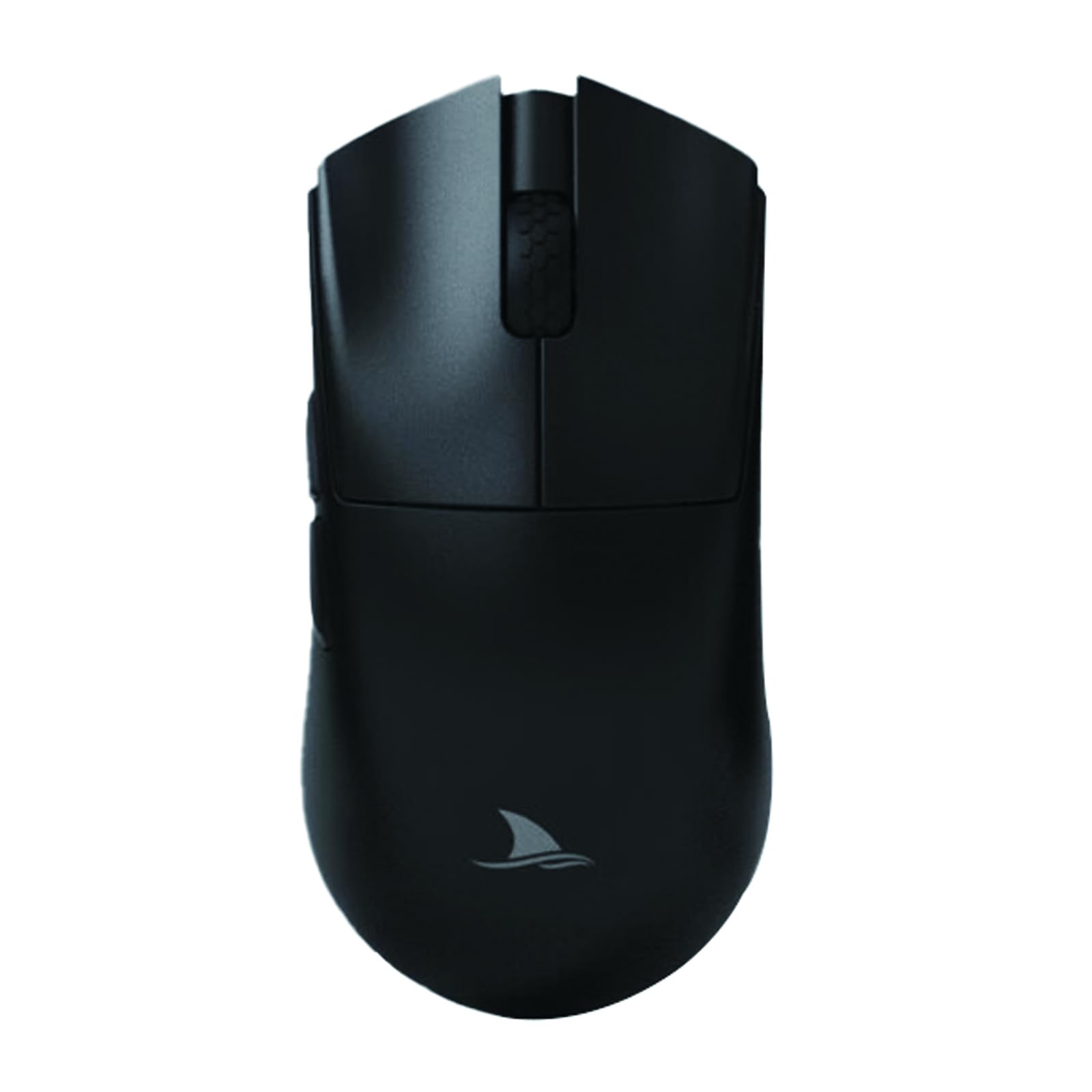
Image: The Darmoshark M3S Wireless Gaming Mouse in black, positioned next to a laptop keyboard, showcasing its sleek design.
2. Package Contents
Please verify that all items are present in your package:
- Darmoshark M3S Wireless Gaming Mouse
- USB-C Charging Cable
- 2.4G Wireless Receiver (1K/2KHz options)
- Quick Start Guide
- Darmoshark Sticker
- Extra Mouse Feet
Video: An unboxing video demonstrating the contents of the Darmoshark M3S Wireless Gaming Mouse package, including the mouse, cables, and accessories.
3. Setup Instructions
3.1 Charging the Mouse
Before first use, connect the mouse to a USB power source using the provided USB-C cable. The mouse's indicator light will show charging status and turn off when fully charged.
3.2 Connecting via 2.4G Wireless
- Locate the 2.4G wireless receiver. The mouse may come with a 1K Nano receiver and a separate 2K receiver.
- Plug the desired 2.4G receiver into an available USB port on your computer.
- Switch the mode selector switch on the bottom of the mouse to the 2.4G wireless mode.
- The mouse should automatically connect. If not, press the pairing button (if available) on the mouse and receiver simultaneously.

Image: The Darmoshark M3S mouse alongside its 2KHz wireless receiver, illustrating the components for 2.4G wireless connection.
3.3 Connecting via Bluetooth
- Switch the mode selector switch on the bottom of the mouse to the Bluetooth mode.
- On your computer or device, open Bluetooth settings and search for new devices.
- Select "Darmoshark M3S" from the list of available devices to pair.
3.4 Connecting via Wired USB-C
- Connect one end of the provided USB-C cable to the mouse and the other end to a USB port on your computer.
- The mouse will automatically switch to wired mode and begin charging.

Image: A visual representation of the tri-mode connection options (2.4G, Bluetooth, Wired USB-C) available on the Darmoshark M3S mouse.
4. Operating Instructions
4.1 DPI Adjustment
The mouse features a dedicated DPI adjustment button, typically located on the top or bottom of the mouse. Press this button to cycle through preset DPI levels. The current DPI setting may be indicated by an LED color change or through software.

Image: The Darmoshark M3S mouse, emphasizing its adjustable DPI settings up to 26000, and 650 IPS tracking speed.
4.2 Return Rate Adjustment
The return rate (polling rate) can often be adjusted via a dedicated button on the mouse or through the accompanying software. Higher return rates provide more responsive tracking.
4.3 Programmable Buttons and Macro Settings
The Darmoshark M3S mouse includes programmable buttons. To customize these buttons and set up macros, download and install the official Darmoshark software from the manufacturer's website. The software allows for detailed configuration of button functions, macro sequences, and lighting effects.

Image: The Darmoshark M3S mouse shown with its software interface, demonstrating options for 5-key custom macro programming and light effects.
5. Maintenance
5.1 Cleaning
To clean your mouse, use a soft, dry cloth. For stubborn dirt, a slightly damp cloth with mild soap can be used, ensuring no liquid enters the mouse. Avoid abrasive cleaners or solvents.
5.2 Battery Care
To prolong battery life, avoid fully discharging the mouse frequently. Charge the mouse when the battery indicator suggests low power. Store the mouse in a cool, dry place when not in use for extended periods.
6. Troubleshooting
6.1 Mouse Not Responding
- Ensure the mouse is charged.
- Check the connection mode switch (2.4G, Bluetooth, Wired) is set correctly.
- For 2.4G wireless, ensure the receiver is securely plugged in and try a different USB port.
- For Bluetooth, ensure Bluetooth is enabled on your device and the mouse is paired. Try re-pairing.
- For wired mode, ensure the USB-C cable is properly connected.
6.2 Intermittent Connectivity
- Move the mouse closer to the 2.4G receiver or Bluetooth device to reduce interference.
- Avoid placing the receiver near other wireless devices or large metal objects.
- Ensure the mouse firmware and device drivers are up to date.
6.3 DPI/Sensitivity Issues
- Press the DPI adjustment button to cycle through settings.
- Adjust DPI settings using the Darmoshark software for precise control.
- Ensure your mouse pad surface is clean and suitable for optical sensors.
7. Specifications
| Feature | Specification |
|---|---|
| Model | Darmoshark M3S |
| Sensor | PAW3395 Optical Sensor |
| DPI | Up to 26000 DPI |
| Tracking Speed | 650 IPS |
| Acceleration | 50G |
| Polling Rate | Up to 2KHz (2.4G Wireless) |
| Connectivity | 2.4G Wireless, Bluetooth 5.0, Wired USB-C |
| Weight | Approximately 54g |
| Battery | 1 Lithium Ion battery (500mAh) |
| Switches | TTC Gold Micro-motion |
| Encoder | TTC Gold Wheel Encoder |
| Dimensions (L x W x H) | 122mm x 62.5mm x 37.8mm |

Image: A detailed view of the Pixart PAW3395 advanced optical sensor, highlighting its role in high-precision positioning.

Image: A technical diagram illustrating the dimensions (length, width, height) and key button placements of the Darmoshark M3S mouse.
8. Warranty and Support
For warranty information and technical support, please refer to the official Darmoshark website or contact their customer service. Keep your purchase receipt for warranty claims.


