
1. Overview
The Azeyou F27 Android 14 Tablet (Model A16) is designed for versatile use, offering a large 12-inch 2K display and powered by an Octa-Core T616 processor. It features 20GB (8GB physical + 12GB virtual) of RAM and 256GB of internal storage, expandable up to 1TB via a microSD card. This tablet supports 5G WiFi and 4G LTE for reliable connectivity, and includes a robust 8000mAh battery with 20W fast charging capability.
The tablet's design incorporates an all-metal back for a premium feel and durability. It also supports Widevine L1 for high-quality streaming content.
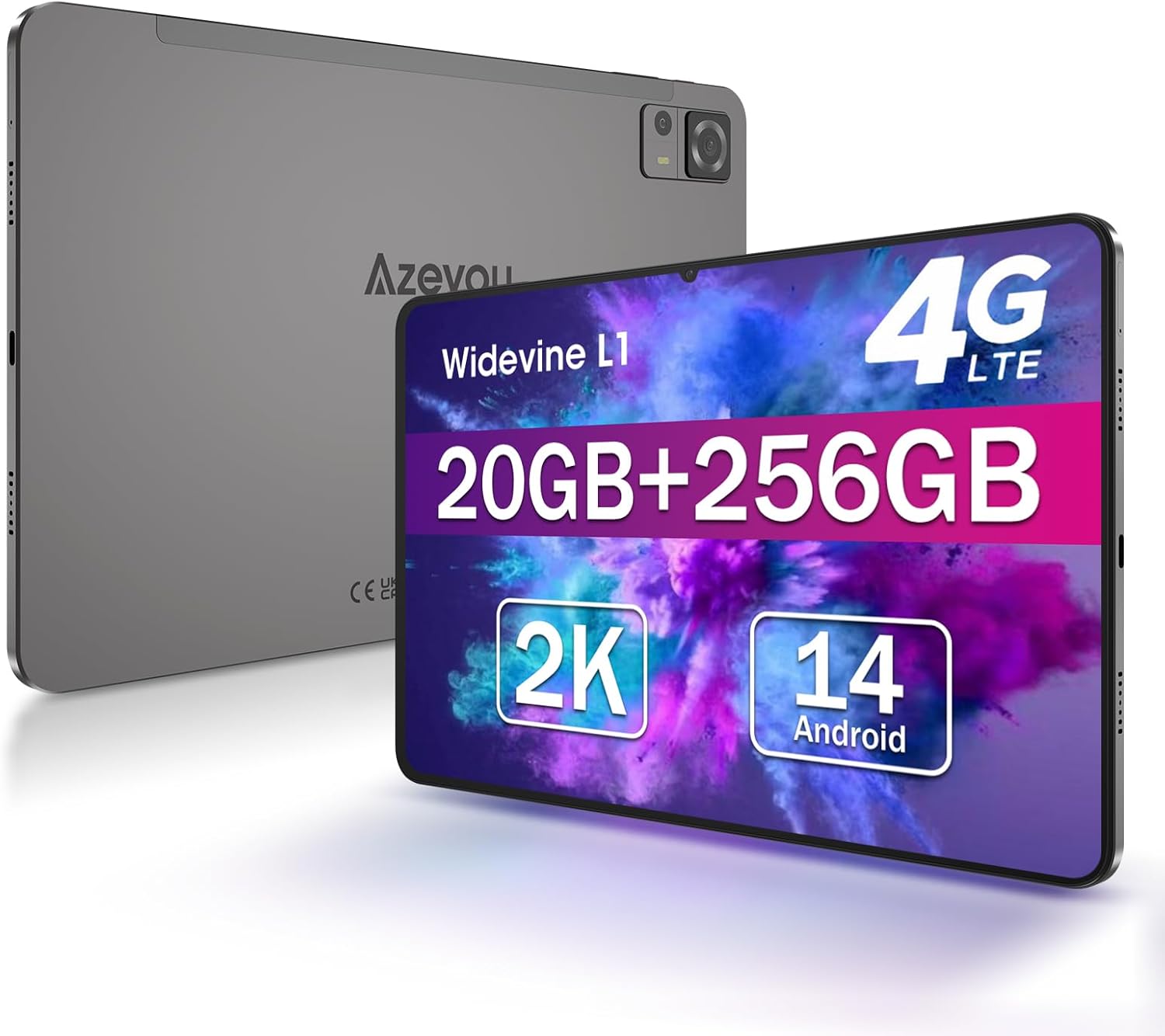
Image: Front and back view of the Azeyou F27 Android 14 Tablet, highlighting its sleek design and rear camera module.
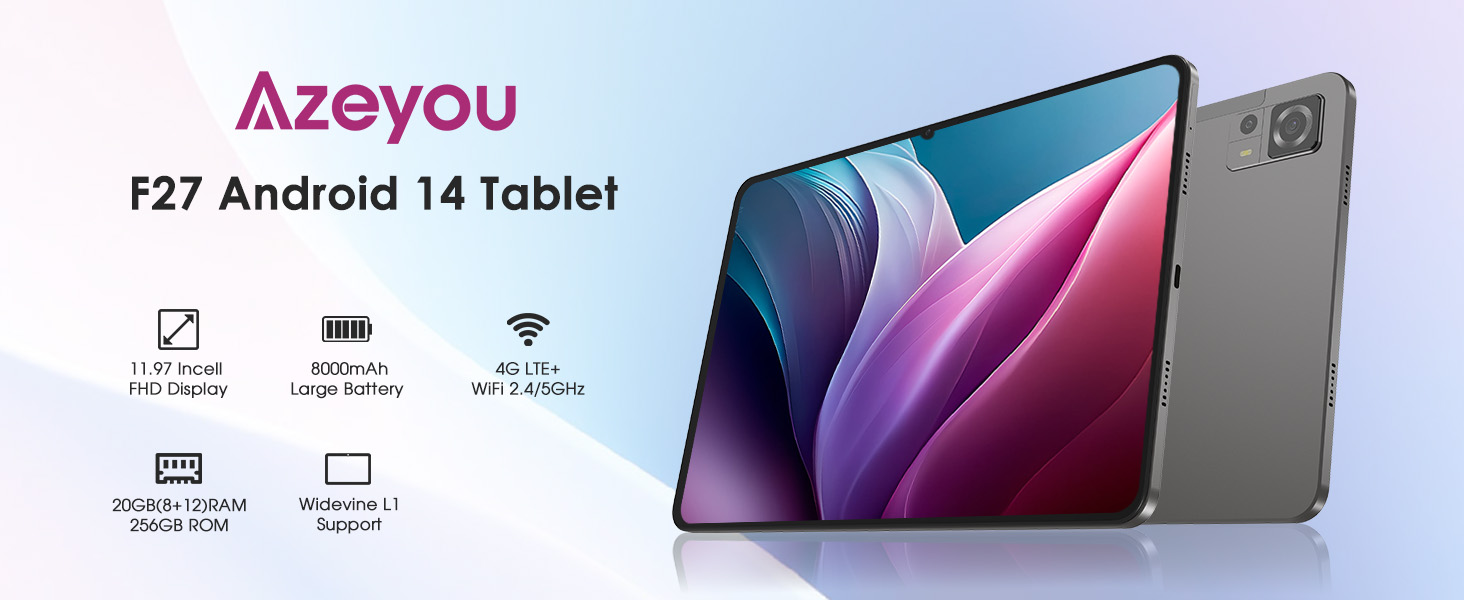
Image: Key features of the Azeyou F27 Tablet, including 4G LTE, 20GB RAM, 256GB storage, 2K display, and Android 14.
2. What's in the Box
Upon unboxing your Azeyou F27 Tablet, you should find the following items:
- 1 x Azeyou F27 Android 14 Tablet
- 1 x Charging Cable (USB Type-C)
- 1 x Charger
Please ensure all components are present and undamaged. If any items are missing or damaged, contact customer support.
3. Setup
3.1 Initial Charge
Before first use, it is recommended to fully charge your tablet. Connect the provided USB Type-C cable to the tablet's charging port and the charger to a power outlet. The tablet supports 20W fast charging.
3.2 Power On/Off
- To Power On: Press and hold the Power button located on the side of the tablet until the Azeyou logo appears.
- To Power Off: Press and hold the Power button until the power options menu appears on the screen. Select "Power off" and confirm.
- To Restart: From the power options menu, select "Restart" and confirm.
3.3 First-Time Setup
Upon powering on for the first time, the tablet will guide you through the initial setup process. This typically includes:
- Selecting your language.
- Connecting to a Wi-Fi network.
- Signing in with your Google account or creating a new one.
- Setting up screen lock (PIN, pattern, password, or Face ID).
- Reviewing and accepting terms and conditions.
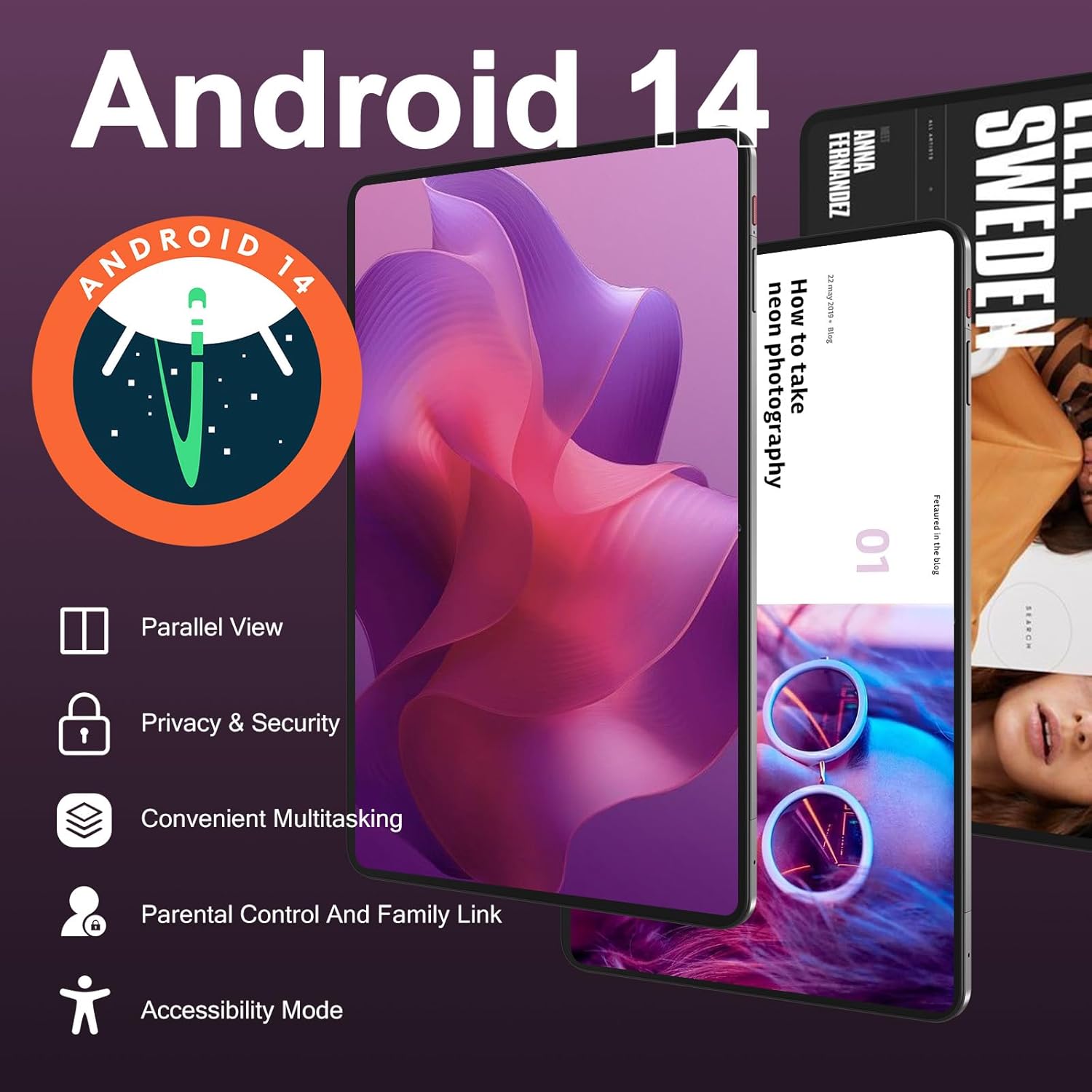
Image: The Android 14 interface on the Azeyou F27 Tablet, showing home screen and app icons.
4. Operating Instructions
4.1 Touchscreen Navigation
The Azeyou F27 Tablet features a responsive touchscreen. Common gestures include:
- Tap: To select an item or open an app.
- Swipe: To scroll through pages or menus.
- Pinch-to-Zoom: To zoom in or out on images and web pages.
- Long Press: To access contextual menus or move app icons.
4.2 Android 14 Features
Your tablet runs on Android 14, offering enhanced privacy, security, and multitasking capabilities. Features include Parallel View for split-screen multitasking, improved parental controls, and various accessibility modes.
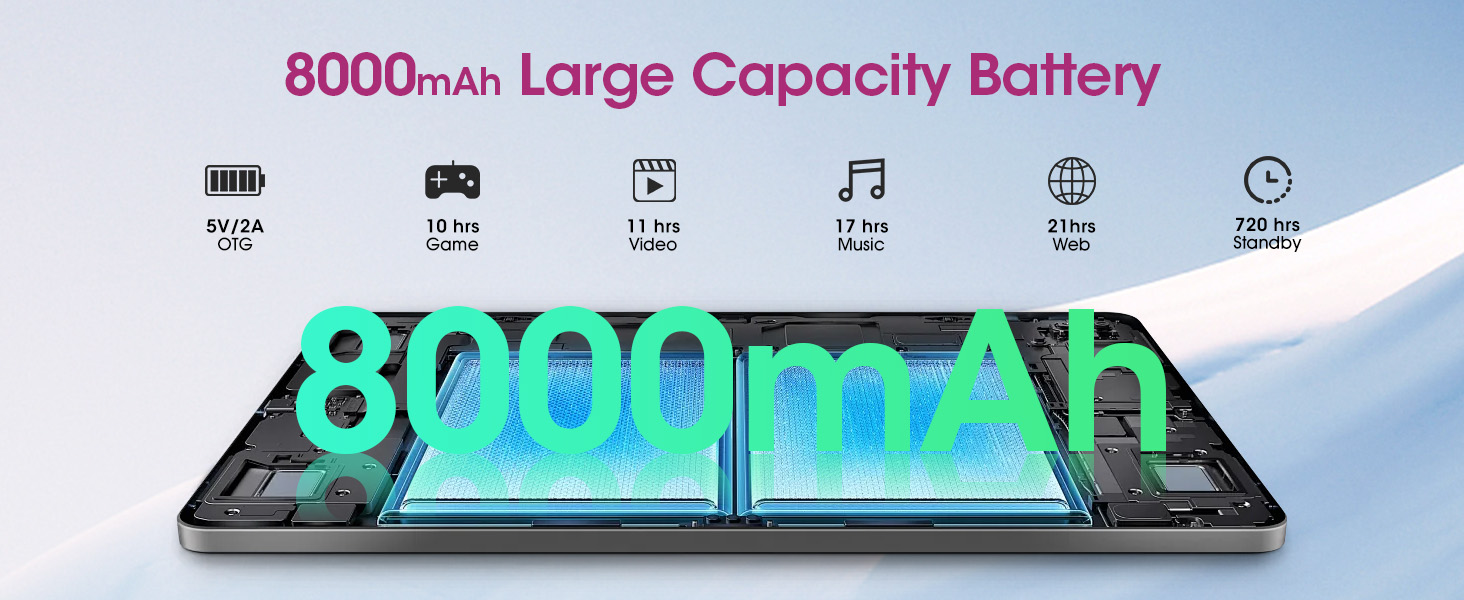
Image: Visual representation of Android 14 features like Parallel View, Privacy & Security, Convenient Multitasking, Parental Control, and Accessibility Mode.

Image: Demonstrates smooth and efficient multi-tasking on the Android 14 tablet, showing multiple applications open simultaneously.
4.3 Face ID
The tablet supports Face ID for convenient and secure unlocking. To set up Face ID, navigate to Settings > Security > Face Unlock and follow the on-screen instructions.

Image: A user unlocking the Azeyou F27 Tablet using Face ID technology.
5. Connectivity
The Azeyou F27 Tablet offers multiple connectivity options for seamless internet access and device pairing.
5.1 Wi-Fi
The tablet supports Dual-band Wi-Fi (2.4G+5G) and Wi-Fi 6 for fast and stable wireless internet connections. To connect to Wi-Fi:
- Go to Settings > Network & internet > Wi-Fi.
- Turn on Wi-Fi.
- Select your desired network from the list and enter the password if required.
5.2 4G LTE
The tablet supports 4G LTE connectivity, allowing you to access mobile data. Insert a compatible SIM card into the tablet's SIM card slot. Ensure your SIM card is activated with a data plan from your mobile carrier.

Image: Close-up of the SIM card and TF card slots on the Azeyou F27 Tablet, showing dual SIM capability and microSD expansion.
5.3 Bluetooth 5.2
Bluetooth 5.2 provides faster transfer speeds and an extended communication range compared to older versions. To pair Bluetooth devices:
- Go to Settings > Connected devices > Connection preferences > Bluetooth.
- Turn on Bluetooth.
- Select "Pair new device" and choose your device from the list.
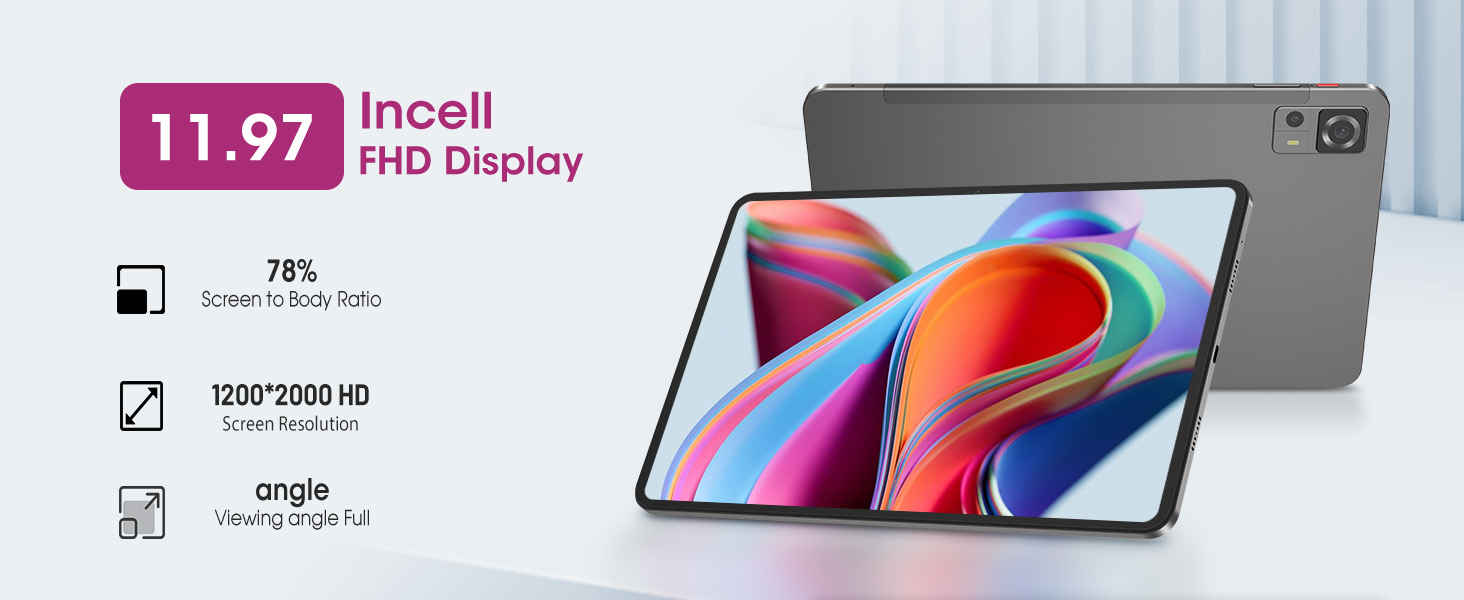
Image: Highlights the tablet's connectivity options including WiFi 6, 5MP front camera, and 13MP+2MP rear cameras.
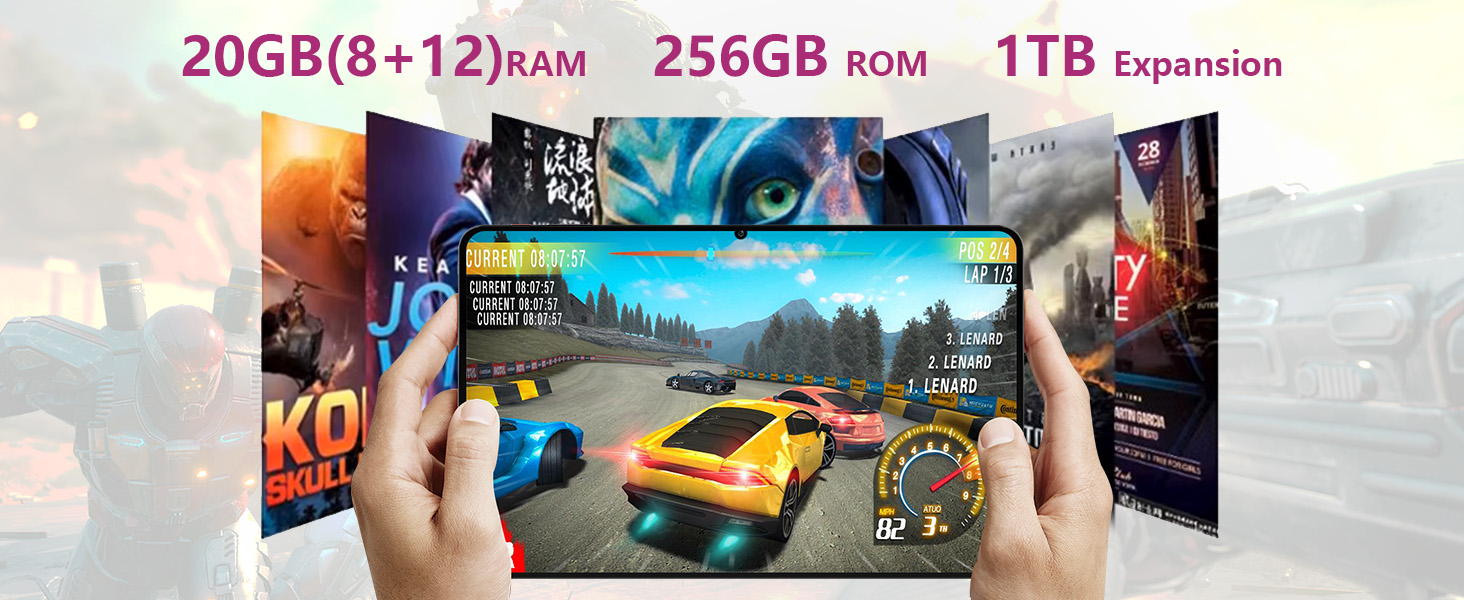
Image: Compares the 11.97-inch 2K display of the Azeyou F27 Tablet to a smaller 10-inch tablet, emphasizing the larger screen size.
6. Camera Features
The Azeyou F27 Tablet is equipped with a triple-camera setup for capturing photos and videos.
- Rear Cameras: 13MP main camera + 2MP macro camera.
- Front Camera: 5MP camera, suitable for video calls and selfies.
To access the camera, tap the Camera app icon on your home screen or app drawer. The camera interface allows you to switch between photo, video, and other modes.

Image: Illustrates the tablet's camera system, including the 5MP front camera and the 13MP rear camera with a 2MP macro lens.
Image: Shows the tablet's camera capabilities and WiFi 6 connectivity, useful for video calls.
7. Battery Management
The Azeyou F27 Tablet is equipped with an 8000mAh battery, providing extended usage times.
- Usage: Supports 8-12 hours of mixed use, ideal for reading, viewing, and online learning.
- Charging: The USB Type-C interface supports 20W fast charging.
To optimize battery life, you can adjust screen brightness, disable unused connectivity features (Wi-Fi, Bluetooth, GPS), and close background applications.

Image: Highlights the 8000mAh battery, 20W fast charging via Type-C port, and the 3.5mm headphone jack.
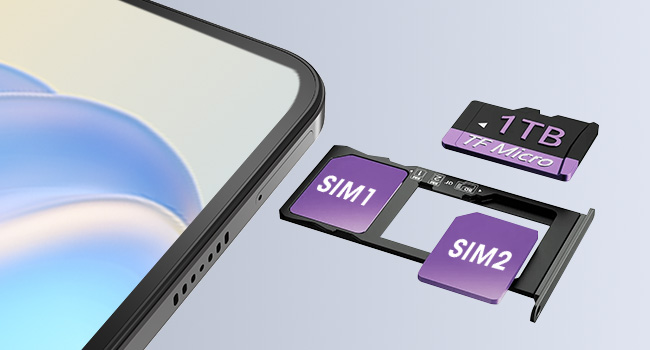
Image: Details the usage duration for the 8000mAh battery, including 10 hours of gaming, 11 hours of video, 17 hours of music, 21 hours of web browsing, and 720 hours of standby.
8. Storage and Performance
The Azeyou F27 Tablet is designed for smooth performance and ample storage.
- Processor: Unisoc T616 Octa-Core processor (2 GHz) with Mali-G57MP graphics coprocessor.
- RAM: 20GB (8GB physical RAM + 12GB virtual RAM).
- Internal Storage: 256GB ROM.
- Expandable Storage: Supports up to 1TB via a microSD (TF) card.
This configuration ensures fast app launches, smooth multitasking, and sufficient space for applications, media, and documents.

Image: Detailed view of the T616 Octa-core processor, highlighting 256GB ROM and 20GB RAM (8GB+12GB).
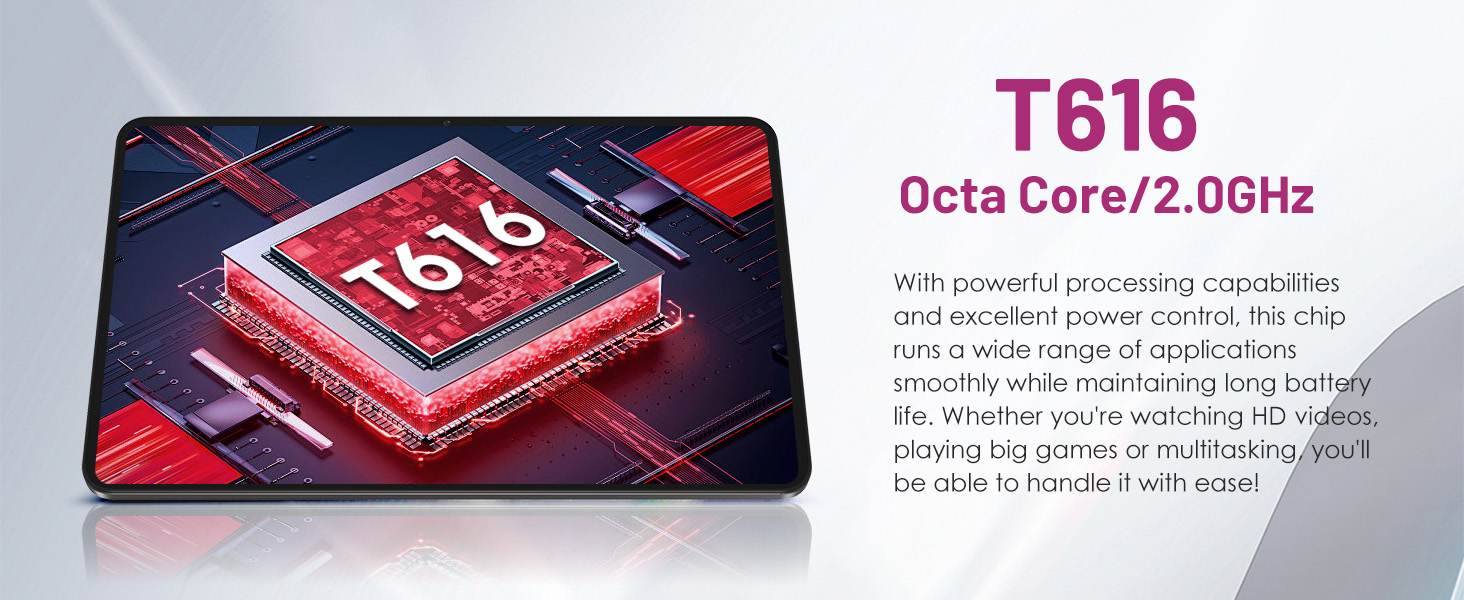
Image: Illustrates the 20(8+12)GB RAM, 256GB ROM, and 1TB TF card expansion, with various app icons in the background.
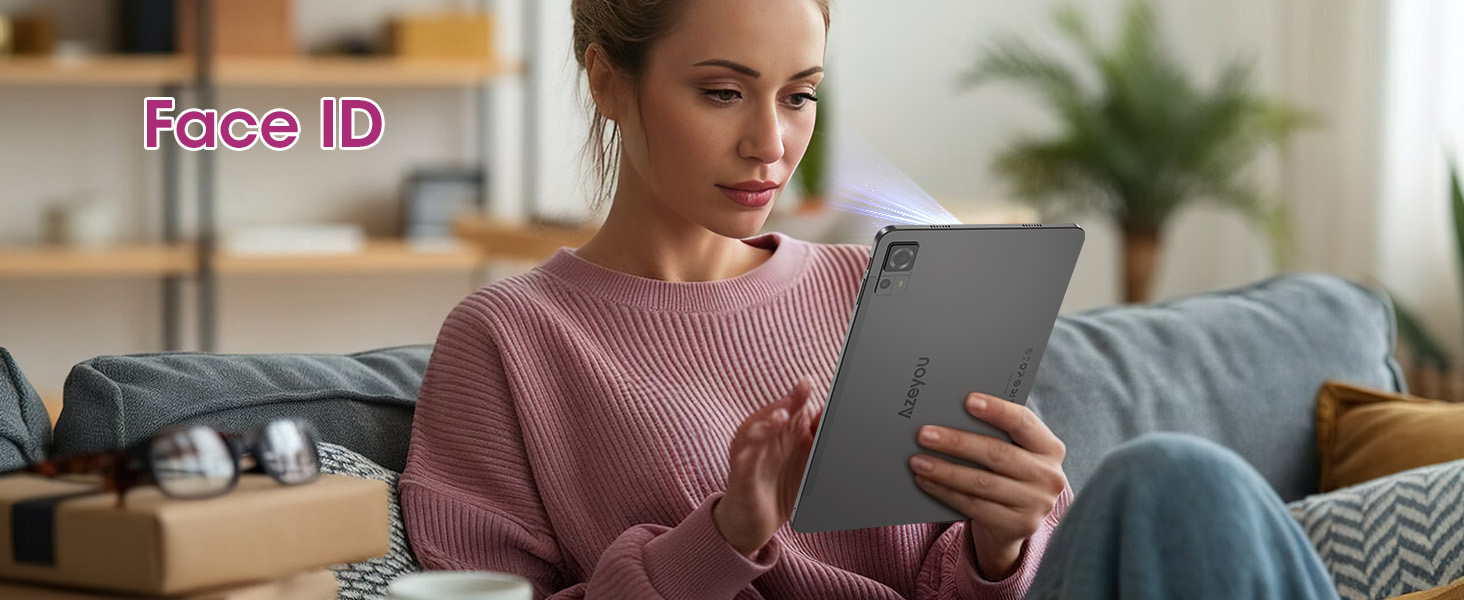
Image: Shows the tablet's capability for gaming and multimedia with its 20GB RAM, 256GB ROM, and 1TB expansion.
9. Maintenance
To ensure the longevity and optimal performance of your Azeyou F27 Tablet, follow these maintenance guidelines:
- Cleaning: Use a soft, lint-free cloth to clean the screen and body. Avoid abrasive materials or harsh chemicals.
- Protection: Consider using a screen protector and a protective case to prevent scratches and damage from drops.
- Software Updates: Regularly check for and install system updates to ensure your tablet has the latest features and security patches.
- Storage Management: Periodically clear unnecessary files and apps to free up storage space and maintain performance.
- Temperature: Avoid exposing the tablet to extreme temperatures (hot or cold) or direct sunlight for prolonged periods.
10. Troubleshooting
If you encounter issues with your Azeyou F27 Tablet, try the following common troubleshooting steps:
10.1 Tablet Not Turning On
- Ensure the battery is charged. Connect the charger and wait a few minutes before attempting to power on again.
- Press and hold the Power button for 10-15 seconds to perform a forced restart.
10.2 Screen Unresponsive
- Restart the tablet.
- Ensure your hands are clean and dry.
10.3 Wi-Fi Connectivity Issues
- Toggle Wi-Fi off and on in Settings.
- Restart your Wi-Fi router.
- Forget the network and reconnect.
10.4 Apps Crashing or Freezing
- Clear the cache and data for the problematic app (Settings > Apps > [App Name] > Storage & cache).
- Uninstall and reinstall the app.
- Ensure the tablet's software is up to date.
If these steps do not resolve the issue, please refer to the Warranty and Support section for further assistance.
11. Specifications
Detailed technical specifications for the Azeyou F27 Android 14 Tablet (Model A16):
| Feature | Specification |
|---|---|
| Brand | Azeyou |
| Model Name | F27 Tablet (Model A16) |
| Operating System | Android 14 |
| Screen Size | 12 Inches |
| Screen Resolution | 2000x1200 (2K IPS Display) |
| Processor | Unisoc T616 Octa-Core (2 GHz) |
| Graphics Coprocessor | Mali-G57MP |
| RAM | 20GB (8GB physical + 12GB virtual) |
| Internal Storage | 256GB |
| Expandable Storage | Up to 1TB via MicroSD (TF) card |
| Rear Webcam Resolution | 13 MP + 2 MP |
| Front Webcam Resolution | 5 MP |
| Wireless Type | 802.11a/b/g/n/ac (Dual-band Wi-Fi 6) |
| Cellular Connectivity | 4G LTE |
| Bluetooth | Bluetooth 5.2 |
| Battery Capacity | 8000mAh |
| Charging | 20W Fast Charge (USB Type-C) |
| Item Weight | 12.8 ounces |
| Product Dimensions | 11 x 7 x 0.3 inches |
| Color | Gray |
12. Official Product Video
Watch this official video from Azeyou Global for a visual overview of the F27 Tablet's features and design.
Video: An official product video showcasing the Azeyou F27 Tablet, its design, and key functionalities.
13. Warranty and Support
For warranty information and customer support, please refer to the documentation included with your product or visit the official Azeyou website. If you encounter any issues not covered in this manual, please contact Azeyou customer service for assistance.
You can also visit the Azeyou Store on Amazon for more product information and support resources.
