1. Introduction
Thank you for choosing the vretti P83 A4 Wireless Thermal Printer. This compact and portable printer is designed for convenience, offering high-quality, inkless printing on the go. It supports various paper sizes and connects seamlessly via Bluetooth to your mobile devices (iOS/Android) and via USB to your computers (Windows/Mac OS). This manual provides detailed instructions to help you set up, operate, and maintain your printer for optimal performance.
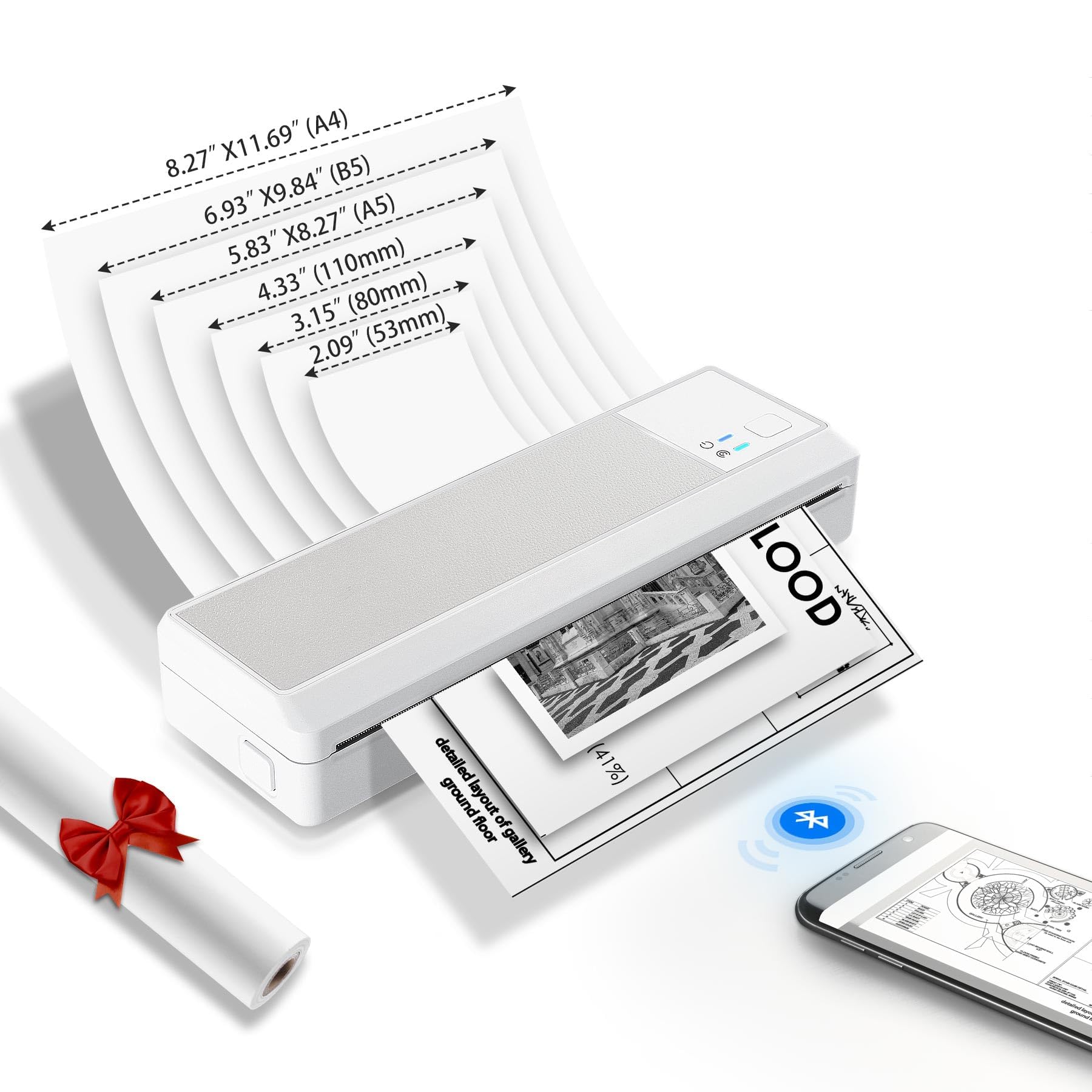
Image: The vretti P83 A4 Wireless Thermal Printer, a compact and portable device.
2. Product Features
- Compact and Portable: Weighing only 0.63 kg (1.39 lbs) and with dimensions of 27.1 x 11.9 x 6.9 cm, the P83 is designed for easy transport and use anywhere.
- Inkless Thermal Printing: Utilizes advanced thermal printing technology, eliminating the need for ink cartridges, toner, or ribbons. This ensures clean, hassle-free printing without clogs or spills.
- High Compatibility: Connects wirelessly via Bluetooth to iOS and Android smartphones using the "Xlife Pro" app. Also supports USB connection for Windows and Mac OS computers.
- High Print Quality: Features a 300 DPI resolution, delivering crisp, clear text and graphics for professional-looking documents.
- Long-lasting Battery: Equipped with a built-in 2600 mAh battery, providing extended usage for all-day printing needs.
- Versatile Paper Support: Compatible with thermal paper rolls and continuous thermal paper, supporting various sizes including A4, B5, A5, 110mm, 80mm, and 53mm.

Image: The vretti P83 printer fits easily into a travel bag, demonstrating its compact size and light weight (1.39 pounds).
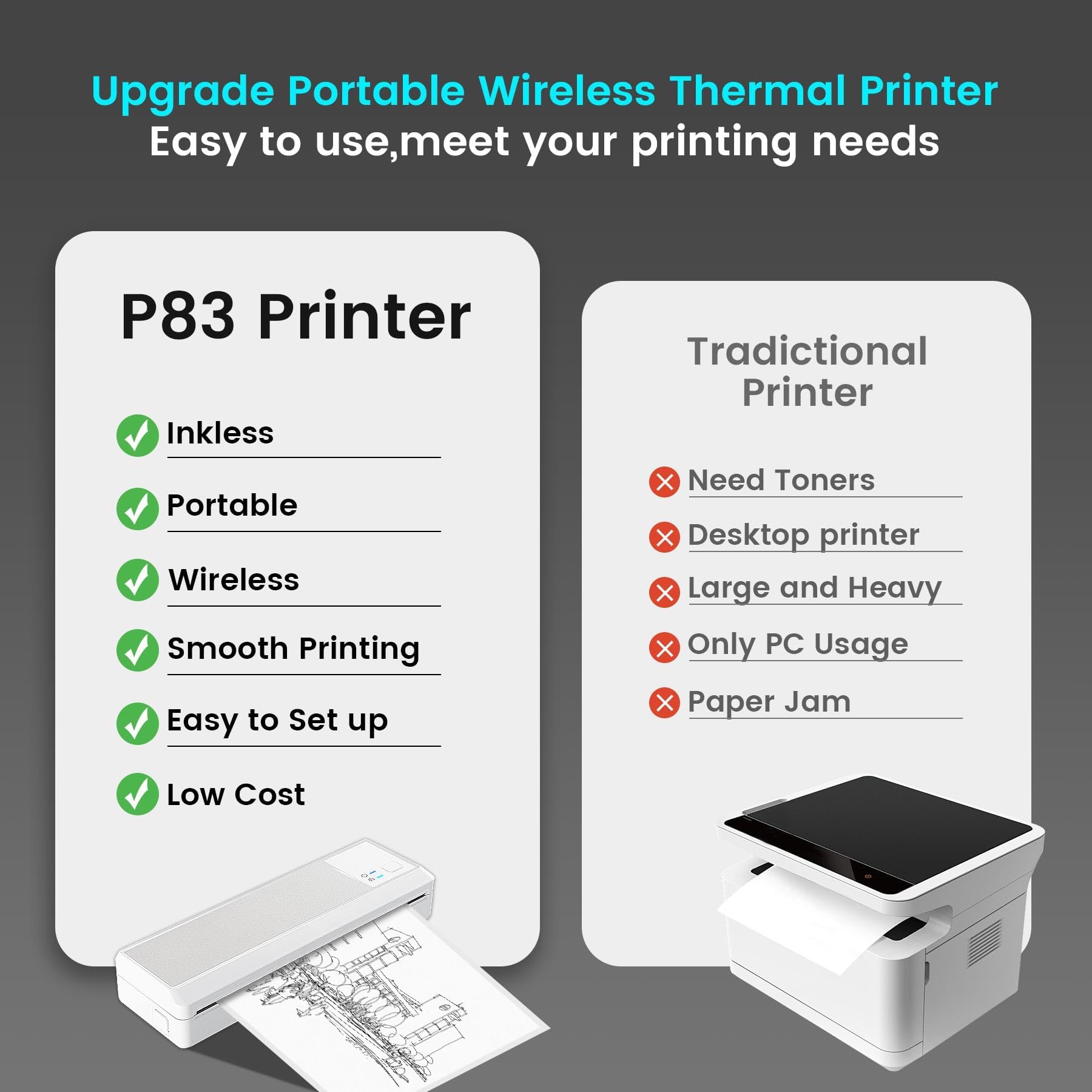
Image: The vretti P83 printer features a 2600mAh large capacity battery, ideal for travel, home, business, and study.
3. Package Contents
Please check the package contents upon unboxing. If any items are missing or damaged, contact customer support.
- vretti P83 A4 Wireless Thermal Printer
- USB Cable
- Thermal Paper Roll (starter)
- User Manual
4. Setup Guide
4.1 Powering On and Charging
- Initial Charge: Before first use, fully charge the printer using the provided USB cable. Connect the USB cable to the printer's charging port and a compatible USB power adapter (not included) or computer USB port. The charging indicator light will show the charging status.
- Power On/Off: Press and hold the power button for a few seconds to turn the printer on or off.
4.2 Loading Thermal Paper
The vretti P83 printer supports both thermal paper rolls and continuous thermal paper. Ensure you use thermal paper as the printer does not use ink.
- Open the paper compartment cover.
- Insert the thermal paper roll or continuous paper, ensuring the printable side (usually smoother and brighter) faces the print head.
- Pull out a small length of paper past the print head.
- Close the paper compartment cover firmly until it clicks into place.
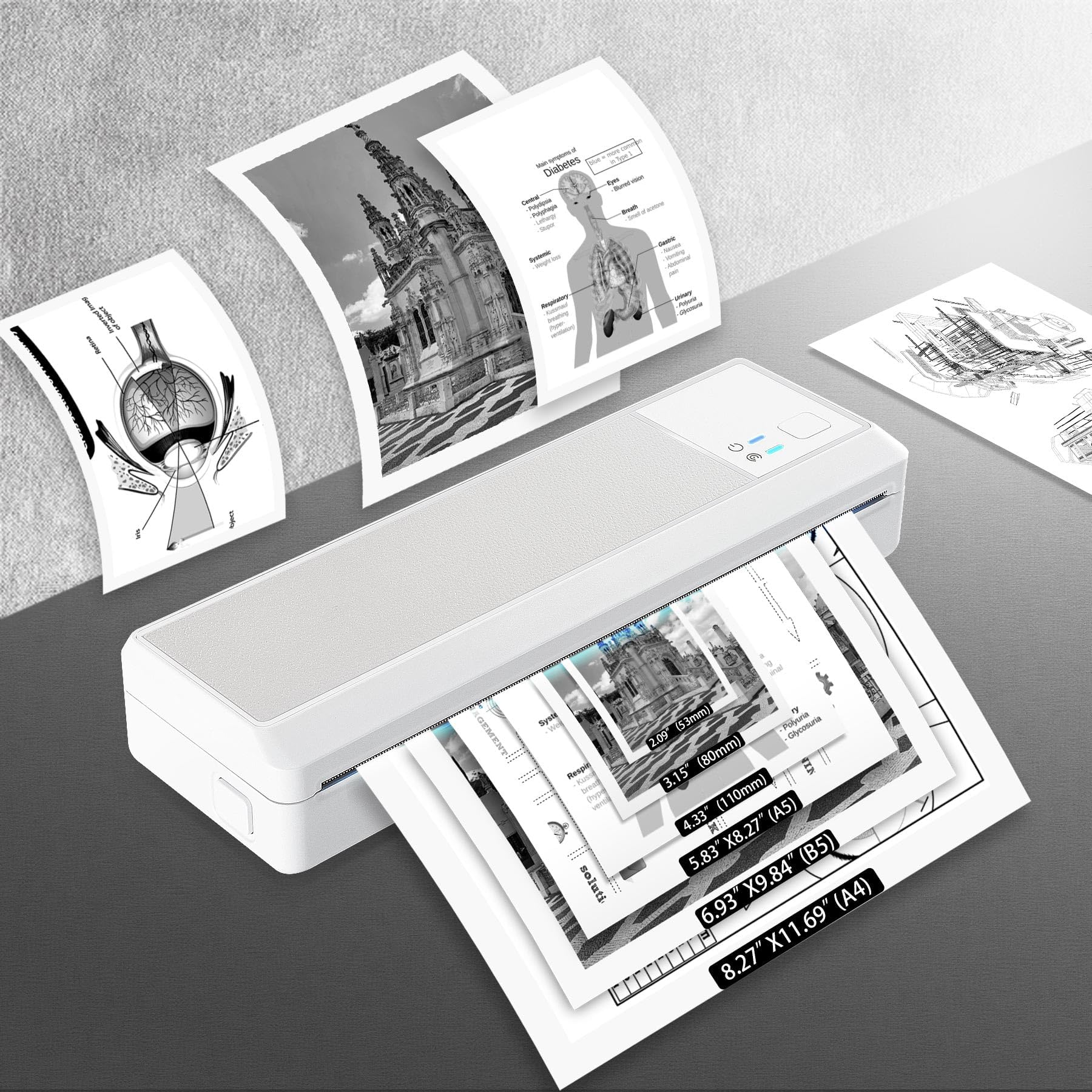
Image: The printer supports a variety of thermal paper sizes, from A4 down to smaller custom widths like 53mm.

Image: The adjustable design of the printer allows for easy loading and printing on various thermal paper sizes.
4.3 Connecting Your Printer
4.3.1 Bluetooth Connection (iOS/Android)
- Download the App: Search for "Xlife Pro" in the Apple App Store (for iOS) or Google Play Store (for Android) and install it on your smartphone.
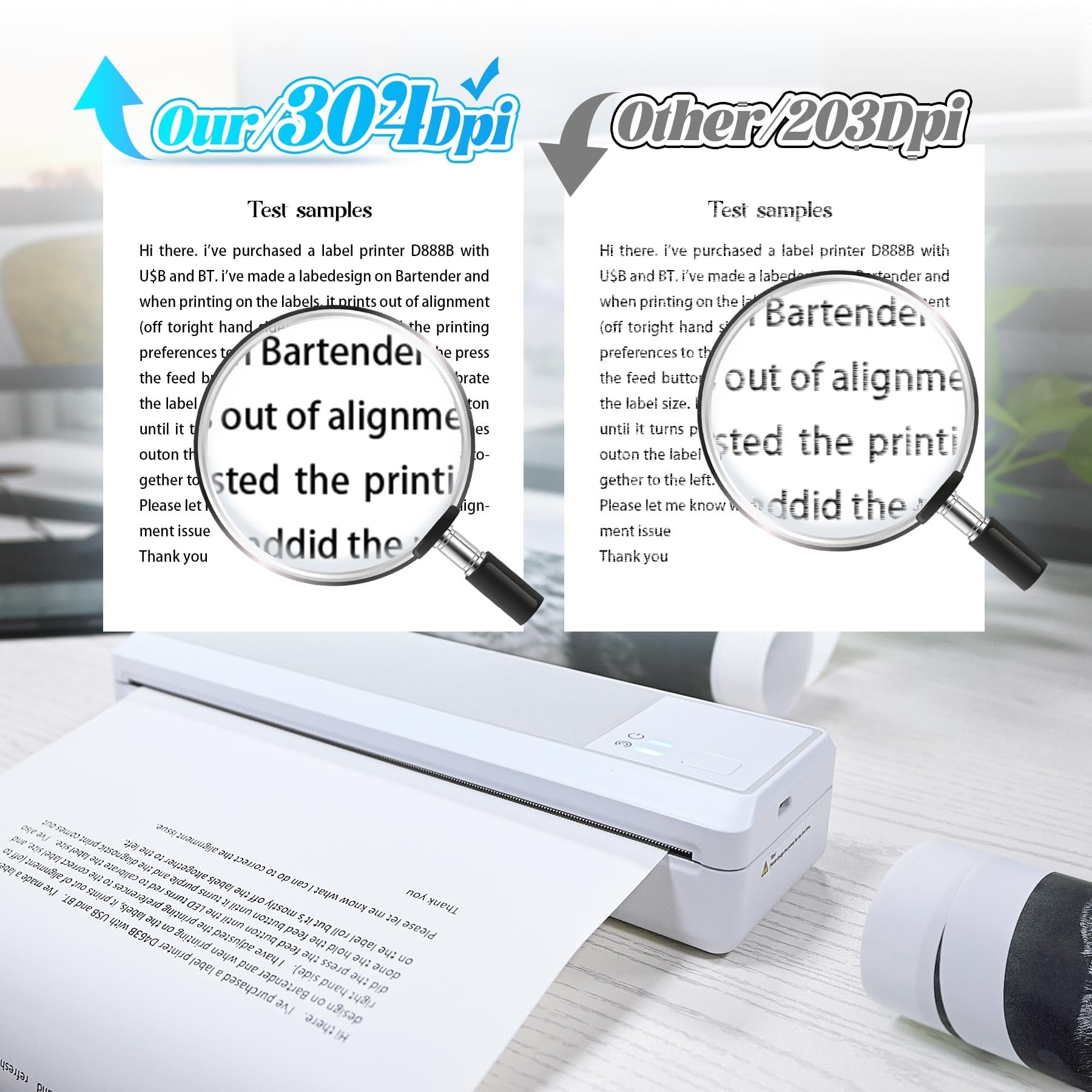
Image: The vretti P83 supports Bluetooth wireless printing via the Xlife Pro app, available on iOS and Android.
- Enable Bluetooth: Ensure Bluetooth is enabled on your smartphone and the printer is powered on.
- Pairing: Open the "Xlife Pro" app. The app will guide you through the pairing process. Select "P83" from the list of available devices.
- Confirmation: Once paired, the app will indicate a successful connection.
4.3.2 USB Connection (Windows/Mac OS)
- Connect Cable: Connect the printer to your computer using the provided USB cable.
- Driver Installation: Your computer may automatically install the necessary drivers. If not, please visit the vretti official website to download and install the appropriate drivers for your operating system (Windows or Mac OS).
- Printer Setup: After driver installation, the printer should appear in your computer's printer settings.

Image: The vretti P83 printer supports both Bluetooth connectivity for mobile devices and USB connection for computers, offering flexible printing options.
5. Operating Instructions
5.1 Printing from Mobile Devices (via Xlife Pro App)
- Ensure your printer is connected via Bluetooth to your smartphone.
- Open the "Xlife Pro" app.
- Select the type of document you wish to print (e.g., PDF, image, web page, text).
- Adjust print settings such as paper size, orientation, and number of copies within the app.
- Tap the "Print" button to initiate printing.
5.2 Printing from Computers (via USB)
- Ensure your printer is connected via USB to your computer and drivers are installed.
- Open the document or image you wish to print on your computer.
- Go to "File" > "Print" (or press Ctrl+P/Cmd+P).
- Select "vretti P83" from the list of available printers.
- Adjust print preferences as needed (e.g., paper size, quality).
- Click "Print".

Image: The vretti P83 printer delivers superior print quality with 300DPI resolution, resulting in sharper text and graphics compared to 203DPI printers.
6. Maintenance
Proper maintenance ensures the longevity and optimal performance of your vretti P83 printer.
6.1 Cleaning the Print Head
- Turn off the printer and disconnect it from the power source.
- Open the paper compartment cover.
- Gently wipe the print head with a soft, lint-free cloth lightly dampened with isopropyl alcohol. Do not use water or abrasive cleaners.
- Allow the print head to dry completely before closing the cover and turning the printer back on.
6.2 General Care and Storage
- Keep the printer in a clean, dry environment, away from direct sunlight, extreme temperatures, and humidity.
- Avoid dropping or subjecting the printer to strong impacts.
- Use only recommended thermal paper. Using non-thermal paper or low-quality thermal paper can damage the print head.
- When not in use for extended periods, fully charge the battery and store the printer in a cool, dry place. Recharge every 3 months to maintain battery health.
7. Troubleshooting
| Problem | Possible Cause | Solution |
|---|---|---|
| Printer not turning on. | Low battery; Power button not pressed long enough. | Charge the printer; Press and hold the power button for 3-5 seconds. |
| Cannot connect via Bluetooth. | Bluetooth not enabled; Printer not in pairing mode; Incorrect app used; Interference. | Ensure Bluetooth is on; Restart printer and phone; Use "Xlife Pro" app; Move closer to printer. |
| Poor print quality (faint/blurry). | Low battery; Dirty print head; Incorrect paper type; Low quality thermal paper. | Charge printer; Clean print head (refer to Maintenance); Ensure thermal paper is used; Try a different brand of thermal paper. |
| Paper jam. | Improper paper loading; Damaged paper. | Turn off printer, open cover, carefully remove jammed paper. Reload paper correctly. |
| Printer not recognized by PC via USB. | Missing/incorrect drivers; Faulty USB cable/port. | Install correct drivers from vretti website; Try a different USB cable or port. |
8. Specifications
| Feature | Detail |
|---|---|
| Model Name | P83 |
| Brand | vretti |
| Printing Technology | Thermal |
| Print Resolution | 300 DPI (Dots Per Inch) |
| Connectivity | Bluetooth, USB |
| Compatible Devices | Smartphones (iOS, Android), Computers (Windows, Mac OS) |
| App Support | Xlife Pro |
| Paper Type | Thermal Paper (Rolls & Continuous) |
| Supported Paper Sizes | A4 (8.27"x11.69"), B5 (6.93"x9.84"), A5 (5.83"x8.27"), 110mm (4.33"), 80mm (3.15"), 53mm (2.09") |
| Battery Capacity | 2600 mAh |
| Product Dimensions (L x W x H) | 27.1 cm x 11.9 cm x 6.9 cm (10.67" x 4.69" x 2.72") |
| Product Weight | 0.63 kg (1.39 lbs) |
| Max Print Speed (Monochrome) | 20 Pages per minute (PPM) |
9. Warranty and Support
vretti is committed to providing excellent customer service. Your vretti P83 printer comes with dedicated support to ensure your satisfaction.
9.1 Technical Support
For any questions or issues regarding your vretti P83 printer, our professional team offers lifetime technical support via email, phone, and remote control. Please refer to the contact information provided with your product packaging or on the official vretti website for assistance.
9.2 Warranty Information
Specific warranty terms and conditions may vary by region. Please retain your proof of purchase for warranty claims. For detailed warranty information, refer to the documentation included with your product or visit the official vretti website.


