
Introduction
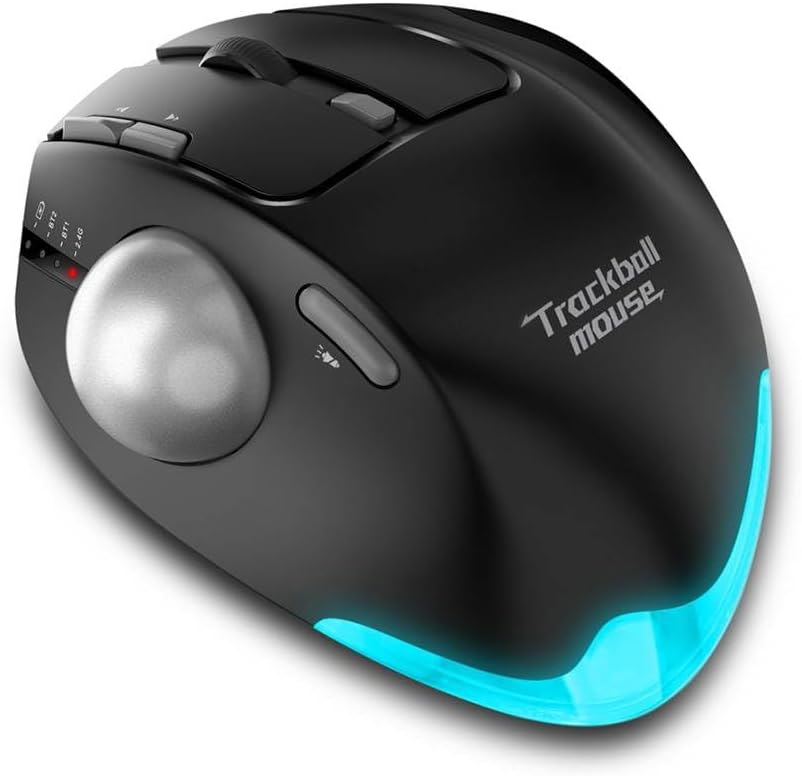
Image: The JOMAA Ergonomic Wireless Trackball Mouse, showcasing its design and illuminated base.
Thank you for choosing the JOMAA Ergonomic Wireless Trackball Mouse. This advanced tri-mode mouse is designed for enhanced productivity and comfort, offering seamless connectivity across multiple devices and precise control. With its ergonomic design, customizable buttons, and adjustable DPI settings, it provides a superior user experience for various applications, from office tasks to graphic design.
Key features include:
- Tri-mode wireless connection (2x Bluetooth, 1x 2.4GHz USB Receiver)
- 5 Adjustable DPI levels (800/1200/1600/2400/4800 DPI)
- 7 Programmable Buttons for customized functions
- Ergonomic semi-vertical grip with adjustable angles (0° and 18°)
- Rechargeable built-in lithium battery
- Approximately 16.8 million color RGB illumination
Setup
Charging the Mouse
Before first use, it is recommended to fully charge the mouse. The JOMAA Trackball Mouse features a built-in 730 mAh lithium battery.

Image: The JOMAA Trackball Mouse connected via USB for charging, highlighting its 730 mAh battery capacity.
- Connect the mouse to a USB power source using the provided charging cable.
- The battery status indicator light will be on during charging.
- The indicator light will turn off when the battery is fully charged.
- When the battery is low, the 2.4GHz indicator or the Bluetooth indicator will flash quickly every other second.
Connecting the Mouse (Tri-Mode)
The JOMAA Trackball Mouse supports three connection modes: two Bluetooth channels (BT1, BT2) and one 2.4GHz USB receiver channel. You can switch between these modes to control up to three different devices.

Image: An overview of the mouse's multi-functional capabilities, including Bluetooth and 2.4GHz connectivity.
2.4GHz USB Receiver Connection:
- Locate the USB receiver, usually stored in a compartment on the underside of the mouse.
- Plug the USB receiver into an available USB port on your computer.
- Turn on the mouse. The mouse should automatically connect to your computer.
- Ensure the mouse is set to the 2.4G mode (indicated by the corresponding light).
Bluetooth Connection (BT1 / BT2):
- Turn on the mouse.
- Switch the mouse to either BT1 or BT2 mode using the mode switch button on the mouse. The corresponding Bluetooth indicator light will flash.
- On your device (PC, Laptop, Mac, etc.), go to Bluetooth settings.
- Search for new Bluetooth devices.
- Select "JOMAA Trackball Mouse" (or similar name) from the list of available devices to pair.
- Once paired, the Bluetooth indicator light on the mouse will become solid.
- Repeat for the second Bluetooth channel (BT2) if connecting to another device.
To switch between connected devices, simply press the mode switch button on the mouse to cycle through 2.4G, BT1, and BT2.
Operating Instructions
DPI Adjustment
The mouse features 5 adjustable DPI levels: 800, 1200, 1600, 2400, and 4800. You can change the cursor sensitivity to suit your preference and task requirements.
- Locate the DPI switch button on the mouse (refer to the diagram in the manual for exact location).
- Press the DPI button to cycle through the available DPI settings. The indicator light may change or flash to indicate the current DPI level.
Programmable Buttons
The JOMAA Trackball Mouse is equipped with 7 programmable buttons, allowing you to customize their functions for enhanced workflow efficiency.
- To customize button functions, please refer to the attached software manual or download the dedicated software from the official JOMAA website.
- Install the software on your computer and follow the on-screen instructions to assign desired actions to each programmable button.
Ergonomic Design and Adjustable Angle
This mouse is designed with a semi-vertical grip to promote a more natural wrist posture, reducing strain during prolonged use.

Image: A hand demonstrating the ergonomic semi-vertical grip of the JOMAA Trackball Mouse.

Image: Comparison of the mouse at 0° and 18° angles, showcasing the magnetic detachable base.
- The mouse comes with an aluminum alloy detachable base with a magnetic structure.
- Gently apply wrist pressure to adjust the angle between 0° and 18° to find your most comfortable working posture.
RGB Illumination
The mouse features approximately 16.8 million color RGB lighting effects to enhance your workspace aesthetics.

Image: The JOMAA Trackball Mouse illuminated with colorful RGB lighting.
- A dedicated button on the mouse allows you to freely switch between different lighting colors and effects.
Maintenance
Trackball Cleaning
Regular cleaning of the trackball ensures smooth and precise movement.

Image: Step-by-step instructions for cleaning the trackball.
- Step 1: Push the trackball out of its socket from the circular hole at the mouse's base.
- Step 2: Extract the trackball and gently clean the trackball groove using a cotton cloth.
- Step 3: Place the trackball back into the mouse.
Note: For cleaning the ball's surface, a gentle wipe with water is sufficient. Allow it to air dry naturally and refrain from using chemical agents.
Battery Care
- Avoid fully discharging the battery frequently.
- Charge the mouse using a standard USB power adapter or computer USB port.
- If storing the mouse for an extended period, charge it to about 50% to preserve battery health.
Troubleshooting
| Problem | Possible Cause | Solution |
|---|---|---|
| Mouse not responding / not pairing |
|
|
| Erratic cursor movement |
|
|
| Buttons not working |
|
|
Specifications
| Feature | Detail |
|---|---|
| Brand | JOMAA |
| Model | Ergonomic Wireless Trackball Mouse |
| Connectivity Technology | Bluetooth, 2.4GHz USB |
| Movement Detection Technology | Trackball |
| DPI Levels | 800 / 1200 / 1600 / 2400 / 4800 |
| Programmable Buttons | 7 |
| Battery Type | 1 Lithium Ion battery (included) |
| Battery Capacity | 730 mAh (approx.) |
| Item Weight | 13.4 ounces |
| Package Dimensions | 5.94 x 4.29 x 2.64 inches |
| Color | BLACK |
| Country of Origin | China |
Warranty and Support
JOMAA products are manufactured to the highest quality standards. For information regarding warranty coverage, technical support, or service inquiries, please visit the official JOMAA website or contact their customer service.
Official JOMAA Store: JOMAA Store on Amazon


