
Bewinner Bewinner426rudkx5z-02
Bewinner Portable 8GB MP3 Player User Manual
Model: Bewinner426rudkx5z-02
Brand: Bewinner
Introduction
Thank you for purchasing the Bewinner Portable 8GB MP3 Player. This device is designed for music lovers, offering a compact and versatile solution for digital audio and video playback, FM radio, voice recording, and more. With its user-friendly interface and high-speed USB 2.0 connectivity, you can enjoy your media on the go.
This manual provides detailed instructions on how to set up, operate, and maintain your MP3 player to ensure optimal performance and longevity.
What's in the Box
Please check the package contents upon unboxing:
- 1 x Bewinner Portable 8GB MP3 Player
- 1 x Charging Cable
- 1 x Headphone Cable
- 1 x Colored Box

Image: The Bewinner MP3 Player shown alongside its included accessories: a pair of white wired headphones and a black USB charging cable.
Product Overview
Familiarize yourself with the main components and features of your MP3 player.

Image: A close-up front view of the white Bewinner MP3 Player, highlighting its color TFT screen displaying various menu icons (Music, Video, Radio, PIC, REC, EBook, Files, Voice Tools, Set) and the circular navigation buttons below the screen.
Key Features:
- 1.8-inch TFT Display: Offers a clear and vivid viewing experience.
- Multimedia Playback: Supports MP4 format for videos, and various audio formats.
- FM Radio: Full-band FM stereo radio for listening to your favorite stations.
- Voice Recording: Built-in microphone for high-fidelity audio recording.
- Photo & E-book Viewer: Browse JPEG photos and read electronic fiction.
- User-friendly Interface: Graphical interface with corresponding text display for easy navigation.
- High-Speed USB 2.0: Fast data transfer speeds up to 1000K Byte/S.
- Language Learning Support: Digital repeater function for convenient language study.
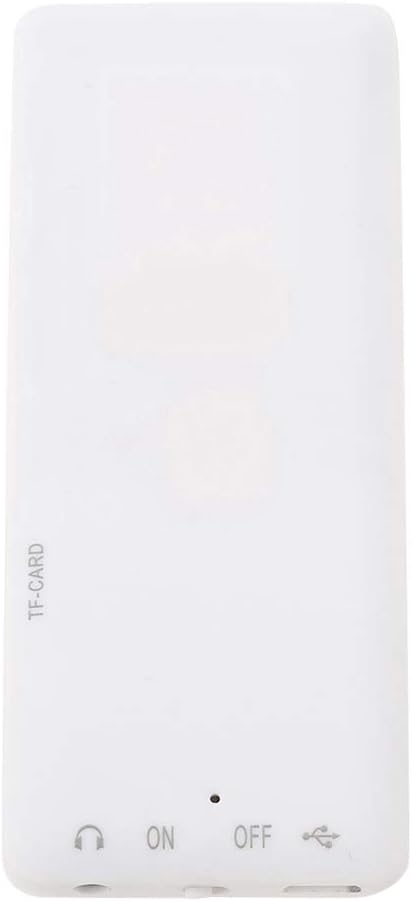
Image: The bottom edge of the MP3 player, showing the TF-CARD slot, ON/OFF switch, headphone jack, and USB port.
Setup
1. Charging the Device:
Before first use, fully charge the MP3 player. Connect the provided USB charging cable to the device's USB port and the other end to a computer's USB port or a compatible USB wall adapter (not included).
- A charging indicator will typically appear on the screen.
- Charging time may vary. Disconnect once fully charged to preserve battery life.

Image: The Bewinner MP3 Player connected to a laptop via its USB charging cable, illustrating the connection for charging or data transfer.
2. Powering On/Off:
Locate the ON/OFF switch on the device (usually on the side or bottom). Slide it to the "ON" position to power on the player. Slide it to "OFF" to power off.
3. Connecting Headphones:
Insert the 3.5mm jack of your headphones into the headphone port on the device.

Image: The Bewinner MP3 Player with white wired headphones plugged into its audio jack, resting on a surface next to a laptop. Text overlay indicates "Plug & Play" functionality for Windows systems.
4. Transferring Files (Plug & Play):
Connect the MP3 player to your computer using the USB cable. The device will be recognized as a removable disk. You can then drag and drop music, video, photo, or e-book files into the appropriate folders on the player.
- No drivers are typically required for Windows 98/ME/2000/XP and newer operating systems.
- For optimal video playback, convert videos to AMV format, which offers better storage efficiency.

Image: The Bewinner MP3 Player with text highlighting its USB2.0 Interface and high-speed data transmission capabilities.
Operating Instructions
The MP3 player features a graphical user interface (GUI) for easy navigation. Use the central navigation buttons (M, Play/Pause, Skip Forward, Skip Backward, VOL) to control the device.

Image: The Bewinner MP3 Player displaying its main menu with icons for Music, Video, Radio, PIC, REC, EBook, Files, Voice Tools, and Set. Text overlay emphasizes its "Easy to Use" graphical interface.
1. Music Playback:
- From the main menu, select the "Music" icon.
- Browse your music library by artist, album, or all songs.
- Select a song and press the Play/Pause button to start playback.
- Use the Skip Forward/Backward buttons to navigate tracks.
- Adjust volume using the "VOL" button and navigation controls.
Image: The Bewinner MP3 Player displaying a music playback screen with album art, connected to a laptop. Text indicates "MP4 Music Player" and support for MP3 format.
2. Video Playback:
- Select the "Video" icon from the main menu.
- Choose a video file (preferably AMV format) to play.
- Use the controls for play, pause, fast forward, and rewind.
3. FM Radio:
- Select the "FM Radio" icon.
- Use the navigation buttons to scan for stations or manually tune.
- Headphones act as the antenna for better reception.
4. Voice Recording:
- Select the "REC" (Record) icon.
- Follow on-screen prompts to start, pause, and save recordings.
- Recordings are saved in a dedicated folder.
5. Photo & E-book Viewing:
- Select "PIC" for photos or "EBook" for electronic fiction.
- Browse files and select to view.
Maintenance
- Cleaning: Use a soft, dry cloth to clean the device. Avoid liquid cleaners or abrasive materials.
- Storage: Store the player in a cool, dry place away from direct sunlight and extreme temperatures.
- Battery Care: To prolong battery life, avoid fully discharging the battery frequently. Charge it regularly, even if not in use for extended periods.
- Avoid Drops: Protect the device from physical shocks and drops.
Troubleshooting
| Problem | Possible Solution |
|---|---|
| Device does not power on. | Ensure the ON/OFF switch is in the "ON" position. Charge the device for at least 30 minutes. |
| Cannot transfer files to the device. | Ensure the USB cable is securely connected to both the player and the computer. Try a different USB port or cable. Restart your computer. |
| No sound from headphones. | Check if headphones are fully plugged in. Increase the volume. Try a different pair of headphones to rule out faulty headphones. |
| Video playback is choppy or not working. | Ensure the video file is in a supported format (AMV recommended). Convert the video to AMV format if necessary. |
| FM radio reception is poor. | Ensure headphones are plugged in, as they act as the antenna. Try moving to an open area. |
Specifications
| Feature | Detail |
|---|---|
| Screen Size | 1.8 inches |
| Display Type | TFT Color Screen |
| Resolution | 160*128 |
| Internal Memory | 8GB |
| Expansion Card Support | Small Memory Card (TF Card) |
| Interface | USB2.0 |
| Audio Format Support | MP4 (for video, implies audio within MP4 container) |
| Video Format Support | AMV (recommended) |
| Image Format Support | JPEG |
| Dimensions | Approx. 9 x 4 x 0.8 cm / 3.5 x 1.6 x 0.3 in |
| Weight | Approx. 72g / 2.54 ounces |
Warranty and Support
For warranty information and technical support, please refer to the documentation included with your purchase or visit the official Bewinner website. Keep your purchase receipt as proof of purchase for warranty claims.
For further assistance, you may contact Bewinner customer service through their official channels.
Ask a question about this manual
Ask about setup, troubleshooting, compatibility, parts, safety, or missing instructions. Manuals+ will review the question and use this page’s manual context to help answer it.