
Introduction
This manual provides essential information for setting up, operating, and maintaining your suevery AMD R3-3300U Desktop PC. Please read it thoroughly before using the product to ensure proper functionality and safety. This desktop computer is equipped with an AMD Ryzen 3 3300U Quad-Core Processor, 16GB DDR4 RAM, and a 512GB NVMe SSD, running Windows 11 Home.
Safety Information
- Always connect the power cable to a grounded electrical outlet.
- Do not expose the computer to moisture, rain, or extreme temperatures.
- Avoid placing the computer in direct sunlight or near heat sources.
- Ensure adequate ventilation around the computer to prevent overheating.
- Do not open the computer casing unless instructed by a qualified technician.
- Unplug the power cord before cleaning or moving the computer.
Package Contents
Verify that all items are present in the package:
- suevery AMD R3-3300U Desktop PC Unit
- Power Cable
- User Manual (this document)
Setup
1. Unpacking
Carefully remove the desktop PC from its packaging. Retain the packaging materials for future transport or service needs.
2. Connecting Peripherals
Connect your monitor, keyboard, and mouse to the appropriate ports on the rear of the PC. Ensure all connections are secure.

Image: Rear view of the suevery desktop PC, showing various ports for connecting peripherals like monitors, keyboards, and mice.
3. Power Connection
Plug the power cable into the power input on the back of the PC, then connect the other end to a grounded electrical outlet.
4. First Boot and Windows 11 Setup
Press the power button on the front of the PC. The system will boot into Windows 11 Home. Follow the on-screen instructions to complete the initial setup, including language, region, network connection, and user account creation.
Operating Instructions
1. Power On/Off
- To Power On: Press the power button located on the front of the PC.
- To Shut Down: Click the Start button in Windows 11, then select Power > Shut down.
- To Restart: Click the Start button, then select Power > Restart.
2. Network Connection (Wi-Fi)
Your PC supports Wi-Fi connectivity. To connect to a wireless network:
- Click the Network icon (Wi-Fi or Ethernet) in the taskbar.
- Select your desired Wi-Fi network from the list.
- Enter the network security key (password) if prompted, then click 'Connect'.
3. Using USB Ports
The PC features multiple USB ports (USB 3.0 and USB 2.0) for connecting external devices such as USB drives, printers, and other peripherals. Simply plug your device into an available USB port.

Image: Illustrations depicting the suevery desktop PC being used for various applications such as gaming, professional work, and graphic design, highlighting its versatility.
Maintenance
1. Cleaning
Use a soft, dry cloth to clean the exterior of the PC. For stubborn dust, a slightly damp cloth can be used, ensuring no liquid enters the vents. Regularly clean dust from air vents using compressed air to maintain optimal cooling performance.

Image: An internal view of the suevery desktop PC, showcasing the cooling fans and integrated RGB lighting, emphasizing the importance of keeping vents clear for heat dissipation.
2. Software Updates
Regularly update your Windows 11 operating system and device drivers to ensure optimal performance, security, and compatibility. You can check for updates via Windows Settings > Windows Update.
3. Data Backup
It is recommended to regularly back up your important data to an external drive or cloud storage to prevent data loss.
Troubleshooting
| Problem | Possible Cause | Solution |
|---|---|---|
| PC does not power on | Power cable loose; Power outlet issue | Check power cable connections; Try a different outlet |
| No display on monitor | Monitor cable loose; Monitor off or incorrect input | Ensure monitor cable is secure; Check monitor power and input source |
| Slow performance | Too many applications running; Outdated drivers; Malware | Close unnecessary programs; Update drivers; Run antivirus scan |
| No Wi-Fi connection | Wi-Fi adapter off; Incorrect password; Router issue | Check Wi-Fi settings; Re-enter password; Restart router |
Specifications

Image: A diagram illustrating the technical specifications and physical dimensions of the suevery desktop PC tower.
| Feature | Detail |
|---|---|
| Brand | suevery |
| Model Number | SUV900B4 |
| Operating System | Windows 11 Home |
| CPU Model | AMD Ryzen 3 3300U |
| CPU Speed | 2.1 GHz (up to 3.5 GHz boost) |
| RAM | 16 GB DDR4 |
| Storage | 512 GB NVMe SSD |
| Graphics Card | Integrated AMD Radeon Vega 6 |
| Wireless Technology | Wi-Fi |
| Total USB Ports | 6 |
| Total Output Ports | 2 |
| Power Plug Type | Type C/EF – 2 pins (European/Hybrid FR-DE plug) |
| Package Dimensions | 40 x 37 x 33 cm |
| Weight | 6 kilograms |

Image: Close-up internal view of the desktop PC, highlighting the AMD Ryzen CPU and motherboard components.
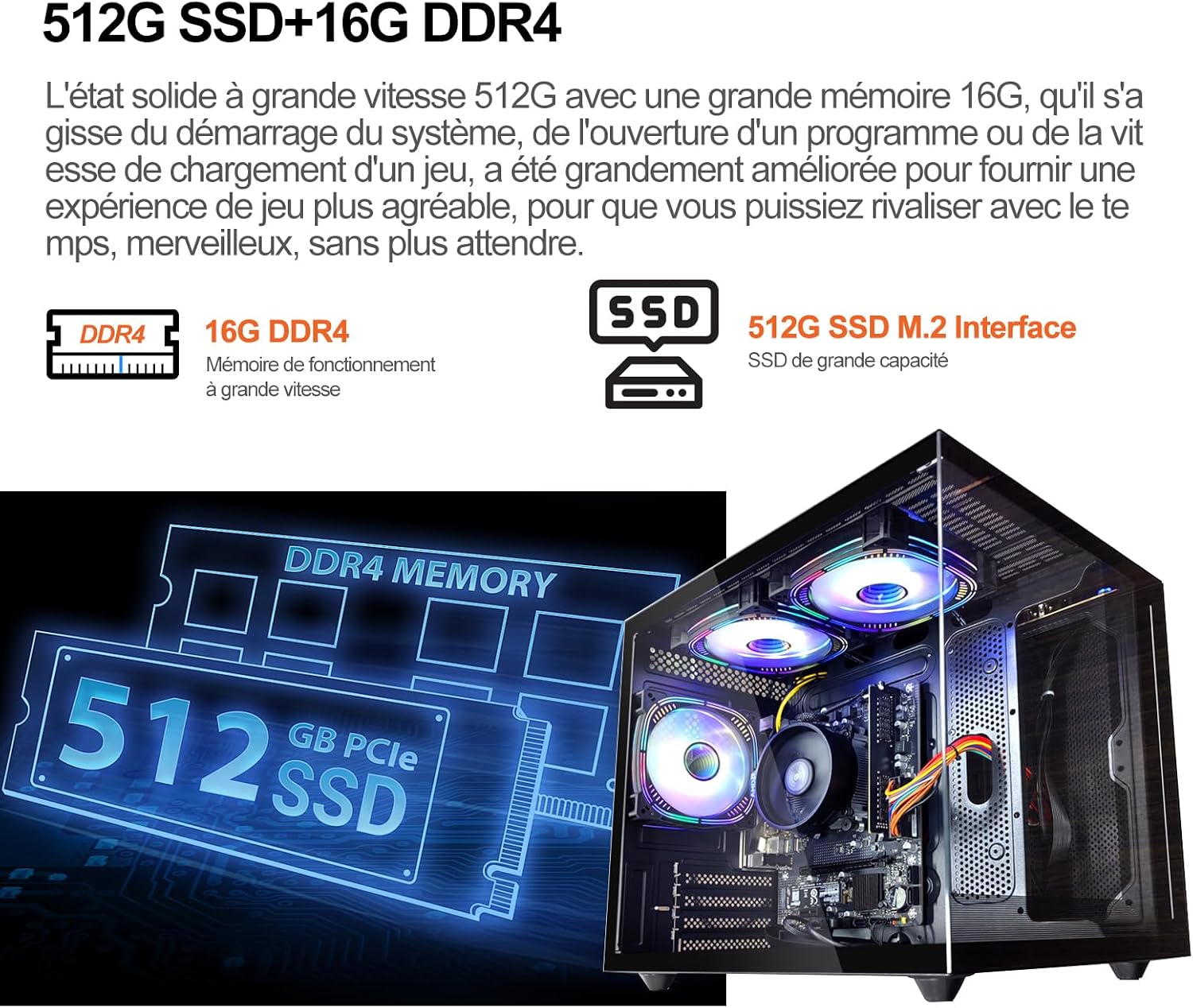
Image: Internal view of the desktop PC, focusing on the 512GB NVMe SSD and 16GB DDR4 RAM modules.
Warranty and Support
Your suevery desktop PC comes with a standard manufacturer's warranty. For detailed warranty terms and conditions, please refer to the warranty card included with your product or visit the official suevery support website. For technical assistance or customer support, please contact suevery customer service through their official channels.