
1. Introduction
Thank you for choosing the KOORUI 24E6CA 24-inch 180Hz 1ms Full HD Curved Gaming Monitor. This manual provides essential information for the safe and efficient use of your new monitor. Please read it thoroughly before installation and operation, and keep it for future reference.
2. Safety Information
- Always place the monitor on a stable, level surface to prevent it from falling.
- Keep the monitor away from water, moisture, and direct sunlight.
- Do not block ventilation openings. Ensure adequate space around the monitor for proper airflow.
- Use only the power adapter supplied with the monitor.
- Do not attempt to repair the monitor yourself. Refer all servicing to qualified personnel.
- Unplug the monitor from the power outlet during lightning storms or when unused for long periods.
3. Package Contents
Verify that all items are present in your package:
- KOORUI 24E6CA Monitor
- Stand Base and Neck
- HDMI Cable (2.0)
- Power Adapter
- Instruction Manual

Image: KOORUI 24E6CA monitor with included accessories: HDMI cable, power adapter, stand, and manual.
4. Setup
4.1 Assembling the Stand
- Carefully remove the monitor from its packaging.
- Attach the stand neck to the monitor panel.
- Secure the stand base to the stand neck.
4.2 VESA Mount Installation
The monitor supports VESA mount standard 100x100mm. To install a VESA mount, remove the stand and attach your VESA-compatible bracket.

Image: Rear view of KOORUI 24E6CA monitor showing VESA 100x100mm mounting points and port locations.
4.3 Connecting to Devices
Connect your computer or other devices to the monitor using the appropriate cables.
- DisplayPort (DP 1.2): Connects to a computer's DisplayPort output.
- HDMI (2.0): Two HDMI ports are available for connecting to computers, game consoles, or other HDMI-enabled devices.
- Audio Out: Connect headphones or external speakers. Note: This monitor does not have built-in speakers.
- DC In: Connect the provided power adapter.

Image: Close-up of KOORUI 24E6CA monitor ports including two HDMI 2.0, one DisplayPort 1.2, Audio Out, and DC In.
4.4 Physical Adjustment
The monitor allows for tilt adjustment to optimize your viewing angle.
- Tilt: Adjust the screen tilt from -5° to 15° for comfortable viewing.

Image: Side view of KOORUI 24E6CA monitor demonstrating the tilt adjustment range from -5 to 15 degrees.
5. Operating Instructions
5.1 OSD Joystick Navigation
The On-Screen Display (OSD) menu is controlled by a joystick located on the back of the monitor. Use the joystick to navigate through menu options and adjust settings.
- Press the joystick to enter the OSD menu.
- Move the joystick up/down/left/right to navigate and select options.
- Press the joystick again to confirm a selection or exit a sub-menu.

Image: Diagram showing the OSD joystick on the back of the monitor and its functions for menu navigation.
5.2 Game Modes
The monitor offers various game modes to optimize visual settings for different game genres. These modes can be accessed via the OSD menu.
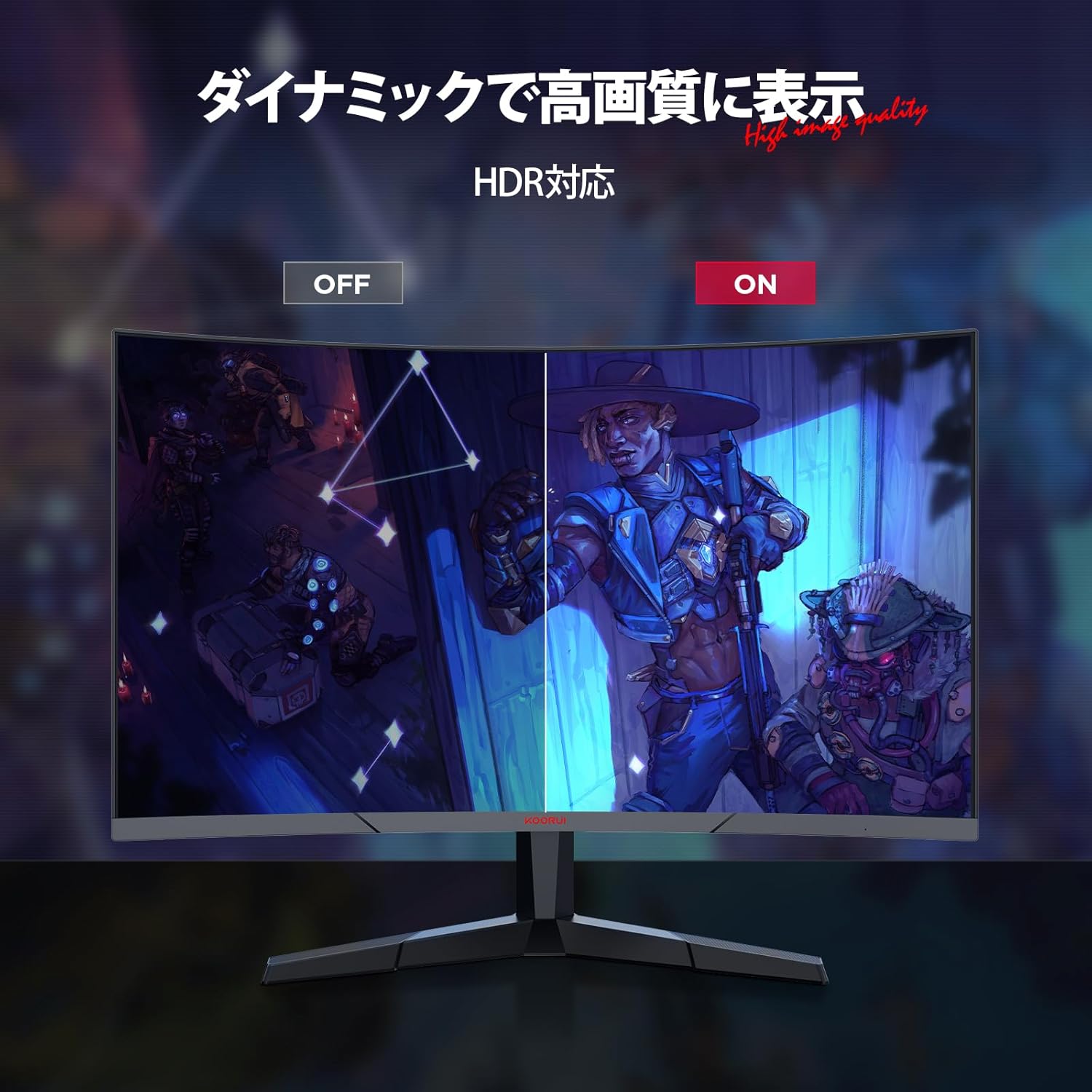
Image: KOORUI 24E6CA monitor displaying a game scene with a console controller, indicating support for Full HD at up to 180fps.
5.3 Adaptive Sync (G-Sync Compatible)
Adaptive Sync technology synchronizes the monitor's refresh rate with your GPU's frame rate, eliminating screen tearing and stuttering for a smoother gaming experience. This monitor is G-Sync compatible.

Image: Comparison showing Adaptive-Sync ON with smooth gameplay versus Adaptive-Sync OFF with screen tearing and stuttering.
5.4 HDR (High Dynamic Range)
HDR enhances the contrast and color range of images, providing more vibrant and realistic visuals. Enable HDR through your device settings and the monitor's OSD menu for compatible content.

Image: Comparison showing HDR OFF with muted colors and contrast versus HDR ON with enhanced, vibrant colors and deeper contrast.
6. Features
6.1 High Refresh Rate and Rapid Response Time
Experience incredibly smooth visuals with a 180Hz refresh rate and a rapid 1ms (MPRT) response time. This combination minimizes motion blur and ghosting, providing a competitive edge in fast-paced games.

Image: Comparison of 75Hz refresh rate versus 180Hz refresh rate, showing significantly smoother motion at 180Hz.

Image: Comparison of 75Hz display with tearing and stuttering versus 180Hz 1ms display with smooth, clear motion.
6.2 1500R Curved Display
The 1500R curvature provides an immersive viewing experience, wrapping the image around your field of vision. This design is particularly beneficial for gaming and multimedia content, enhancing depth perception and reducing eye strain.

Image: Illustration of the 1500R curved display providing a wide field of view for immersive viewing.
6.3 Excellent Color Reproduction and Contrast
The VA panel delivers deep blacks and a high 3000:1 contrast ratio. With 99% sRGB color gamut and 72% NTSC wide color gamut, the monitor produces vivid and accurate colors. A 178° viewing angle ensures consistent color and contrast from various perspectives.

Image: Monitor's color capabilities with 72% NTSC and 99% sRGB color gamut for vibrant and clear images.
6.4 Eye Care Features
The monitor includes anti-flicker technology and blue light reduction to minimize eye strain during extended use, promoting a more comfortable viewing experience.

Image: Comparison showing a display with blue light ON versus blue light OFF, indicating the monitor's eye care features.
6.5 Frameless Design
The 3-sided frameless design maximizes screen space and enhances immersion, making it ideal for multi-monitor setups.

Image: Two KOORUI monitors in a multi-monitor setup, highlighting the 3-sided frameless design for increased immersion.
7. Maintenance
To ensure the longevity and optimal performance of your monitor, follow these maintenance guidelines:
- Cleaning the Screen: Gently wipe the screen with a soft, lint-free cloth. For stubborn marks, dampen the cloth slightly with water or a specialized screen cleaner. Never spray liquid directly onto the screen.
- Cleaning the Casing: Use a soft, dry cloth to wipe the monitor casing. Avoid abrasive cleaners or solvents.
- Ventilation: Ensure the ventilation openings are clear of dust and debris to prevent overheating.
- Power Off: Turn off the monitor and unplug it from the power outlet when not in use for extended periods.
8. Troubleshooting
If you encounter issues with your monitor, refer to the following common troubleshooting steps:
| Problem | Possible Solution |
|---|---|
| No image on screen | Check if the power cable is securely connected. Ensure the video cable (HDMI/DP) is properly connected to both the monitor and the source device. Select the correct input source via the OSD menu. |
| Image is blurry or distorted | Check the display resolution settings on your computer. Ensure it matches the monitor's native resolution (1920x1080). Adjust the monitor's sharpness settings in the OSD menu. |
| Screen tearing or stuttering in games | Ensure Adaptive Sync is enabled in both the monitor's OSD menu and your graphics card settings. Update your graphics card drivers. |
| No sound from headphones/external speakers | Verify that headphones or speakers are correctly plugged into the Audio Out port. Check audio output settings on your computer. Adjust volume levels on both the monitor (if available in OSD) and the source device. |
| Monitor not turning on | Confirm the power adapter is connected to a working power outlet and the monitor. Try a different power outlet. |
If the problem persists after trying these steps, please contact customer support.
9. Specifications
| Feature | Description |
|---|---|
| Brand | KOORUI |
| Model Number | 24E6CA (HKCJD-24E6CA) |
| Screen Size | 24 inches |
| Panel Type | VA |
| Curvature | 1500R |
| Resolution | Full HD (1920 x 1080 pixels) |
| Aspect Ratio | 16:9 |
| Refresh Rate | 180Hz |
| Response Time | 1ms (MPRT) |
| Contrast Ratio | 3000:1 |
| Brightness | 250 nits |
| Color Gamut | 99% sRGB, 72% NTSC |
| Viewing Angle | 178° |
| Video Inputs | 1x DisplayPort (1.2), 2x HDMI (2.0) |
| Audio Output | 1x Audio Jack |
| VESA Compatibility | 100x100mm |
| Product Dimensions (W x H x D) | 59.8 x 39.2 x 13.4 cm |
| Product Weight | 4.27 kg |
| Screen Surface | Non-glare |
10. Warranty and Support
KOORUI is dedicated to providing high-quality and high-performance monitors. Your KOORUI 24E6CA monitor comes with a manufacturer warranty:
- Monitor Screen Warranty: 1 year
- Other Accessories Warranty: 3 years
For warranty claims or technical support, please contact KOORUI customer service. KOORUI monitors are also eligible for free collection and recycling.


