
1. Introduction
The MAGEASY Instinct Stylus Pencil is designed to enhance your iPad experience, offering precision, comfort, and advanced features for writing, drawing, and navigation. This manual provides essential information to help you get started and make the most of your stylus.

Image: MAGEASY Instinct Stylus Pencil with included interchangeable tips.
2. Package Contents
Verify that all items are present in your MAGEASY Instinct Stylus Pencil package:
- MAGEASY Instinct Stylus Pencil
- USB-C to USB-C Charging Cable
- 4 x Replaceable Tips (2 General, 1 Drawing, 1 Writing)
- User Manual (this document)
3. Product Overview
Familiarize yourself with the key components and features of your stylus:
- Replaceable Active Nib: The stylus tip can be easily screwed out and replaced with different types for various uses.
- USB-C Charging Port: Located on the side of the stylus for convenient charging.
- Status Light and Button: The top end of the stylus functions as a power button and features LED indicators for battery status.
- Magnetic Absorption: Designed to magnetically attach to compatible iPads for secure storage and charging (where supported).

Image: Stylus components diagram.
4. Setup
4.1 Power On/Off
Long press the top end of the stylus to power it on or off. The LED status light will indicate its state.

Image: Powering on the stylus and magnetic attachment to iPad.
4.2 Bluetooth Connection (Optional for Shortcuts)
The stylus can be used directly without a Bluetooth connection for basic functions. To enable unique shortcuts, connect the stylus to your iPad via Bluetooth:
- Ensure any previously connected Apple Pencils or other stylus pens are disconnected from your iPad's Bluetooth settings.
- Power on the MAGEASY Instinct Stylus Pencil.
- On your iPad, go to Settings > Bluetooth and select the MAGEASY Instinct Stylus Pencil to pair.
4.3 Initial Charge
Before first use, it is recommended to fully charge your stylus using the provided USB-C to USB-C charging cable.
5. Operating Instructions
5.1 Basic Writing and Drawing
The stylus offers a smooth and responsive experience, mimicking a real pencil with no lag, no breaks, and no slip.

Image: Stylus in use, demonstrating a natural writing experience.
5.2 Unique Shortcuts (Bluetooth Connected)
When connected via Bluetooth, the top button provides convenient shortcuts:
- 1 Tap: Volume up
- 2 Taps: Back to home screen
- 3 Taps: Open app switcher

Image: Tap to Command shortcuts.
5.3 Tilt Sensitivity
The stylus supports tilt sensitivity, allowing you to change the width of lines freely by adjusting the angle at which you hold the stylus. This feature is ideal for sketching and note-taking.

Image: Tilt sensitivity for smooth use.
5.4 Palm Rejection
With palm rejection technology, you can rest your hand naturally on the iPad screen while writing or drawing without causing unintended marks or interference.
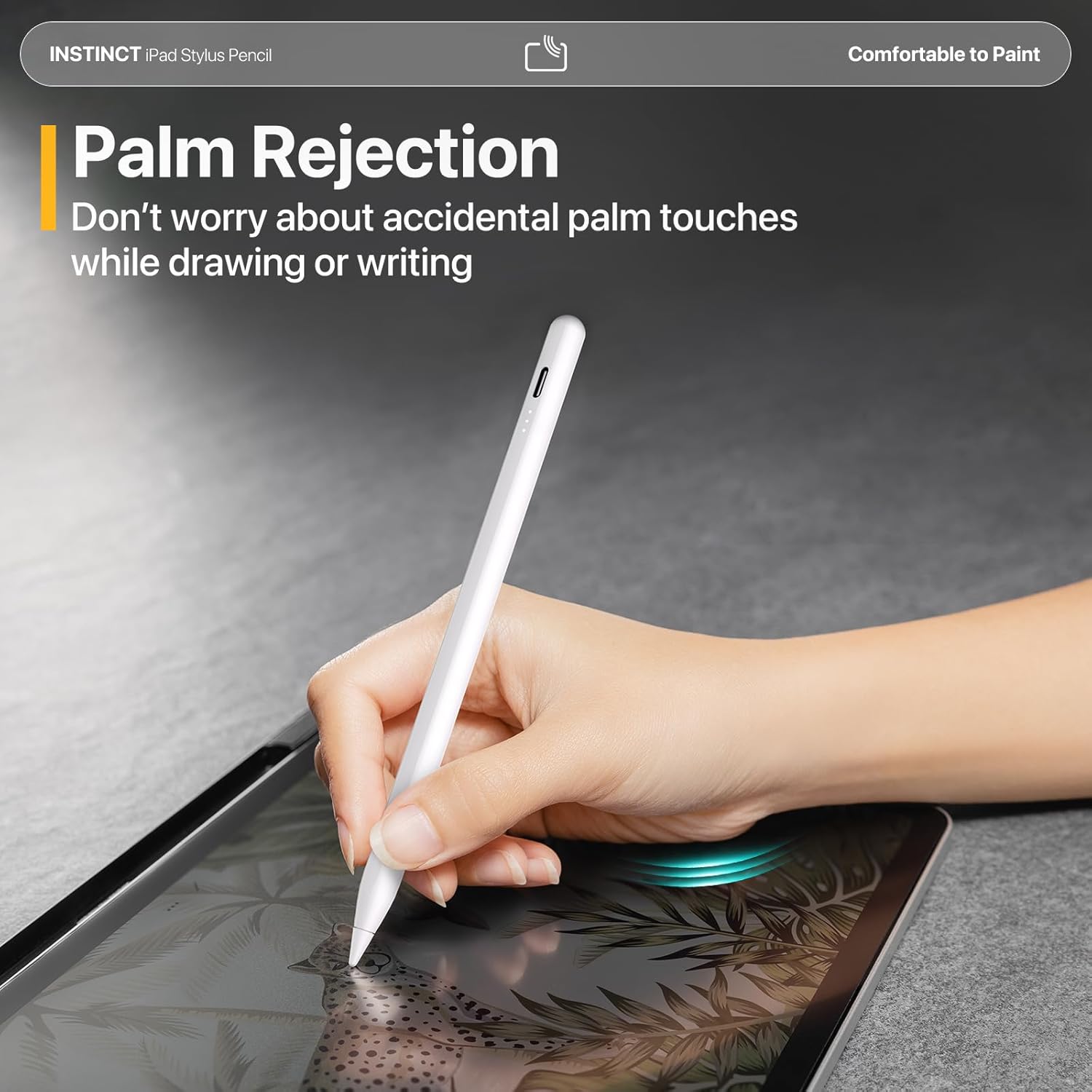
Image: Palm rejection feature in action.
6. Replacing Tips
The MAGEASY Instinct Stylus Pencil comes with four interchangeable tips to suit different needs:
- 2 General Tips: Similar to the original Apple Pencil tip, suitable for all scenarios.
- 1 Drawing Tip: Designed to decrease the chance of slip and noise, specifically for drawing.
- 1 Writing Tip: As durable as a ball-point pen, surpassing 150,000 durability tests, providing precision for writing.
To replace a tip:
- Gently unscrew the current tip from the stylus.
- Select the desired replacement tip.
- Screw the new tip onto the stylus until it is secure. Do not overtighten.

Image: Versatile extra stylus tips.
7. Battery Management
Monitor and charge your stylus to ensure continuous use:
- LED Battery Indicator: Check the approximate battery level using the LED lights on the stylus, even without a Bluetooth connection.
- Precise Battery Percentage: For an exact battery percentage, connect the stylus to your iPad via Bluetooth and check the battery widget.
- Charging: Use the provided USB-C cable to charge the stylus.

Image: Battery level indicator.
8. Compatibility
The MAGEASY Instinct Stylus Pencil is compatible with the following iPad models:
- iPad Air (2018-2025 models)
- iPad Pro (2018-2024 models)
- iPad 10th Generation
Important Note: The stylus is NOT compatible with iPad mini 7. Magnetic attachment is NOT supported for iPad 11 (2025 A16) models.

Image: Compatible iPad models.
9. Specifications
| Feature | Detail |
|---|---|
| Brand | MAGEASY |
| Model | Instinct Stylus Pencil |
| Material | Aluminum |
| Item Weight | 2.88 ounces (0.18 Pounds) |
| Package Dimensions | 7.5 x 3.1 x 0.67 inches |
| Compatible Devices | iPad Air (2018-2024), iPad Pro (2018-2024), iPad 10th Gen |
| Battery | Not specified (rechargeable, included) |
10. Troubleshooting
- Stylus not responding:
- Ensure the stylus is powered on (long press the top button).
- Check the battery level using the LED indicators or iPad battery widget.
- If using shortcuts, verify Bluetooth connection and ensure no other styluses are paired. - Inaccurate input or skipping:
- Ensure the stylus tip is securely screwed in.
- Check if the tip is worn and replace it if necessary.
- Clean your iPad screen to remove any smudges or debris. - Palm rejection not working:
- Ensure the stylus is properly connected to your iPad via Bluetooth.
- Disconnect any other styluses that might be paired with your iPad. - Magnetic attachment not working:
- Verify your iPad model is compatible with magnetic attachment. Note that iPad mini 7 and iPad 11 (2025 A16) do NOT support magnetic attachment.
11. Official Product Video
Watch this official video from MAGEASY for an overview of their iPad accessories, including the Instinct Stylus Pencil.
Video: MAGEASY iPad Accessories for 2024 iPad Pro & Air.
12. Warranty and Support
For warranty information, technical support, or further assistance with your MAGEASY Instinct Stylus Pencil, please refer to the official MAGEASY website or contact their customer service directly. Return policies may vary based on the retailer.