
1. Setup
This section guides you through the initial setup of your CITLLA Wireless Mouse L370, including battery installation and connecting to your devices.

Figure 1: Top view of the CITLLA Wireless Mouse L370.

Figure 2: The magnetic top cover can be easily removed to access the battery compartments and the stored USB receiver. The mouse requires two AA batteries, which are included.
1.1. Battery Installation
- Gently lift the magnetic top cover of the mouse to reveal the battery compartments.
- Insert the two included AA batteries, ensuring correct polarity (+/-). The mouse can operate with either one or two batteries, depending on your preference for mouse weight.
- Locate the 2.4G USB receiver stored within the battery compartment. Remove it for connection.
- Replace the magnetic top cover, ensuring it snaps securely into place.
1.2. Connecting to Your Device
The CITLLA Wireless Mouse L370 offers versatile connectivity options: 2.4G USB and two Bluetooth channels (BT1, BT2).
1.2.1. 2.4G USB Connection
- Plug the 2.4G USB receiver into an available USB-A port on your computer or laptop.
- Turn on the mouse using the ON/OFF switch located on the underside.
- The mouse should automatically connect to your device.

Figure 3: The 2.4G USB receiver provides a stable wireless connection up to 10 meters.
1.2.2. Bluetooth Connection (BT1 / BT2)
- Turn on the mouse using the ON/OFF switch on the underside.
- Press the multi-device switch button on the top of the mouse (near the scroll wheel) to select either BT1 or BT2. The corresponding LED indicator will blink, indicating pairing mode.
- On your device (computer, laptop, tablet, smartphone), go to Bluetooth settings.
- Search for available devices and select "CITLLA L370" (or similar name).
- Once connected, the LED indicator will stop blinking and remain solid.
- To connect to a new Bluetooth device, simply hold the multi-device switch button for 3 seconds to re-enter pairing mode.

Figure 4: Seamlessly switch between multiple devices using the dedicated switch button.
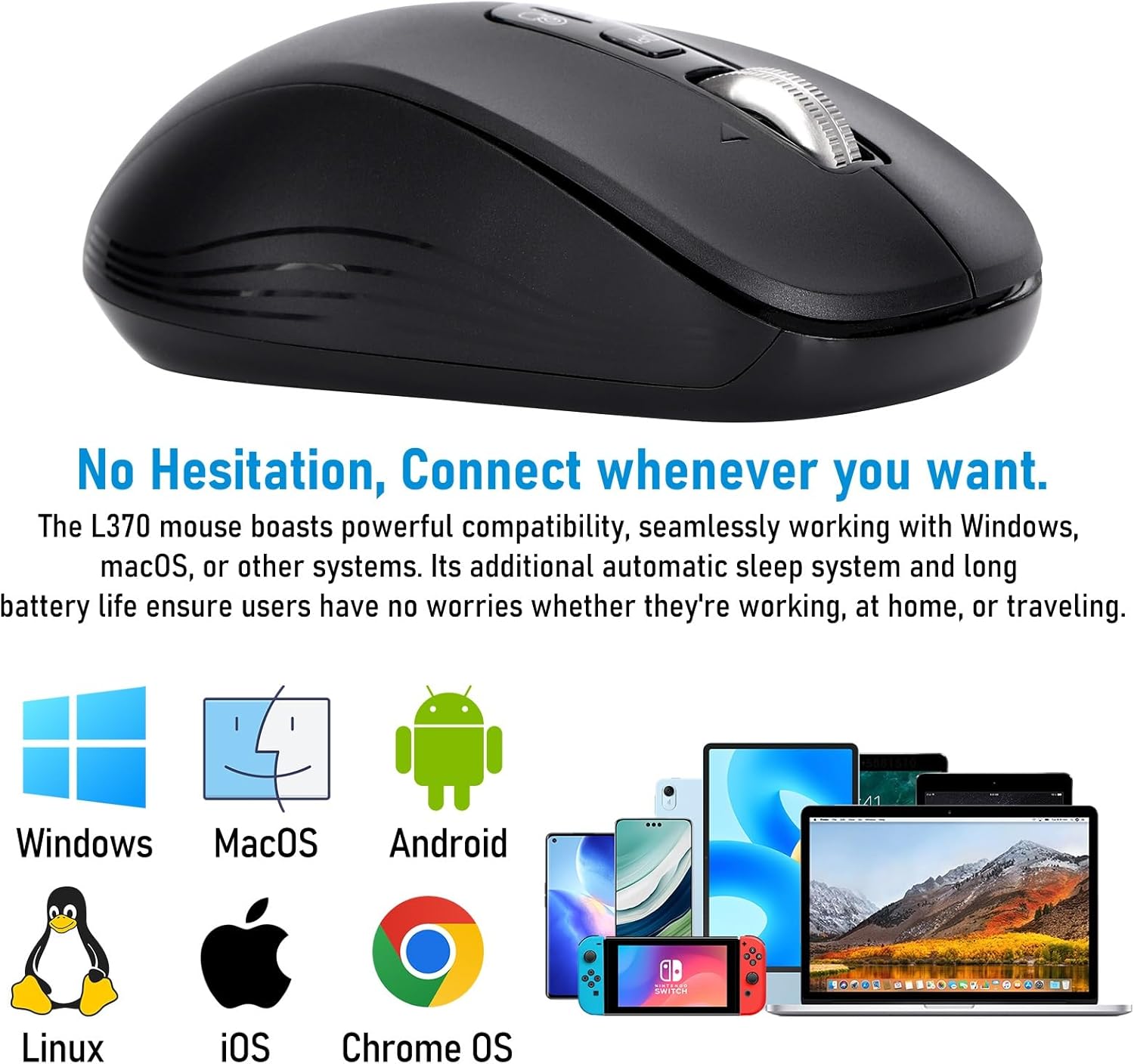
Figure 5: The mouse is compatible with a wide range of operating systems, including Windows, Mac OS, iOS, Linux, Chrome OS, and Android.
1.3. Setup Overview Video
Video 1: Official product video demonstrating the setup process, multi-device support, 4-way scrolling, DPI adjustment, and battery installation for the CITLLA L370 Wireless Mouse.
2. Operating Instructions
Familiarize yourself with the various functions and features of your CITLLA Wireless Mouse L370 for optimal use.
2.1. Adjustable DPI Settings
The mouse features an adjustable DPI (Dots Per Inch) button, allowing you to change cursor speed and sensitivity to suit your needs. There are four levels available:
- 1000 DPI: Standard speed for general use.
- 1600 DPI: Increased speed for improved responsiveness.
- 2400 DPI: Faster cursor movement for larger screens or specific tasks.
- 3000 DPI: Highest speed for precise tracking and rapid navigation.
Press the "DPI" button located near the scroll wheel to cycle through the different settings. The LED indicator will change to reflect the current DPI level.
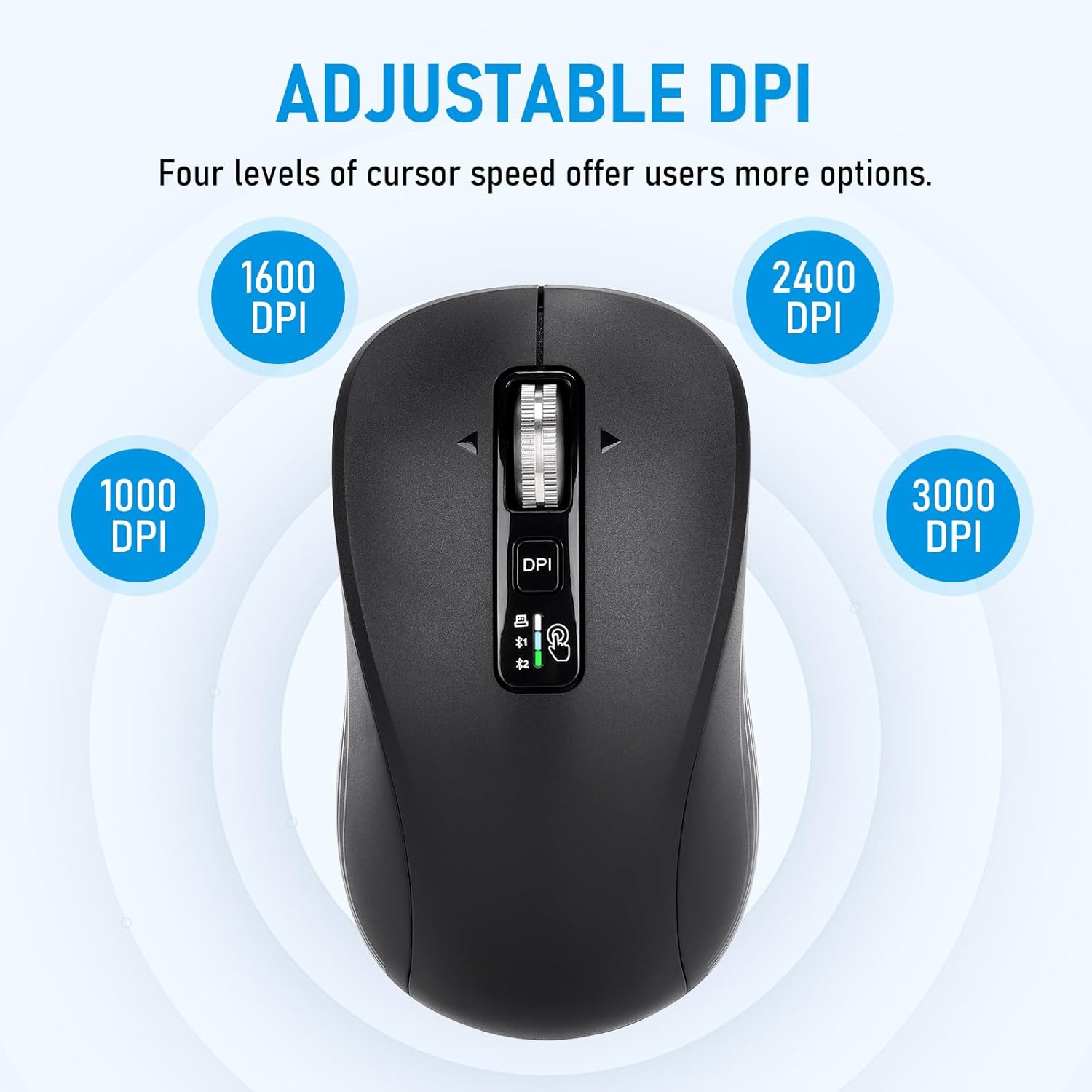
Figure 6: Adjust your cursor speed with four customizable DPI levels for more accurate tracking.
2.2. 4-Way Scrolling Wheel
The scroll wheel on the CITLLA mouse supports 4-way scrolling, providing enhanced navigation capabilities:
- Vertical Scrolling: Scroll up and down through documents and web pages.
- Horizontal Scrolling: Press the scroll wheel sideways to move horizontally, ideal for spreadsheets or wide web pages.
- Hyper-Scrolling: The wheel features a tactile bump for precise control, but also allows for rapid, smooth scrolling for long documents.

Figure 7: The 4-way scrolling wheel provides super fast scrolling speed and horizontal navigation.
2.3. Silent Click Design
The mouse is designed with silent click buttons, reducing noise during use while still providing tactile feedback. This feature is beneficial in quiet environments.
Figure 8: Experience silent clicks while maintaining sufficient tactile feedback.
2.4. Ambidextrous and Ergonomic Design
The mouse features an ambidextrous design, making it comfortable for both left- and right-handed users. Its ergonomic shape ensures a comfortable grip during extended use.

Figure 9: The ergonomic design ensures comfortable use for both left- and right-handed individuals.
3. Maintenance
3.1. Battery Life and Replacement
The CITLLA Wireless Mouse L370 boasts an impressive battery life of over 3 years with the included AA batteries. When batteries need replacement, simply lift the magnetic top cover as shown in Figure 2 to access the battery compartments and replace them.
3.2. Cleaning
To maintain optimal performance, regularly clean the mouse. Use a soft, dry cloth to wipe the exterior. For the optical sensor on the underside, use a cotton swab lightly dampened with rubbing alcohol to gently clean the lens. Ensure no liquid enters the mouse's interior.
4. Troubleshooting
If you encounter any issues with your CITLLA Wireless Mouse L370, please refer to the following common troubleshooting steps:
- Mouse Not Responding: Ensure the ON/OFF switch on the underside of the mouse is in the "ON" position. Check battery levels and replace if necessary.
- Connection Issues:
- For 2.4G USB: Ensure the USB receiver is securely plugged into a working USB port. Try a different USB port.
- For Bluetooth: Ensure Bluetooth is enabled on your device. Try re-pairing the mouse by holding the multi-device switch button for 3 seconds until the LED blinks, then re-select it in your device's Bluetooth settings.
- Intermittent Connection: Move the mouse closer to your device to ensure it's within the 10-meter wireless range. Avoid using the mouse on highly reflective or transparent surfaces.
- Cursor Movement Issues: Adjust the DPI setting using the DPI button to find a comfortable cursor speed. Clean the optical sensor on the underside of the mouse.
If problems persist, please contact CITLLA customer support for further assistance.
5. Specifications
| Model Number | D1037E7Z |
| Product Dimensions | 4.25 x 2.68 x 0.04 inches |
| Item Weight | 4.7 ounces |
| Batteries | 2 AA batteries (included) |
| Connectivity Technology | Bluetooth, USB (2.4G Wireless) |
| Special Features | Wireless, Portable, 4 Way Scrolling, Soundless (Silent Click), Ergonomic Design |
| Movement Detection Technology | Optical |
| Color | Black |
| Manufacturer | CITLLA |
| Country of Origin | China |
6. Warranty and Support
For any warranty inquiries, technical support, or further assistance with your CITLLA Wireless Mouse L370, please contact CITLLA customer service directly. You can find more information and contact details on the official CITLLA Brand Store.