
WAYXYZ UTR-232
Starlink Wi-Fi 6 Tri-Band Router
Model: UTR-232
Brand: WAYXYZ
1. Product Overview
This manual provides instructions for the WAYXYZ Starlink Wi-Fi 6 Tri-Band Router, Model UTR-232. This device is designed to extend and enhance your Wi-Fi coverage, offering high-speed connectivity for various applications.
Key Features:
- Comprehensive Compatibility: Works with Starlink Gen 1, Gen 2, and Gen 3 routers.
- Tri-Band Wi-Fi 6: Delivers speeds up to 3 Gbps for optimal performance.
- Wide Coverage: Extends Wi-Fi coverage up to 3200 sq ft.
- Ethernet Ports: Includes 2 LAN ports with a removable cover for wired connections.
- Mesh Networking: Supports mesh configurations to eliminate dead zones.
What's in the Box:
- 1x Starlink Gen 3 Wifi Router (UTR-232)
- 1x Starlink Gen 3 Power Cable
- 1x Starlink Gen 3 Ethernet Router Cable
- 1x RJ 45 Cover
- 1x Starlink Power Supply

Image 1.1: The WAYXYZ Starlink Gen 3 Wi-Fi 6 Tri-Band Router and its retail packaging.

Image 1.2: The contents included in the box: the router, power cable, Ethernet cable, RJ45 cover, and power supply.
2. Setup Instructions
Follow these steps to set up your WAYXYZ Starlink Wi-Fi 6 Tri-Band Router.
2.1 Initial Placement
Place the router in a central location within your desired coverage area, away from obstructions and other electronic devices that may cause interference.

Image 2.1: The router positioned on a table, ready for connection.
2.2 Power Connection
- Connect the Starlink Gen 3 Power Cable to the power port on the router.
- Plug the Starlink Power Supply into a standard electrical outlet.

Image 2.2: A hand connecting the power cable to the router's power input.
2.3 Ethernet Connection (Optional)
The router includes 2 LAN ports for wired connections. For Gen 2 routers, a Starlink Ethernet Adapter is required for wired mesh network capabilities.
- Remove the protective cover from the Ethernet ports located at the base of the router.
- Connect one end of the Starlink Gen 3 Ethernet Router Cable to a LAN port on the router.
- Connect the other end to your Starlink dish or existing network device (e.g., Ethernet Adapter for Gen 2).
- If not using the Ethernet ports, ensure the RJ 45 Cover is securely in place to protect the ports.

Image 2.3: Close-up view of the Ethernet ports with their removable cover at the base of the router.
2.4 Network Configuration
Once powered on, the router will broadcast a Wi-Fi network. Use the Starlink app or a web browser to complete the network setup, including setting up your Wi-Fi name (SSID) and password.
3. Operating Instructions
Your WAYXYZ Starlink Wi-Fi 6 Tri-Band Router provides advanced networking capabilities.
3.1 Wi-Fi Connectivity
The router utilizes Wi-Fi 6 (802.11ax) technology across three frequency bands (Tri-Band) to provide high-speed and efficient wireless communication. Connect your devices (smartphones, tablets, computers) to the Wi-Fi network using the SSID and password you configured during setup.
3.2 Mesh Networking
This router supports mesh networking, allowing you to create a seamless Wi-Fi network throughout your home or office. It is compatible with Gen 2 and Gen 3 Starlink routers for mesh configurations. Refer to the Starlink app for detailed instructions on adding mesh nodes.
3.3 LED Indicator
The router features an LED indicator to show its operational status. Consult the Starlink app or online resources for specific LED patterns and their meanings.
4. Maintenance
To ensure optimal performance and longevity of your router, follow these maintenance guidelines:
- Cleaning: Gently wipe the router with a soft, dry cloth. Do not use liquid cleaners or abrasive materials.
- Ventilation: Ensure the router is placed in a well-ventilated area to prevent overheating. Do not block ventilation openings.
- Firmware Updates: Regularly check for and install firmware updates through the Starlink app to benefit from performance improvements and security enhancements.
- Environmental Conditions: Operate the router within recommended temperature and humidity ranges as specified by the manufacturer.
5. Troubleshooting
If you encounter issues with your router, refer to the following common troubleshooting steps:
- No Internet Connection:
- Check all cable connections, including power and Ethernet.
- Restart the router by unplugging it from the power outlet for 30 seconds and then plugging it back in.
- Verify your Starlink dish is properly aligned and receiving a signal.
- Slow Wi-Fi Speeds:
- Ensure the router is centrally located and free from obstructions.
- Check for interference from other electronic devices.
- Perform a speed test to confirm the issue is with Wi-Fi and not your internet service.
- Consider adding additional mesh nodes for larger coverage areas.
- Cannot Connect to Wi-Fi:
- Verify you are entering the correct Wi-Fi password.
- Ensure the router's LED indicator shows normal operation.
- Try forgetting the network on your device and reconnecting.
Gen 3 Router vs. Gen 2 Router Comparison:
Understanding the differences between router generations can assist in troubleshooting compatibility and performance issues.
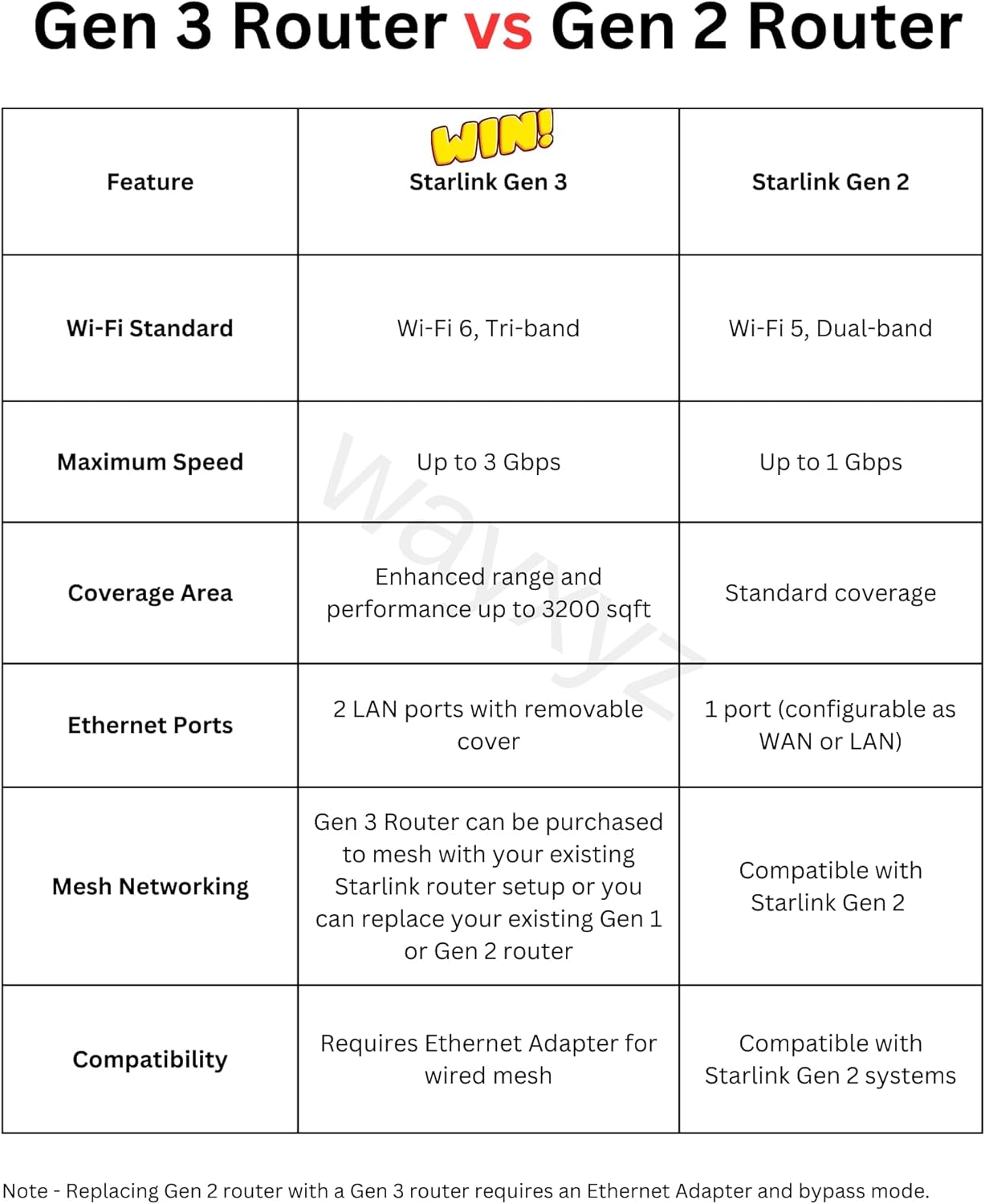
Image 5.1: A table comparing key features of the Starlink Gen 3 Router with the Gen 2 Router, including Wi-Fi standard, maximum speed, coverage area, Ethernet ports, and mesh networking capabilities.
6. Specifications
| Feature | Detail |
|---|---|
| Model Name | Starlink Gen 3 Mesh Router |
| Item Model Number | UTR-232 |
| Brand | WAYXYZ |
| Product Dimensions | 11.8 x 2.4 x 4.7 inches |
| Item Weight | 3 pounds |
| Connectivity Technology | Ethernet, Wi-Fi |
| Wireless Communication Standard | 802.11ax (Wi-Fi 6) |
| Frequency Band Class | Tri-Band |
| Maximum Speed | Up to 3 Gbps |
| Coverage Area | Up to 3200 sq ft |
| Ethernet Ports | 2 LAN ports with removable cover |
| Compatible Devices | Smartphone, Starlink Gen 1, Starlink Gen 2, Starlink Gen 3, Tablet |
| Special Features | Access Point Mode, Guest Mode, Internet Security, LED Indicator, Remote Access |
7. Warranty and Support
For warranty information, please refer to the documentation included with your purchase or contact the retailer. For technical support, please visit the official WAYXYZ website or contact their customer service department.
Ask a question about this manual
Ask about setup, troubleshooting, compatibility, parts, safety, or missing instructions. Manuals+ will review the question and use this page’s manual context to help answer it.