
1. Introduction
Thank you for choosing the Delton Wireless Ergonomic Keyboard. This full-size keyboard is designed to provide a comfortable and efficient typing experience with its ergonomic split design, integrated wrist rest, and quiet, responsive keys. It connects wirelessly via a 2.4G USB dongle, offering broad compatibility with various devices.

Image 1: Delton Wireless Ergonomic Keyboard with its 2.4G USB dongle.
2. Package Contents
Please verify that all items are present in your package:
- Delton Wireless Ergonomic Keyboard
- 2.4G USB Dongle
- User Manual (this document)
3. Setup
3.1. Battery Installation
- Locate the battery compartment on the underside of the keyboard.
- Open the battery compartment cover.
- Insert two (2) AA batteries, ensuring correct polarity (+/-). Batteries are not included.
- Close the battery compartment cover securely.

Image 2: Illustration of battery installation in the keyboard's underside compartment.
3.2. Connecting the USB Dongle
The keyboard utilizes 2.4GHz wireless technology for a stable connection.
- Locate the 2.4G USB dongle, typically found in the battery compartment or packaged separately.
- Plug the USB dongle into an available USB port on your computer, laptop, or compatible smart device.
- The keyboard should automatically connect to your device within a few seconds. No additional drivers or software installation is required.

Image 3: The 2.4G USB dongle being inserted into a laptop's USB port for automatic pairing.
3.3. Compatibility
This keyboard is widely compatible with:
- PCs (Windows operating systems)
- Laptops
- Mac devices (macOS)
- Tablet PCs (iOS and other compatible systems)
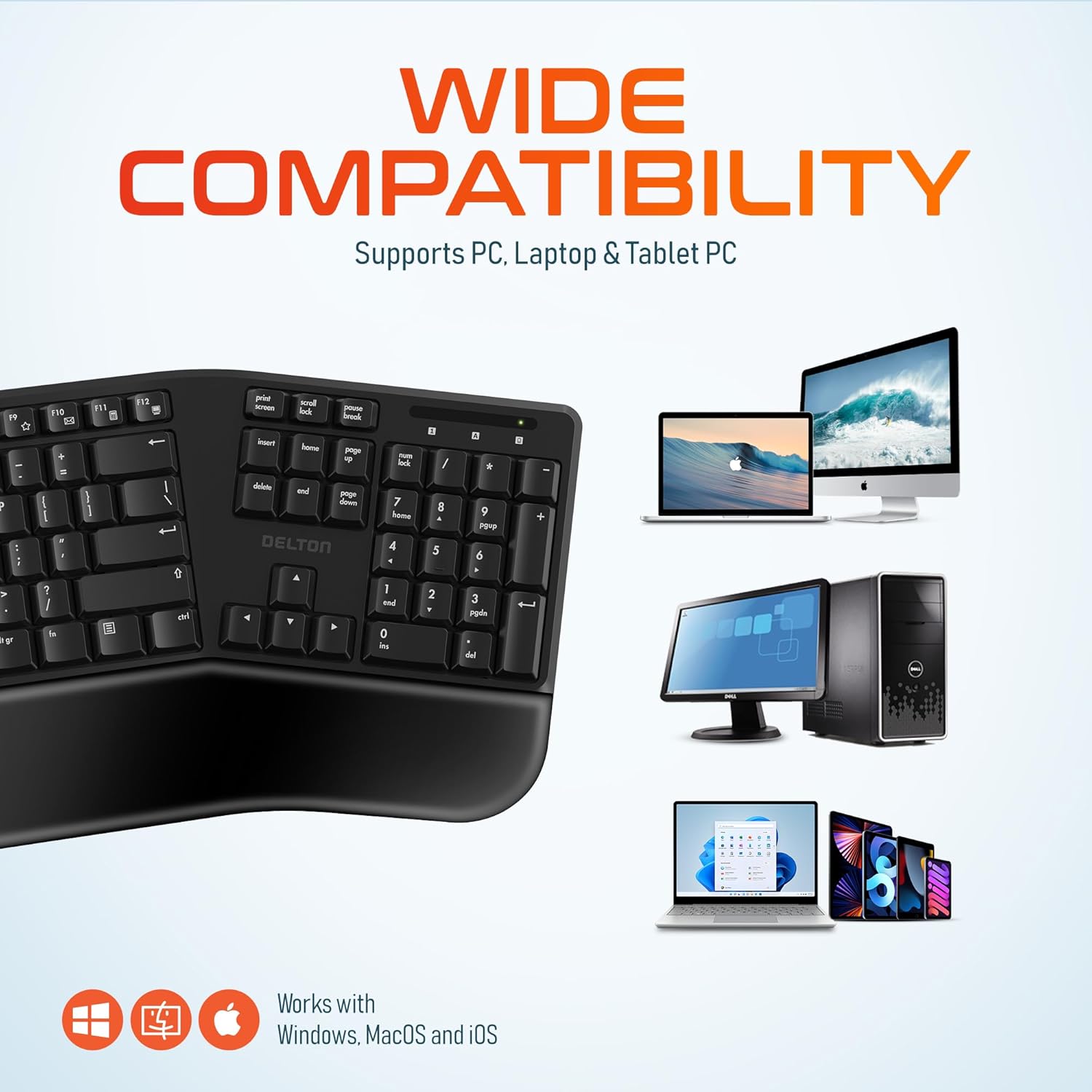
Image 4: Visual representation of the keyboard's wide compatibility with different operating systems and device types.
4. Operating Instructions
4.1. Basic Typing
Once connected, the keyboard functions like a standard full-size keyboard. The keys are designed for quiet and precise typing, with a smooth feel and ergonomic curvature for comfort.
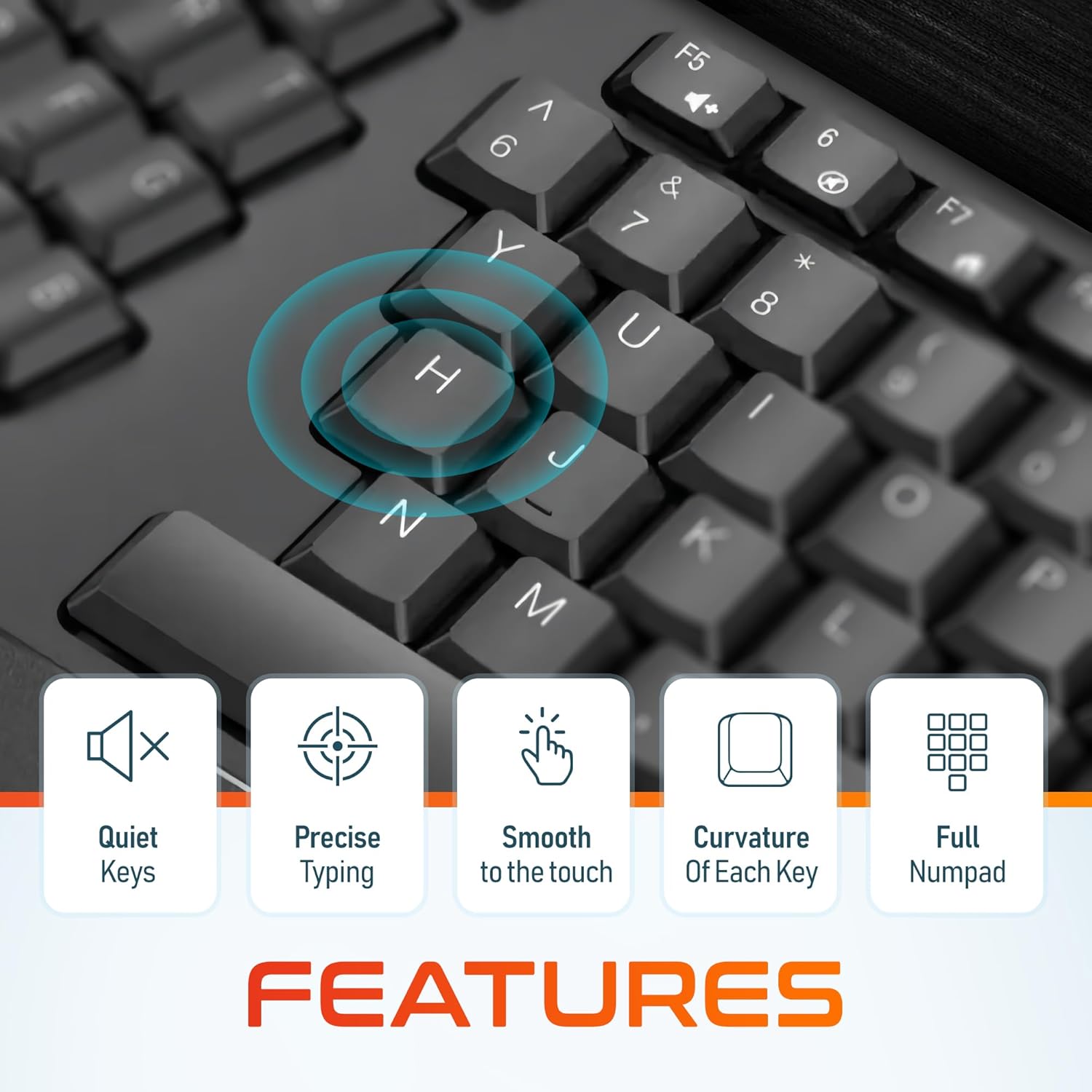
Image 5: Close-up view of the keyboard keys, illustrating their quiet operation, precise response, smooth texture, and ergonomic curvature.
4.2. Function Keys and Hotkeys
The keyboard includes a full set of 105 keys, including a dedicated numpad and various function keys (F1-F12) and media hotkeys. These hotkeys provide quick access to functions such as volume control, media playback, and more. Refer to your device's operating system documentation for specific hotkey functionalities.
4.3. Power Saving Mode
To conserve battery life, the keyboard features an automatic power saver mode. If inactive for 10 minutes, the keyboard will enter a sleep state. To wake it up, simply press any key. The keyboard will instantly reconnect to your device.
5. Features
- Ergonomic Design: Features a split keyset design and a comfortable, pillowed wrist rest to reduce strain and promote a natural typing posture. This design is intended to improve comfort during extended use.
- 2.4GHz Wireless Connectivity: Provides a reliable wireless connection with an impressive maximum range of 8 meters (approximately 26 feet).
- Quiet and Responsive Keys: Engineered for a quiet typing experience with precise and smooth key presses.
- Full-Size Layout: Includes 105 keys with a full numpad for comprehensive functionality.
- Extended Battery Life: With the auto power saver mode, two AA batteries can last up to 15 months.
- Durable Construction: Built with quality materials to withstand daily use.

Image 6: Comparison illustrating the ergonomic benefits of the split keyboard design over a traditional flat keyboard, showing reduced wrist strain.

Image 7: Diagram illustrating the 2.4GHz wireless connectivity with an 8-meter maximum range for stable operation.
6. Maintenance
6.1. Cleaning
To maintain the keyboard's appearance and functionality:
- Use a soft, dry, lint-free cloth to wipe the surface of the keyboard.
- For stubborn dirt, slightly dampen the cloth with water or a mild, non-abrasive cleaner. Avoid excessive moisture.
- Do not spray cleaning solutions directly onto the keyboard.
- Use compressed air to remove debris from between the keys.
6.2. Battery Replacement
When the keyboard's performance diminishes or it fails to connect, it may be time to replace the batteries. Follow the steps in Section 3.1 to replace the two AA batteries.
7. Troubleshooting
If you encounter issues with your Delton Wireless Ergonomic Keyboard, please refer to the following common solutions:
| Problem | Possible Cause | Solution |
|---|---|---|
| Keyboard not responding | Low or dead batteries | Replace the two AA batteries. |
| Keyboard not responding | USB dongle not connected or loose | Ensure the USB dongle is securely plugged into a working USB port. Try a different USB port. |
| Keyboard not responding | Interference or out of range | Move the keyboard closer to the USB dongle (within 8 meters). Remove any objects that might be causing interference. |
| Keys are sticky or unresponsive | Dirt or debris under keys | Clean the keyboard using compressed air or a soft brush. |
| Keyboard frequently disconnects | Weak signal or battery | Replace batteries. Ensure the dongle is in line of sight and close to the keyboard. |
8. Specifications

Image 8: Diagram illustrating the physical dimensions of the Delton Wireless Ergonomic Keyboard.
| Feature | Detail |
|---|---|
| Model Number | KB200 |
| Connectivity Technology | 2.4GHz Wireless (USB Dongle) |
| Wireless Range | Up to 8 meters |
| Keyboard Layout | Full-Size, 105 Keys with Numpad |
| Special Features | Ergonomic Split Keyset Design, Wrist Rest, Hotkeys, Media Keys, Stain Resistant |
| Compatible Devices | Desktop, Laptop, Mac, PC |
| Power Source | 2 x AA Batteries (not included) |
| Battery Life | Up to 15 months (with auto power saver) |
| Product Dimensions | 19.7 x 8.3 x 1.6 inches (50.04 x 21.08 x 4.06 cm) |
| Item Weight | 2.4 pounds (1.09 kg) |
| Material | Plastic |
| Color | Black |
| Manufacturer | Delton |
9. Warranty and Support
For warranty information and customer support, please refer to the warranty card included with your product or visit the official Delton website. You may also contact Delton customer service directly for assistance with product inquiries or technical support.
Delton Customer Support: Please refer to the contact information provided on the product packaging or the official Delton website.
