
AJAZZ AJ179 APEX
AJAZZ AJ179 8K Wireless Gaming Mouse
User Manual
Introduction
Thank you for choosing the AJAZZ AJ179 8K Wireless Gaming Mouse. This high-performance gaming mouse is designed for precision and speed, featuring a PAW3950 optical sensor, multiple connectivity options (wired, 2.4G wireless, Bluetooth), and a magnetic charging dock with an RGB screen. This manual provides detailed instructions for setup, operation, maintenance, and troubleshooting to ensure optimal performance and longevity of your device.
What's in the Box
- AJAZZ AJ179 8K Wireless Gaming Mouse
- Magnetic Screen Charging Dock
- USB-C to USB-A Cable (1.5m)
- USB 2.4G Wireless Receiver
- Set of Competitive Non-slip Stickers
- Set of Competitive Foot Stickers
- User Manual
Product Overview

Figure 1: AJAZZ AJ179 8K Wireless Gaming Mouse and Magnetic Charging Dock.
Mouse Components:
- Left/Right Click Buttons: Main input buttons.
- Scroll Wheel: For scrolling and middle-click function.
- Side Buttons: Programmable for various functions (e.g., forward/back).
- DPI Switch Button: Located on the bottom, for quick DPI adjustments.
- Power Switch: Located on the bottom, to turn the mouse On/Off or switch modes.
- USB-C Port: For wired connection and charging.
- USB Receiver Storage: Compartment on the bottom for the 2.4G wireless receiver.
Charging Dock Components:
- Magnetic Charging Pins: Connects to the mouse for charging.
- RGB Full-Color Interactive Screen: Displays mouse status, GIF images, LOD, DPI, polling rate, battery level, date, etc.
- USB-C Port: Connects the dock to your computer.
- RGB Lighting Strip: Customizable lighting on the base.
Setup
1. Initial Charging
Before first use, it is recommended to fully charge the mouse. Connect the magnetic charging dock to your computer using the provided USB-C cable. Place the mouse onto the charging dock, ensuring the magnetic pins align. The screen on the dock will indicate charging status. Alternatively, connect the mouse directly to your computer via the USB-C cable for wired use and charging.

Figure 2: Mouse placed on the Magnetic Charging Dock.
2. Connecting the Mouse
The AJ179 mouse supports three connection modes: USB wired, 2.4G wireless, and Bluetooth (BT5.0).
- Wired Connection: Connect the mouse directly to your computer using the USB-C cable. The mouse will automatically switch to wired mode.
- 2.4G Wireless Connection: Remove the 2.4G wireless receiver from the storage compartment on the bottom of the mouse. Plug the receiver into an available USB port on your computer. Turn on the mouse using the power switch on the bottom and select the 2.4G mode. The mouse should connect automatically.
- Bluetooth Connection: Turn on the mouse and select the Bluetooth mode using the power switch. On your computer, go to Bluetooth settings and search for new devices. Select "AJAZZ AJ179" (or similar) from the list to pair.
3. Driver Software Installation
For full customization and advanced features, download and install the official AJAZZ driver software from the AJAZZ website. This software allows you to:
- Adjust DPI settings (from 50 DPI to 42000 DPI).
- Customize button functions and macros.
- Adjust polling rates (up to 8000Hz for 2.4G wireless).
- Configure RGB lighting effects on the mouse and charging dock.
- Monitor battery status.
Operating Instructions
DPI Adjustment
The mouse has a default DPI range of 400-3200, adjustable in six speeds. Using the driver software, you can fine-tune the DPI from a minimum of 50 DPI up to 42000 DPI (with overclocking). Press the DPI switch button on the bottom of the mouse to cycle through preset DPI levels. The charging dock screen can display the current DPI setting.
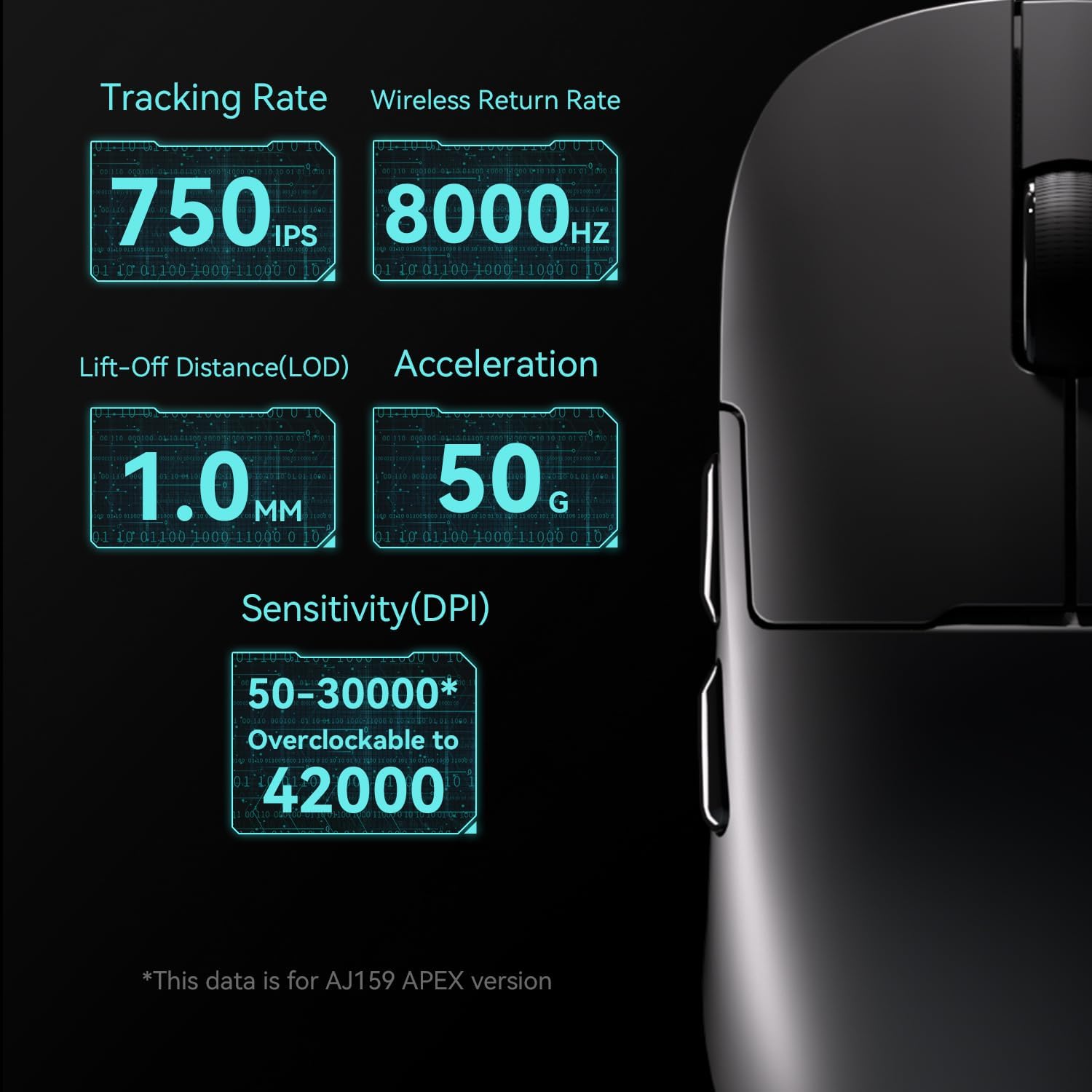
Figure 3: Key performance metrics including DPI range and polling rate.
Polling Rate Adjustment
The default polling rate is 1000Hz for wired and 2.4G wireless modes, and 125Hz for Bluetooth. Through the driver software, you can adjust the polling rate for wired mode (125Hz/250Hz/500Hz/1000Hz) and 2.4G wireless mode (125Hz/250Hz/500Hz/1000Hz/2000Hz/4000Hz/8000Hz). Higher polling rates provide more responsive tracking.
Button Customization
The AJ179 features 6 programmable buttons plus a switch. Use the driver software to assign macros, reassign button functions, and personalize your gaming experience.
RGB Lighting and Screen Display
The magnetic charging dock features innovative RGB full-color interaction and a built-in TFT screen. This screen visually displays various mouse statuses, including GIF images (in wireless mode), Lift-Off Distance (LOD), DPI, polling rate, battery level, and date. Customize the RGB lighting effects via the driver software.
Maintenance
Cleaning
To maintain the performance and appearance of your mouse, regularly clean it with a soft, dry cloth. For stubborn dirt, slightly dampen the cloth with water or a mild cleaning solution. Avoid using harsh chemicals or abrasive materials. Ensure no liquid enters the mouse or charging dock.
Battery Care
The mouse is equipped with a 400mAh battery. To prolong battery life:
- Avoid fully discharging the battery frequently.
- Store the mouse in a cool, dry place when not in use for extended periods.
- Charge the mouse regularly, especially if using high polling rates, which consume more power.
Troubleshooting
| Problem | Possible Cause | Solution |
|---|---|---|
| Mouse not responding/connecting | Low battery; Incorrect mode selected; Receiver not plugged in; Bluetooth not paired. | Charge the mouse; Ensure correct mode (wired/2.4G/BT) is selected; Plug in the 2.4G receiver; Re-pair Bluetooth. |
| Cursor lag/tracking issues | Dirty sensor; Surface issues; Driver/firmware outdated; Interference. | Clean the optical sensor; Use a suitable mouse pad; Update driver software and mouse firmware; Move away from other wireless devices. |
| Magnetic charging dock screen not working | Dock not powered; Connection issue. | Ensure the dock is connected to a powered USB port; Check the USB-C cable connection. |
| Buttons not responding or performing incorrectly | Software configuration error; Physical damage. | Reset button configurations in the driver software; If physical damage is suspected, contact support. |
| Random keyboard inputs (Windows button repeatedly pressed) | Driver/software conflict or bug. | Ensure you have the latest official driver software installed. Try reinstalling the driver. If the issue persists, contact AJAZZ support. |
Specifications
| Product Brand | AJAZZ |
| Model | AJ179 APEX |
| Transmission Method | USB wired + 2.4G wireless + BT5.0 |
| Interface Type | Type-C |
| Product Dimensions | 117.80 x 65.55 x 41.32 mm (4.65 x 2.56 x 0.04 inches) |
| Product Weight | ~58g (2.04 oz) |
| Shell Material | ABS Injection Molding |
| Number of Keys | 6 Keys + 1 switch |
| Wire Length | 1.5m |
| DPI Adjustment | 400-3200 (six-speed, driver adjustable from 50 DPI to 42000 DPI) |
| Sensor | PAW3950 |
| Button Life | 100 million clicks |
| Battery Capacity | 400mAh |
| Polling Rate (Wired) | Default 1000Hz (Adjustable: 125Hz/250Hz/500Hz/1000Hz) |
| Polling Rate (2.4G Wireless) | Default 1000Hz (Adjustable: 125Hz/250Hz/500Hz/1000Hz/2000Hz/4000Hz/8000Hz) |
| Polling Rate (Bluetooth) | Default 125Hz (Not adjustable) |
| Supported Systems | Windows Vista/XP/7/8/10/11, Mac |
Warranty and Support
The AJAZZ AJ179 8K Wireless Gaming Mouse comes with a 12-month warranty from the date of purchase. This warranty covers manufacturing defects and ensures the product meets its specified performance. Please retain your proof of purchase for warranty claims.
For technical support, warranty inquiries, or any questions regarding your AJAZZ product, please visit the official AJAZZ website or contact their customer service team through the contact information provided on their website. A professional team is available to assist you with any issues.
Related documentsAJ179 APEX


Ask a question about this manual
Ask about setup, troubleshooting, compatibility, parts, safety, or missing instructions. Manuals+ will review the question and use this page’s manual context to help answer it.