
AJAZZ AJ179
AJAZZ AJ179 8K Wireless Gaming Mouse User Manual
Model: AJ179 | Brand: AJAZZ
Introduction
Thank you for choosing the AJAZZ AJ179 8K Wireless Gaming Mouse. This high-performance ergonomic mouse is designed for competitive gaming, featuring a PAW3950 optical sensor, multiple connectivity options, and a unique magnetic charging dock with an interactive screen. This manual provides detailed instructions for setup, operation, maintenance, and troubleshooting to ensure optimal performance and longevity of your device.

Figure 1: AJAZZ AJ179 8K Wireless Gaming Mouse with its magnetic charging dock.
Technical Specifications
| Product Brand | AJAZZ |
| Transmission Method | USB wired + 2.4G wireless + BT5.0 |
| Interface Type | Type-C interface |
| Product Size | 117.80 x 65.55 x 41.32 mm |
| Product Weight | ~58g (2.04 oz) |
| Shell Material | ABS injection molding |
| Number of Keys | 6 Keys + 1 switch |
| Wire Length | 1.5M |
| DPI Adjustment | 400-3200 (six-speed DPI driver adjustable), minimum 50 DPI, maximum 42000 DPI (30000-42000 DPI is overclocking) |
| Sensor | PAW3950 |
| Button Life | 100 million clicks |
| Battery Capacity | 400mAh |
| Reply Rate (Polling Rate) | Default wired USB: 1000Hz; Default 2.4G: 1000Hz; Default BT: 125Hz. Driver software adjustable: Wired: 125Hz/250Hz/500Hz/1000Hz; 2.4G: 125Hz/250Hz/500Hz/1000Hz/2000Hz/4000Hz/8000Hz; BT: Not adjustable. |
| Supported Systems | Windows Vista/XP/7/8/10/11, Mac |

Figure 2: Key features including PAW3950 sensor, 8000Hz return rate, 400mAh battery, and charging dock.
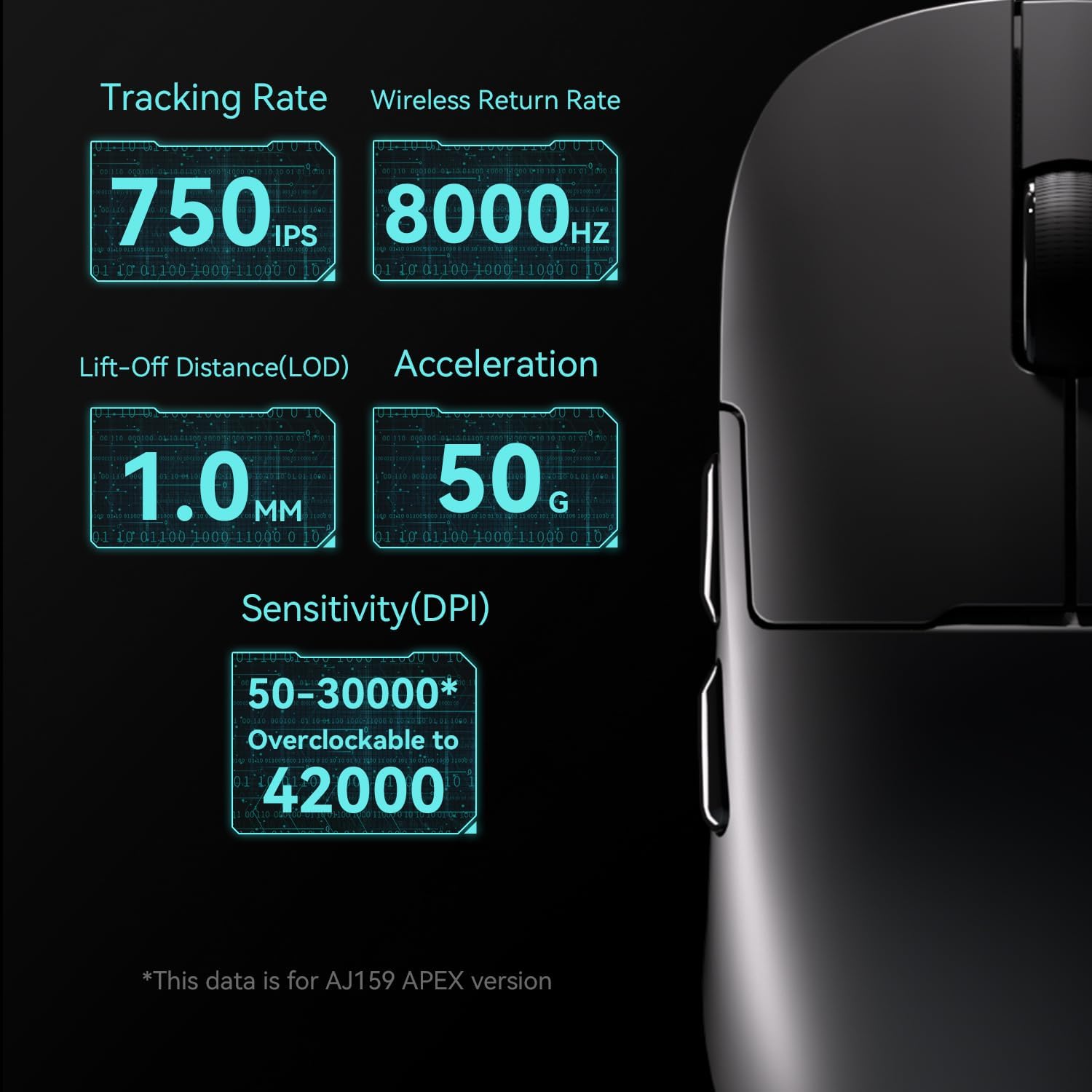
Figure 3: Detailed specifications for tracking rate, lift-off distance (LOD), acceleration, and DPI range.
Setup and Connectivity
The AJAZZ AJ179 mouse offers three versatile connection modes: wired USB-C, 2.4G wireless, and Bluetooth 5.0.
1. Wired Connection (USB-C)
- Connect the provided USB-C cable to the front port of the mouse.
- Plug the other end of the cable into an available USB port on your computer.
- The mouse will be automatically recognized and ready for use. This mode also charges the mouse.
2. 2.4G Wireless Connection
- Locate the 2.4G USB receiver. It is typically stored in a compartment on the underside of the mouse or integrated into the charging dock.
- Plug the USB receiver into an available USB port on your computer.
- Turn on the mouse using the switch on its underside. The mouse should automatically connect to the receiver.
3. Bluetooth 5.0 Connection
- Turn on the mouse using the switch on its underside.
- Switch the mouse to Bluetooth mode (refer to the mouse's physical switch or software settings if applicable).
- On your computer, navigate to Bluetooth settings and search for new devices.
- Select "AJAZZ AJ179" (or similar name) from the list of available devices to pair.
Charging the Mouse
The AJ179 mouse can be charged via the included USB-C cable or by placing it on the magnetic charging dock. The charging dock features an RGB full-color interactive screen that displays mouse status, including battery level.

Figure 4: The magnetic charging docking station provides convenient charging and displays mouse information.

Figure 5: The charging dock features an RGB screen and supports the mouse's 8000Hz return rate.
Operating Instructions
DPI Adjustment
The mouse supports DPI adjustment from 50 to 42000 DPI. You can cycle through preset DPI levels using the dedicated DPI button on the mouse (usually on the underside or top, refer to your specific model's layout). For fine-tuning and custom DPI settings, use the official AJAZZ driver software. The software allows for six-speed DPI adjustments and can set minimum 50 DPI and maximum 42000 DPI (with 30000-42000 DPI being overclocked).
Customizing Buttons and Macros
The AJ179 features 6 programmable keys. Utilize the powerful AJAZZ driver software to assign macros, reassign button functions, redefine DPI and Lift-Off Distance (LOD), and adjust the polling rate. The software also allows for personalization of the charging base's display and monitoring of battery status.
Polling Rate Adjustment
The polling rate, or reply rate, can be adjusted via the driver software.
- Wired Mode: 125Hz, 250Hz, 500Hz, 1000Hz
- 2.4G Wireless Mode: 125Hz, 250Hz, 500Hz, 1000Hz, 2000Hz, 4000Hz, 8000Hz
- Bluetooth Mode: Fixed at 125Hz (not adjustable)
Magnetic Screen Display
The magnetic charging dock features a built-in TFT screen that visually displays various mouse statuses. This includes GIF images in wireless mode, LOD, current DPI, polling rate, battery level, and date. This provides real-time feedback on your mouse's performance and status.
Maintenance
Cleaning
- To clean the mouse, use a soft, dry cloth.
- For stubborn dirt, slightly dampen the cloth with water or a mild, non-abrasive cleaner. Avoid excessive moisture.
- Do not use harsh chemicals, solvents, or abrasive materials, as these can damage the mouse's surface and internal components.
- Regularly clean the optical sensor area on the underside of the mouse to ensure accurate tracking.
Battery Care
- To prolong battery life, avoid fully discharging the mouse frequently.
- Charge the mouse regularly using the provided USB-C cable or the magnetic charging dock.
- Store the mouse in a cool, dry place when not in use for extended periods.

Figure 6: The mouse features a durable 100 million click lifespan and a 400mAh battery for long-lasting use.
Troubleshooting
Mouse Not Responding / Disconnecting
- Check Battery: Ensure the mouse has sufficient charge. Place it on the charging dock or connect via USB-C cable.
- Check Connection Mode: Verify the mouse is in the correct mode (2.4G, Bluetooth, or Wired) for your setup.
- 2.4G Wireless: Ensure the USB receiver is securely plugged into a working USB port. Try a different USB port.
- Bluetooth: Re-pair the mouse with your computer. Ensure Bluetooth is enabled on your computer.
- Wired: Ensure the USB-C cable is securely connected to both the mouse and the computer. Try a different USB port or cable.
- Interference: Move the mouse and receiver closer to each other. Avoid placing the receiver near other wireless devices or large metal objects that might cause interference.
Inaccurate Tracking / Lagging Cursor
- Clean Sensor: Dust or debris on the optical sensor can cause tracking issues. Clean the sensor area on the underside of the mouse with a soft cloth.
- Mouse Pad Surface: Ensure you are using the mouse on a suitable surface. Highly reflective or uneven surfaces can affect tracking. A good quality mouse pad is recommended.
- DPI Setting: Adjust the DPI setting to a level that is comfortable and appropriate for your task.
- Polling Rate: For gaming, ensure the polling rate is set to a higher value (e.g., 1000Hz or higher in 2.4G mode) via the driver software.
- Software/Driver Issues: Ensure you have the latest drivers and firmware installed for the mouse. Visit the official AJAZZ website for downloads.
Charging Dock Screen Not Displaying
- Power Connection: Ensure the charging dock is properly connected to a power source via its USB-C cable.
- Mouse Placement: Ensure the mouse is correctly seated on the magnetic charging contacts of the dock.
- Software: Check the AJAZZ software for any display settings or firmware updates related to the charging dock.
Warranty and Support
AJAZZ provides a 12-month warranty for the AJ179 8K Wireless Gaming Mouse. This warranty covers manufacturing defects and issues arising from normal use. Please retain your proof of purchase for warranty claims.
For technical support, troubleshooting assistance, or warranty inquiries, please contact AJAZZ customer service through their official website or the retailer from whom you purchased the product. A professional support team is available to answer your questions.
Additional resources, including driver software and firmware updates, may be available on the official AJAZZ website. Regularly checking for updates can improve performance and resolve potential issues.
Related documentsAJ179


Ask a question about this manual
Ask about setup, troubleshooting, compatibility, parts, safety, or missing instructions. Manuals+ will review the question and use this page’s manual context to help answer it.