
1. Introduction
This manual provides essential information for setting up, operating, and maintaining your NIMO Mini-PC MPL2R. Please read it thoroughly before use to ensure optimal performance and longevity of your device.

Image 1.1: Front and back view of the NIMO Mini-PC MPL2R, showcasing its compact design and various ports.
The NIMO Mini-PC MPL2R is a compact and powerful computing solution, equipped with a 12th Gen Intel N100 processor, 16GB DDR5 RAM, and 768GB storage (512GB M.2 SSD + 256GB Micro SD). It supports triple 4K display output, WiFi 6, and Bluetooth 5.2, making it suitable for a variety of applications from home entertainment to business and educational tasks.

Image 1.2: Overview of key features including Intel 12th Gen N100 processor, 4K triple-screen display support, Bluetooth 5.2, LPDDR5 RAM, WiFi 6, and PCIe SSD.
2. What's in the Box
Upon opening the package, verify that all the following items are included:
- NIMO Mini-PC MPL2R
- Power Adapter
- VESA Mount
- User Guide

Image 2.1: Visual representation of the items included in the NIMO Mini-PC MPL2R packaging: the Mini PC unit, power adapter, VESA mount, and user guide.
3. Setup Guide
3.1 Connecting to a Display
- Connect one end of an HDMI cable to an HDMI port on the NIMO Mini-PC.
- Connect the other end of the HDMI cable to an HDMI input on your monitor or TV.
- For triple display setup, use the second HDMI port and the full-function Type-C port with appropriate adapters/cables.

Image 3.1: The NIMO Mini-PC MPL2R connected to three external monitors, demonstrating its triple 4K display capability.
3.2 Connecting Peripherals
- USB Devices: Connect your keyboard, mouse, and other USB devices to the available USB 3.0 ports.
- Audio: Connect speakers or headphones to the 3.5mm audio jack.
- Network: For a wired connection, connect an Ethernet cable to the Gigabit Ethernet port.
3.3 Power Connection
- Connect the power adapter to the DC input port on the Mini-PC.
- Plug the power adapter into a wall outlet.
3.4 VESA Mount Installation (Optional)
The included VESA mount allows you to attach the Mini-PC to the back of a compatible monitor, saving desk space.
- Attach the VESA mount bracket to the back of your monitor using the provided screws.
- Slide the NIMO Mini-PC onto the mounted bracket until it clicks securely into place.
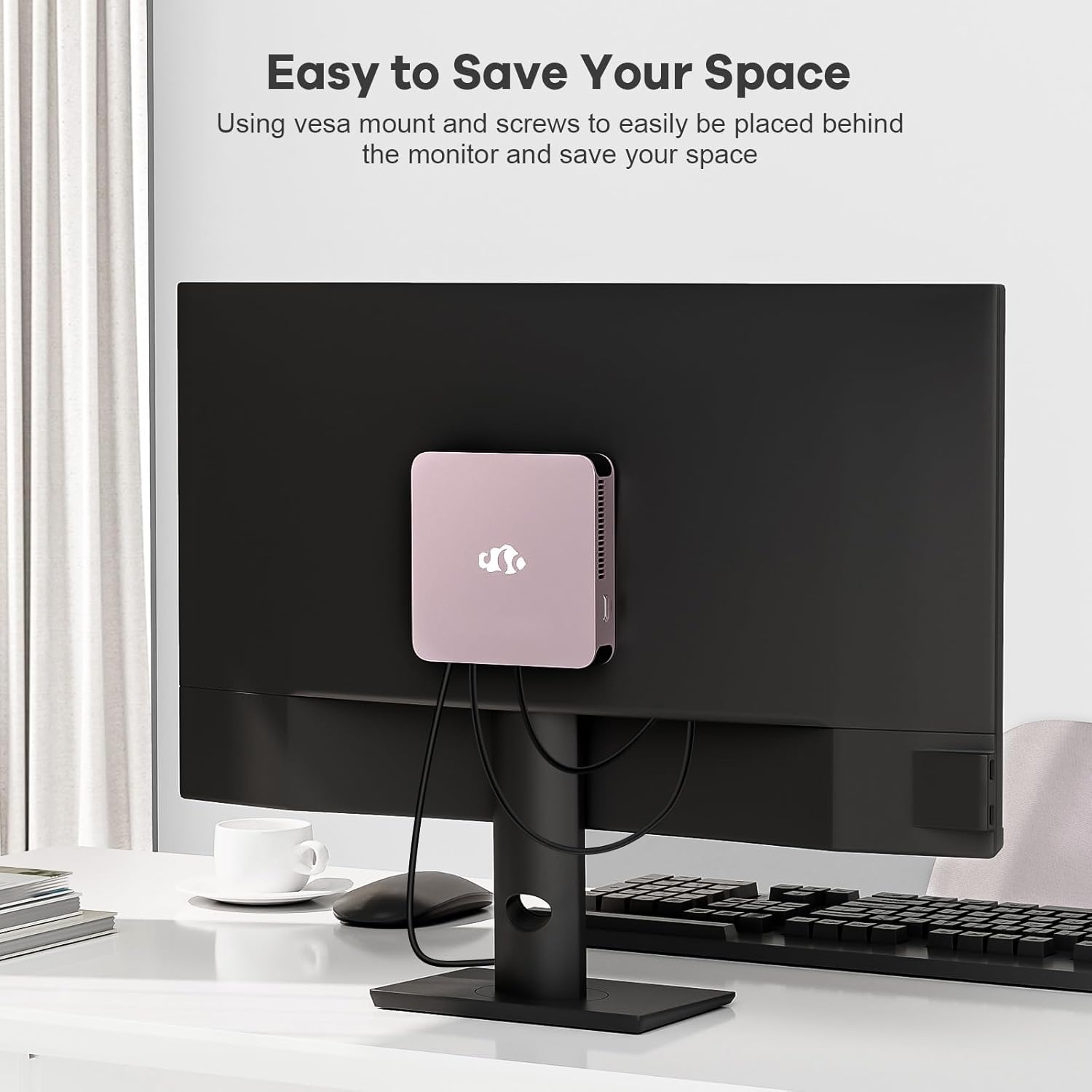
Image 3.2: The NIMO Mini-PC MPL2R shown mounted on the back of a monitor, illustrating its space-saving VESA mount capability.
4. Operating Instructions
4.1 Powering On/Off
- Power On: Press the power button located on the front of the Mini-PC. The power indicator light will illuminate.
- Power Off: To shut down the system, use the operating system's shutdown function. For a forced shutdown, press and hold the power button for approximately 5 seconds.
4.2 Initial Boot and Operating System
The NIMO Mini-PC comes with a pre-installed operating system. Upon first boot, follow the on-screen instructions to complete the initial setup, including language selection, network configuration, and user account creation.
4.3 Wireless Connectivity
- WiFi 6: To connect to a wireless network, access the network settings in your operating system, select your desired WiFi network, and enter the password.
- Bluetooth 5.2: To pair Bluetooth devices (e.g., keyboard, mouse, headphones), enable Bluetooth in your operating system settings and follow the pairing instructions for your specific device.

Image 4.1: The NIMO Mini-PC MPL2R depicted in multiple usage scenarios, including business meetings, graphic design, home theater, and office work, highlighting its versatility.
5. Specifications
Detailed technical specifications for the NIMO Mini-PC MPL2R:
| Feature | Specification |
|---|---|
| Processor | Intel N100 (4 Cores, 4 Threads, up to 3.4GHz, 6MB Cache) |
| Graphics | Intel UHD Graphics (up to 750MHz) |
| RAM | 16GB DDR5 (LPDDR5) |
| Storage | 512GB M.2 SSD (PCIe x2) + 256GB Micro SD |
| Display Output | 2x HDMI (4K@60Hz), 1x Full-function Type-C (4K@60Hz) - Triple Display Support |
| Wireless Connectivity | WiFi 6, Bluetooth 5.2 |
| Ports | 4x USB 3.0, 1x Full-function Type-C, 2x HDMI, 1x Gigabit Ethernet, 1x 3.5mm Audio Jack, 1x Micro SD Card Slot |
| Operating System | System (Pre-installed) |
| Dimensions (LxWxH) | 4.72 x 4.72 x 0.91 inches |
| Item Weight | 1.65 pounds |
| Power Source | DC |

Image 5.1: Dimensions of the NIMO Mini-PC MPL2R, illustrating its compact size relative to common objects like a pen and a coin.

Image 5.2: Diagram illustrating the internal cooling structure of the NIMO Mini-PC MPL2R, featuring a fan with speeds up to 5300 RPM for efficient heat dissipation.
6. Maintenance
- Cleaning: Use a soft, dry cloth to clean the exterior of the Mini-PC. Avoid using liquid cleaners or abrasive materials. Ensure ventilation openings are free from dust and debris.
- Software Updates: Regularly update your operating system and drivers to ensure optimal performance and security.
- Ventilation: Ensure the Mini-PC is placed in a well-ventilated area to prevent overheating. Do not block the air vents.
- Storage: Avoid placing heavy objects on the Mini-PC. Store it in a cool, dry environment when not in use.
7. Troubleshooting
This section addresses common issues you might encounter with your NIMO Mini-PC.
7.1 No Power
- Ensure the power adapter is securely connected to both the Mini-PC and a working power outlet.
- Verify the power outlet is functional by plugging in another device.
7.2 No Display Output
- Check that the HDMI or Type-C cable is firmly connected to both the Mini-PC and the monitor.
- Ensure the monitor is powered on and set to the correct input source (e.g., HDMI 1, HDMI 2).
- Try connecting to a different display or using a different cable to rule out faulty components.
7.3 No Internet Connection
- Wired: Ensure the Ethernet cable is properly connected and your router is functioning.
- Wireless: Verify that WiFi is enabled in the operating system, you are connected to the correct network, and the password is entered correctly. Restart your router if necessary.
7.4 Peripherals Not Responding
- Try connecting USB devices to different USB ports.
- For Bluetooth devices, ensure they are in pairing mode and Bluetooth is enabled on the Mini-PC.
- Check device drivers in the operating system's device manager.
8. Warranty and Support
NIMO is committed to providing reliable products and excellent customer service.
8.1 Warranty Information
Your NIMO Mini-PC MPL2R comes with a 2-year technical support warranty. This warranty covers manufacturing defects and technical issues under normal use conditions.
8.2 Return Policy
A 90-day return policy is offered, allowing for returns or exchanges within 90 days of purchase.
8.3 Technical Support
If you encounter any problems or have questions regarding your NIMO Mini-PC, please contact our professional after-sales team. Our computer experts are available to provide technical support and repair services.
- Contact Email: service@nimopc.com
- Service Availability: 24-hour service

Image 8.1: Overview of NIMO's customer service, highlighting domestically partial assembly, 90-day returns, and 2-year support.


