1. Introduction
This manual provides essential information for the installation, operation, and maintenance of your ASUS TUF Gaming Radeon RX 9060 XT 16GB GDDR6 OC Edition graphics card. Please read this manual thoroughly before installation to ensure proper setup and optimal performance.
2. Product Overview and Key Features
The ASUS TUF Gaming Radeon RX 9060 XT is a high-performance graphics card designed for demanding gaming and computing tasks. It features AMD RDNA™ 4 Architecture, advanced cooling solutions, and robust power delivery.
Key Features:
- Military-Grade Components: Certified TUF chokes and MOSFETs provide stable power delivery, enhancing system stability. TUF 5K black metallic capacitors offer wider temperature tolerance and extended lifespan.
- Protective PCB Coating: A conformal coating protects against short circuits caused by moisture, dust, or debris.
- Dual Ball Fan Bearings: Fans utilize dual ball bearings for increased lifespan and reliable, quiet cooling performance.
- 2.5-Slot Design with Axial-tech Fans: Features a large fin array optimized for airflow from three Axial-tech fans, which spin on dual-ball bearings for improved air pressure.
- ASUS GPU Guard: Secures the GPU, reducing the risk of damage.
- Metal Exoskeleton: Adds structural rigidity and includes vents for enhanced heat dissipation.
- Auto-Extreme Technology: Precision automated manufacturing ensures higher reliability and consistent quality.
- GPU Tweak III Software: Provides intuitive tools for performance tweaking, advanced thermal controls, and system monitoring.
- Dual BIOS: Allows selection between Performance mode (maximizes cooling) and Quiet mode (quieter operation with less aggressive fan curve).
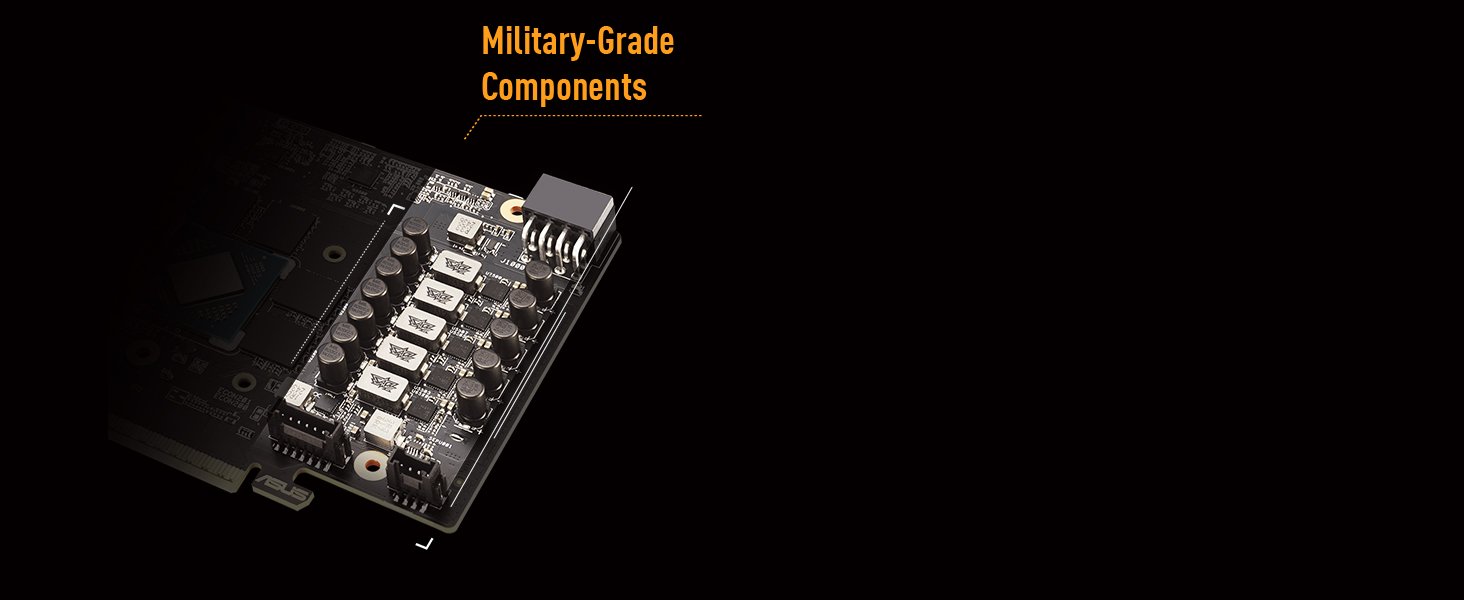
Image: Military-Grade Components. This image displays the internal components of the graphics card, highlighting the robust chokes and capacitors designed for durability and stable power delivery.

Image: Protective PCB Coating and Dual Ball Fan Bearings. This diagram illustrates the protective layer on the circuit board and the design of the fan bearings for enhanced longevity.

Image: Cooling Mastery. This image details the MaxContact heat spreader, Axial-tech fan design, and the vented exoskeleton, all contributing to efficient heat dissipation.

Image: Dual BIOS Switch. This image highlights the physical switch on the graphics card that allows users to select between Performance and Quiet BIOS modes.
3. What's in the Box
The retail package for your ASUS TUF Gaming Radeon RX 9060 XT graphics card should contain the following items:
- TUF-RX9060XT-O16G-GAMING Graphics Card
- Thank you card
- Speed setup manual
- TUF Certificate of Reliability
- TUF Velcro Hook & Loop cable ties
- TUF Fridge Magnet

Image: Product and Packaging. This image shows the ASUS TUF Gaming Radeon RX 9060 XT graphics card alongside its retail packaging.
4. Setup Guide (Installation)
Follow these steps to properly install your graphics card into your computer system.
4.1 System Requirements
- PCI Express-compliant motherboard with one x16 graphics slot.
- Sufficient power supply unit (PSU) with appropriate PCIe power connectors. Refer to your PSU's documentation for details.
- Minimum 16GB system RAM recommended.
- Compatible operating system (e.g., Windows 11 Pro).
4.2 Physical Installation
- Power Off: Ensure your computer is completely powered off and unplugged from the wall outlet.
- Open Case: Remove the side panel of your computer case.
- Locate PCIe Slot: Identify an available PCI Express x16 slot on your motherboard.
- Remove Slot Covers: Remove the necessary expansion slot covers from the back of your computer case that correspond to the graphics card's size (this card typically requires 2.5 slots).
- Insert Card: Carefully align the graphics card with the PCIe slot and press it down firmly until it is securely seated. Ensure the retention clip on the PCIe slot locks into place.
- Secure Card: Fasten the graphics card to the case using screws.
- Connect Power: Connect the required PCIe power cables from your power supply to the graphics card. This model typically requires 8-pin PCIe power connectors.
- Close Case: Replace the computer case side panel.
4.3 Driver Installation
- Power On: Reconnect your computer to power and turn it on.
- Initial Display: Your computer may boot with a basic display driver.
- Download Drivers: Visit the official ASUS support website (www.asus.com/support/) or the AMD official website (www.amd.com/support/) to download the latest drivers for your Radeon RX 9060 XT graphics card.
- Install Drivers: Run the downloaded driver installer and follow the on-screen instructions. A system restart may be required.
5. Operating Instructions
5.1 Connecting to a Display
Connect your monitor(s) to the graphics card's output ports (DisplayPort 2.1a or HDMI 2.1b) using appropriate cables. This card supports multiple displays.

Image: Video Output Interfaces. This image displays the DisplayPort and HDMI ports available on the graphics card for connecting to monitors.
5.2 Dual BIOS Switch
The graphics card features a Dual BIOS switch, typically located on the side of the card. This switch allows you to toggle between two distinct BIOS profiles:
- Performance Mode (P Mode): Maximizes cooling performance, potentially resulting in higher fan speeds and noise levels.
- Quiet Mode (Q Mode): Utilizes a less aggressive fan curve for quieter operation, without altering core power settings.
Switching modes requires a system restart to take effect.
6. Software and Utilities
6.1 ASUS GPU Tweak III
ASUS GPU Tweak III is a utility that allows you to monitor and fine-tune your graphics card's performance. It provides features for:
- Overclocking the GPU core clock and memory clock.
- Adjusting fan speeds and creating custom fan curves.
- Monitoring GPU temperature, usage, and other vital statistics.
- Switching between predefined modes (OC, Gaming, Silent) or creating custom user profiles.
Download GPU Tweak III from the official ASUS support website.

Image: GPU Tweak III Software. This image shows the GPU Tweak III interface, illustrating its capabilities for performance tuning and monitoring.
6.2 AMD Adrenaline Software
AMD Adrenaline Software provides a comprehensive suite of tools for managing your Radeon graphics card. It includes features such as:
- Game optimization and performance tuning.
- Driver updates and system monitoring.
- Advanced display settings and video enhancements.
- Recording and streaming capabilities.
Ensure you have the latest version installed for optimal performance and access to all features.
7. Maintenance
Proper maintenance helps ensure the longevity and performance of your graphics card.
- Dust Removal: Regularly clean dust from the graphics card's heatsink and fans using compressed air. Ensure the system is powered off and unplugged before cleaning.
- Driver Updates: Keep your graphics drivers updated by regularly checking the ASUS or AMD support websites for the latest versions.
- System Airflow: Ensure your computer case has adequate airflow to prevent overheating.
8. Troubleshooting
If you encounter issues with your graphics card, refer to the following common troubleshooting steps:
- No Display Output:
- Ensure the monitor cable is securely connected to both the graphics card and the monitor.
- Verify that the graphics card is fully seated in the PCIe slot.
- Check that all necessary PCIe power cables are connected to the graphics card.
- Test with a different display cable or monitor if possible.
- Performance Issues (Low FPS, Stuttering):
- Ensure you have the latest graphics drivers installed.
- Check GPU temperatures using monitoring software (e.g., GPU Tweak III) to rule out thermal throttling.
- Verify that your power supply unit (PSU) meets the recommended wattage for the graphics card and other system components.
- Close unnecessary background applications.
- Driver Installation Problems:
- Uninstall any previous graphics drivers using a utility like Display Driver Uninstaller (DDU) in Safe Mode, then attempt a clean installation of the latest drivers.
- Ensure your operating system is up to date.
- System Instability (Crashes, Freezes):
- Check for system overheating.
- Ensure your system BIOS/UEFI is updated to the latest version.
- If overclocking, revert to default settings to see if stability improves.
9. Specifications
| Feature | Specification |
|---|---|
| Brand | ASUS |
| Series | TUF-RX9060XT-O16G-GAMING |
| Graphics Coprocessor | AMD RX9060XT |
| Chipset Brand | AMD |
| Graphics Card RAM Size | 16 GB GDDR6 |
| Memory Speed | 2800 MHz |
| Video Output Interface | DisplayPort 2.1a x2, HDMI 2.1b |
| Max Screen Resolution | 7680x4320 Pixels |
| Item Weight | 2.07 pounds |
| Product Dimensions (LxWxH) | 11.97 x 4.96 x 0.04 inches |
| Color | BLACK |
10. Warranty and Support
For warranty information and technical support, please visit the official ASUS support website. You can find drivers, FAQs, and contact information for customer service there.
ASUS Support Website: www.asus.com/support/
Please retain your proof of purchase for warranty claims.


