1. Introduction
This manual provides detailed instructions for the setup, operation, and maintenance of your Fockety 4K HD Mini Projector, Model Focketyz0qogcr1ku-13. Please read this manual thoroughly before using the product to ensure proper functionality and to prevent damage.
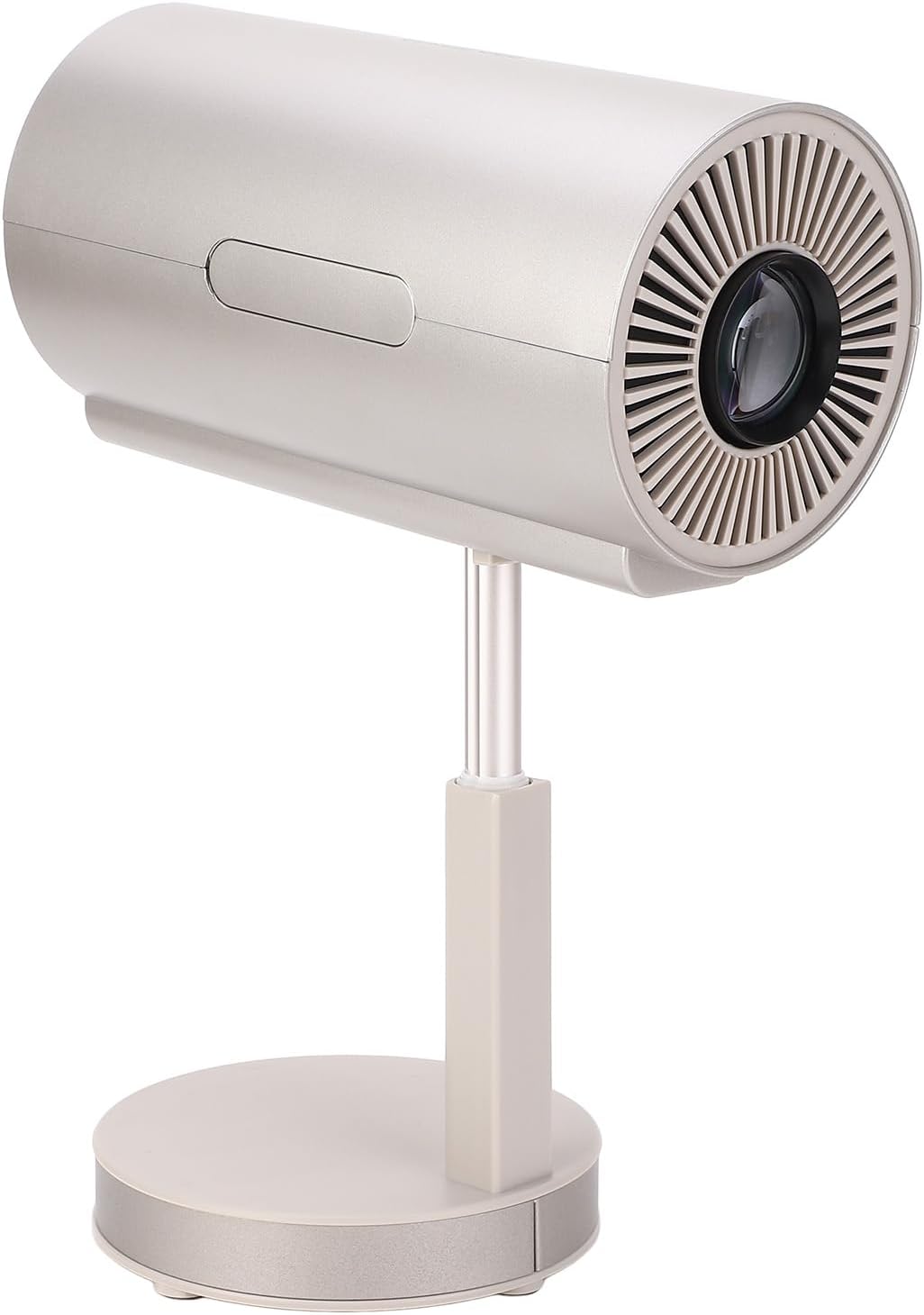
Image 1.1: The Fockety 4K HD Mini Projector, showcasing its compact design and adjustable stand.
2. Product Overview
2.1 Key Features
- HD Projection Display: Supports 4K video playback with advanced display technology, enhancing dark details and color contrast.
- Smart AI Voice Control: Allows for voice commands to search content, control playback, and manage settings.
- 1200LM Brightness: Optical lens with high uniformity and 98% light transmittance for clear images.
- Smart 1 Focus & Keystone Correction: Features electronic trapezoidal and 4-point correction for accurate focus and clear picture.
- Multi-Device Connectivity: Includes High Definition Multimedia Interface (HDMI), USB, and AV ports for various devices, supporting wireless or wired screen mirroring.
- Dual Frequency Projection: 2.4G and 5G wireless fidelity for smooth streaming and gaming.
- 3D Surround Sound: Integrated speakers designed to deliver immersive audio.
- 90-Degree Flip Head: Adjustable projection angle for flexible placement, including wall-mounted or ceiling projection.
2.2 Package Contents
Verify that all items are present in the package:
- 1 x Smart Mini Projector
- 1 x Remote Control
- 1 x Power Cord
- 2 x Cleaning Swabs
- 2 x Instruction Manuals (This document is one of them)

Image 2.1: The projector shown with its remote control, power cord, and cleaning swabs.
2.3 Projector Components
Familiarize yourself with the various parts of the projector:
- Projection Lens: Located at the front, responsible for image output.
- Adjustable Stand: Allows for height and angle adjustments.
- 90-Degree Flip Head: Enables projection onto walls or ceilings.
- Rear Panel Ports: Includes HDMI, USB, AV, and Headphone Jack for connectivity.
- Power Input: For connecting the power cord.
- IR Receiver: For remote control signals.
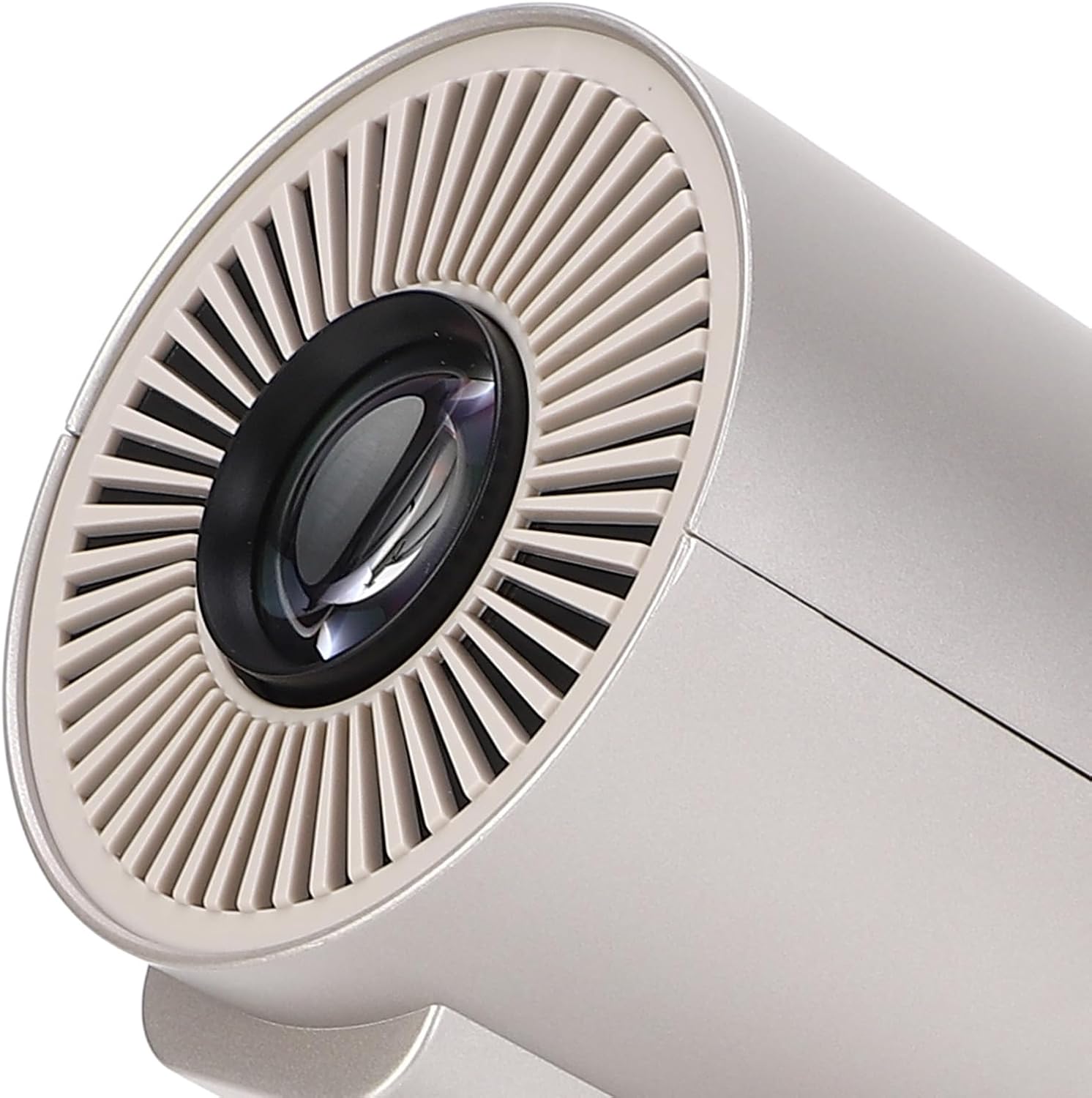
Image 2.2: Detailed view of the projector's lens and front ventilation.

Image 2.3: Rear view of the projector showing the power input, HDMI, USB, and other ports.
3. Setup
3.1 Placement
Position the projector on a stable, flat surface. The adjustable stand allows for optimal height. Utilize the 90-degree flip head to project onto a wall or ceiling as needed.
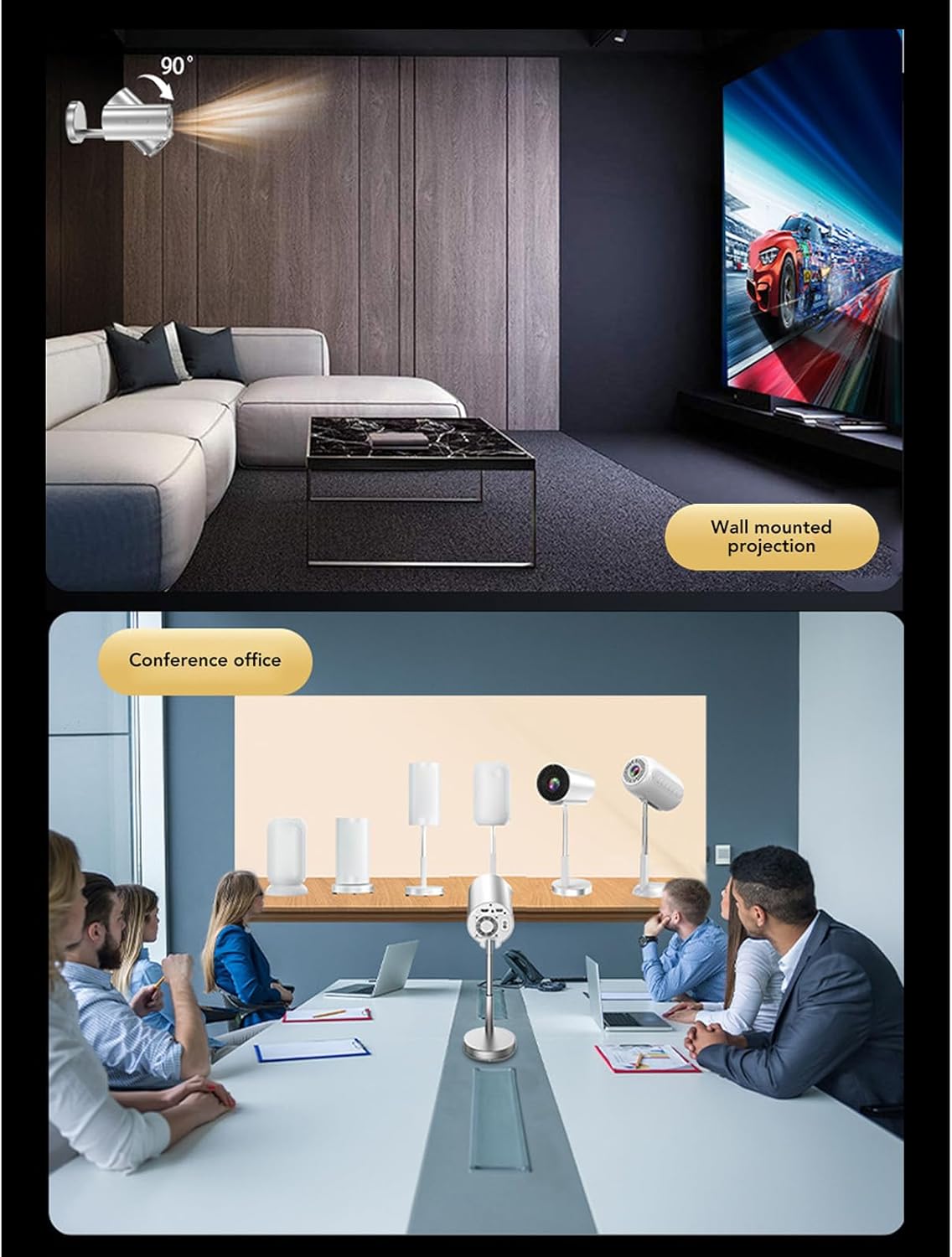
Image 3.1: Examples of projector placement for wall-mounted projection and use in a conference office setting.
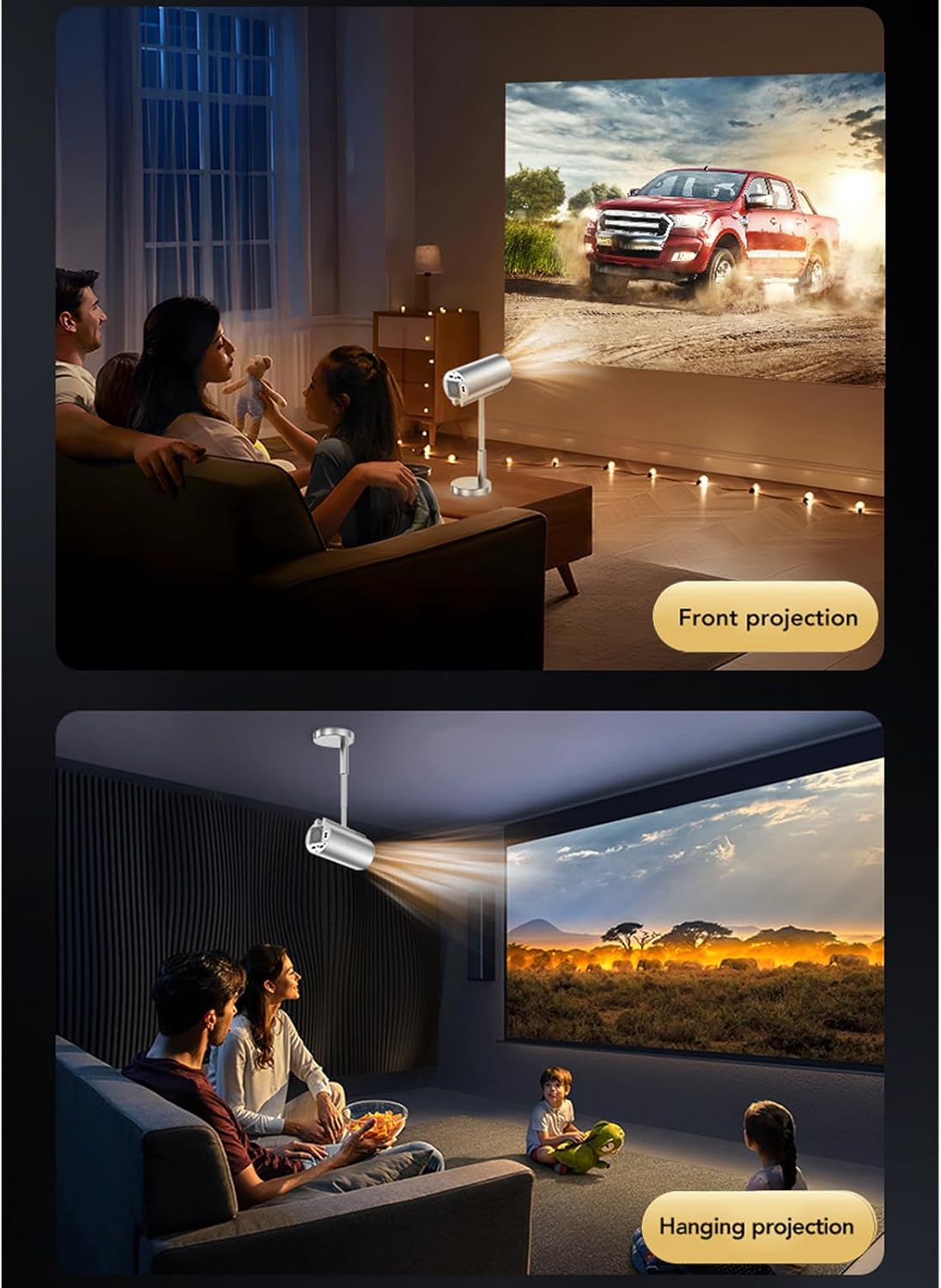
Image 3.2: Illustrations of the projector used for front projection (on a table) and hanging projection (from the ceiling).
3.2 Power Connection
- Connect the provided power cord to the power input port on the rear of the projector.
- Plug the other end of the power cord into a suitable electrical outlet.
3.3 Remote Control Setup
Insert 2 x AAA batteries (not included) into the remote control, observing the correct polarity.
3.4 Initial Focus and Keystone Correction
The projector features smart one-touch focusing and electronic trapezoidal (keystone) correction. Upon initial power-on or movement, the projector will attempt to auto-adjust. Fine-tune if necessary using the remote control or on-screen menu.

Image 3.3: Visual representation of the intelligent one-touch focusing and trapezoid (4-point) correction feature, ensuring a clear and rectangular image.
Video 3.1: A short demonstration of the projector's automatic trapezoidal correction and focusing capabilities, showing how it adjusts the image to be rectangular and sharp.
4. Operating Instructions
4.1 Power On/Off
- Power On: Press the power button on the projector or the remote control.
- Power Off: Press the power button again. Confirm shutdown if prompted.
4.2 Smart AI Voice Control
To use voice control, ensure the remote control is paired (if required by the system) and press the dedicated voice control button on the remote. Speak clearly into the remote to search for movies, control playback, or adjust settings.
4.3 Connecting External Devices
The projector supports various input sources:
- HDMI: Connect devices like game consoles, Blu-ray players, or laptops using an HDMI cable. Select the HDMI input source from the projector's menu.
- USB: Insert a USB drive to play media files directly. Select the USB input source.
- AV: Use an AV cable for older devices. Select the AV input source.
- Wireless (Screen Mirroring/Casting): Connect your smartphone, tablet, or computer wirelessly via 2.4G or 5G Wi-Fi for screen mirroring. Refer to the on-screen instructions for specific device compatibility and connection steps.
4.4 Audio Output
The projector has built-in 3D surround sound speakers. For external audio, connect headphones or external speakers to the headphone jack.

Image 4.1: The projector positioned to illustrate its surround sound capabilities, creating an immersive audio experience.
Video 4.1: A demonstration of the Fockety 4K HD Mini Projector's features, including its dual-frequency screen casting and cooling system, highlighting its performance for home theater use.
5. Maintenance
5.1 Cleaning the Lens
Use the provided cleaning swabs or a soft, lint-free cloth specifically designed for optical lenses. Gently wipe the lens surface to remove dust or smudges. Avoid using abrasive materials or harsh chemicals.
5.2 General Cleaning
Wipe the exterior of the projector with a soft, dry cloth. Do not use liquid cleaners directly on the device. Ensure ventilation openings are clear of dust and obstructions.
5.3 Storage
When not in use for extended periods, store the projector in a cool, dry place, away from direct sunlight and extreme temperatures. It is recommended to cover the lens to protect it from dust.
6. Troubleshooting
| Problem | Possible Cause | Solution |
|---|---|---|
| No image displayed |
|
|
| Image is blurry |
|
|
| Image is distorted (trapezoid shape) |
|
|
| No sound |
|
|
| Wireless connection issues |
|
|
7. Specifications
| Feature | Detail |
|---|---|
| Brand | Fockety |
| Model Number | Focketyz0qogcr1ku-13 |
| Physical Resolution | 1080P (Supports 4K) |
| Brightness | 1200LM |
| Projection Size | Up to 120 Inches |
| Best Projection Distance | Approx. 1.5m / 4.92 feet |
| Trapezoidal Correction | Electronic Correction (4-point) |
| Connectivity Technology | Ethernet, Wi-Fi (2.4G/5G) |
| Interfaces | High Definition Multimedia Interface (HDMI), USB, AV, Headphone Jack |
| Item Weight | 2.71 pounds |
| Product Dimensions | 9.44 x 5.9 x 5.9 inches |
8. Warranty and Support
Fockety is committed to customer satisfaction. If you encounter any issues or have questions regarding your Fockety 4K HD Mini Projector, please contact our customer support. While specific warranty details are not provided in this document, we encourage you to reach out for assistance with any product-related concerns.