
styletech STY-M400
styletech Silent Multi-Mode Bluetooth Wireless Mouse User Manual
Model: STY-M400
Brand: styletech
Introduction
The styletech Silent Multi-Mode Bluetooth Wireless Mouse is designed for universal compatibility across Windows PC, Mac, Chrome OS, Android, and iOS platforms. Its multi-mode wireless capability allows seamless switching between up to three devices, making it suitable for various environments. The mouse features a silent click mechanism, an ergonomic and ambidextrous design, 3 buttons, and a 1200 DPI sensor for precise tracking.

Image: The styletech Silent Multi-Mode Bluetooth Wireless Mouse shown in its retail packaging, highlighting key features and compatibility.
What's in the Box
Upon opening the package, please ensure all the following items are present:
- styletech Silent Multi-Mode Bluetooth Wireless Mouse
- 2.4G Wireless USB Dongle (located inside the mouse's battery compartment)
- 1 x AAA Battery (included)
- User Manual (this document)
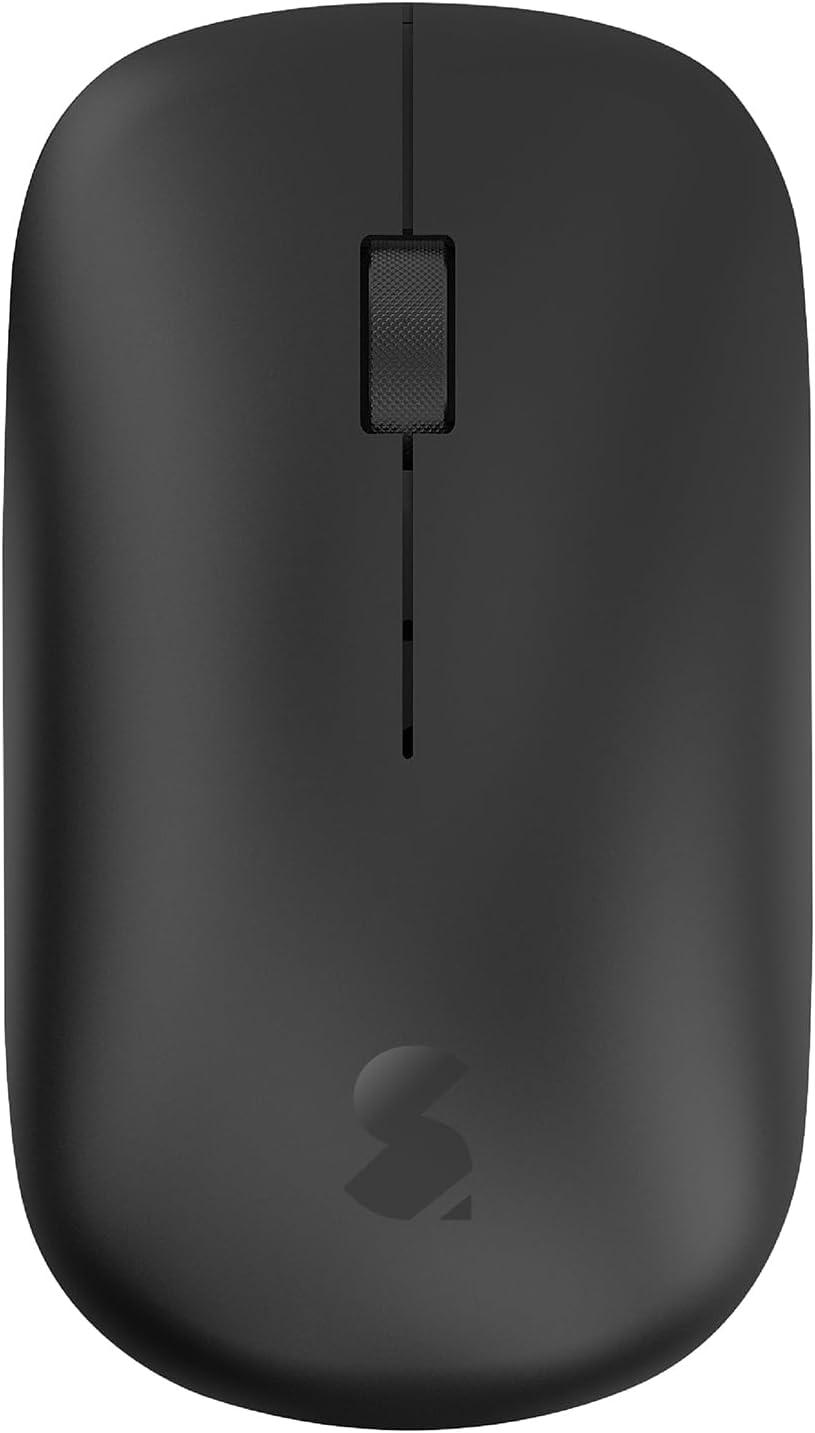
Image: A top-down view of the styletech wireless mouse, showing its sleek design and central scroll wheel.
Setup Guide
1. Battery Installation
- Gently slide open the top cover of the mouse.
- Insert the included AAA battery into the battery compartment, ensuring correct polarity (+/-).
- Locate the 2.4G USB dongle inside the battery compartment and remove it.
- Replace the top cover, ensuring it clicks securely into place.
2. Connecting via 2.4G Wireless Dongle
- Plug the 2.4G USB dongle into an available USB port on your computer or device.
- Turn on the mouse using the power switch located on the bottom of the mouse.
- The mouse should automatically connect to your device. No additional drivers are typically required.
3. Connecting via Bluetooth (BT1 / BT2)
The mouse supports two independent Bluetooth connections (BT1 and BT2), allowing you to switch between two Bluetooth-enabled devices.
- Turn on the mouse using the power switch on the bottom.
- Press the mode switch button (usually on the bottom or top of the mouse) to select either BT1 or BT2 mode. The indicator light will flash slowly, indicating it's ready for pairing.
- On your device (PC, Mac, tablet, phone), go to Bluetooth settings.
- Search for new devices. You should see "STY-M400" or "styletech Mouse" appear in the list.
- Select the mouse to pair. Once paired, the indicator light will stop flashing and remain solid for a few seconds, then turn off.
- Repeat these steps for a second device if you wish to use the BT2 mode.

Image: An angled view of the styletech wireless mouse, showcasing its ergonomic contours suitable for comfortable use.
Operating Instructions
Switching Between Modes (2.4G / BT1 / BT2)
To switch between connected devices or connection modes, simply press the mode switch button on the mouse. The indicator light will briefly show which mode is active (e.g., a specific color or flash pattern for 2.4G, BT1, or BT2).
DPI Adjustment
The mouse features a 1200 DPI sensor for precise cursor control. While the default DPI is 1200, some models may offer adjustable DPI settings via a dedicated button (often located near the scroll wheel or on the bottom). Refer to the specific product packaging or quick start guide for your model if an adjustable DPI feature is present.
Silent Click Feature
The styletech mouse is designed with silent click buttons, significantly reducing clicking noise for a quieter working environment.
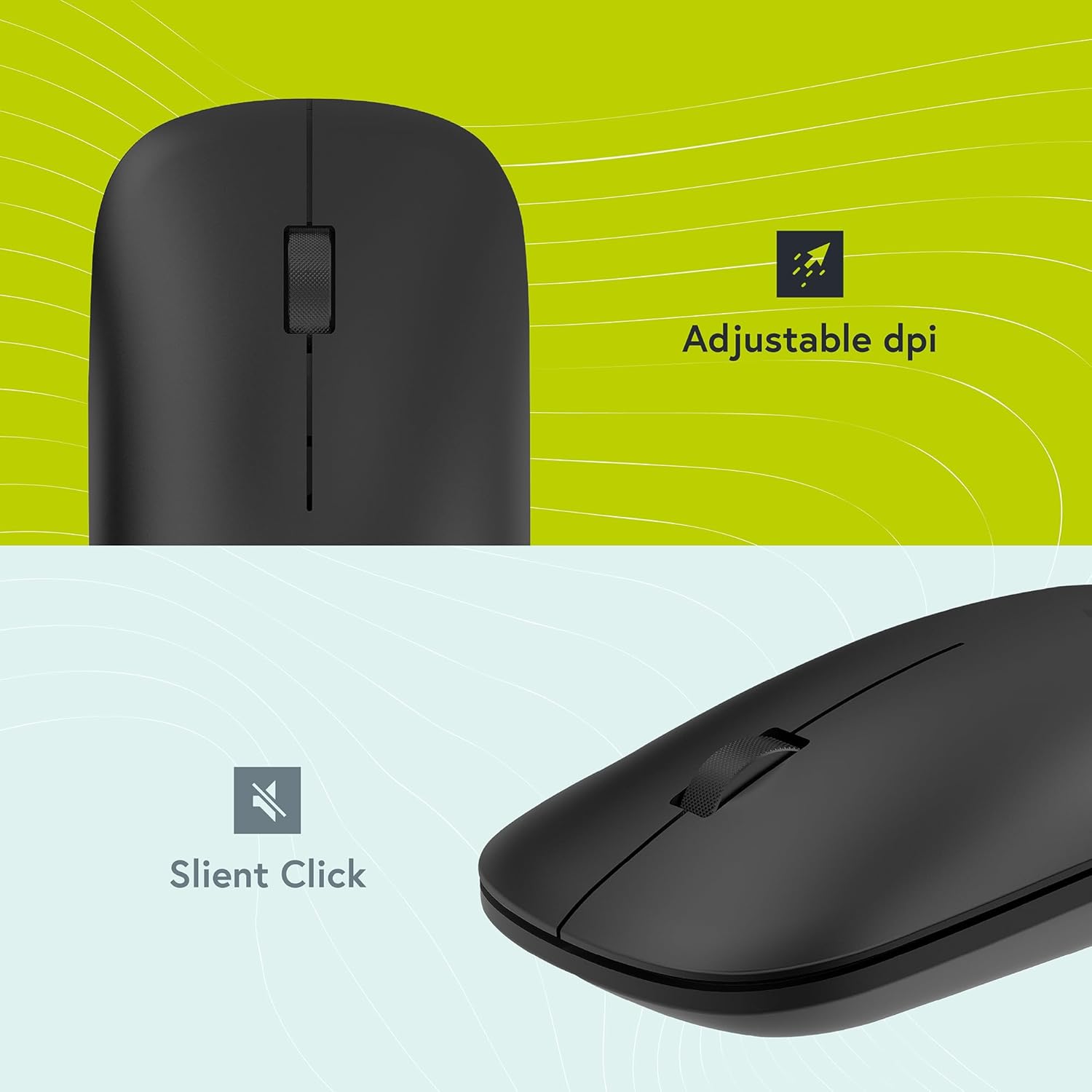
Image: Visual representation highlighting the adjustable DPI capability and the silent click feature of the mouse.

Image: A graphic illustrating the mouse's three-button layout and emphasizing its lightweight, portable, and ergonomic design.

Image: A detailed view of the mouse's textured metal scroll wheel, designed for smooth and precise scrolling.
Maintenance
Cleaning
To maintain optimal performance and appearance, regularly clean your mouse. Use a soft, dry, lint-free cloth to wipe the surface. For stubborn dirt, slightly dampen the cloth with water or a mild, non-abrasive cleaner. Avoid using harsh chemicals, aerosols, or abrasive materials.
Battery Replacement
When the mouse's performance degrades or it stops responding, it may be time to replace the AAA battery. Follow the "Battery Installation" steps in the Setup Guide to replace the battery. Dispose of used batteries responsibly according to local regulations.
Troubleshooting
| Problem | Possible Cause | Solution |
|---|---|---|
| Mouse not responding | Low battery; Mouse is off; Incorrect mode selected; Dongle not connected; Bluetooth not paired. | Replace battery; Turn on mouse; Switch to correct 2.4G/BT mode; Re-insert dongle; Re-pair Bluetooth. |
| Lag or intermittent connection | Interference; Distance from receiver/device; Low battery. | Move mouse closer to receiver/device; Remove obstacles; Replace battery; Try a different USB port. |
| Cursor movement is erratic | Dirty optical sensor; Uneven surface. | Clean the optical sensor on the bottom of the mouse; Use on a smooth, opaque surface or mouse pad. |
| Cannot pair via Bluetooth | Mouse not in pairing mode; Device's Bluetooth is off; Already paired to maximum devices. | Ensure mouse is in BT pairing mode (flashing light); Turn on device's Bluetooth; Remove existing pairings on device or mouse. |
Product Specifications
- Model: STY-M400
- Connectivity: 2.4G Wireless (USB Dongle), Bluetooth 3.0/5.0 (BT1, BT2)
- DPI: 1200 DPI
- Buttons: 3 (Left, Right, Scroll Wheel Click)
- Special Features: Silent Click, Multi-Mode Switching, Ergonomic & Ambidextrous Design, Textured Metal Scroll Wheel
- Movement Detection: Optical
- Power Source: 1 x AAA Battery (included)
- Package Dimensions: 13.59 x 6.5 x 3.71 cm
- Weight: 91 g (including battery)
- Compatibility: Windows PC, Mac, Chrome OS, Android, iOS
- Colour: Black
Warranty and Support
For warranty information and technical support, please refer to the contact details provided on the product packaging or visit the official styletech website. Keep your proof of purchase for warranty claims.
For further assistance, you may contact styletech customer service through their official channels. Please have your product model number (STY-M400) and purchase date ready when contacting support.
Related documentsSTY-M400


Ask a question about this manual
Ask about setup, troubleshooting, compatibility, parts, safety, or missing instructions. Manuals+ will review the question and use this page’s manual context to help answer it.