
Introduction
This manual provides detailed instructions for the installation, operation, and maintenance of your Biorunn 9-inch Android Stereo head unit. This unit is designed specifically for Hyundai Accent models from 2018 to 2022, featuring a 4-Core processor, 2GB RAM, and 32GB ROM. Please read this manual thoroughly before installation and use to ensure proper functionality and safety.
Important Note: Before purchasing or installing, verify compatibility by comparing your car's center console with product images. If unsure, consult with a professional installer or the seller.
Setup and Installation
Professional installation is recommended for this product. Ensure the vehicle's power is disconnected before beginning any installation work.
1. Compatibility Check
This head unit is compatible with Hyundai Accent models manufactured between 2018 and 2022.

Image: Comparison of the car's dashboard before and after the Biorunn Android Stereo installation, showing the integrated 9-inch display.
2. Wiring Diagram
Refer to the detailed wiring diagram below for correct connections. Ensure all cables are securely connected to their respective ports.

Image: Detailed wiring diagram for the Biorunn Android Stereo, illustrating connections for power, speakers, USB, GPS, camera input, and steering wheel controls. Note the specific port for CANBUS connection if required by your vehicle.
- Power Connections: Connect ACC, B+, and GND wires as indicated.
- Speaker Outputs: Connect Front Left (FL), Front Right (FR), Rear Left (RL), and Rear Right (RR) speaker wires.
- USB Ports: Two USB ports (USB1, USB2) are available for external devices.
- GPS Antenna: Connect the GPS antenna for navigation functionality.
- Camera Input: Connect a reversing camera to the dedicated camera input port.
- Steering Wheel Control: Connect KEY1 and KEY2 for steering wheel button integration.
- CANBUS: If your car requires a CANBUS connection, use the designated cable and port.
3. Initial Power-On
After installation, turn on your vehicle's ignition. The head unit should power on automatically. Follow any on-screen prompts for initial setup, such as language selection and time zone.
Operating Instructions
1. User Interface Overview
The Biorunn Android Stereo features a 9-inch IPS multi-touch screen. Navigate through applications and settings by tapping and swiping.

Image: Main screen interface of the Biorunn Android Stereo, displaying various applications such as Radio, Music, Waze, Spotify, and YouTube.
2. Wireless Car-Play and Android Auto
The unit supports both wireless and wired Car-Play and Android Auto.
- Connect your compatible smartphone via Bluetooth and Wi-Fi for wireless connection, or use a USB cable for wired connection.
- Once connected, your phone's interface will be mirrored on the stereo screen, allowing access to navigation, music, calls, and messages.

Image: Display of the Car-Play or Android Auto interface on the Biorunn Android Stereo, showing common apps like Phone, Music, Maps, and Messages.
3. FM RDS Radio
Access the FM Radio application to listen to radio stations.
- The unit supports automatic search and manual tuning.
- You can save up to 18 preset stations.
- RDS (Radio Data System) provides additional information like station name and program type.
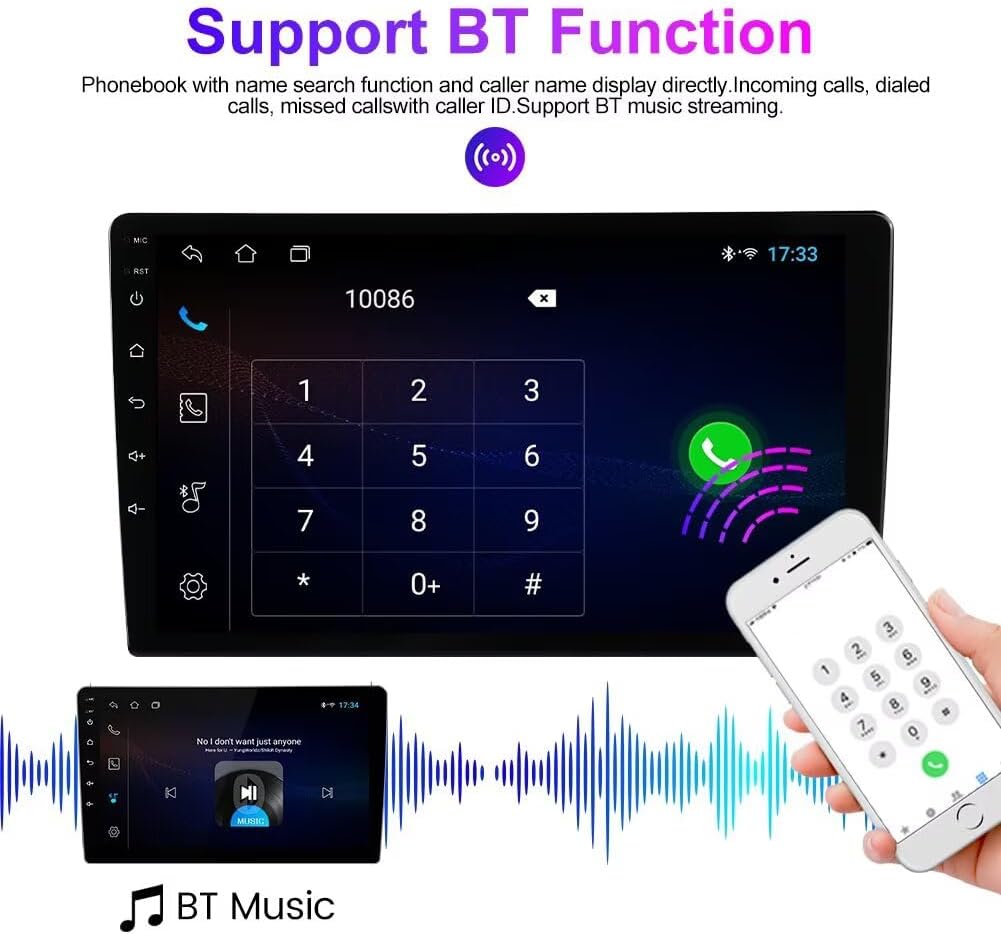
Image: The FM RDS Radio interface on the Biorunn Android Stereo, showing frequency display, preset buttons, and search controls.
4. Bluetooth Functionality (BT 5.0)
Pair your phone via Bluetooth 5.0 for hands-free calling and music streaming.
- Hands-Free Calling: Make and receive calls directly from the head unit. The phonebook can be downloaded for easy contact access.
- Bluetooth Music: Stream audio from your phone to the stereo speakers.

Image: The Bluetooth interface of the Biorunn Android Stereo, showing a dial pad for calls and a separate section for Bluetooth music playback.
5. GPS Navigation
The unit has a built-in global positioning system (GPS).
- Use pre-installed navigation apps or download your preferred navigation software from the app store.
- Ensure the GPS antenna is properly connected for optimal signal reception.
6. Split Screen Functionality
The split-screen feature allows two applications to be displayed simultaneously on the screen.
- To activate, long-press the recent apps button or follow the specific instructions within the Android system settings.
- This enables multitasking, such as running navigation on one side and music playback on the other.

Image: The split-screen feature on the Biorunn Android Stereo, showing a video player on the left and a navigation map on the right.
7. Reversing Video Input
If a reversing camera is connected, the display will automatically switch to the camera view when the vehicle is put into reverse gear.

Image: The reversing video display on the Biorunn Android Stereo, showing a rear view with parking guidelines. Note: Reversing camera is not included with the unit.
8. Steering Wheel Control
The unit supports original steering wheel remote control. After proper wiring, you can configure the steering wheel buttons through the system settings to control audio playback, volume, and hands-free calling.
Maintenance
- Screen Cleaning: Use a soft, lint-free cloth to clean the screen. Avoid abrasive cleaners or solvents.
- Software Updates: Periodically check for software updates through the system settings or the manufacturer's website to ensure optimal performance and access to new features.
- Temperature: Avoid exposing the unit to extreme temperatures, direct sunlight for prolonged periods, or high humidity.
- Power Cycle: If the unit becomes unresponsive, perform a soft reset by turning off the vehicle's ignition and restarting it.
Troubleshooting
- Unit does not power on:
- Check all power connections (ACC, B+, GND) according to the wiring diagram.
- Ensure the vehicle's ignition is on.
- Check vehicle fuses.
- No sound:
- Verify speaker connections.
- Check volume settings on the unit and ensure it is not muted.
- Confirm audio source selection.
- GPS signal lost or inaccurate:
- Ensure the GPS antenna is securely connected and placed in an unobstructed location (e.g., on the dashboard).
- Perform a GPS reset in system settings if available.
- Bluetooth connection issues:
- Ensure Bluetooth is enabled on both the head unit and your smartphone.
- Delete previous pairings and re-pair the devices.
- Restart both devices.
- Car-Play/Android Auto not connecting:
- Ensure your smartphone is compatible and has the latest software updates.
- For wired connection, try a different USB cable.
- For wireless, ensure Bluetooth and Wi-Fi are active and correctly paired.
- Steering wheel controls not working:
- Verify KEY1 and KEY2 wiring.
- Access the steering wheel control settings in the unit's menu to program the buttons.
Specifications
| Feature | Detail |
|---|---|
| Operating System | Android |
| Core | 4-Core |
| Screen Size | 9 Inches |
| RAM | 2GB |
| ROM (Internal Storage) | 32GB |
| Resolution | 1280 x 720, IPS Touch Screen |
| Car-Play / Android Auto | Built-in Wireless & Wired Support |
| Bluetooth | Bluetooth 5.0 (Hands-free calls, Music streaming) |
| Wi-Fi | Supported |
| FM Radio | FM RDS, 18 preset stations, automatic search |
| GPS Navigation | Built-in global positioning system |
| Split Screen | Supported (two applications simultaneously) |
| USB Ports | USB1, USB2 |
| Steering Wheel Control | Supported (original steering wheel remote control) |
| Supported Languages | English, German, French, Spanish, Italian, Portuguese, Russian, Dutch, Polish, Japanese, Simplified & Traditional Chinese, Arabic, etc. |
| Audio Formats | MP3, WMA, AAC, RM, FALC, etc. |
| Video Formats | MPEG-1/2/4, H264, H263, VC1, RV, RMVB, DivX, Sorenson Spark, VP8, AVS Stream |
| Photo Formats | JPG/BMP/JEPG/GIF/PNG |
Warranty Information
Specific warranty details for this Biorunn product may vary. Please refer to the warranty card included with your purchase or contact the seller directly for information regarding warranty coverage and terms. Keep your proof of purchase for any warranty claims.
Support
For technical assistance, troubleshooting beyond this manual, or general inquiries, please contact Biorunn customer support or the retailer from whom you purchased the product.
- Manufacturer: Shenzhen Rongnan International Electronics Co., Ltd.
- Seller: RongNan International (via Amazon)
- Refer to your purchase documentation for specific contact information.