
1. Product Overview
The HOLDLAMP ZQ01528 is a versatile battery-powered uplight designed for various stage and event lighting applications. It features 6x18W RGBWA+UV LEDs, offering a wide spectrum of colors and effects. With a built-in 9600 mAh battery, it provides true wireless operation, eliminating the need for constant power connection. Multiple control options including APP, remote, DMX512, auto, sound-activated, and master/slave modes ensure flexible and dynamic lighting setups.
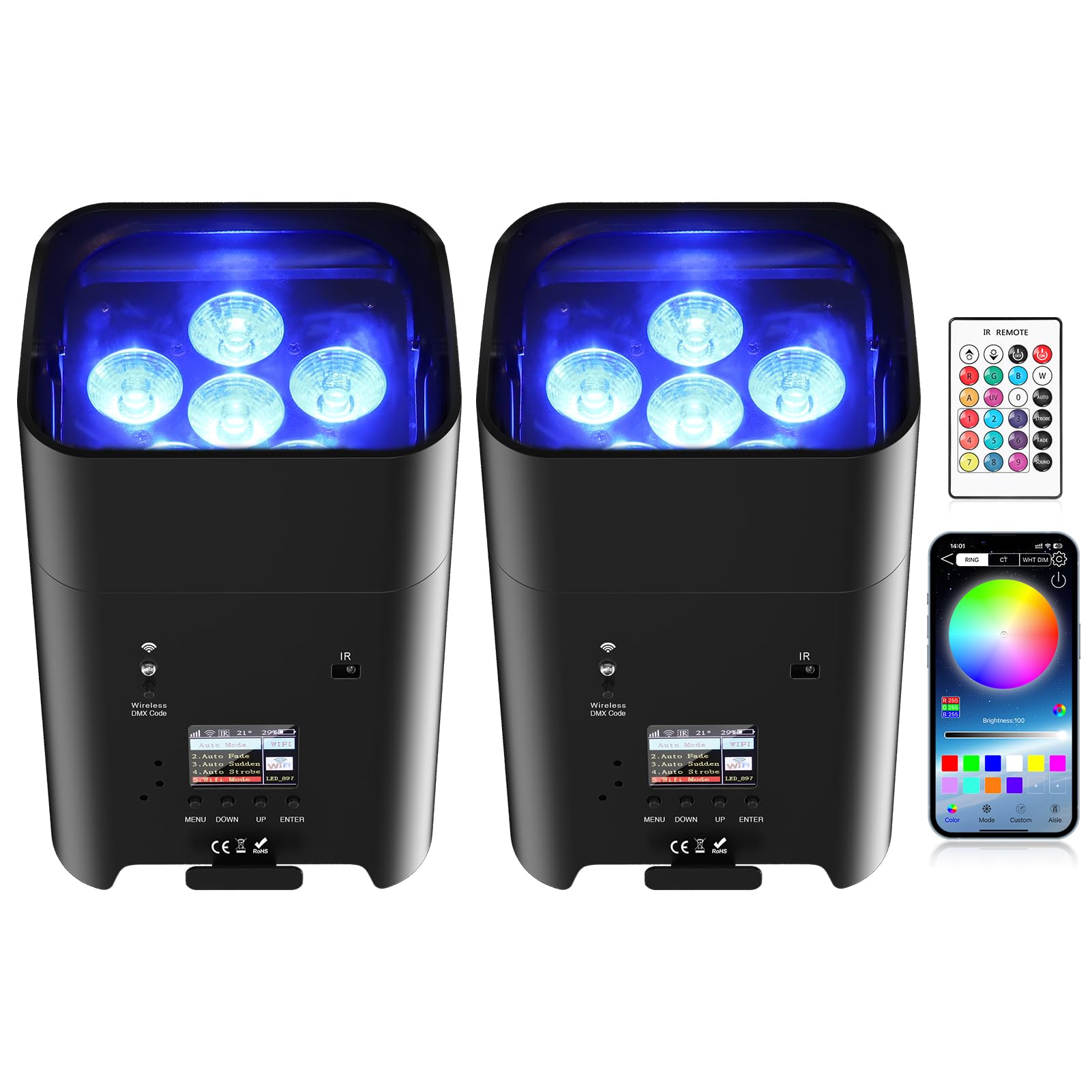
Image 1: Overview of the HOLDLAMP ZQ01528 Battery Powered Uplight.
2. What's in the Box
- 2 x Stage Par Lights
- 2 x Remote Controls
- 2 x Power Cords
- 2 x DMX Cables
- 2 x Instruction Manuals
3. Product Features
- Built-in 9600 mAh Battery: Provides up to 4 hours of full brightness or 26 hours of monochrome lighting.
- 6x18W RGBWA+UV LEDs: Each light features six 18-watt 6-in-1 LEDs (Red, Green, Blue, White, Amber, Purple) with a 100,000-hour life expectancy.
- Multiple Control Modes: Supports 2.4GHz wireless DMX512, master/slave, auto, sound-activated, remote control, WiFi, and mobile phone APP control (iOS and Android compatible).
- Adjustable Angle Base: Integrated adjustable base for flexible positioning on the floor or mounted on a truss.
- Durable Construction: Made with an aluminum shell for robust performance.

Image 2: Illustrates battery life and flexible mounting options (stand, lie on floor, mounted on truss).
4. Setup
- Unpacking: Carefully remove all components from the packaging. Inspect for any damage.
- Charging: Before first use, fully charge the uplight using the provided power cord. Connect the power cord to the power input on the back of the unit and plug it into a standard AC outlet. The display will show charging status.
- Positioning: Place the uplight on a stable surface or mount it using appropriate hardware. Adjust the angle of the light using the integrated adjustable base.
- Power On: Flip the power switch on the back of the unit to the 'ON' position.
Video 1: Demonstrates the HOLDLAMP 9600mAh Battery Uplights, showing charging and basic operation.
5. Operating Instructions
The HOLDLAMP ZQ01528 offers several control modes:
5.1. APP Control (WiFi Mode)
- Scan the QR code on the back of the uplight or refer to the manual to download the 'LEDLAMP' app.
- On the uplight's display, navigate to 'WiFi Mode' and select it.
- On your mobile phone, open WiFi settings and connect to the network named 'LED_XXX' (where XXX is a unique identifier for your light).
- Open the 'LEDLAMP' app. You can now control colors, brightness, and various effects directly from your phone.
Video 2: Guide on connecting and controlling the uplight via the mobile APP (WiFi Mode).
5.2. Remote Control
Use the included IR remote control to adjust colors, modes, and brightness. Ensure a clear line of sight between the remote and the IR receiver on the uplight.
- Color Buttons: Select specific colors (R, G, B, W, A, UV) or preset color combinations (1-9).
- Brightness: Use the up/down arrows to adjust brightness.
- Mode Buttons: Select 'AUTO' for automatic color cycling, 'STROBE' for flashing effects, 'FADE' for smooth color transitions, or 'SOUND' for sound-activated mode.

Image 3: The uplight showing remote control and app interface options.
5.3. DMX512 Control
Connect the uplight to a DMX controller using the DMX cables. Refer to the DMX channel chart in the full instruction manual for detailed control parameters.
5.4. Automatic Modes
The uplight features several built-in automatic programs. Access these via the unit's display menu under 'Shows' or using the remote control's 'AUTO' button.
Video 3: Demonstrates various automatic lighting modes and effects.
5.5. Sound-Activated Mode
The uplight can react to music and sound. Select 'SOUND' mode via the unit's display or the remote control. The lights will change patterns and colors in sync with the audio.
5.6. Master/Slave Mode
Link multiple uplights together for synchronized operation. Connect the DMX OUT of the master unit to the DMX IN of the first slave unit, and so on. Configure the master unit to 'Master' mode and slave units to 'Slave' mode via their respective displays.
6. Maintenance
- Cleaning: Regularly clean the exterior of the unit with a soft, dry cloth. Do not use harsh chemicals or abrasive materials.
- Battery Care: To prolong battery life, avoid fully discharging the battery frequently. Charge the unit regularly, even if not in use for extended periods.
- Storage: Store the uplight in a cool, dry place away from direct sunlight and extreme temperatures.
7. Troubleshooting
- Light not turning on: Check if the power switch is in the 'ON' position. Ensure the battery is charged or the unit is connected to a power source.
- Remote control not working: Ensure there is a clear line of sight to the IR receiver on the uplight. Check the remote control's battery.
- APP connection issues: Verify that the uplight is in 'WiFi Mode' and your phone is connected to the correct 'LED_XXX' network. Restart the app and the uplight if necessary.
- DMX control issues: Check DMX cable connections and ensure the DMX controller and uplight are configured with correct addresses and modes.
8. Specifications
| Feature | Detail |
|---|---|
| Model Number | ZQ01528 |
| Light Source Type | Light Emitting Diode (LED) |
| Number of Light Sources | 6 |
| Light Source Wattage | 18 Watts (per LED) |
| Maximum Compatible Light Source Wattage | 108 Watts |
| LED Type | RGBWA+UV (Red, Green, Blue, White, Amber, Purple) |
| Power Source | Battery Powered |
| Battery Capacity | 9600 mAh Lithium Ion (included) |
| Working Time (Full Brightness) | 4 hours |
| Working Time (Monochrome) | 26 hours |
| Voltage | 110 Volts (AC) |
| Beam Angle | 40 Degrees |
| Material | Aluminum |
| Item Dimensions (L x W x H) | 5.3"L x 4.7"W x 5.3"H |
| Control Modes | 2.4GHz Wireless DMX512, Master/Slave, Auto, Sound, Remote Control, WiFi, Mobile APP |

Image 4: Detailed view of the control panel and display on the uplight.
9. Warranty and Support
This HOLDLAMP product comes with a 1-year manufacturer's warranty. For technical support or warranty claims, please contact the manufacturer directly or refer to the contact information provided in the original product packaging.
