
1. Introduction
The Xsarius AIR Stick 4K UHD is designed to transform your viewing experience, offering advanced features and seamless connectivity. This device allows you to control your entertainment effortlessly with its advanced Hybrid Bluetooth Voice Remote Control, featuring voice control and backlighting for perfect integration into your home entertainment setup.
Experience a new world of wireless possibilities with Dual-Band Wi-Fi 6 and Bluetooth 5.2, ensuring ultra-fast connections for streaming your favorite content without delays. Connect wireless accessories effortlessly for a seamless experience.
Immerse yourself in stunning picture quality with HDR10+ and 4K Ultra HD, including support for 8K@30fps. Every detail comes to life, making every scene an immersive experience. With 2 GB DDR4 RAM and 16 GB Flash memory, the Xsarius AIR Stick 4K UHD provides optimized performance and ample space for all your apps, games, and media. Navigate effortlessly and enjoy smooth content playback.
Discover the exclusive world of PremiumTV+ with the Xsarius AIR Stick. This premium service offers Live TV with catch-up and recording functions, along with an extensive selection of high-quality content, all through an intuitive user interface for an enhanced viewing experience.
2. What's in the Box
Please check the package contents carefully. If any items are missing or damaged, contact your retailer.
- Xsarius AIR Stick 4K UHD
- Advanced Hybrid Bluetooth Voice Control RCU-A4
- Power Adapter DC 5V/2A
- HDTV Extension Cable
- Batteries
- User Manual (this document)
3. Product Overview

Figure 3.1: The Xsarius AIR TV Stick 4K UHD, its advanced voice remote control, and the product packaging, showcasing the complete set.
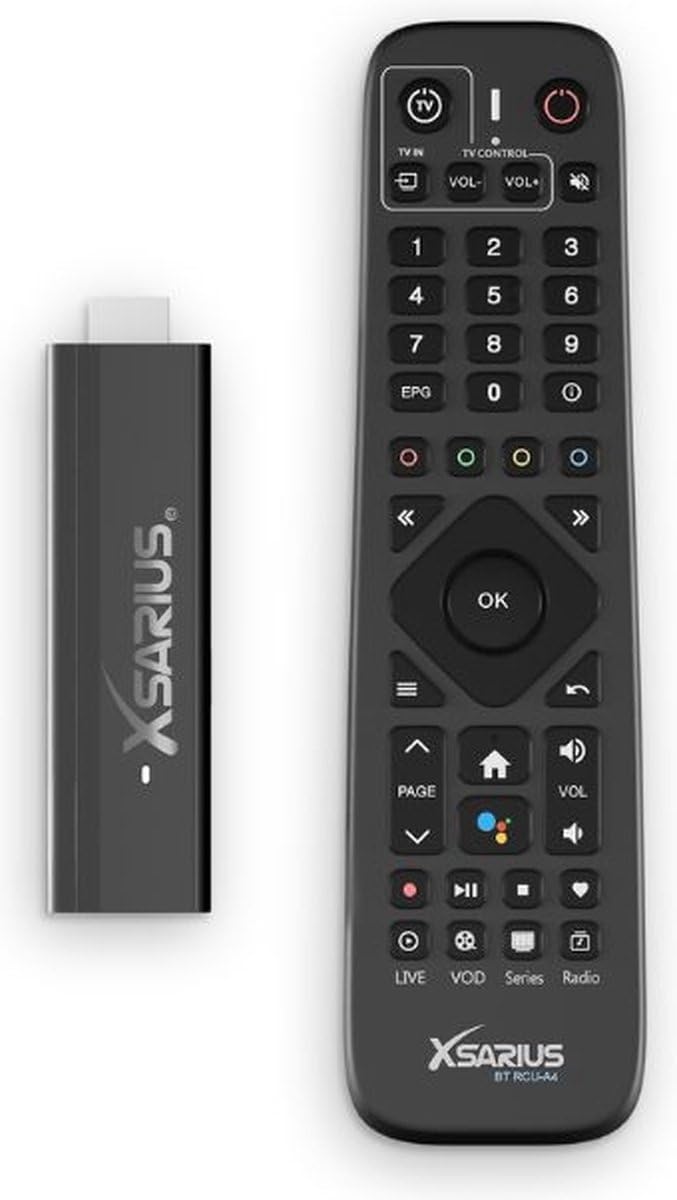
Figure 3.2: A close-up view of the compact Xsarius AIR TV Stick 4K UHD alongside its ergonomic, feature-rich remote control.
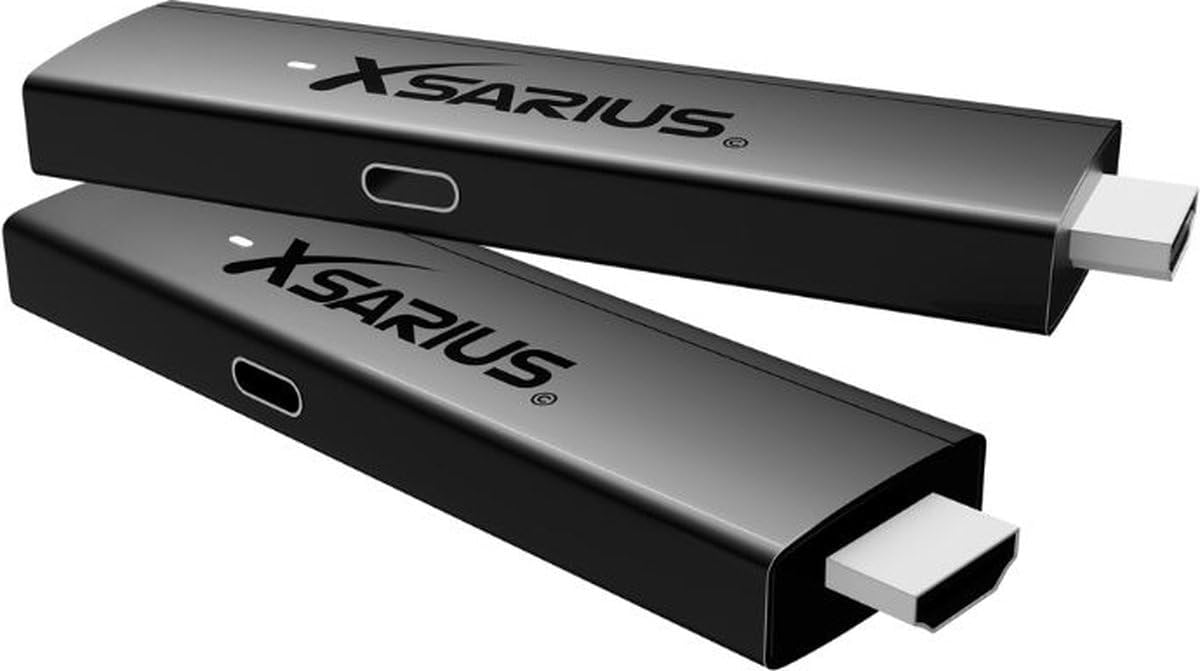
Figure 3.3: An image displaying two Xsarius AIR TV Sticks, highlighting their sleek, identical design and compact form factor.

Figure 3.4: A detailed close-up of the Xsarius AIR TV Stick, emphasizing its textured finish and the Xsarius branding.

Figure 3.5: The rear view of the Xsarius AIR TV Stick, showing its product label with model information, certifications, and serial number.

Figure 3.6: The front of the Xsarius AIR TV Stick 4K UHD retail packaging, highlighting key features and branding.

Figure 3.7: An angled view of the Xsarius AIR TV Stick 4K UHD packaging, providing a better perspective of its design.

Figure 3.8: The Xsarius AIR TV Stick 4K UHD packaging, displaying detailed specifications and features on its side panel.
4. Setup Guide
4.1 Connecting the Device
- Power Off TV: Ensure your television or display is turned off before connecting the device.
- Insert TV Stick: Plug the Xsarius AIR TV Stick directly into an available HDMI port on your TV. If space is limited, use the provided HDTV Extension Cable.
- Connect Power: Connect the provided Power Adapter DC 5V/2A to the micro-USB port on the TV Stick and then plug the adapter into a wall outlet.
- Insert Batteries: Open the battery compartment of the Advanced Hybrid Bluetooth Voice Control RCU-A4 and insert the provided batteries, ensuring correct polarity.
- Power On TV: Turn on your television and select the correct HDMI input source corresponding to where the Xsarius AIR TV Stick is connected.
4.2 Initial Setup Wizard
Upon first boot, the device will guide you through an initial setup wizard. Follow the on-screen prompts to:
- Select your preferred language.
- Connect to your Wi-Fi network (Dual-Band Wi-Fi 6 supported).
- Log in with your Google account (optional, but recommended for app access).
- Accept terms and conditions.
- Perform system updates (if available).
5. Operating Instructions
5.1 Navigating the Interface
Use the directional pad (D-pad) and the 'OK' button on your remote control to navigate through menus and select items. The 'Back' button returns to the previous screen, and the 'Home' button takes you to the main home screen.
5.2 Voice Control
The Advanced Hybrid Bluetooth Voice Remote Control features a dedicated voice button. Press and hold this button, then speak your command or search query into the remote's microphone. Release the button when finished speaking. This allows for quick searches, app launches, and content control.
5.3 Streaming Content
The Xsarius AIR TV Stick supports various streaming platforms, including PremiumTV+. Access these applications from the home screen or app drawer. Ensure a stable internet connection for optimal streaming quality.
5.4 PremiumTV+ Features
- Live TV: Access a wide range of live television channels.
- Catch-up Function: Watch previously aired programs at your convenience.
- Recording Function: Record your favorite shows for later viewing.
- On-Demand Content: Explore an extensive library of movies, series, and other high-quality content.
6. Maintenance
6.1 Cleaning
To clean the Xsarius AIR TV Stick and its remote control, use a soft, dry, lint-free cloth. Do not use liquid cleaners, aerosols, or abrasive solvents, as these may damage the device.
6.2 Storage
When not in use for extended periods, store the device in a cool, dry place away from direct sunlight and extreme temperatures. Disconnect the power adapter from the wall outlet.
6.3 Software Updates
Periodically check for software updates through the device's settings menu to ensure optimal performance and access to the latest features and security enhancements.
7. Troubleshooting
| Problem | Possible Cause | Solution |
|---|---|---|
| No power/Device not turning on | Power adapter not connected or faulty; power outlet issue. | Ensure the power adapter is securely connected to the device and a working power outlet. Try a different outlet. |
| No signal on TV screen | Incorrect HDMI input selected; loose HDMI connection. | Verify your TV is set to the correct HDMI input. Re-plug the HDMI cable/stick firmly into the TV. Try a different HDMI port. |
| Remote control not responding | Batteries are low or incorrectly inserted; remote not paired. | Replace batteries with new ones, ensuring correct polarity. If the remote is Bluetooth, re-pair it according to the on-screen instructions (usually found in device settings). |
| Wi-Fi connection issues | Incorrect Wi-Fi password; router too far; interference. | Double-check the Wi-Fi password. Move the device closer to the router or reduce interference. Restart your router and the TV Stick. |
| App crashes or slow performance | Too many apps running; insufficient storage; outdated app/system software. | Close background apps. Clear app cache/data. Ensure the app and system software are up to date. Consider uninstalling unused apps to free up storage. |
8. Specifications
| Feature | Detail |
|---|---|
| Model Name | AIR |
| Model Number | AIR STICK |
| Processor | Quad-Core 2.0 GHz CPU |
| Memory (RAM) | 2 GB DDR4-RAM |
| Storage (Flash) | 16 GB Flash |
| Operating System | Android 11 |
| DRM | Widevine Level 1 |
| HD Output Resolution | 4K (3840 x 2160) |
| Supported Resolutions | 4K@60fps, 8K@30fps |
| Streaming Platforms | PremiumTV+ |
| Video Formats | AV1 AOMedia Video 1, HDR10+ |
| Wireless Connections | Dual-Band Wi-Fi 6 AX 2x2, Bluetooth 5.2 |
| Connectivity Technology | HDMI |
| Connector Type | HDMI |
| Special Feature | Sat>IP |
| Supported Internet Services | Spotify |
| Controller Type | Voice Control |
| Form Factor | TV-Stick |
| Color | Black |
| Product Dimensions | 4 x 12 x 1.5 cm |
| Country of Origin | China |
| First Available | July 9, 2024 |
9. Warranty and Support
For warranty information, please refer to the warranty card included with your product or contact your point of purchase. Xsarius products are designed for reliability and performance.
For technical support, troubleshooting assistance beyond this manual, or inquiries about your Xsarius AIR TV Stick 4K UHD, please visit the official Xsarius website or contact their customer service department. Keep your product's model number (AIR STICK) and ASIN (B0D941CZWS) ready when seeking support.
Manufacturer: Xsarius