1. Introduction
This manual provides essential information for setting up, operating, maintaining, and troubleshooting your Lenovo ThinkPad X1 Carbon Gen 12 Business Laptop. Please read this guide thoroughly to ensure optimal performance and longevity of your device.
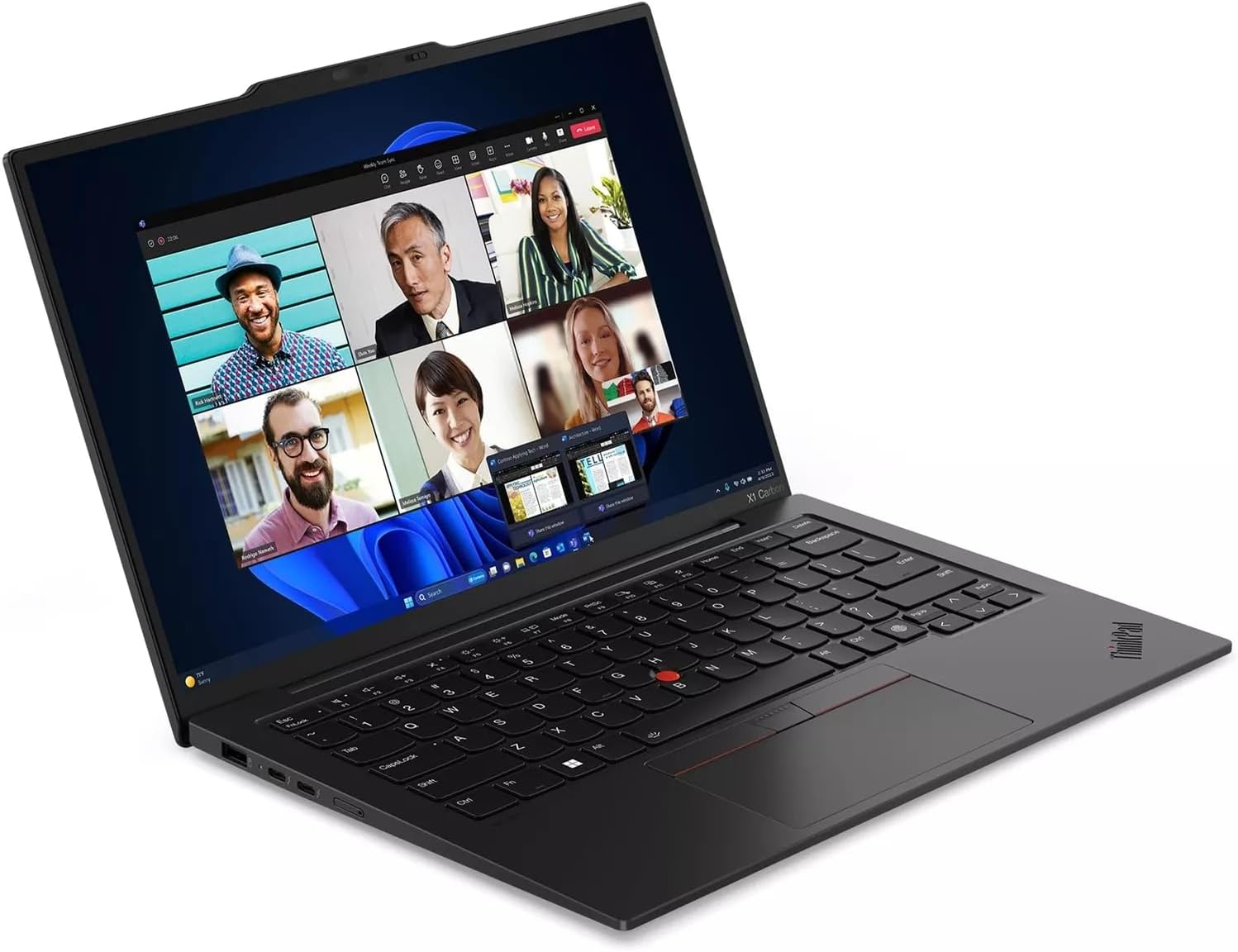
Figure 1.1: Lenovo ThinkPad X1 Carbon Gen 12 in use, showing a video conference.
2. Setup
2.1 Unboxing and Initial Inspection
Carefully remove all components from the packaging. Ensure the following items are present:
- ThinkPad X1 Carbon Gen 12 laptop
- 65W Slim Tip AC power adapter
- Internal Battery (pre-installed)
- Quick Start Guide
Inspect the laptop for any physical damage. If any damage is found or components are missing, contact your vendor immediately.
2.2 Connecting the Power Adapter
Connect the 65W Slim Tip AC power adapter to the laptop's power input port and then to a power outlet. The laptop can be used while charging.
2.3 Initial Power On and Operating System Setup
Press the power button located on the side of the laptop to turn it on. Follow the on-screen instructions to complete the Windows 11 Pro setup process. This includes setting up your user account, network connection, and initial preferences.
3. Operating Your Laptop
3.1 Basic Functions
- Power Button: Located on the side, used to turn the laptop on/off or put it to sleep.
- Keyboard: The backlit keyboard features standard QWERTY layout and function keys.
- TrackPad: Use the integrated TrackPad with three buttons for navigation and interaction.
- Fingerprint Reader: For secure login, located near the keyboard. Follow Windows Hello setup for configuration.
- Camera: The 1080P FHD IR+RGB camera includes a privacy shutter. Slide the shutter to cover the camera when not in use for enhanced privacy.
3.2 Ports and Connectors
Your ThinkPad X1 Carbon Gen 12 is equipped with various ports for connectivity. Refer to the diagram below for port identification.

Figure 3.1: Port Layout of ThinkPad X1 Carbon Gen 12
- USB-A (USB 5Gpbs)
- 2 x USB-C (Thunderbolt 4, USB 40Gbps)
- Optional SIM slot (Availability may vary by configuration)
- Power button
- Headphone / mic combo
- USB-A (USB 5Gpbs)
- HDMI 2.1
- Kensington Nano Security Slot
3.3 Wireless Connectivity
- Wi-Fi: The laptop supports Intel Wi-Fi 6E AX211 2x2 AX vPro for high-speed wireless internet access. Connect to available Wi-Fi networks through Windows settings.
- Bluetooth: Integrated Bluetooth 5.1 (Windows 10) or Bluetooth 5.3 (Windows 11) allows connection to wireless peripherals such as mice, keyboards, and headphones.
4. Maintenance
4.1 Cleaning Your Laptop
- Use a soft, lint-free cloth slightly dampened with water or a screen cleaner to clean the display.
- For the keyboard and chassis, use a soft cloth. Avoid harsh chemicals or abrasive materials.
- Ensure the laptop is powered off and unplugged before cleaning.
4.2 Battery Care
- To prolong battery life, avoid extreme temperatures.
- Periodically discharge the battery to about 20% before recharging.
- If storing the laptop for an extended period, charge the battery to approximately 50% and store in a cool, dry place.
4.3 Software Updates
Regularly check for and install operating system updates (Windows Update) and driver updates (Lenovo Vantage software or Lenovo support website) to ensure optimal performance and security.
5. Troubleshooting
This section addresses common issues you might encounter.
5.1 Power Issues
- Laptop does not turn on: Ensure the power adapter is securely connected and the power outlet is functional. Try a different outlet. If the battery is completely drained, it may take a few minutes of charging before the laptop can power on.
- Battery not charging: Verify the power adapter is correctly connected. Check for any damage to the adapter or charging port.
5.2 Display Issues
- No display: Connect an external monitor to the HDMI port to check if the issue is with the laptop's internal display. Ensure the display brightness is not set to minimum.
- Flickering screen: Update your graphics drivers.
5.3 Connectivity Issues
- Wi-Fi not connecting: Ensure Wi-Fi is enabled in Windows settings. Restart your router and the laptop. Check for updated Wi-Fi drivers.
- Bluetooth device not pairing: Ensure the Bluetooth device is in pairing mode and within range. Check Bluetooth settings on your laptop.
5.4 System Performance
- Slow performance: Close unnecessary applications. Check Task Manager for processes consuming high CPU or memory. Ensure sufficient free storage space.
- Overheating: Ensure ventilation vents are not blocked. Use the laptop on a hard, flat surface.
For more complex issues, refer to the Lenovo support website or contact technical support.
6. Specifications
| Component | Detail |
|---|---|
| Processor | Intel Core Ultra 7 165U vPro (E-cores up to 3.80 GHz, P-cores up to 4.90 GHz) |
| Display | 14" WUXGA (1920 x 1200), IPS, Anti-Glare, Touch, 100%sRGB, 400 nits, 60Hz, Low Power |
| Memory | 32 GB LPDDR5X-6400MHz (Soldered) |
| Storage | 2 TB SSD M.2 2280 PCIe Gen4 |
| Graphics | Integrated Intel Graphics |
| Operating System | Windows 11 Pro 64 |
| Camera | 1080P FHD IR+RGB with Privacy Shutter |
| Keyboard | Backlit, Black - English (US) |
| WLAN | Intel Wi-Fi 6E AX211 2x2 AX vPro |
| Bluetooth | Bluetooth 5.1 (Windows 10) or Bluetooth 5.3 (Windows 11) |
| Ports | 2x USB-A (5Gpbs), 2x USB-C (Thunderbolt 4, 40Gbps), 1x HDMI 2.1, 1x Headphone/Mic Combo, 1x Kensington Nano Security Slot, Optional SIM slot |
| Dimensions (LxWxH) | 12.31 x 0.59 x 8.45 inches |
| Weight | 2.37 pounds |
7. Warranty Information
Your Lenovo ThinkPad X1 Carbon Gen 12 laptop comes with a One Year Onsite Warranty. This warranty covers manufacturing defects and hardware failures under normal use conditions. For detailed terms and conditions, please refer to the warranty documentation included with your product or visit the official Lenovo support website.
8. Support
For further assistance, technical support, or to download the latest drivers and software, please visit the official Lenovo Support website:
You can also find contact information for customer service and technical support in your region on the Lenovo website.