
SIXTOP 4-Core 2+64G
SIXTOP Android Car Stereo User Manual
Model: 4-Core 2+64G
1. Introduction
This manual provides detailed instructions for the installation, operation, and maintenance of your SIXTOP Android Car Stereo. Please read this manual thoroughly before using the product to ensure proper function and safety. This unit is designed for Ford Transit models from 2013 to 2019.

Image 1.1: SIXTOP Android Car Stereo for Ford Transit, showcasing its integration and key features like Android 13, Bluetooth, GPS, WiFi, Carplay, Android Auto, and Mirror Link.
2. Package Contents
Verify that all items listed below are included in your package. If any items are missing or damaged, please contact customer support.
- Car Stereo with Frame
- Backup Camera
- Microphone
- Power Cable
- Radio Antenna
- RCA Cable
- Tools
- GPS Module
- Camera Cable
- USB Cable
- Input Cable
- Manual
- Canbus (if applicable)
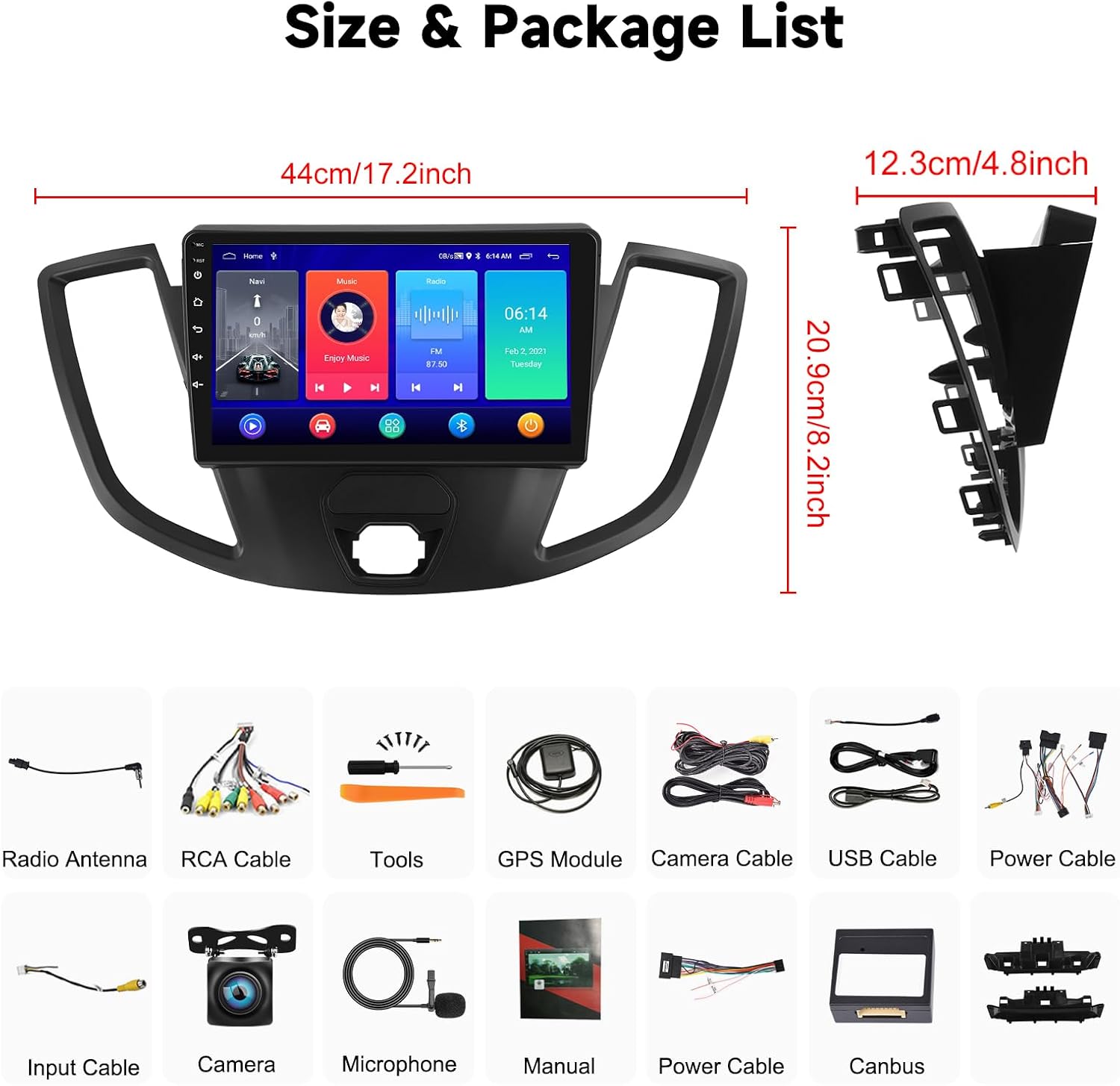
Image 2.1: Visual representation of the car stereo's dimensions (44cm/17.2inch width, 20.9cm/8.2inch height, 12.3cm/4.8inch depth) and a comprehensive list of all included accessories, such as the radio antenna, RCA cable, tools, GPS module, various cables, camera, microphone, and manual.
3. Specifications
| Feature | Specification |
|---|---|
| Memory | 2GB (RAM) + 64GB (ROM) |
| Screen Resolution | 1024*600 |
| Power Output | 4*45W |
| Work Temperature | -20°C ~ 75°C |
| Radio Band | FM/RDS (87.5-108 MHz) |
| Video Output | Supported |
| Reversing Input | AHD/CVBS |
| Audio Format Support | APE/FLAC/WAV/MP3/WMA etc. |
| Video Format Support | MKV/RMVB/AVI/MP4/MDV etc. |
| Factory Setting Keyword | 1234 |
| Supported Languages | Chinese/English/French/Italian/Korean/Japanese/Arabic/Spanish/Portuguese/Russian/Turkish/Vietnamese/Hebrew/Polish/German |
| Picture Format Support | PNG/JPEG/JPG/GIF/WBMP/BNP etc. |
| AHD Camera Image Sensor | 140A |
| AHD Camera TV System | NTSC / PAL Option |
| AHD Camera Power | DC 12V |
| AHD Camera Effective Pixels | 1280 x 720 Pixels |
| AHD Camera Video Output | 1.0Vpp, 75Ohm |
| AHD Camera White Balance | Auto |
| AHD Camera Video Cable Length | About 6M |
| AHD Camera Power Supply Cable Length | About 1.5M |
| AHD Camera Low-light Level Night Vision | 15m visible distance for night |
| AHD Camera Electronic Shutter | 1/50 to 1/100,000 seconds, 1/60 to 1/100,000 seconds |

Image 3.1: Detailed specifications for the Android Radio unit and the included AHD Camera, covering memory, screen resolution, power output, operating temperature, radio bands, and camera performance metrics.
4. Installation Guide
4.1 Pre-installation Checks
- Ensure the vehicle's ignition is off and the battery is disconnected before starting installation.
- Confirm compatibility with your Ford Transit model (2013-2019).
- Gather all necessary tools for installation.
4.2 Wiring Diagram
Follow the wiring diagram carefully to connect the car stereo to your vehicle's electrical system. Incorrect wiring can cause damage to the unit or the vehicle.

Image 4.1: Comprehensive wiring diagram illustrating the connections for the 16-pin power cable, 8-pin Canbus plug (KEY2), 20-pin Canbus plug (KEY1), and the 'Back video in' RCA cable. This diagram also shows how the car stereo frame components fit together.
4.3 Camera Installation
The included backup camera provides enhanced safety during reversing. Connect the camera according to the diagram below.
- Connect the camera's power cable to the vehicle's reversing light positive pole and ground.
- Connect the video output of the camera to the 'Back video in' RCA input on the car stereo.
- Ensure the two very short wires on the camera are connected.
- After installation, verify the camera resolution setting in the radio: Go to Settings > Factory Settings (Password: 1234) > Backcar Source Setting, then select AHD 720P 25fps.

Image 4.2: Wiring diagram for the backup camera, detailing connections for the camera power cable (positive to car reversing light, negative to GND) and the video signal cable to the car stereo's monitor input.
4.4 Installation Comparison
The new head unit integrates seamlessly into the Ford Transit dashboard, replacing the original radio unit.

Image 4.3: Comparison showing the original Ford Transit dashboard with its factory radio unit (bottom) versus the dashboard after the installation of the new SIXTOP Android Car Stereo (top), highlighting the integrated and modern appearance.
5. Operating Instructions
5.1 Basic Operation
The unit features a 9-inch touchscreen for intuitive control. Navigate through menus and applications by tapping and swiping.
5.2 CarPlay & Android Auto
Synchronize your smartphone's functions, including phonebook, email, notifications, map navigation, and music apps, directly to the car stereo. Supports voice control via your phone's voice assistant.
- Wireless Connection: Ensure your phone's WiFi is on. Connect via Bluetooth, then open the [CPLink] or [Android Auto] app on the stereo to automatically connect.
- USB Connection: Connect your phone via a USB cable, then open the [CPLink] or [Android Auto] app.

Image 5.1: Display of the car stereo screen showing both Apple CarPlay and Android Auto interfaces. It highlights the synchronization of phone apps like iHeart, Telegram, Phone, Messages, Waze, Spotify, and WhatsApp, along with voice control capabilities.
5.3 Mirror Link
Project your mobile phone's screen directly onto the car stereo's touchscreen. This is useful for viewing videos or other content from your phone.
- Select the "carbitlink" app on the stereo to initiate the connection.

Image 5.2: The car stereo screen demonstrating the Mirror Link function, displaying content from a connected smartphone. This feature is compatible with both iOS and Android devices.
5.4 Steering Wheel Control
Control the car audio system using your vehicle's original steering wheel buttons for convenience and safety.
- Access the steering wheel control settings on the stereo.
- Follow the on-screen prompts to map functions (e.g., volume, track skip, mode) to your steering wheel buttons.

Image 5.3: Illustration of the steering wheel control learning interface on the car stereo, allowing users to assign functions like volume, power, navigation, radio, and track control to their vehicle's existing steering wheel buttons.
5.5 Bluetooth Function
Enjoy hands-free calling and wireless music playback.
- Pair your phone via Bluetooth to make and receive calls, synchronize your address book, and stream music.

Image 5.4: The car stereo's Bluetooth interface, showing options for dialing, contacts, and call history. It also displays the music playback screen, indicating successful Bluetooth connection for audio streaming.
5.6 FM/RDS Radio
Access local radio stations and receive traffic information.
- Tune into FM stations (87.5-108 MHz) to listen to news, music, and weather forecasts.
- RDS (Radio Data System) provides additional information where available.
Image 5.5: The car stereo's FM/RDS radio interface, showing the frequency display (87.50 MHz) and preset buttons for quick access to favorite stations.
5.7 WiFi Connectivity
Connect to a WiFi network to download apps, stream online content, and access online maps.
- Connect to a mobile hotspot or public WiFi to enable online features.
- Download various applications from the Play Store, similar to a smartphone.

Image 5.6: The car stereo's WiFi function interface, demonstrating the ability to connect to networks and download various applications such as YouTube, Facebook, and other social media or entertainment apps.
5.8 GPS Navigation
Utilize built-in GPS for navigation, with support for both online and offline maps.
- Download offline navigation maps directly from the Play Store for use without an internet connection.
- When connected to WiFi, online maps can be used for real-time traffic and updates.
Image 5.7: The car stereo's GPS navigation display, showing a map with routes and points of interest. It indicates compatibility with various navigation apps and highlights the convenience of built-in GPS.
5.9 Split Screen Function
Operate two applications simultaneously on the same screen.
- Click the rectangle icon at the top of the screen.
- Select a browse page or app and drag it to either the left or right side of the screen.
- Both applications can be operated independently.

Image 5.8: The car stereo demonstrating its split-screen capability, allowing two applications (e.g., a web browser and a music player) to be displayed and operated simultaneously on the same screen.
5.10 Customizing Themes
Personalize your car stereo's interface with various desktop themes.
- Long press on a blank space of the homepage.
- Select from the available themes to change the visual appearance.

Image 5.9: A collage showcasing over 30 different desktop themes available for the car stereo, illustrating the variety of visual styles users can choose from to customize their interface.
6. Maintenance
To ensure the longevity and optimal performance of your SIXTOP Android Car Stereo, follow these general maintenance guidelines:
- Cleaning: Use a soft, dry cloth to clean the screen and exterior. For stubborn smudges, slightly dampen the cloth with water or a screen-safe cleaner. Avoid abrasive cleaners or solvents.
- Temperature: Operate the unit within the specified temperature range (-20°C to 75°C). Extreme temperatures can affect performance and lifespan.
- Software Updates: Periodically check for software updates through the system settings to ensure you have the latest features and bug fixes.
- Avoid Liquids: Prevent liquids from entering the unit, as this can cause severe damage.
- Cable Connections: Ensure all cables are securely connected to prevent intermittent issues.
7. Troubleshooting
If you encounter issues with your car stereo, refer to the following common problems and solutions:
- No Power:
- Check all power cable connections.
- Verify the vehicle's fuse related to the radio.
- No Sound:
- Check speaker wire connections.
- Ensure volume is not muted or set too low.
- Verify audio output settings in the system.
- Backup Camera Image Unclear/No Signal:
- Ensure the camera's power and video cables are correctly connected.
- Verify the two short wires on the camera are connected.
- Check the camera resolution setting: Settings > Factory Settings (Password: 1234) > Backcar Source Setting, select AHD 720P 25fps.
- Bluetooth Connection Issues:
- Ensure Bluetooth is enabled on both the stereo and your phone.
- Delete previous pairings and try reconnecting.
- Restart both devices.
- GPS Signal Weak/Inaccurate:
- Ensure the GPS antenna is properly installed and has a clear view of the sky.
- Check GPS settings in the system.
- Touchscreen Unresponsive:
- Perform a soft reset (refer to the device's reset button location, usually a small pinhole).
- Ensure the screen is clean and free of debris.
For issues not covered here, please contact customer support.
8. Warranty Information
The SIXTOP Android Car Stereo comes with a 1-Year Warranty from the date of purchase. This warranty covers manufacturing defects and malfunctions under normal use. It does not cover damage caused by misuse, accidents, unauthorized modifications, or improper installation.
Please retain your proof of purchase for warranty claims.
9. Customer Support
For any questions, technical assistance, or warranty claims, please contact SIXTOP customer support:
- Email: SIXTOP123@163.com

Image 9.1: A customer support representative is available to assist with inquiries via the provided email address.
Related documents4-Core 2+64G


Ask a question about this manual
Ask about setup, troubleshooting, compatibility, parts, safety, or missing instructions. Manuals+ will review the question and use this page’s manual context to help answer it.