
1. Product Overview
This manual provides detailed instructions for the installation and operation of your SIXWIN Android 13 Car Radio. This device is specifically designed for Renault Clio 3th models manufactured between 2005 and 2014. It features a 9-inch HD touchscreen, Android 13 operating system, 2GB RAM, 64GB ROM, and supports various connectivity options including Wireless/Wired CarPlay, Wired Android Auto, Mirrorlink, Bluetooth, WiFi, GPS, FM/RDS radio, USB, and AHD camera input.
2. Packing List & Dimensions
Before installation, please verify that all components listed below are present in your package. Refer to the image for visual identification of parts and dimensions.

Image: Car radio unit with dimensions (235mm/9.2inch width, 160mm/6.3inch height, 250mm/9.8inch bottom width) and a comprehensive list of included accessories.
Included Components:
- SIXWIN Android 13 Car Radio Unit (9-inch touchscreen)
- Power Cable
- RCA Input/Output Cables
- Reversing Camera Input Cable
- USB Cables (2x)
- GPS Antenna
- Radio Antenna
- Microphone
- Rear Camera (AHD)
- User Manual
- Antenna Adapter
- Canbus Decoder
- Installation Tool Kit
- Vehicle-specific Accessories/Mounting Brackets
Product Dimensions: 1 x 1 x 1 cm (unit); 1.67 kg (total weight)
3. Setup and Installation
This car radio is designed for direct fitment in Renault Clio 3th models (2005-2014). Professional installation is recommended to ensure correct wiring and functionality. Incorrect installation may damage the unit or your vehicle's electrical system.

Image: Comparison of the car's dashboard before and after the installation of the SIXWIN Android 13 Car Radio, demonstrating seamless integration.
Installation Steps (General Guide):
- Preparation: Disconnect the vehicle's battery to prevent electrical shorts.
- Remove Old Unit: Carefully remove the existing car radio and trim panels.
- Connect Wiring: Connect the provided power cable, RCA cables, USB cables, GPS antenna, radio antenna, and reversing camera input to the corresponding ports on the new unit and the vehicle's harness. Ensure all connections are secure.
- Canbus Decoder: Connect the Canbus decoder if your vehicle requires it for steering wheel controls or other integrated functions.
- Mounting: Secure the new car radio unit into the dashboard using the provided mounting brackets and screws.
- Test: Reconnect the battery and perform initial tests before fully reassembling the dashboard. Check power, audio, touchscreen, and basic functions.
- Reassemble: Carefully reattach all trim panels.
For detailed wiring diagrams and specific vehicle instructions, please refer to the included user manual or consult a professional installer.
4. Operating Instructions
4.1. Wireless/Wired Apple CarPlay
Connect your iPhone to the car radio for seamless integration of iOS features. CarPlay allows you to access navigation, make calls, send messages, and enjoy music directly from the car's display.

Image: The car radio display showing the Apple CarPlay interface with common applications for communication, navigation, and entertainment.
- Wireless Connection: Enable Bluetooth and Wi-Fi on your iPhone. Pair your iPhone with the car radio via Bluetooth. Follow the on-screen prompts to establish the wireless CarPlay connection.
- Wired Connection: Connect your iPhone to the car radio's USB port using an original data cable. CarPlay will launch automatically.
4.2. Wired Android Auto
For Android users, connect your smartphone to access Android Auto features, including navigation, messaging, and media playback, optimized for the car environment.

Image: The car radio display showing the Android Auto interface, providing access to essential smartphone functions while driving.
- Wired Connection: Connect your Android phone to the car radio's USB port using an original data cable. Android Auto will initiate automatically. Ensure Android Auto is installed on your phone.
4.3. Mirror Link
Mirror Link allows you to display your smartphone's screen directly onto the car radio's display, enabling access to any app on your phone.

Image: Demonstration of Mirror Link, where both iOS and Android smartphone screens are duplicated on the car radio's large display.
- Android Phones: Can be connected via USB or Wi-Fi.
- iOS Phones: Can be connected via Wi-Fi.
4.4. GPS Navigation & WiFi
The unit features a built-in GPS receiver supporting both online and offline maps for convenient navigation. Connect to Wi-Fi or a mobile hotspot to access online services and applications.

Image: The car radio displaying a navigation map, alongside an illustration of various internet applications accessible via Wi-Fi.
- GPS: Use pre-installed navigation apps or download your preferred map applications from the app store.
- WiFi: Go to Settings > Network & Internet > Wi-Fi to connect to an available Wi-Fi network or your phone's hotspot. This enables access to apps like YouTube, TikTok, Spotify, and more.
4.5. Bluetooth 4.0 & FM/RDS Radio
The integrated Bluetooth 4.0 module supports hands-free calling and Bluetooth music streaming. The high-quality digital stereo FM radio allows you to listen to news and traffic information.

Image: The Bluetooth interface for hands-free calls and music playback, promoting safer driving.

Image: The FM/RDS radio interface, displaying frequency tuning and options for accessing weather forecasts and news broadcasts.
- Bluetooth Pairing: Enable Bluetooth on your phone and the car radio. Search for the car radio's Bluetooth name (e.g., "SIXWIN") on your phone and pair.
- FM Radio: Access the FM radio application. You can manually tune to stations or use the auto-scan function. Up to 18 stations can be preset.
4.6. Steering Wheel Control
The unit supports original steering wheel controls, allowing you to manage audio and calls without taking your hands off the wheel. No additional controller is needed.

Image: The steering wheel control configuration screen, illustrating how various functions can be assigned to the vehicle's existing steering wheel buttons.
- Configuration: Navigate to the Steering Wheel Control settings in the unit's menu. Follow the on-screen instructions to map your vehicle's steering wheel buttons to the desired functions on the car radio.
4.7. Audio Equalizer (EQ)
Customize your audio experience with the built-in equalizer. Adjust frequency bands to match your preferences or select from various preset sound effects.

Image: The audio equalizer interface, allowing users to fine-tune sound output and adjust the sound field within the vehicle.
- Accessing EQ: Open the EQ application from the main menu.
- Adjustments: Use the sliders to adjust specific frequency bands or select from presets like Pop, Rock, Jazz, etc. You can also adjust the sound field.
4.8. Reverse Function (AHD Camera)
The unit supports an AHD rear-view camera, providing a clear display of the area behind your vehicle when reversing. The included camera is IP68 waterproof and features night vision.
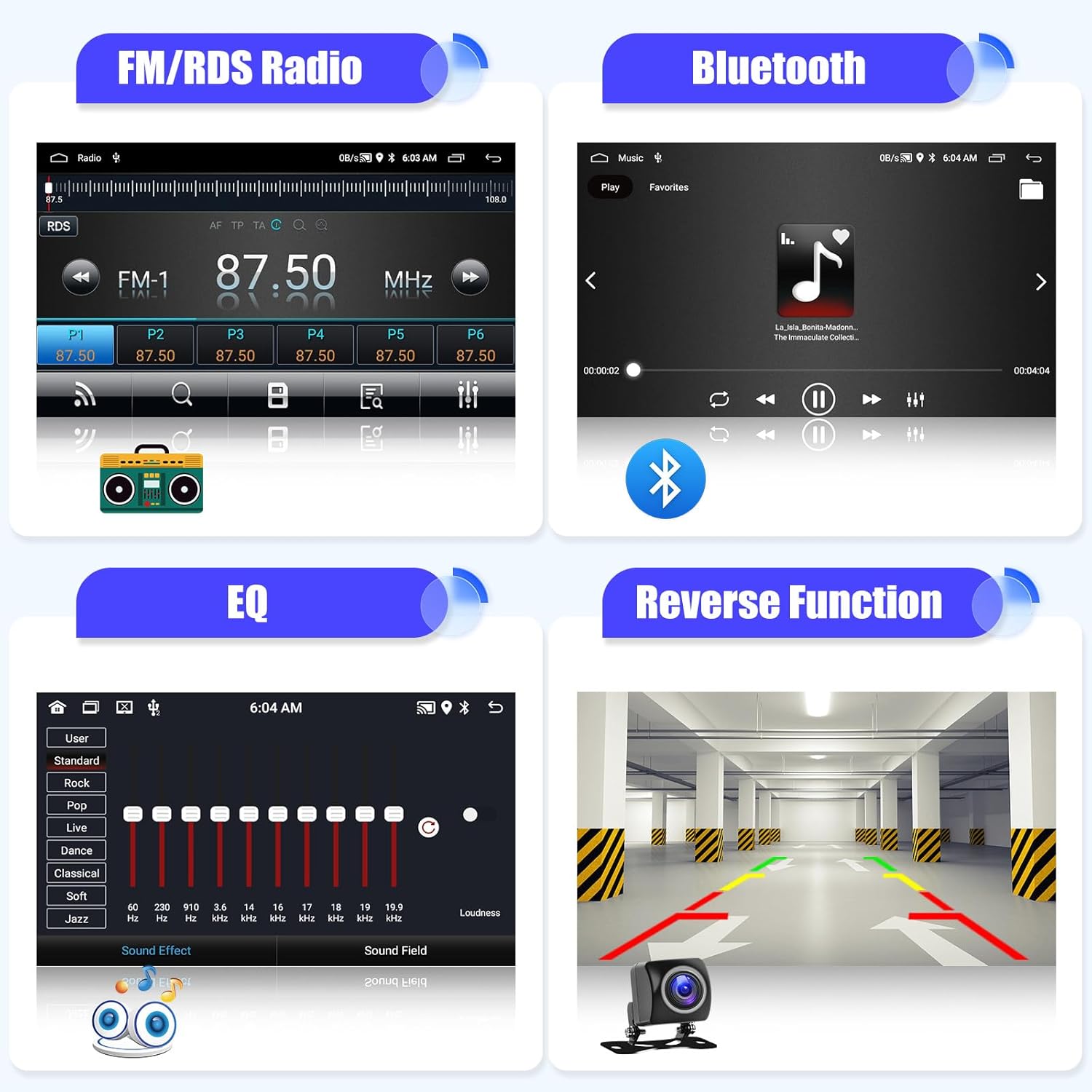
Image: The car radio screen showing the reverse camera feed with parking assistance lines, enhancing safety during parking maneuvers.
- Automatic Display: When the vehicle is shifted into reverse gear, the car radio will automatically switch to the rear camera display.
4.9. Multilanguage Support
The car radio supports up to 70 languages, including English, German, French, Spanish, Russian, Arabic, Chinese, Italian, Hebrew, Japanese, and more.

Image: The language selection menu on the car radio, displaying a wide array of supported languages for user convenience.
- Changing Language: Go to Settings > System > Languages & input > Languages to select your preferred language.
4.10. File Manager
The built-in file manager allows you to download, install, and delete applications, as well as manage files stored on the device's 64GB ROM.

Image: The file manager interface on the car radio, showing internal storage and various folders for organizing data and applications.
- Accessing File Manager: Locate the 'File Manager' app icon on the main screen or app drawer.
- Managing Files: Use the interface to browse, copy, move, delete, and install files or applications.
5. Maintenance
Proper maintenance ensures the longevity and optimal performance of your car radio.
- Cleaning: Use a soft, dry cloth to clean the touchscreen and unit exterior. Avoid abrasive cleaners or solvents.
- Temperature: The device is designed for stable operation even at temperatures up to 70°C, thanks to its efficient heat dissipation system. However, avoid prolonged exposure to extreme temperatures (both hot and cold) when the vehicle is parked.

Image: Illustration of the car radio's efficient heat dissipation design, featuring a double aluminum heat sink to maintain stable operation.
- Software Updates: Periodically check for software updates to ensure optimal performance and access to new features.
- Avoid Liquids: Keep liquids away from the unit to prevent damage.
6. Troubleshooting
If you encounter issues with your SIXWIN Android 13 Car Radio, refer to the following common troubleshooting steps:
| Problem | Possible Cause | Solution |
|---|---|---|
| Unit does not power on | Loose power connection, blown fuse, vehicle battery issue. | Check power cable connections. Inspect vehicle fuses. Ensure vehicle battery is charged. |
| No sound output | Volume too low, incorrect audio source, loose speaker wires, mute activated. | Increase volume. Select correct audio source. Check speaker wire connections. Disable mute function. |
| Touchscreen unresponsive | Software glitch, unit frozen. | Restart the unit (press and hold power button). If issue persists, perform a factory reset (data will be lost). |
| CarPlay/Android Auto not connecting | Incorrect cable, Bluetooth/Wi-Fi off, phone software issue, app not installed. | Use original USB cable. Ensure Bluetooth/Wi-Fi is enabled on phone and unit. Update phone OS and CarPlay/Android Auto app. Re-pair devices. |
| GPS signal lost or inaccurate | GPS antenna obstruction, loose connection, environmental interference. | Ensure GPS antenna is properly installed and has a clear view of the sky. Check antenna connection. Move vehicle to an open area. |
| Steering wheel controls not working | Canbus not connected, incorrect configuration, vehicle incompatibility. | Verify Canbus decoder is correctly installed. Reconfigure steering wheel controls in settings. Confirm vehicle compatibility. |
If these steps do not resolve the issue, please contact customer support.
7. Specifications
Key technical specifications of the SIXWIN Android 13 Car Radio:
- Model Number: fddf565f-bd83-4635-a5e3-42fd736a8a6a
- Operating System: Android 13
- RAM: 2GB
- ROM: 64GB
- Screen Size: 9 inches
- Resolution: 1024*600 HD Touch Screen
- Connectivity: Bluetooth 4.0, Wi-Fi, GPS
- Smartphone Integration: Wireless/Wired CarPlay, Wired Android Auto, Mirrorlink (USB/Wi-Fi for Android, Wi-Fi for iOS)
- Radio: FM/RDS (18 preset stations)
- Audio Output Mode: Stereo
- Surround Sound Channel Configuration: 2.1
- Number of Channels: 2
- Output Power: 45 Watts
- Output Wattage: 50 Watts
- Video Encoding: H.264, H.265/HEVC
- Control Method: Touch
- Supported Internet Services: Spotify, YouTube (via Wi-Fi/hotspot)
- Product Dimensions: 1 x 1 x 1 cm
- Product Weight: 1.67 kg
8. Support and Warranty
For any technical assistance, troubleshooting not covered in this manual, or warranty inquiries, please contact SIXWIN customer support.

Image: A customer service representative, indicating available support.
- Customer Support Email: SixWinVip126.com
- Warranty Information: Please refer to the warranty card included with your product or contact customer support for details regarding warranty coverage and terms.

