
1. Product Overview
The SIXWIN Android 13 Autoradio is a 6.2-inch IPS touchscreen head unit designed for Fiat Punto (2010-2016) and Fiat Linea (2012-2015) vehicles. It features an Android 13 operating system with 2GB RAM and 64GB storage, offering a modern in-car entertainment and navigation experience. Key functionalities include built-in Wireless Carplay, Android Auto, Mirrorlink, WiFi, GPS, Bluetooth, FM/RDS radio, and USB connectivity. The unit supports original steering wheel controls and offers a plug-and-play wiring harness for simplified installation.

Image 1.1: The SIXWIN Android 13 Autoradio seamlessly integrated into a Fiat Punto dashboard, displaying a navigation map. This unit is compatible with Fiat Punto (2010-2016) and Fiat Linea (2012-2015).
2. Package Contents
Verify that all the following items are included in your package:
- Android Autoradio Head Unit
- Power Cable
- Radio Antenna
- GPS Antenna
- Rear Camera Input Cable
- Original USB Cable
- RCA Cable
- Canbus Decoder
- USB Cable (additional)
- User Manual
- Antenna Adapter
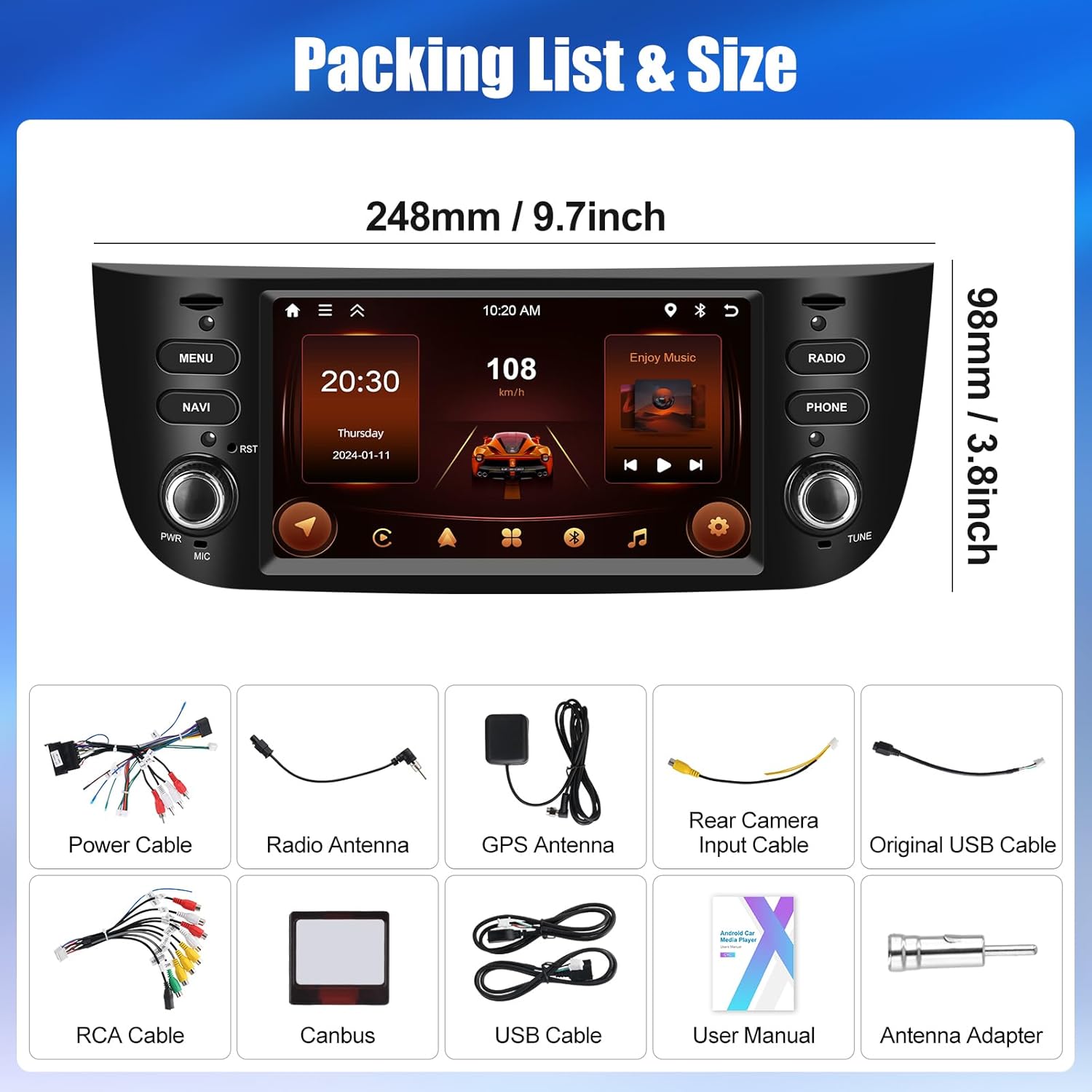
Image 2.1: Visual representation of the SIXWIN Android 13 Autoradio and its complete packing list, including all cables and accessories.
3. Safety Information
- Professional Installation Recommended: Due to the complexity of car electrical systems, professional installation is highly recommended to prevent damage to the unit or vehicle.
- Power Supply: This unit operates on a DC 12V power supply. Ensure correct voltage to avoid damage.
- Driving Safety: Do not operate the unit in a way that distracts you from driving. Always prioritize road safety.
- Temperature: Avoid exposing the unit to extreme temperatures or direct sunlight for prolonged periods.
- Moisture: Keep the unit dry. Exposure to moisture can cause malfunction or electric shock.
4. Installation Guide
4.1. Pre-Installation Checks
- Ensure the vehicle's ignition is off and the battery is disconnected before starting installation.
- Confirm compatibility with your vehicle model (Fiat Punto 2010-2016 / Linea 2012-2015).
- Verify all package contents are present and undamaged.
4.2. Wiring Diagram
The unit comes with a plug-and-play wiring harness designed for compatible Fiat models. Connect the main power harness to the vehicle's existing wiring. Refer to the detailed wiring diagram provided in the physical user manual for specific connections, including speaker outputs, power, ground, ACC, illumination, and reverse camera input.
4.3. Mounting the Unit
Carefully remove the original car stereo. Install the SIXWIN Autoradio into the dashboard opening, ensuring all cables are connected securely and not pinched. Secure the unit using the appropriate mounting brackets and screws. Reconnect the vehicle battery and test the unit's functionality.
5. Operating Instructions
5.1. Basic Operation
- Power On/Off: Press and hold the power button on the unit's front panel.
- Volume Control: Use the physical volume knob or the on-screen controls.
- Screen Brightness: Adjust in the system settings menu.
5.2. Main Features
5.2.1. Carplay & Android Auto
The unit supports built-in Wireless Carplay and Android Auto. Connect your compatible smartphone via USB or wirelessly (if supported by your phone and the unit's software). Once connected, your phone's interface will appear on the autoradio screen, allowing access to navigation, calls, messages, and music through a safe, driver-friendly interface. Voice commands are supported.
5.2.2. Mirror Link Function
Connect your iOS or Android smartphone to the autoradio via the original USB cable or WiFi. This function mirrors your phone's screen onto the 6.2-inch display, allowing you to view content like Google Maps, Spotify, YouTube, and other applications directly on the head unit. Voice control via Google Assistant is supported.
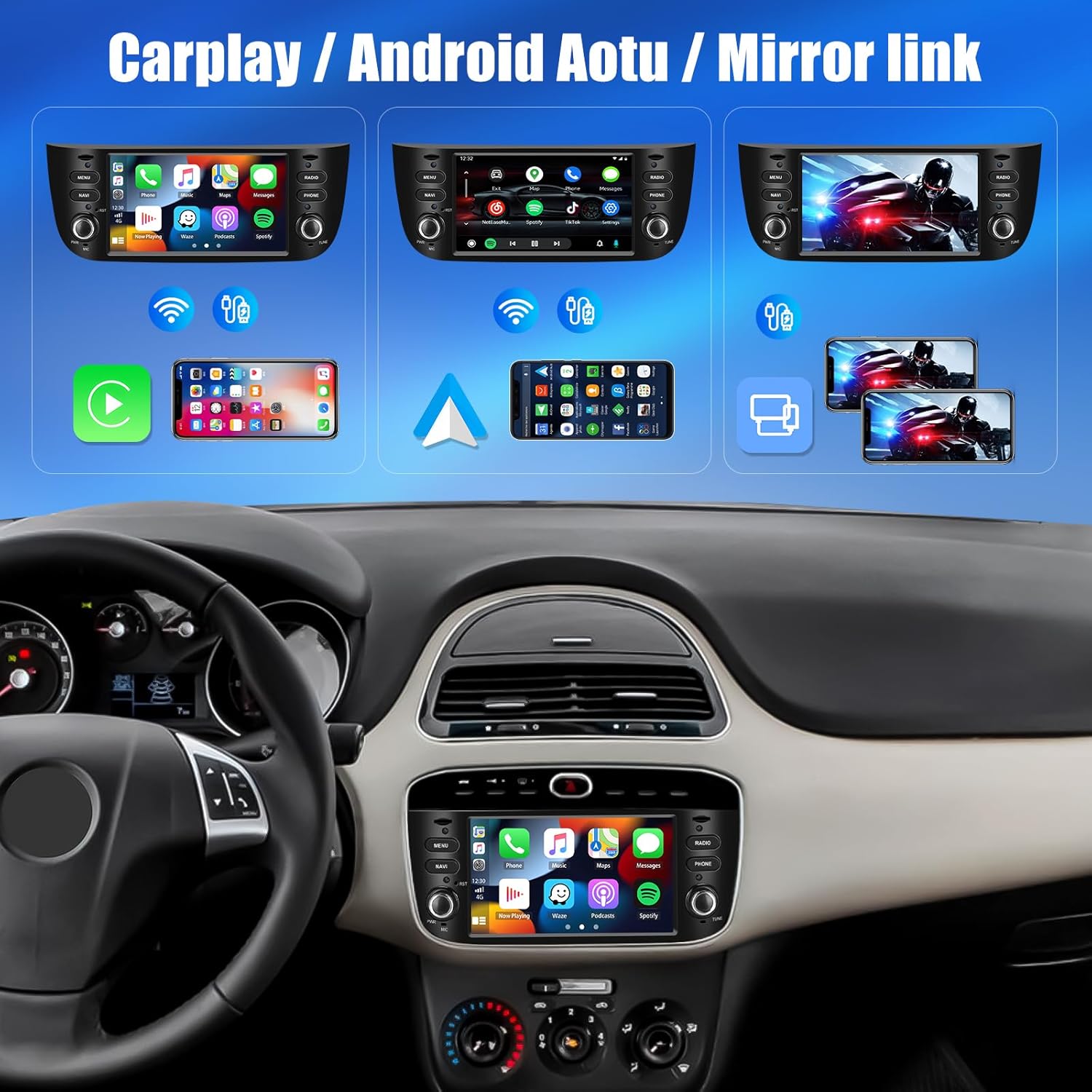
Image 5.1: Overview of Carplay, Android Auto, and Mirror Link capabilities, demonstrating how smartphone interfaces are integrated with the autoradio.
5.2.3. GPS Navigation
The integrated GPS module supports both online and offline maps. Connect to the internet via WiFi to download map data or use real-time traffic information. Voice guidance is available for navigation.
5.2.4. WiFi Connectivity
Connect the autoradio to the internet using a WiFi hotspot from your smartphone or a portable WiFi device. This enables online streaming, application downloads from the Play Store, and access to online services.
5.2.5. Bluetooth Pairing
Pair your smartphone or other Bluetooth devices for hands-free calling and audio streaming. The Bluetooth 5.0 connection ensures stability and clear voice capture for calls, enhancing your overall audio experience.
5.2.6. FM/RDS Radio
Tune into FM radio stations. The RDS (Radio Data System) feature displays station information, song titles, and traffic updates where available.
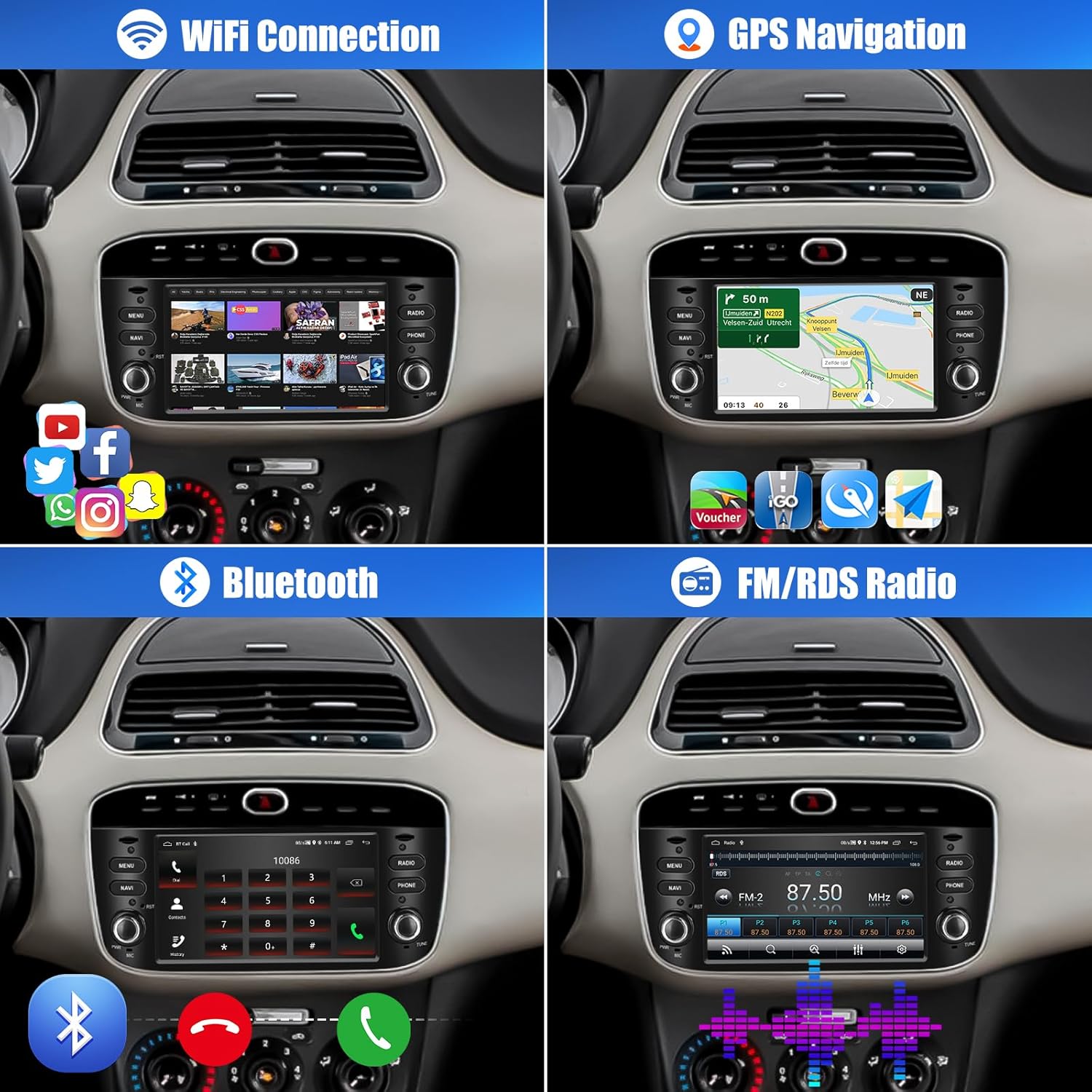
Image 5.2: Demonstrates WiFi connectivity, GPS navigation, Bluetooth calling, and FM/RDS radio functions.
5.2.7. Equalizer (EQ)
Utilize the 32-band EQ sound effect settings to customize your audio output. Adjust frequencies to match your preferences for different music genres or audio content.
5.2.8. Steering Wheel Control (SWC)
The unit supports original steering wheel controls, allowing you to manage volume, tracks, and calls without taking your hands off the wheel. Configuration may be required in the system settings.
5.2.9. Split Screen
The split-screen feature allows you to run two applications simultaneously on the display, such as navigation on one side and music playback on the other.

Image 5.3: Illustrates the Equalizer, Steering Wheel Control setup, Split Screen functionality, and Music player interface.
5.2.10. UI Themes
Customize the appearance of your autoradio's interface by selecting from multiple UI themes available in the system settings.

Image 5.4: Examples of customizable UI themes for personalizing the autoradio's display.
5.2.11. External Devices and Optional Functions
The unit supports various external devices and optional functions:
- USB Ports: Two USB ports are provided for media playback, phone charging, or connecting external devices like USB recorders (dash cams).
- Rear Camera Input: Connect a rear-view camera for parking assistance.
- External Microphone: Improve call quality with an external microphone.
- DAB+ (Digital Audio Broadcasting): Requires an optional DAB+ module for enhanced digital radio quality.
- OBD (On-Board Diagnostics): Connect an optional OBD dongle to monitor vehicle data.
- Voice Assistant: Integrated voice control for hands-free operation.
- Network Radio & World Weather Display: These features may require activation or specific applications.
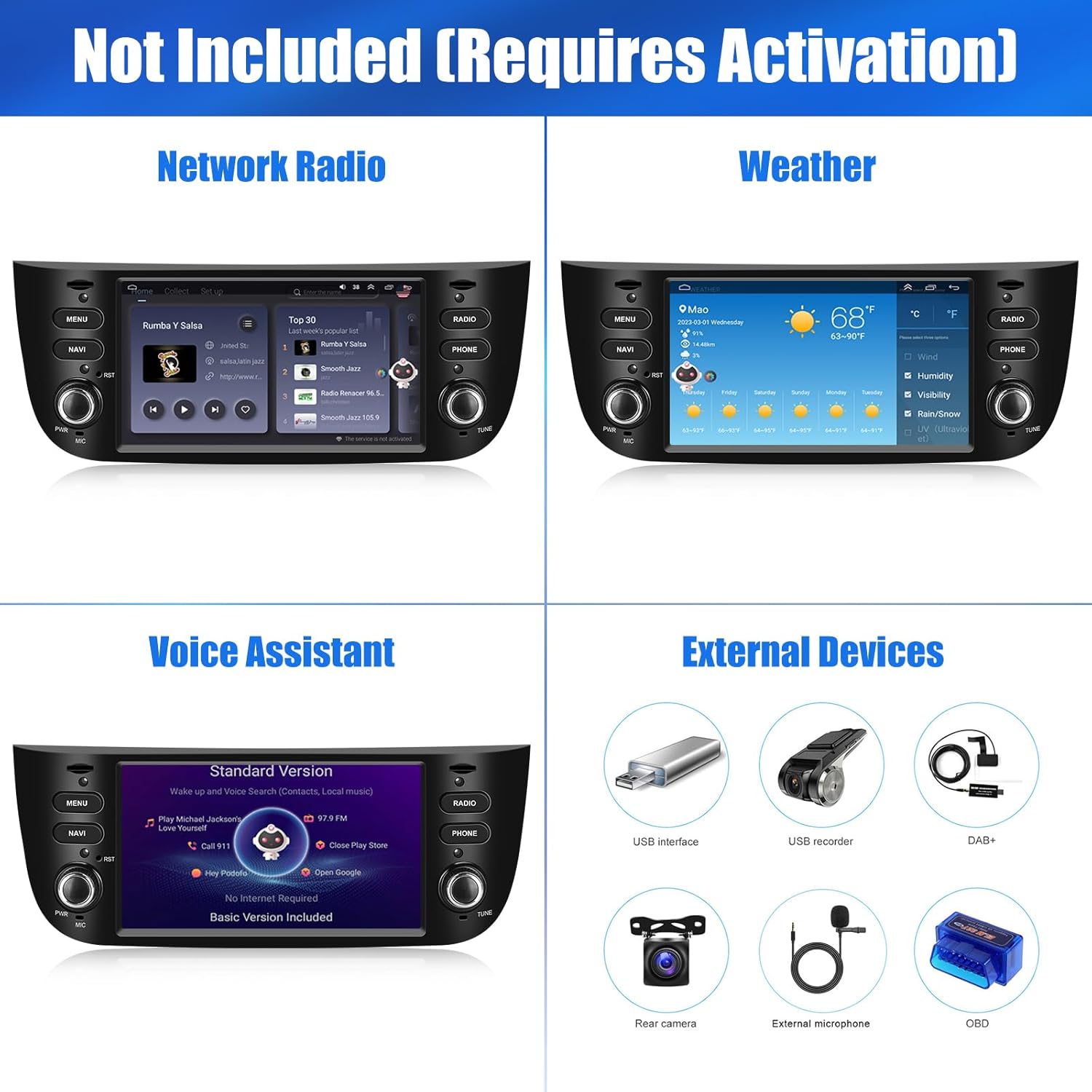
Image 5.5: Overview of optional features and compatible external devices, some of which may require activation or additional hardware.
6. Maintenance
- Screen Cleaning: Use a soft, lint-free cloth to gently wipe the touchscreen. For stubborn smudges, slightly dampen the cloth with water or a screen-safe cleaner. Avoid harsh chemicals or abrasive materials.
- General Cleaning: Keep the unit's exterior free from dust and debris. Use a soft, dry cloth.
- Software Updates: Periodically check for available software updates through the unit's settings to ensure optimal performance and access to new features.
7. Troubleshooting
If you encounter issues with your SIXWIN Autoradio, refer to the following common problems and solutions:
| Problem | Possible Cause | Solution |
|---|---|---|
| Unit does not power on. | Incorrect wiring, blown fuse, vehicle battery issue. | Check power cable connections, inspect vehicle fuses, ensure battery is charged. Consult a professional installer. |
| No sound from speakers. | Incorrect speaker wiring, volume too low, mute activated, amplifier issue. | Verify speaker connections, increase volume, check mute status, ensure external amplifier (if used) is powered. |
| Bluetooth connection fails. | Device not in pairing mode, incorrect pairing process, interference. | Ensure Bluetooth is enabled on both devices and in pairing mode. Delete previous pairings and try again. Move closer to the unit. |
| GPS signal is weak or lost. | GPS antenna improperly installed or obstructed, unit in an area with poor satellite reception. | Ensure GPS antenna is mounted in a clear location (e.g., dashboard, not under metal). Move to an open area. |
| Touchscreen unresponsive. | System freeze, temporary software glitch. | Perform a soft reset (refer to the physical manual for reset button location, usually a small pinhole). If issue persists, contact support. |
8. Specifications
| Feature | Specification |
|---|---|
| Brand | SIXWIN |
| Model Number | aacbe134-44ef-484c-8be1-f4cabafd9d43 |
| Operating System | Android 13 |
| RAM | 2GB |
| Storage (ROM) | 64GB |
| Screen Size | 6.2 inches |
| Screen Resolution | 1024*600 IPS |
| Connectivity Technology | Auxiliary, Bluetooth, USB, Wi-Fi |
| Special Features | Wireless Carplay, Android Auto, Mirrorlink, GPS, FM/RDS Radio, EQ, Split Screen |
| Compatible Devices | Fiat Punto (2010-2016), Fiat Linea (2012-2015) |
| Audio Output Mode | Stereo |
| Surround Sound Channel Config. | 5.1 |
| Video Encoding | H.264, H.265/HEVC, VP9, AV1, MPEG-4 |
| Color | Black |
| Product Dimensions | 10P x 10l x 10H millimeters |
| Max Output Power | 4x45W |
| Internet Applications | Spotify, YouTube (via Play Store) |
| Control Method | Voice, Touchscreen |
| Wireless Technology | Bluetooth 5.0 |
9. Warranty and Support
For warranty information, please refer to the documentation included with your product or contact SIXWIN customer support directly. If you require technical assistance, have questions about installation, or need troubleshooting beyond what is covered in this manual, please reach out to our support team.
Contact Support:
- Email: SIXWINVIP@126.com

Image 9.1: SIXWIN customer support is available to assist with product inquiries and technical support.

