
1. Introduction
Thank you for choosing the ONIKUMA G55 61-Key Mechanical Gaming Keyboard. This compact keyboard is designed to enhance your gaming and typing experience with its responsive mechanical switches, customizable RGB backlighting, and durable construction. This manual provides essential information on setting up, operating, maintaining, and troubleshooting your new keyboard.

Image 1.1: The ONIKUMA G55 keyboard integrated into a typical gaming setup, showcasing its compact size and RGB lighting.
2. Product Overview
The ONIKUMA G55 is a high-performance 61-key mechanical gaming keyboard built for efficiency and style. Its compact design saves desk space without sacrificing functionality, making it suitable for both desktop and laptop users. Key features include:
- Compact 61-Key Layout: A space-saving design that retains full functionality for gaming and typing.
- Customizable RGB Backlighting: Vibrant LED backlighting with multiple modes and effects to personalize your gaming atmosphere.
- Responsive Mechanical Switches: Provides precise tactile feedback and accurate key actuation for improved gaming performance.
- Wired USB Connectivity: Ensures reliable, lag-free performance with universal compatibility.
- Gaming Features: Includes multi-key rollover technology and a Windows key lock function for uninterrupted gaming.

Image 2.1: A close-up view of the ONIKUMA G55 keyboard highlighting its mechanical nature and RGB lighting.

Image 2.2: Illustration of the 61-key compact layout, demonstrating how it saves space while maintaining essential functions.

Image 2.3: Detailed view of the ABS keycaps and mechanical switches, emphasizing the quality and tactile design.
3. Setup Instructions
Setting up your ONIKUMA G55 keyboard is a simple plug-and-play process.
- Unpack the Keyboard: Carefully remove the keyboard from its packaging.
- Connect to Your Device: Locate an available USB port on your computer or laptop. Plug the USB cable from the ONIKUMA G55 keyboard into the USB port.
- Driver Installation: Your operating system (Windows, macOS, etc.) will automatically detect and install the necessary drivers. This process usually takes a few seconds.
- Ready for Use: Once the drivers are installed, the keyboard is ready for immediate use.
No additional software or complex configuration is required for basic functionality.
4. Operating Instructions
The ONIKUMA G55 keyboard features a 61-key layout, which means some functions are accessed via combination keys using the 'Fn' (Function) key.
4.1. Basic Key Functions
- Standard Typing: All alphanumeric keys, symbols, and basic modifiers (Shift, Ctrl, Alt) function as on a standard keyboard.
- Fn Key Combinations: Many keys have secondary functions printed on them. To activate these, press and hold the Fn key, then press the desired key. For example, Fn + A might activate a multimedia function.
4.2. RGB Lighting Control
The keyboard features dynamic RGB backlighting. You can cycle through various lighting modes and adjust brightness.
- Change Lighting Mode: Press Fn + | (the key next to the Backspace key) to cycle through different RGB lighting effects.
- Adjust Brightness: Use Fn + ↑ to increase brightness and Fn + ↓ to decrease brightness.
- Adjust Speed: Use Fn + ← to decrease effect speed and Fn + → to increase effect speed.
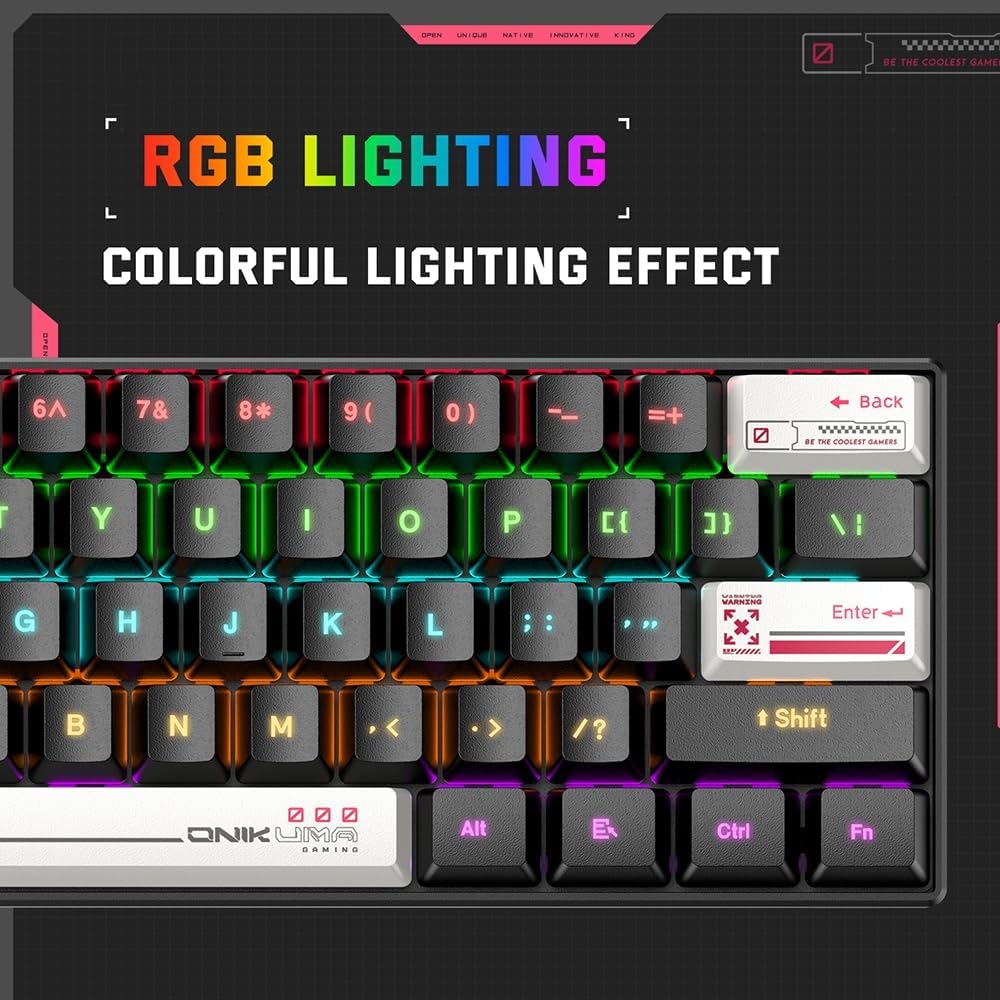
Image 4.1: The ONIKUMA G55 keyboard displaying its vibrant RGB lighting effects.
4.3. Gaming Features
- Windows Key Lock: To prevent accidental presses of the Windows key during gaming, press Fn + Win to lock/unlock the Windows key.
- Multi-Key Rollover: The keyboard supports multi-key rollover, allowing multiple keys to be pressed simultaneously and registered accurately, which is crucial for fast-paced gaming.
5. Maintenance
Proper maintenance ensures the longevity and optimal performance of your ONIKUMA G55 keyboard.
- Cleaning: Regularly clean the keyboard with a soft, dry cloth. For deeper cleaning, use compressed air to remove dust and debris from between the keycaps. You may carefully remove keycaps for thorough cleaning using a keycap puller (not included).
- Avoid Liquids: The keyboard is not water-resistant. Avoid spilling liquids on it, as this can cause permanent damage.
- Storage: When not in use, store the keyboard in a clean, dry environment away from direct sunlight and extreme temperatures.

Image 5.1: The ONIKUMA G55 keyboard showing options for personalized keycap replacement, useful for maintenance and customization.
6. Troubleshooting
If you encounter issues with your ONIKUMA G55 keyboard, refer to the following common troubleshooting steps:
| Problem | Possible Solution |
|---|---|
| Keyboard is not responding. |
|
| RGB lighting is not working or stuck. |
|
| Certain keys are not working. |
|
| Windows key is disabled. | Press Fn + Win to toggle the Windows key lock. |
If these steps do not resolve your issue, please contact customer support for further assistance.
7. Specifications
| Feature | Detail |
|---|---|
| Brand | ONIKUMA |
| Model | G55 |
| Key Count | 61 Keys |
| Switch Type | Mechanical |
| Connectivity | Wired USB |
| Backlighting | Customizable RGB LED |
| Layout | QWERTY |
| Compatible Devices | Desktop Computers, Laptops |
| Material | Plastic |
| Item Weight | 800 grams |
| Special Features | Compact Design, Ergonomic Design, Multi-key Rollover, Windows Key Lock |
| Water Resistance | Not Water Resistant |
8. Warranty and Support
This product may be eligible for extended warranty plans offered by third-party providers. Please refer to your purchase documentation or the retailer's website for details on available protection plans.
For technical support or warranty claims, please contact the retailer or ONIKUMA customer service through their official channels. Keep your proof of purchase for any warranty-related inquiries.


