
1. Introduction
Thank you for choosing the NUPLEA YYK-Q16Pro AI Language Translation Earbuds. These earbuds are designed to provide real-time language translation for up to 144 languages and accents, featuring an OWS (Open-Wearable Stereo) design and an intuitive LCD touchscreen. This manual will guide you through the setup, operation, and maintenance of your device to ensure optimal performance and a seamless user experience.
2. Package Contents
Please check the package for the following items:
- NUPLEA YYK-Q16Pro AI Language Translation Earbuds (Left and Right)
- Charging Case with LCD Touchscreen
- USB Charging Cable
- User Manual
- CD (as per product specifications, though typically not included with modern earbuds)
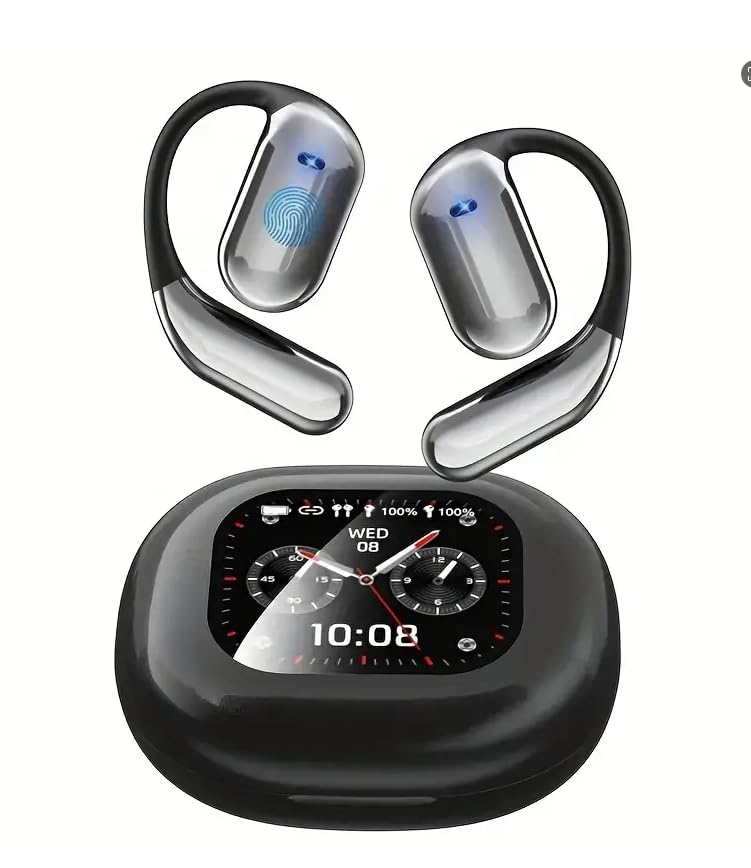
Image 1: NUPLEA YYK-Q16Pro AI Language Translation Earbuds and Charging Case.
3. Setup
3.1 Charging the Earbuds and Case
- Place the earbuds into the charging case, ensuring they are correctly seated.
- Connect the USB charging cable to the charging port on the case and plug the other end into a USB power adapter (not included) or a computer's USB port.
- The LCD touchscreen on the charging case will display the charging status and battery levels. Fully charge the device before first use.
3.2 Powering On/Off
- Power On: Open the charging case, and the earbuds will automatically power on. Alternatively, press and hold the touch area on each earbud for 3 seconds.
- Power Off: Place the earbuds back into the charging case and close the lid. They will automatically power off. Alternatively, press and hold the touch area on each earbud for 5 seconds.
3.3 Bluetooth Pairing
- Ensure the earbuds are powered on and out of the charging case. They will enter pairing mode automatically, indicated by a flashing LED light (if present) or a prompt on the charging case's LCD.
- On your mobile device, go to Bluetooth settings and turn on Bluetooth.
- Search for available devices and select "NUPLEA YYK-Q16Pro" from the list.
- Once connected, the earbuds will indicate successful pairing, and the LCD on the case may show a connected status.
3.4 App Installation (Recommended)
For full functionality, including advanced translation features and settings, it is recommended to download the dedicated NUPLEA translation app from your device's app store. Follow the in-app instructions to connect your earbuds.
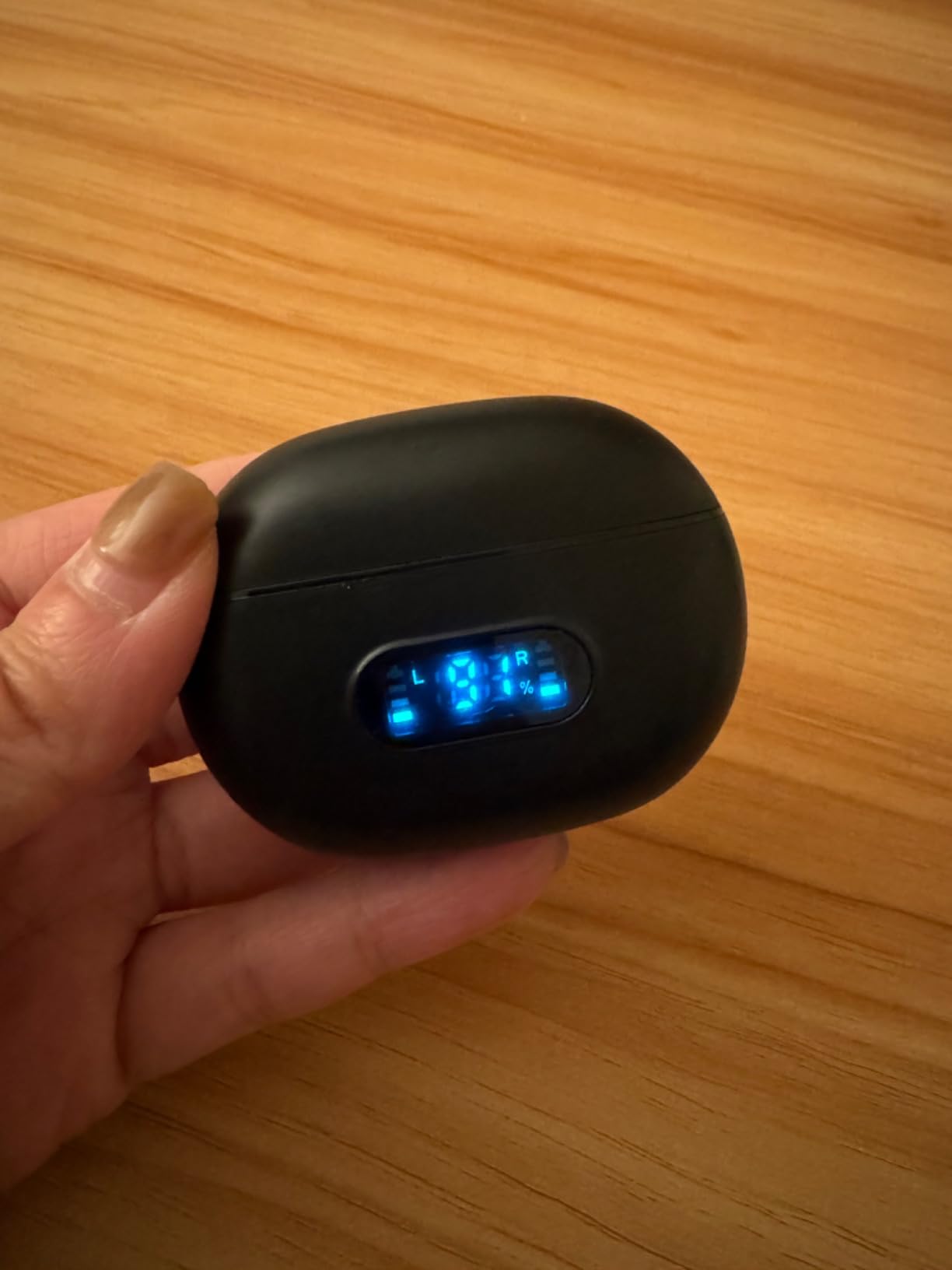
Image 2: Earbuds placed inside the charging case.
4. Operating Instructions
4.1 Touch Controls
The earbuds feature touch-sensitive controls. Specific functions may vary slightly depending on the mode (music, call, translation).
| Action | Left Earbud | Right Earbud |
|---|---|---|
| Play/Pause Music | Single Tap | Single Tap |
| Next Track | Double Tap | Double Tap |
| Previous Track | Triple Tap | Triple Tap |
| Answer/End Call | Single Tap | Single Tap |
| Reject Call | Press and Hold (2s) | Press and Hold (2s) |
| Activate Voice Assistant | Press and Hold (2s) | Press and Hold (2s) |
| Activate Translation Mode | Specific gesture (refer to app) | Specific gesture (refer to app) |
4.2 Real-Time Translation
The YYK-Q16Pro earbuds offer real-time translation through the connected mobile application. Ensure the app is installed and the earbuds are connected.
- Open the NUPLEA translation app on your smartphone.
- Select the desired source and target languages within the app.
- Choose the translation mode (e.g., Conversation Mode, Interpreter Mode, Touch Mode).
- Follow the on-screen instructions in the app to initiate translation. Typically, one person speaks into their earbud/phone, and the translation is heard by the other person through their earbud.
- The LCD touchscreen on the charging case may display translation status or language selections.
4.3 Audio Playback and Calls
Once paired, the earbuds function as standard Bluetooth headphones for audio playback and calls. Use the touch controls as described above.
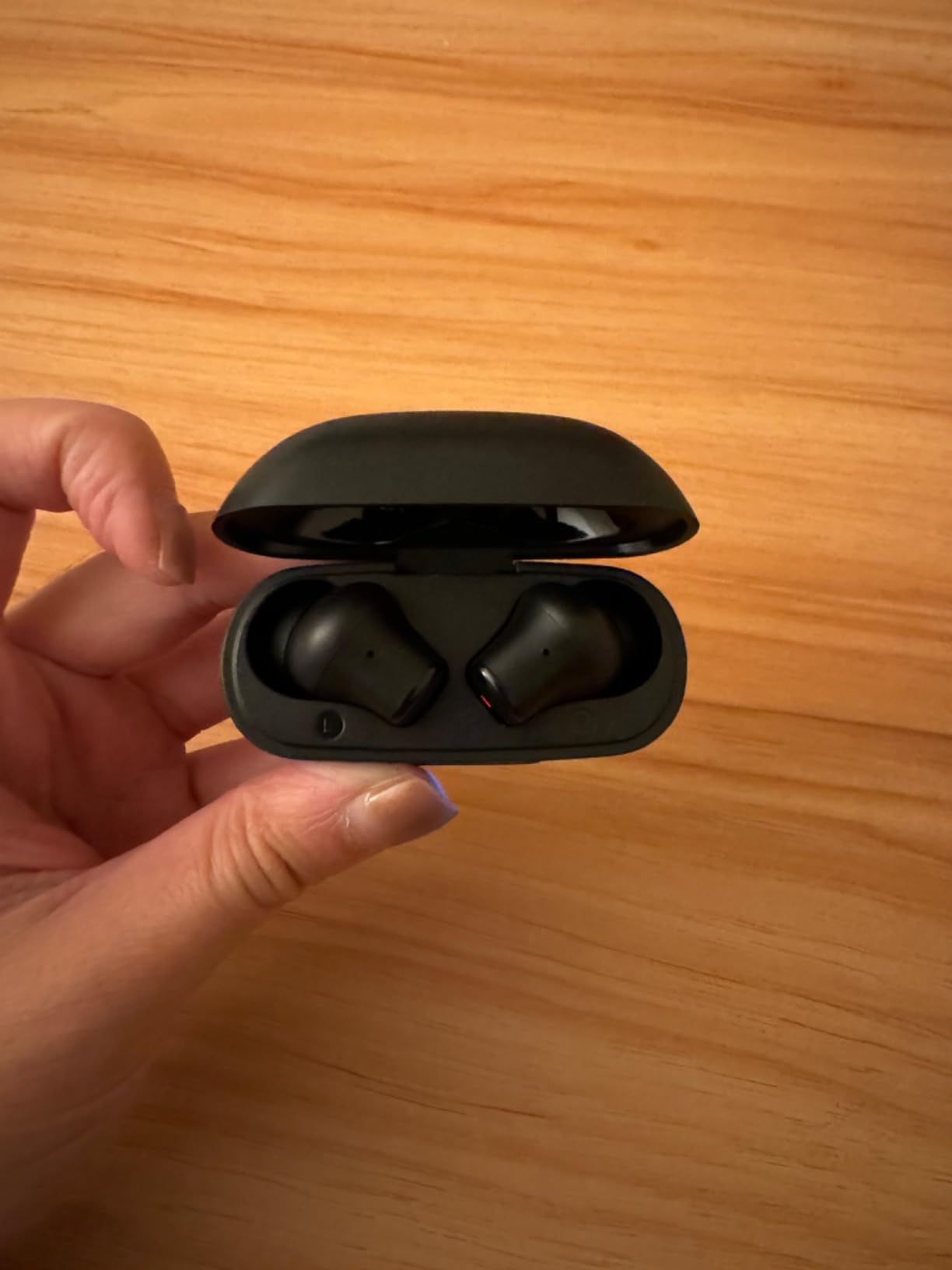
Image 3: Earbuds removed from the charging case, ready for use.
5. Maintenance
5.1 Cleaning
- Use a soft, dry, lint-free cloth to clean the earbuds and charging case.
- Do not use abrasive cleaners, alcohol, or chemical solvents.
- Gently clean the charging contacts on both the earbuds and the case with a dry cotton swab if necessary.
5.2 Storage
- Store the earbuds in their charging case when not in use to protect them and keep them charged.
- Avoid storing the device in extreme temperatures, direct sunlight, or high humidity.
5.3 Battery Care
- To prolong battery life, avoid fully discharging the earbuds and charging case frequently.
- Charge the device regularly, even if not in frequent use.
6. Troubleshooting
If you encounter issues with your NUPLEA YYK-Q16Pro earbuds, please refer to the following common solutions:
| Problem | Possible Solution |
|---|---|
| Earbuds not pairing | Ensure earbuds are charged. Turn off and on Bluetooth on your device. Forget the device in Bluetooth settings and re-pair. |
| No sound from earbuds | Check volume levels on both earbuds and connected device. Ensure earbuds are properly seated in your ears. Reconnect Bluetooth. |
| Translation not working | Verify internet connection on your phone. Ensure the NUPLEA app is open and updated. Check language settings in the app. |
| Charging case not charging | Check the USB cable and power adapter. Ensure the charging port is clean and free of debris. |
| Touch controls unresponsive | Ensure earbuds are clean and dry. Restart the earbuds by placing them in the case and closing the lid. |
7. Specifications
| Feature | Detail |
|---|---|
| Model Name | YYK-Q16Pro |
| Brand | NUPLEA |
| Connectivity Technology | Wireless |
| Wireless Communication | Bluetooth |
| Material | Plastic |
| Water Resistance Level | Waterproof |
| Control Type | Touch Control |
| Battery Life | 8 Hours (Earbuds) |
| Bluetooth Range | 10 Meters |
| Audio Driver Type | Dynamic Driver |
| Audio Driver Size | 13 Millimeters |
| Item Weight | 3.2 ounces |
| Package Dimensions | 3.74 x 3.74 x 1.38 inches |
| Compatible Devices | Cellphones, Gaming Consoles, Laptops, Music Production Equipment, Tablets |
| Special Feature | Android Phone Control |
8. Warranty and Support
8.1 Warranty Information
NUPLEA products are covered by a limited warranty from the date of purchase. Please refer to the warranty card included in your package or visit the official NUPLEA website for detailed warranty terms and conditions. This warranty typically covers manufacturing defects but does not cover damage caused by misuse, accidents, or unauthorized modifications.
8.2 Customer Support
For technical assistance, troubleshooting, or warranty claims, please contact NUPLEA customer support through one of the following methods:
- Email: support@nuplea.com (Example email, please refer to actual product documentation for correct contact)
- Website: www.nuplea.com/support (Example URL, please refer to actual product documentation for correct contact)
- Phone: Refer to your product packaging or official website for regional support numbers.
When contacting support, please have your product model number (YYK-Q16Pro) and proof of purchase ready.