
ZWP S-2016
ZWP S-2016 Replacement Remote Control User Manual
Model: S-2016
Introduction
This manual provides essential information for the setup, operation, and maintenance of your ZWP S-2016 Replacement Remote Control. This remote is specifically designed to be compatible with the ONN 16" Slim 2.0 Channel Soundbar, model ONA18SB001, offering a direct replacement for your original remote.

Figure 1: Front and back view of the ZWP S-2016 Replacement Remote Control. The front features various control buttons, while the back shows the battery compartment and model number.
Setup
The ZWP S-2016 remote control is designed for ease of use, typically requiring no programming. Follow these steps for initial setup:
- Battery Installation:
Locate the battery compartment on the back of the remote control. Press the "RELEASE" tab and slide the cover open. Insert one CR2032 3V lithium button battery, ensuring the positive (+) side faces upwards. Close the battery compartment securely.

Figure 2: The back of the ZWP S-2016 remote control, illustrating the battery compartment where a CR2032 3V lithium battery is inserted. Batteries are not included with the remote.
- Initial Use (No Programming Required):
Once batteries are installed, the remote is generally ready for immediate use with your ONN ONA18SB001 Soundbar. No complex programming or pairing steps are typically required.

Figure 3: This image emphasizes that the ZWP S-2016 remote control requires no programming or pairing and is ready to use directly out of the box after battery insertion.
- Pairing Tip (If Remote Does Not Respond):
In rare cases, if the remote does not respond immediately, a simple pairing trick may be necessary. Ensure your soundbar is turned off. Point the remote directly at the soundbar and press and hold the Power button for approximately one minute, or until the soundbar powers on. This action can help establish the connection.
Operating Instructions
The ZWP S-2016 remote control features an ergonomic design with clearly labeled buttons for intuitive operation of your ONN soundbar. Refer to the button descriptions below:

Figure 4: The ZWP S-2016 remote control highlighting its key features: no setup required, soft plastic buttons for comfortable use, and durable ABS material construction.
- Power Button: Turns the soundbar on or off.
- Mute Button: Mutes or unmutes the sound.
- VOL- / VOL+ Buttons: Adjusts the volume down or up.
- AUX Button: Selects the Auxiliary input source.
- OPTICAL Button: Selects the Optical input source.
- Bluetooth Button: Switches to Bluetooth input mode.
- Previous Track Button: Skips to the previous track (for media playback).
- Play/Pause Button: Plays or pauses media playback.
- Next Track Button: Skips to the next track (for media playback).
The remote utilizes infrared technology, providing a strong signal for multi-angle induction and precise control from a distance of up to 10 meters (approximately 33 feet).

Figure 5: This image demonstrates the long-distance precise control capability of the ZWP S-2016 remote, effective up to 33 feet (10 meters) via infrared technology.
Maintenance
- Battery Replacement: Replace the CR2032 battery when the remote's performance degrades or it stops responding. Always use a fresh, new battery for optimal performance.
- Cleaning: Use a soft, dry cloth to clean the remote's surface. Avoid using liquid cleaners or abrasive materials, as they may damage the remote.
- Storage: Store the remote in a cool, dry place away from direct sunlight and extreme temperatures. If storing for an extended period, it is advisable to remove the battery to prevent leakage.
Troubleshooting
| Problem | Possible Cause | Solution |
|---|---|---|
| Remote not responding. | Dead or low battery. Incorrect battery insertion. Remote not paired (rare). Obstruction between remote and soundbar. | Replace the CR2032 battery with a new one, ensuring correct polarity. Check for any obstructions. If still unresponsive, try the pairing tip mentioned in the Setup section (hold Power button for 1 minute with soundbar off). |
| Limited operating range. | Low battery. Interference from other electronic devices. Remote not pointed directly at soundbar. | Replace the battery. Ensure there are no strong light sources or other infrared devices interfering. Point the remote directly at the soundbar. |
Specifications
| Feature | Detail |
|---|---|
| Model Number | S-2016 |
| Brand | ZWP |
| Compatibility | ONN 16" Slim 2.0 Channel Soundbar ONA18SB001 |
| Dimensions (L x W x H) | 4.53 x 3.43 x 0.79 inches (11.5 x 8.7 x 2.0 cm) |
| Item Weight | 0.352 ounces (10 grams) |
| Battery Type | 1 x CR2032 3V Lithium Button Battery (not included) |
| Material | High-quality ABS |
| Color | Black |
| Max Supported Devices | 1 |
| Control Technology | Infrared (IR) |
| Operating Distance | Up to 10 meters / 33 feet |
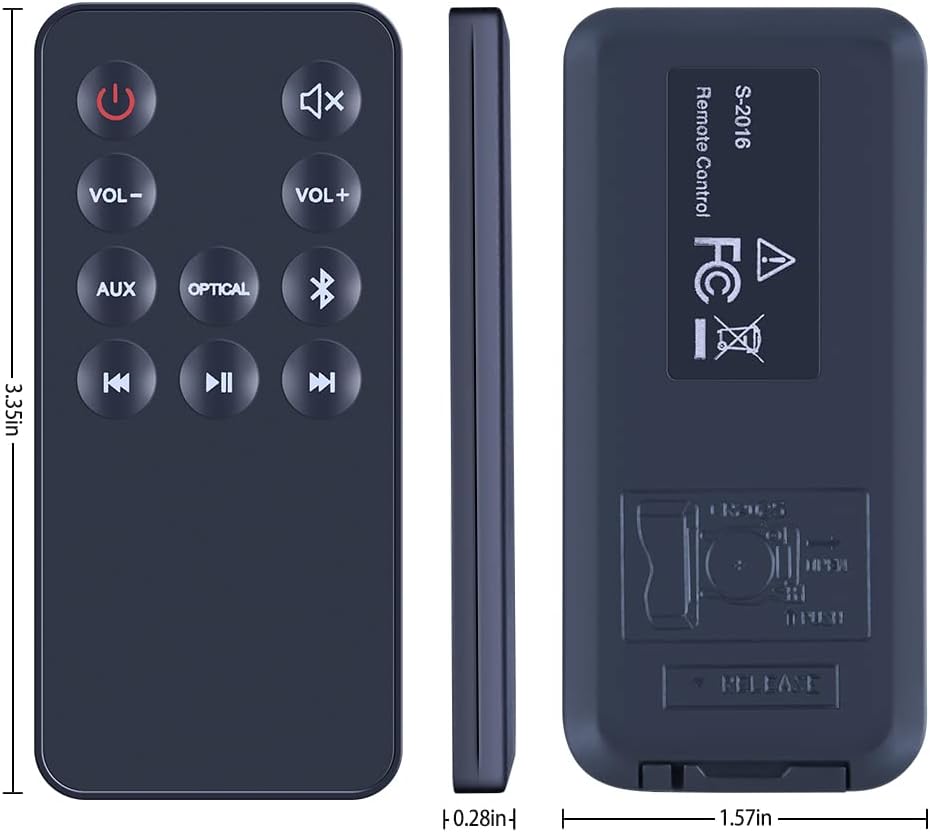
Figure 6: A detailed diagram illustrating the dimensions of the ZWP S-2016 remote control, including length, width, and thickness measurements.
Warranty and Support
Information regarding specific warranty terms for the ZWP S-2016 Replacement Remote Control is not provided in this manual. For warranty claims or technical support, please refer to the product packaging or contact the seller directly through your purchase platform.
For any questions or assistance, please do not hesitate to contact the seller before leaving feedback. They are committed to helping resolve any issues you may encounter.
Ask a question about this manual
Ask about setup, troubleshooting, compatibility, parts, safety, or missing instructions. Manuals+ will review the question and use this page’s manual context to help answer it.