1. Introduction
The AVXANKTG XTP-SP820 is a professional diagnostic tool designed for comprehensive management of Tire Pressure Monitoring Systems (TPMS). It facilitates programming, fault diagnosis, activation, matching, and resetting of tire pressure sensors. This instrument is essential for maintaining optimal tire pressure and ensuring vehicle safety and performance.
2. Safety Information
- Always read and understand this manual before operating the device.
- Use the device only as intended and for its specified purpose.
- Do not attempt to disassemble or modify the device. This will void the warranty and may cause damage or injury.
- Keep the device away from water, extreme temperatures, and direct sunlight.
- Ensure the vehicle's ignition is off before connecting or disconnecting the device from the OBD port.
- Wear appropriate personal protective equipment (PPE) when working on vehicles.
3. Product Overview
The XTP-SP820 features a robust design for automotive diagnostic environments. Key components include:
- Main Unit: The handheld device housing the display and control buttons.
- OBD-II Connector: For connecting to the vehicle's On-Board Diagnostics port.
- DB15 Port: A multi-pin connector for specific sensor programming or external module connections.
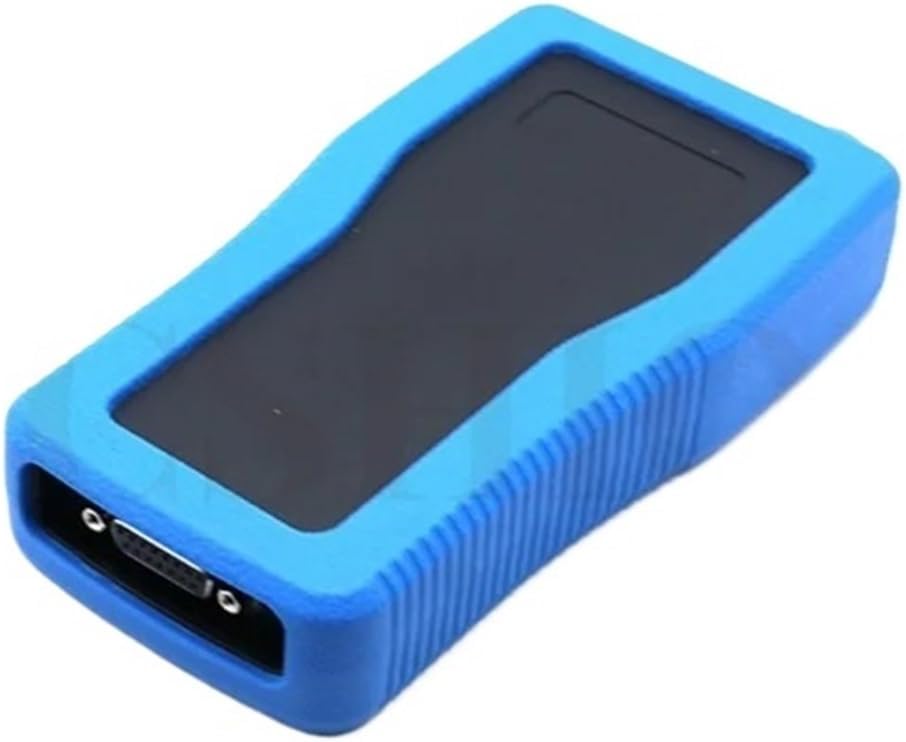
Figure 3.1: Overview of the AVXANKTG XTP-SP820 diagnostic tool.
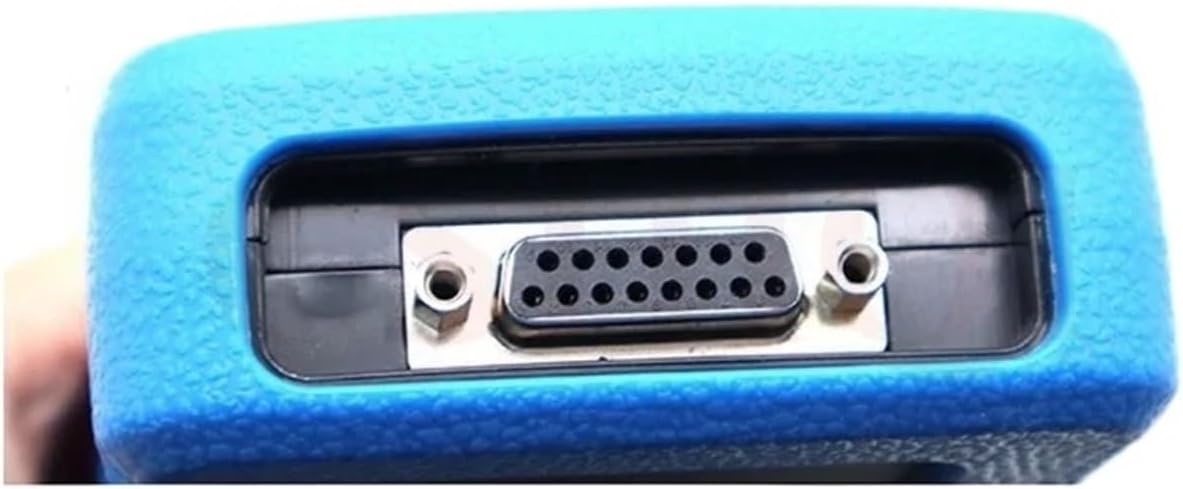
Figure 3.2: Detail of the DB15 connector port on the XTP-SP820.
4. Setup
- Power On: Connect the device to the vehicle's OBD-II port. The device will typically power on automatically.
- Initial Boot: Allow the device to complete its boot sequence. The main menu should appear on the screen.
- Language Selection: If prompted, select your preferred language from the available options.
- Software Update (Optional): Check for available software updates via the device's menu or by connecting to a computer with the provided software (if applicable). Keeping the software updated ensures compatibility with the latest vehicle models and TPMS sensors.
5. Operating Instructions
5.1. TPMS Sensor Activation
- Navigate to the "Activation" menu on the device.
- Select the vehicle make, model, and year.
- Follow the on-screen prompts to place the device near each tire sensor (typically near the valve stem).
- Press the activation button on the device. The device will emit a signal to wake up the sensor and read its ID.
- Repeat for all four (or more, if applicable) tire sensors.
5.2. TPMS Sensor Programming
This function allows new blank sensors to be programmed with vehicle-specific data or to clone existing sensor IDs.
- Select "Programming" from the main menu.
- Choose the programming method:
- Copy by Activation: Activate the original sensor to read its ID, then program a new sensor with that ID.
- Manual Input: Enter the sensor ID manually.
- Auto Create: Generate a new, unique sensor ID based on vehicle specifications.
- Place the new blank sensor in the designated programming area of the device (if applicable, or follow on-screen instructions).
- Confirm the programming process.
5.3. TPMS Relearn/Matching
After replacing or programming sensors, the vehicle's ECU needs to learn the new sensor IDs.
- Connect the XTP-SP820 to the vehicle's OBD-II port.
- Select "Relearn" or "Matching" from the menu.
- Follow the specific relearn procedure for the vehicle, which may involve:
- OBD Relearn: The device communicates directly with the vehicle's ECU to write new sensor IDs.
- Stationary Relearn: Requires specific steps like inflating/deflating tires or using the device to activate sensors in a specific order.
- Drive Relearn: The vehicle learns new sensor IDs by driving for a certain period at a specific speed. The XTP-SP820 can assist in monitoring this process.
- Confirm successful relearn on the device and vehicle dashboard.
5.4. Fault Diagnosis and Reset
The device can read and clear TPMS-related diagnostic trouble codes (DTCs).
- Connect the XTP-SP820 to the vehicle's OBD-II port.
- Select "Diagnosis" from the main menu.
- Read current and pending TPMS fault codes.
- After addressing the underlying issue, select "Clear DTCs" to turn off the TPMS warning light.
6. Maintenance
- Cleaning: Wipe the device with a soft, damp cloth. Do not use abrasive cleaners or solvents.
- Storage: Store the device in a cool, dry place, away from direct sunlight and extreme temperatures.
- Software Updates: Regularly check for and install software updates to ensure optimal performance and compatibility.
- Battery Care: If the device has an internal battery, ensure it is charged periodically, even when not in use, to prolong its lifespan.
7. Troubleshooting
| Problem | Possible Cause | Solution |
|---|---|---|
| Device does not power on. | No power from OBD-II port; faulty cable; device malfunction. | Check OBD-II connection. Ensure vehicle ignition is on (if required). Try a different vehicle or cable if available. Contact support if issue persists. |
| Cannot activate TPMS sensor. | Incorrect sensor placement; sensor battery low/dead; incorrect vehicle selection; sensor not compatible. | Ensure device is held correctly near the valve stem. Verify sensor battery status. Confirm correct vehicle selection. Check sensor compatibility. |
| Programming fails. | Sensor not blank; incorrect programming method; device not updated. | Ensure the sensor is a blank, programmable sensor. Select the appropriate programming method. Update device software. |
| TPMS light remains on after relearn. | Relearn procedure not completed correctly; underlying TPMS fault; incorrect sensor IDs. | Repeat the relearn procedure carefully. Check for any remaining DTCs. Verify sensor IDs are correct. |
8. Specifications
| Model | XTP-SP820 |
| Brand | AVXANKTG |
| Item Weight | 1.76 ounces (50 Grams) |
| Package Dimensions | 1.18 x 0.79 x 0.39 inches |
| Connectivity | OBD-II, DB15 Port |
| Functions | TPMS Programming, Activation, Matching, Reset, Fault Diagnosis |
9. Warranty and Support
This product comes with a standard manufacturer's warranty. For specific warranty details, please refer to the documentation included with your purchase or contact AVXANKTG customer support. For technical assistance, troubleshooting, or service inquiries, please visit the official AVXANKTG website or contact their customer service department.
Please retain your proof of purchase for warranty claims.


