
GIGABYTE B550 AORUS ELITE AX V3
GIGABYTE B550 AORUS Elite AX V3 Motherboard User Manual
Model: B550 AORUS ELITE AX V3
1. Introduction
This manual provides comprehensive instructions for the installation, operation, maintenance, and troubleshooting of your GIGABYTE B550 AORUS Elite AX V3 Motherboard. Please read this manual thoroughly before proceeding with installation to ensure proper setup and functionality.

Image 1.1: GIGABYTE B550 AORUS Elite AX V3 Motherboard and its retail packaging.
2. Key Features
The GIGABYTE B550 AORUS Elite AX V3 Motherboard offers a robust set of features designed for performance and reliability:
- Supports AMD Ryzen 5000 Series/ Ryzen 5000 G-Series/ Ryzen 4000 G-Series/ Ryzen 3000 and Ryzen 3000 G-Series Processors.
- Dual Channel ECC/ Non-ECC Unbuffered DDR4, 4 DIMMs.
- 12+2 Phases Digital Twin Power Design with 50A DrMOS.
- Advanced Thermal Design with Enlarged Surface Heatsinks.
- Ultra Durable PCIe 4.0 x16 Slot.
- Integrated Wi-Fi 6 802.11ax and Bluetooth connectivity.
- Dual M.2 slots for high-speed storage.
- 2.5 Gigabit Ethernet LAN for fast network connectivity.

Image 2.1: Top-down view of the motherboard, showcasing component layout and heatsinks.
3. Setup and Installation
Follow these steps for proper installation of your motherboard and its components. Ensure your system is powered off and unplugged before handling any internal components.
3.1 Motherboard Layout

Image 3.1: Detailed diagram illustrating key components and connectors on the motherboard, including CPU socket, RAM slots, PCIe slots, M.2 connectors, and I/O ports.
Refer to Image 3.1 for the location of various components and connectors on the motherboard. This diagram will assist in identifying ports and headers during installation.
3.2 CPU Installation
- Locate the AM4 CPU socket.
- Lift the load lever on the socket.
- Carefully align the triangular mark on the CPU with the mark on the socket and gently place the CPU into the socket. Do not force it.
- Lower the load lever to secure the CPU.
- Install your CPU cooler according to its manufacturer's instructions. Note: Be mindful of RAM slot clearance, especially with larger air coolers.
3.3 Memory (RAM) Installation
- Open the clips on both ends of the DIMM slots.
- Align the notch on the DDR4 memory module with the key in the DIMM slot.
- Insert the memory module firmly into the slot until the clips snap into place.
- For dual-channel operation, install memory modules into matching color slots (typically slots A2 and B2 first).
3.4 Storage Device Installation (M.2 SSDs and SATA Drives)
- M.2 SSDs:
- Locate the M.2 slots (refer to Image 3.1).
- Remove the M.2 heatsink and stand-off screw.
- Insert the M.2 SSD into the slot at an angle.
- Gently push down the SSD and secure it with the stand-off screw.
- Reattach the M.2 heatsink.
- Important Note: The M.2 slot nearest the CPU supports PCIe 4.0 speeds, while the second M.2 slot supports PCIe 3.0 speeds. Plan your storage configuration accordingly.
- SATA Drives:
- Connect SATA data cables from your storage drives to the SATA 6Gb/s ports on the motherboard.
- Connect SATA power cables from your power supply to the drives.
3.5 Expansion Card Installation (PCIe)
- Locate the PCIe slots. The primary PCIe 4.0 x16 slot is reinforced for graphics cards.
- Remove the corresponding expansion slot cover from your PC case.
- Align your expansion card with the slot and press firmly until it is seated correctly.
- Secure the card with a screw to the case.
3.6 Power Connections
- Connect the 24-pin ATX main power connector from your power supply to the motherboard.
- Connect the 8-pin (or 4+4-pin) ATX 12V CPU power connector to the motherboard.
- Connect any additional PCIe power connectors to your graphics card, if required.
3.7 Front Panel and USB Connections
- Connect the front panel headers (Power LED, HDD LED, Power Switch, Reset Switch) to the corresponding pins on the motherboard (refer to Image 3.1 for locations).
- Connect USB 2.0, USB 3.2 Gen1, and USB 3.2 Gen2 Type-C front panel connectors from your case to the motherboard headers.
- Connect audio headers from your case to the motherboard's audio header.
3.8 BIOS Update (Q-Flash Plus)
The motherboard supports Q-Flash Plus, allowing you to update the BIOS without installing a CPU, memory, or graphics card. This is particularly useful for ensuring compatibility with newer AMD Ryzen processors.
- Download the latest BIOS file from the GIGABYTE website for your specific motherboard model.
- Rename the downloaded BIOS file to GIGABYTE.bin and save it to the root directory of a FAT32 formatted USB flash drive.
- Insert the USB flash drive into the designated Q-Flash Plus USB port on the motherboard's rear I/O panel (refer to Image 3.1).
- Connect the 24-pin ATX main power connector and the 8-pin ATX 12V CPU power connector to the motherboard. Do not power on the system.
- Press the Q-Flash Plus button on the rear I/O panel. The Q-Flash Plus LED will flash, indicating the update process has started.
- Wait for the LED to stop flashing, which signifies the completion of the BIOS update.

Image 3.2: Rear I/O panel, highlighting the Q-Flash Plus button and dedicated USB port for BIOS updates.
4. Operating Instructions
4.1 BIOS/UEFI Setup
To access the BIOS/UEFI setup utility, power on your computer and repeatedly press the DEL key during the boot process. The BIOS allows you to configure system settings, boot order, and hardware parameters.
4.2 Enabling XMP (Extreme Memory Profile)
To achieve the rated speeds of your DDR4 memory, you may need to enable XMP in the BIOS:
- Enter the BIOS setup utility.
- Navigate to the Tweaker or Memory Settings section.
- Locate the Extreme Memory Profile (X.M.P.) option and set it to Profile1 or Enabled.
- Save changes and exit the BIOS.
4.3 RGB Fusion 2.0
The motherboard features integrated RGB lighting and headers for external RGB/Addressable RGB devices. Control and customize lighting effects using the GIGABYTE RGB Fusion 2.0 software, available for download from the GIGABYTE website.
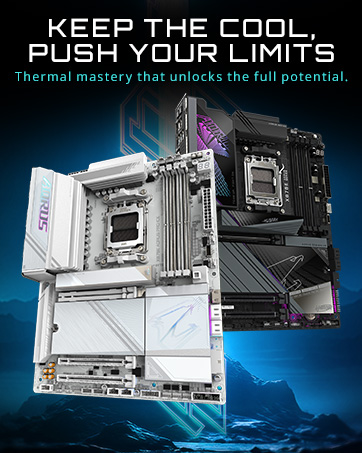
Image 4.1: Motherboard with customizable RGB lighting, managed via RGB Fusion 2.0 software.
5. Maintenance
5.1 Cleaning
Regularly clean your computer's interior to prevent dust buildup, which can lead to overheating and reduced performance. Use compressed air to remove dust from components and heatsinks. Ensure the system is powered off and unplugged before cleaning.
5.2 BIOS Updates
Periodically check the GIGABYTE website for updated BIOS versions. BIOS updates can improve system stability, add support for new hardware, and resolve known issues. Always follow the provided instructions carefully when updating the BIOS.
6. Troubleshooting
This section addresses common issues you might encounter. For more detailed troubleshooting, refer to the GIGABYTE support website or contact technical support.
| Problem | Possible Cause | Solution |
|---|---|---|
| System does not power on. | Loose power cables, faulty power supply, incorrect front panel connections. | Verify all power connections (24-pin ATX, 8-pin CPU, GPU). Check front panel power switch connection. Test power supply. |
| No display on monitor (No POST). | Incorrectly seated RAM, CPU, or graphics card. BIOS issue. | Reseat RAM modules and graphics card. Ensure CPU is properly installed. Try Q-Flash Plus to update BIOS if necessary. Check monitor connection. |
| Wi-Fi or Bluetooth connectivity issues. | Missing or outdated drivers, antenna not connected, hardware fault. | Install the latest Wi-Fi/Bluetooth drivers from the GIGABYTE website. Ensure Wi-Fi antennas are securely connected to the rear I/O panel. |
| System instability or crashes. | Overheating, faulty components, outdated drivers, unstable overclock. | Monitor temperatures. Ensure all drivers are up to date. Reset BIOS to default settings. Test components individually. |
| M.2 SSD not detected or slow performance. | Incorrect installation, BIOS settings, using PCIe 3.0 slot for PCIe 4.0 drive. | Ensure M.2 SSD is properly seated. Check BIOS settings for M.2 slot configuration. Verify the M.2 slot used supports the desired PCIe generation. |
7. Specifications
Below are the detailed technical specifications for the GIGABYTE B550 AORUS Elite AX V3 Motherboard:
| Feature | Detail |
|---|---|
| Brand | GIGABYTE |
| Series | B550 AORUS ELITE AX V3 |
| Model Number | B550 AORUS ELITE AX V3 |
| CPU Socket | Socket AM4 |
| Compatible Processors | AMD Ryzen 5000 Series/ Ryzen 5000 G-Series/ Ryzen 4000 G-Series/ Ryzen 3000 and Ryzen 3000 G-Series Processors |
| Chipset Type | AMD B550 |
| RAM Memory Technology | DDR4 |
| Memory Speed | 3200 MHz (Supports higher via XMP) |
| Memory Storage Capacity (Max) | 128 GB |
| DIMM Slots | 4 x DDR4 DIMM slots (Dual Channel, ECC/Non-ECC Unbuffered) |
| PCIe Slots | 1 x PCIe 4.0 x16, 1 x PCIe 3.0 x16 (x2 mode), 1 x PCIe 3.0 x1 |
| M.2 Connectors | 2 (1 x PCIe 4.0 x4/x2, 1 x PCIe 3.0 x4/x2 & SATA) |
| SATA Ports | 4 x SATA 6Gb/s ports |
| USB 2.0 Ports (Rear) | 2 |
| USB 3.2 Gen1 Ports (Rear) | 4 |
| USB 3.2 Gen2 Ports (Rear) | 2 (Type-A) |
| LAN | Realtek 2.5GbE LAN chip |
| Wireless Connectivity | Wi-Fi 6 802.11ax, Bluetooth |
| Audio | Realtek ALC1200 Codec, High Definition Audio |
| Form Factor | ATX |
| Dimensions | 13.23 x 10.71 x 3.31 inches (Package Dimensions) |
| Item Weight | 3.52 pounds |
| Color | Matte Black |
| Date First Available | July 5, 2024 |
8. Warranty and Support
8.1 Warranty Information
GIGABYTE products are covered by a limited warranty. The specific terms and duration of the warranty may vary by region and product type. Please retain your proof of purchase for warranty claims. For detailed warranty information, visit the official GIGABYTE website.
8.2 Technical Support
For technical assistance, driver downloads, BIOS updates, and further product information, please visit the official GIGABYTE support website. You can also find FAQs and troubleshooting guides there.
Official GIGABYTE Website: www.gigabyte.com