
bvate B7
bvate B7 14-inch Laptop User Manual
Model: B7 | Brand: bvate
1. Introduction
Welcome to the user manual for your new bvate B7 14-inch Laptop. This guide provides essential information to help you set up, operate, maintain, and troubleshoot your device. The bvate B7 is a compact and lightweight laptop designed for productivity and entertainment, featuring a powerful N4020 processor, 6GB RAM, 256GB SSD, and Windows 11 operating system.
Package Contents:
- 1 x bvate B7 Laptop (Rose Gold)
- 1 x Charger
- 1 x Wireless Mouse
- 1 x User Manual (this document)
- 1 x Self-adhesive Silicone Film for AZERTY Keyboard

Figure 1.1: bvate B7 14-inch Laptop, showcasing its sleek design and 1080P Full HD IPS display.
2. Initial Setup
2.1 Charging the Laptop
Before first use, fully charge your laptop. Connect the charger to the laptop's charging port and then to a power outlet. The charging indicator light will illuminate.
2.2 Powering On
Press and hold the power button located on the top right of the keyboard until the screen lights up. The laptop will boot into the Windows 11 setup process.
2.3 Windows 11 Setup
Follow the on-screen prompts to complete the Windows 11 initial setup. This includes selecting your region, language, connecting to a Wi-Fi network, and creating a user account.
2.4 Connecting to Wi-Fi
- During Windows setup, select your preferred Wi-Fi network from the list.
- Enter the Wi-Fi password if prompted.
- Once connected, the laptop will have internet access.
2.5 Connecting Peripherals
Your bvate B7 laptop comes with a wireless mouse and supports various external devices.
- Wireless Mouse: Insert the USB receiver of the wireless mouse into one of the laptop's USB 3.0 ports. The mouse should connect automatically.
- External Display (HDMI): Connect an HDMI cable from the laptop's Mini HDMI port to an external monitor or TV. You may need to adjust display settings in Windows.
- SD Card: Insert an SD card (up to 512GB) into the dedicated TF card slot for expanded storage.

Figure 2.1: Overview of bvate B7 Laptop ports, including TF Card slot, headphone jack, USB 3.0, and HDMI.
2.6 Applying AZERTY Keyboard Film
If you prefer an AZERTY layout, carefully place the provided self-adhesive silicone film over the QWERTY keyboard, aligning it with the keys.
3. Operating Your Laptop
3.1 Basic Navigation
- Touchpad: Use the integrated touchpad for cursor control. Tap to click, use two fingers to scroll, and pinch to zoom.
- Keyboard: The full-size keyboard allows for comfortable typing. Function keys (F1-F12) can be accessed by pressing the 'Fn' key in combination with the desired function key.
3.2 Using Windows 11
Your laptop runs on Windows 11, offering a user-friendly interface and enhanced features. Explore the Start Menu, Taskbar, and File Explorer to manage your applications and files.
3.3 Connectivity Features
- Dual-Band Wi-Fi (2.4G/5G): Enjoy fast and stable internet connectivity. The laptop automatically switches between 2.4GHz and 5GHz bands for optimal performance.
- Bluetooth 4.2: Connect wireless headphones, speakers, and other Bluetooth-enabled devices. Go to Windows Settings > Bluetooth & devices to pair new devices.
- USB 3.0 Ports: Utilize the two USB 3.0 ports for high-speed data transfer with external hard drives, USB drives, and other peripherals.
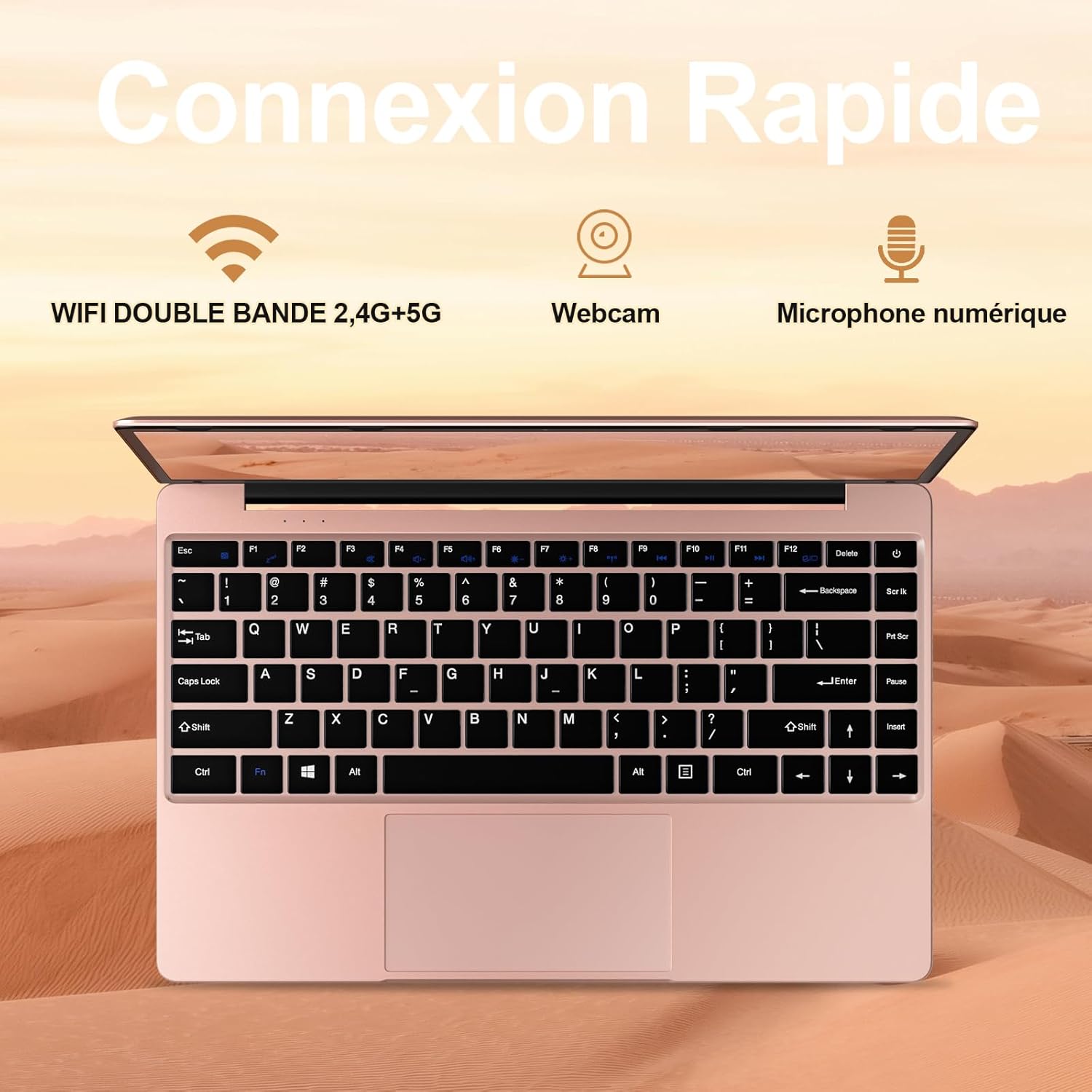
Figure 3.1: bvate B7 Laptop's connectivity features, including dual-band WiFi, integrated webcam, and digital microphone.
3.4 Storage Expansion
The laptop comes with 256GB SSD storage and 6GB RAM. You can expand storage further:
- SD Card: Insert an SD card (up to 512GB) into the TF card slot.
- SSD Upgrade: The SSD can be upgraded to 1TB for significant storage expansion. (Note: This procedure may require technical expertise. Consult support if unsure.)

Figure 3.2: Visual representation of the bvate B7 Laptop's 6GB RAM and 256GB SSD storage capacity.
3.5 Battery Management
The 5000 mAh battery provides 5-6 hours of video playback and up to 8 days of standby time. To maximize battery life:
- Adjust screen brightness.
- Close unused applications.
- Enable battery saver mode in Windows settings.
4. Maintenance
4.1 Cleaning the Laptop
- Use a soft, lint-free cloth to clean the screen and exterior.
- For stubborn marks, slightly dampen the cloth with water or a screen cleaner.
- Avoid spraying liquids directly onto the laptop.
- Use compressed air to clear dust from keyboard and ports.
4.2 Software Updates
Regularly check for Windows updates to ensure your system has the latest security patches and performance improvements. Go to Settings > Windows Update.
4.3 Storage Management
To maintain optimal performance, periodically clean up unnecessary files and applications. Use Windows Disk Cleanup or Storage Sense features.
5. Troubleshooting
This section addresses common issues you might encounter with your bvate B7 laptop.
5.1 Laptop Not Turning On
- Ensure the laptop is charged. Connect the charger and wait a few minutes before attempting to power on.
- Try a different power outlet.
- Perform a hard reset: Disconnect the charger, press and hold the power button for 15-20 seconds, then reconnect and try to power on.
5.2 Wi-Fi Connection Issues
- Check if Wi-Fi is enabled in Windows settings.
- Restart your router and modem.
- Forget the network and reconnect, entering the password again.
- Update Wi-Fi drivers (Device Manager > Network adapters).
5.3 Slow Performance
- Close unnecessary applications running in the background.
- Check Task Manager (Ctrl+Shift+Esc) for high CPU, RAM, or disk usage.
- Ensure sufficient free space on the SSD.
- Run a virus scan.
- Consider a factory reset as a last resort (back up your data first).
5.4 Battery Not Charging
- Ensure the charger is securely connected to both the laptop and the power outlet.
- Check the charger cable for any visible damage.
- Try a different power outlet.
- If the issue persists, contact bvate customer support.
6. Specifications
Detailed technical specifications for the bvate B7 Laptop:
| Feature | Specification |
|---|---|
| Brand | bvate |
| Model | B7 |
| Operating System | Windows 11 |
| Processor | Intel Celeron N4020 (1.1 GHz, 2 Cores) |
| RAM | 6 GB LPDDR4 |
| Storage | 256 GB SSD (Expandable via TF card up to 512GB, SSD upgradeable to 1TB) |
| Display | 14-inch IPS, 1920 x 1080 Pixels (Full HD) |
| Graphics | Integrated Celeron N4020 Graphics |
| Wireless Connectivity | 802.11b/g/n, 2.4G/5G Wi-Fi, Bluetooth 4.2 |
| Ports | 2 x USB 3.0, 1 x Mini HDMI, Headphone Jack, TF Card Slot |
| Battery | 5000 mAh Lithium-Polymer (5-6 hours video playback, 8 days standby) |
| Webcam | 2 MP Front Webcam |
| Dimensions | 322 x 228 x 21 mm |
| Weight | 1.32 kg |
| Color | Rose Gold |

Figure 6.1: Illustration of the bvate B7 Laptop's Celeron N4020 processor, highlighting its performance capabilities.

Figure 6.2: The bvate B7 Laptop's 14-inch IPS Full HD display, offering a wide viewing angle and 1920x1080 resolution.

Figure 6.3: The bvate B7 Laptop's lightweight (1.32 kg) and thin (2.1 cm) design, emphasizing its portability.
7. Warranty and Support
Your bvate B7 laptop comes with a 1+1 year VIP service warranty. This means you receive comprehensive support for your device.
If you encounter any issues or have questions that are not covered in this manual, please do not hesitate to contact bvate customer support. Our professional technical staff are available to assist you.
Contact Information: Please refer to the contact details provided on the bvate official website or the warranty card included in your package.
Related documentsB7


Ask a question about this manual
Ask about setup, troubleshooting, compatibility, parts, safety, or missing instructions. Manuals+ will review the question and use this page’s manual context to help answer it.