
Introduction
This manual provides comprehensive instructions for the setup, operation, maintenance, and troubleshooting of your Comfyer 7-inch 720P HD Split-Screen Baby Monitor (Model BM01). This system is designed to provide secure and reliable monitoring of your child with advanced features such as split-screen viewing, remote pan/tilt/zoom, two-way audio, and automatic night vision.
What's in the Box
- Parent Unit (Monitor Display) x 1
- Baby Camera Unit x 2
- Silicone Flexible Bracket x 1 (Note: This accessory is not included in single camera kits)
- AC Power Adapter x 1
- Wall Mount Screw Set x 1
- User Manual x 1
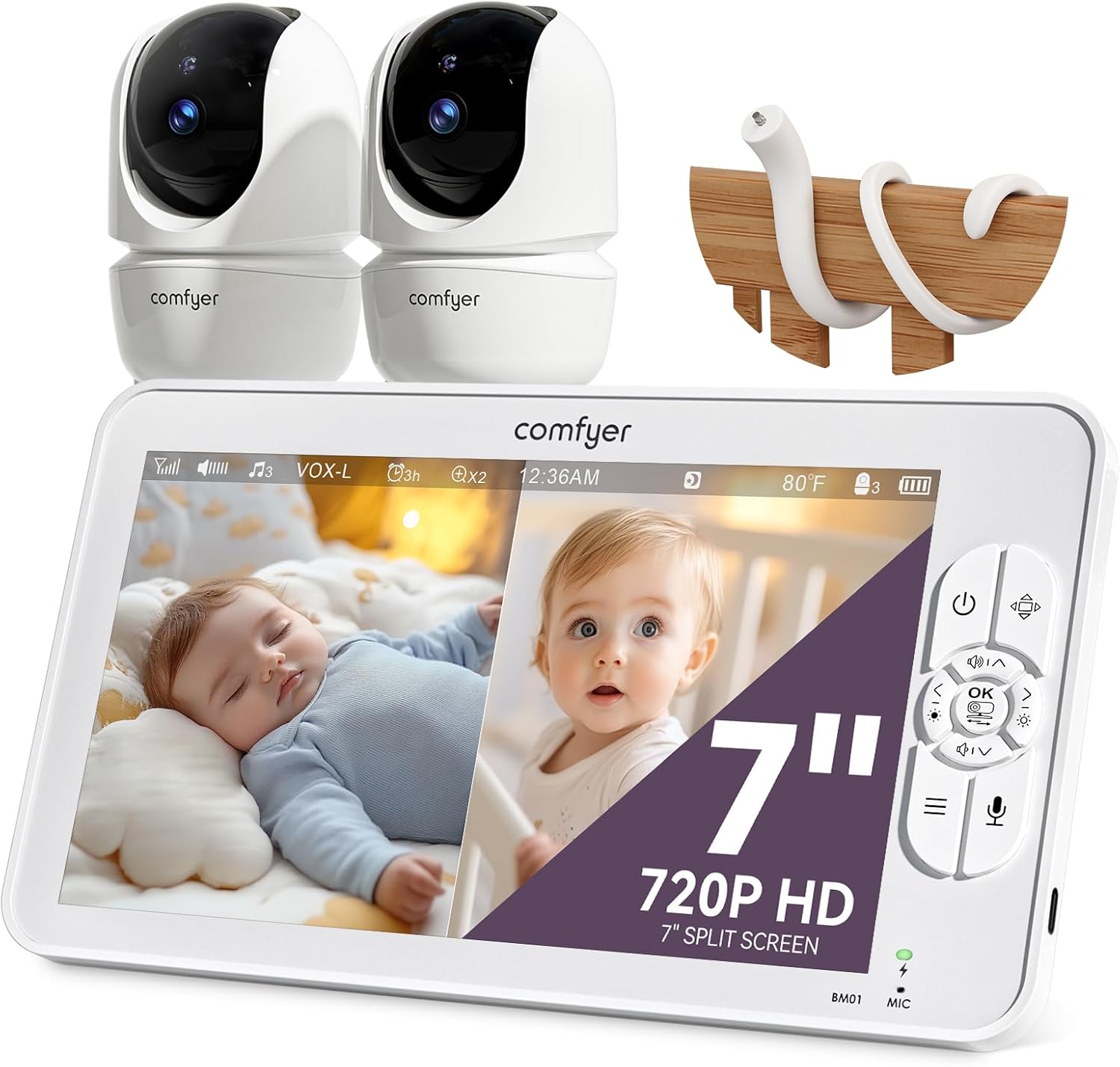
Image: Contents of the Comfyer Baby Monitor package, including the parent unit, two baby cameras, and a flexible mounting bracket.
Safety Information
Your Comfyer Baby Monitor is designed with your child's safety and your privacy in mind. Please adhere to the following safety guidelines:
- Keep all cords and cables out of reach of children (at least 3 feet / 1 meter away) to prevent strangulation hazards.
- Never place the camera or monitor inside a crib or playpen.
- This product is not a medical device and should not be used as a substitute for responsible adult supervision.
- Ensure proper ventilation for both the camera and monitor units. Do not cover them with blankets or other materials.
- Use only the provided AC power adapter. Using unauthorized adapters may damage the product and void the warranty.
- Avoid exposing the units to extreme temperatures, direct sunlight, or moisture.
Secure and Private Connection
The Comfyer BM01 monitor utilizes advanced 2.4GHz FHSS (Frequency Hopping Spread Spectrum) digital encryption technology. This ensures a secure, private connection between the camera and monitor, preventing unauthorized access. It does not connect to Wi-Fi or require a smartphone app, eliminating potential hacking risks associated with internet-connected devices.

Image: An illustration highlighting the secure, non-Wi-Fi, and app-free operation of the Comfyer baby monitor system.
Setup
1. Camera Placement
Position the baby camera unit(s) in a location that provides a clear view of your child. Ensure the camera is at least 3 feet (1 meter) away from the crib or playpen to prevent cord hazards.
- Flexible Bracket Installation: The included silicone flexible bracket can be attached to crib rails, shelves, or other furniture. Bend and rotate the goose neck to achieve the desired viewing angle. This is suitable for babies under 1 year old.
- Wall Mount Installation: For a more permanent setup, use the provided wall mount shim and screw set to secure the camera to a wall or ceiling.
Image: A baby camera unit attached to a crib rail using the flexible silicone bracket.
2. Powering On
- Connect the AC power adapter to the baby camera unit(s) and plug it into a power outlet. The camera will power on automatically.
- Connect the AC power adapter to the Parent Unit (monitor) and plug it into a power outlet. Press and hold the Power button on the Parent Unit to turn it on.
3. Pairing (If Necessary)
Your Comfyer baby monitor units are typically pre-paired at the factory. If the monitor does not display video from the camera(s) after powering on, you may need to re-pair them:
- On the Parent Unit, navigate to the "Camera Settings" or "Pairing" menu.
- Select an available camera slot to pair.
- Within 10 seconds, press the "Pair" button (usually a small button on the back or bottom) on the baby camera unit.
- The monitor should display the camera's video feed once pairing is successful.
Operating Instructions
1. Parent Unit Overview
The 7-inch HD display features intuitive controls for easy operation. Key buttons typically include Power, Menu, Navigation (Up/Down/Left/Right/OK), Talk, and Volume controls.
2. Split-Screen Mode and Scan Mode
With two cameras, you can view both simultaneously on the 7-inch split screen. The audio focus will remain on one camera at a time. Use the SCAN mode to automatically alternate audio between cameras every 15 seconds, ensuring you hear from both monitored areas.

Image: The monitor screen showing two live video feeds side-by-side in split-screen mode, with an indication of scan mode for audio.
3. Remote Pan, Tilt, and Zoom (PTZ)
Use the navigation buttons on the Parent Unit to remotely control the camera's movement:
- Pan: Rotate the camera horizontally up to 355°.
- Tilt: Adjust the camera vertically up to 120°.
- Zoom: Utilize the 4X digital zoom function for a closer view. This feature is typically accessed via the menu.
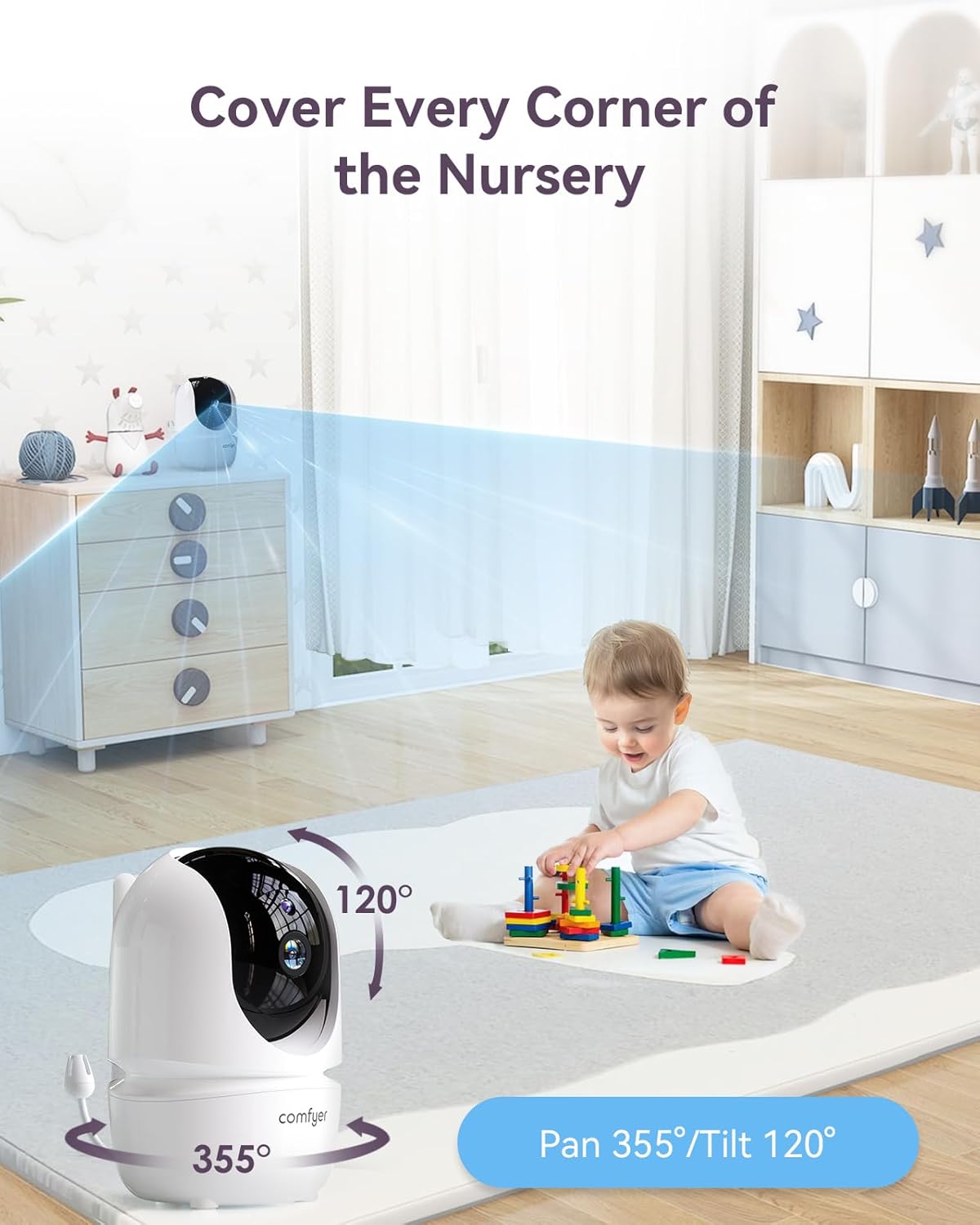
Image: A baby camera unit illustrating its pan (355°) and tilt (120°) range, providing wide coverage of a room.
4. Two-Way Audio
Press and hold the "Talk" button on the Parent Unit to speak through the camera's speaker. This allows you to comfort your child from another room.
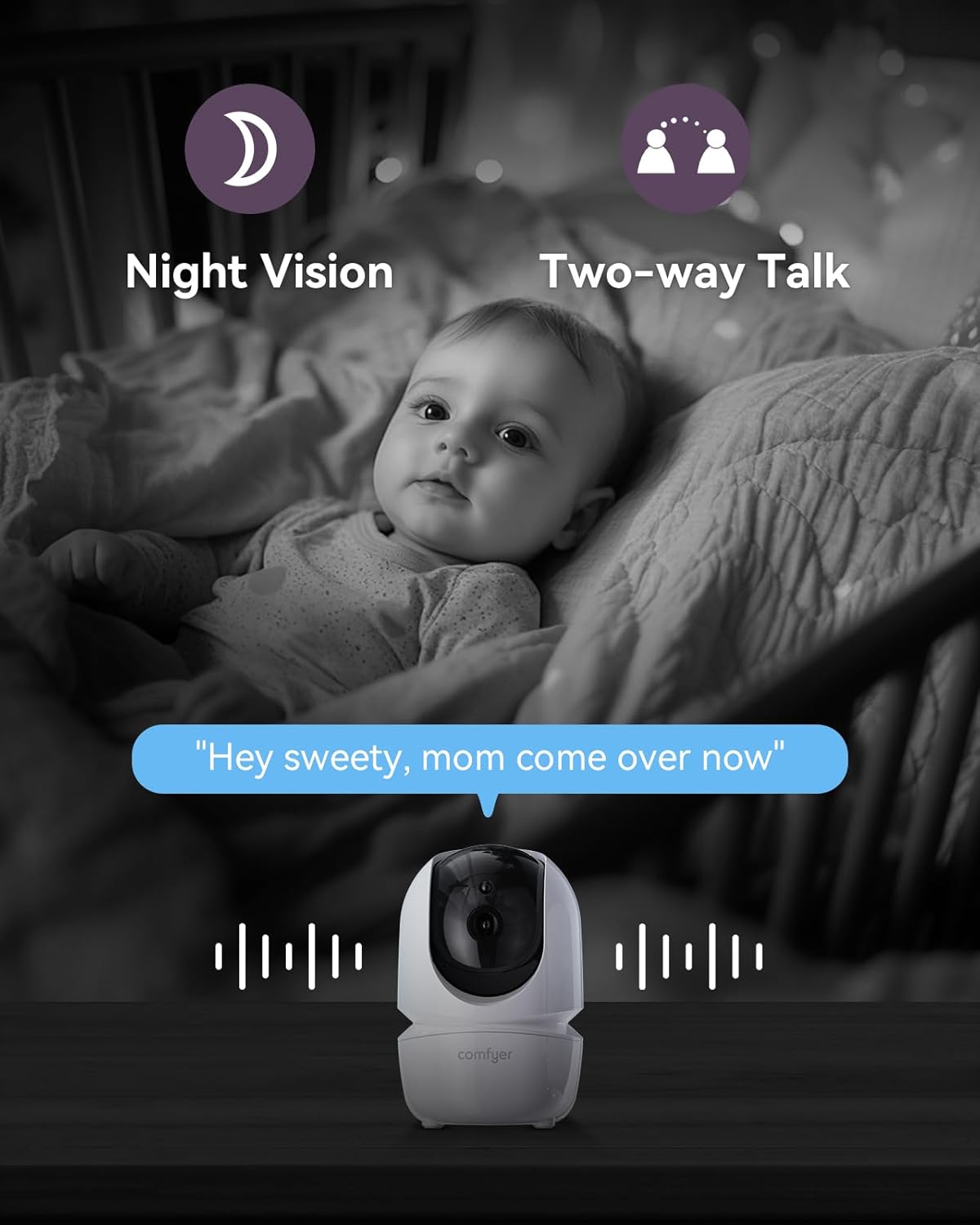
Image: A baby camera unit with an overlay indicating the two-way talk function, allowing communication with the child.
5. Automatic Night Vision
The camera automatically activates infrared night vision in low-light conditions, providing a clear black-and-white view of your child without disturbing their sleep.
6. VOX Mode (Voice Operated Exchange)
In VOX mode, the monitor screen will automatically turn off to conserve battery. It will reactivate and display video/audio when it detects sound above a set sensitivity level from the baby's room. This allows for background monitoring without constant screen activity.

Image: A visual representation of the VOX mode, showing the monitor screen turning on automatically when a baby's cry is detected.
7. Temperature Monitoring
The baby camera unit includes a temperature sensor that displays the room temperature on the Parent Unit. You can set alerts for high or low temperatures to ensure a comfortable environment for your child.

Image: The monitor screen showing the current room temperature, with an arrow pointing to the temperature sensor on the baby camera.
8. Soothing Sounds and Lullabies
The camera can play five calming melodies and three soft ambient sounds (including white noise) to help soothe your baby. These can be set with a timer (15, 30, or 60 minutes) or on repeat.
9. Battery Life and Charging
The Parent Unit is equipped with a 6000mAh rechargeable battery. It provides up to 13 hours of continuous video streaming in regular mode or up to 5 days in VOX mode on a single charge. For extended use, keep the Parent Unit plugged into the AC power adapter.
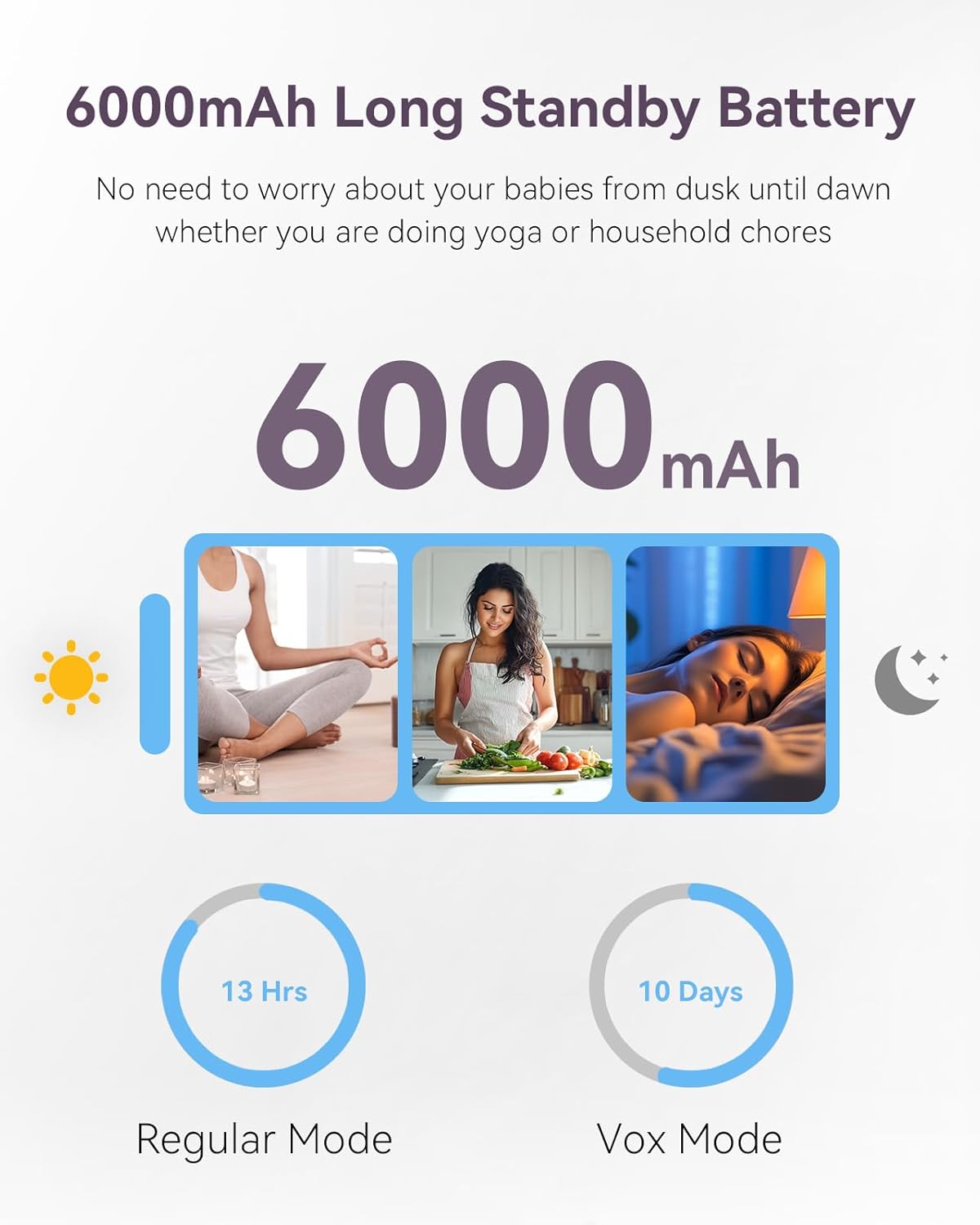
Image: An infographic detailing the 6000mAh battery capacity and estimated usage times for the monitor in regular and VOX modes.
10. Adding and Managing Multiple Cameras
The system supports up to four cameras connected to the same Parent Unit. Additional cameras can be purchased separately and paired following the instructions in Section 3. You can switch between cameras or use the split-screen view for simultaneous monitoring.

Image: A diagram illustrating the capability to connect up to four cameras to the Comfyer monitor, covering different rooms in a house.
Maintenance
- Cleaning: Wipe the camera and monitor surfaces with a soft, dry cloth. Do not use abrasive cleaners or solvents.
- Storage: If storing the unit for an extended period, ensure it is clean, dry, and stored in a cool, dark place.
- Battery Care: For optimal battery life, avoid fully discharging the Parent Unit battery frequently. Charge it regularly.
Troubleshooting
| Problem | Possible Cause | Solution |
|---|---|---|
| No image/signal on monitor |
|
|
| No sound or poor audio quality |
|
|
| Monitor battery drains quickly |
|
|
| Remote PTZ not responding |
|
|
Specifications
| Feature | Detail |
|---|---|
| Model Number | BM01 |
| Display Size | 7 inches |
| Display Resolution | 720P HD |
| Camera Resolution | 1080P |
| Connectivity | 2.4 GHz FHSS (No Wi-Fi, No App) |
| Pan Angle | 355 degrees |
| Tilt Angle | 120 degrees |
| Digital Zoom | 4X |
| Monitor Battery Capacity | 6000mAh |
| Battery Life (Regular Mode) | Up to 13 hours (video streaming) |
| Battery Life (VOX Mode) | Up to 5 days |
| Operating Range | Up to 960 feet (line of sight) |
| Included Components | Parent Unit, 2 Baby Cameras, Flexible Bracket, AC Adapter, Wall Mount Kit, User Manual |
Warranty and Support
Warranty Information
The Comfyer BM01 Baby Monitor comes with a 2-year warranty. Please retain your proof of purchase for warranty claims. The warranty covers manufacturing defects and malfunctions under normal use conditions.
Customer Support
For technical assistance, troubleshooting, or warranty inquiries, please contact Comfyer customer support. Refer to the contact information provided on the product packaging or the official Comfyer website.
Online resources and FAQs may also be available on the Comfyer support page.


