
Next YE-65GFSG8-QLED
Next YE-65GFSG8-QLED 65-inch UHD 4K QLED Google TV User Manual
Model: YE-65GFSG8-QLED
1. Introduction
Thank you for purchasing the Next YE-65GFSG8-QLED 65-inch UHD 4K QLED Google TV. This manual provides essential information for setting up, operating, and maintaining your new television. Please read it thoroughly before use and keep it for future reference.

Image 1.1: Front view of the Next YE-65GFSG8-QLED 65-inch QLED Google TV.
2. Safety Information
Please observe the following safety precautions to prevent damage and ensure safe operation:
- Do not expose the TV to rain or moisture.
- Do not block ventilation openings.
- Ensure proper grounding for electrical connections.
- Keep the TV away from direct sunlight, heat sources, and open flames.
- Use only the power cord supplied with the TV.
- Do not attempt to service the TV yourself. Refer all servicing to qualified personnel.
- Place the TV on a stable, level surface or mount it securely to a wall.
3. Package Contents
Verify that all items are present in the package:
- Next YE-65GFSG8-QLED 65-inch UHD 4K QLED Google TV
- Remote Control
- Power Cord
- User Manual (this document)
- TV Stand Components (if applicable)
- Screws for Stand Assembly (if applicable)
4. Setup
4.1. Stand Assembly (Optional)
If you are not wall-mounting the TV, attach the stand as follows:
- Carefully place the TV face-down on a soft, clean surface to prevent screen damage.
- Align the stand components with the mounting holes on the bottom of the TV.
- Secure the stand using the provided screws. Do not overtighten.
- Carefully lift the TV to its upright position on a stable surface.
4.2. Connecting Devices
Connect your external devices to the appropriate ports on the back of the TV.
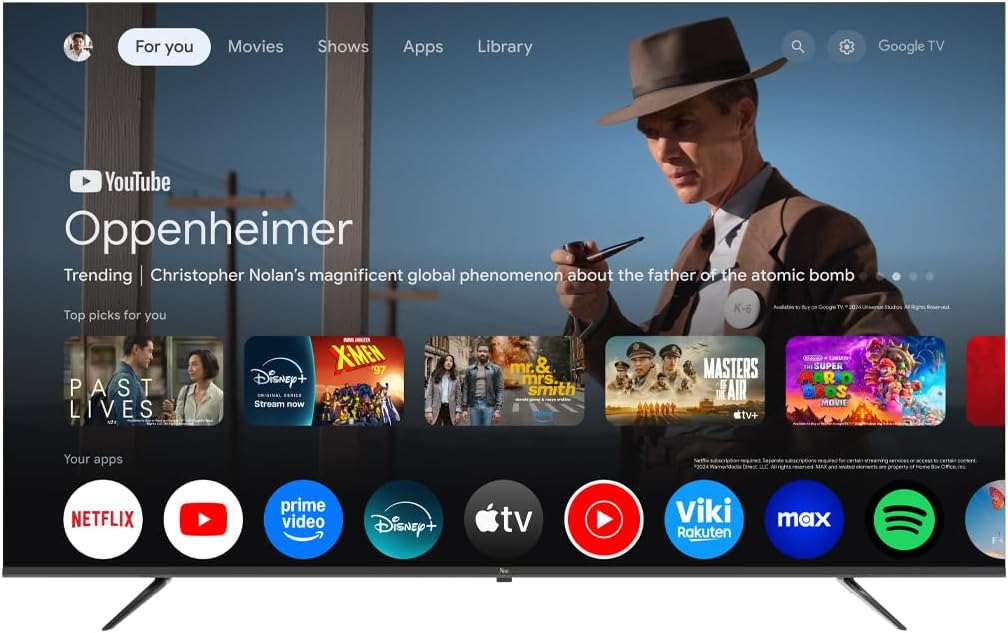
Image 4.1: Rear view of the TV with connection ports labeled.
- HDMI (3 ports, one with ARC): Connect Blu-ray players, game consoles, set-top boxes, etc. Use the HDMI (ARC) port for audio return channel functionality with compatible sound systems.
- USB (2 ports): Connect USB storage devices for media playback or software updates.
- DVB-S / DVB-T (TV 1, TV 2): Connect satellite (DVB-S) or terrestrial (DVB-T) antenna cables for broadcast TV reception.
- CI Module: Insert a Conditional Access Module (CAM) for encrypted digital TV services.
- Mini AV-IN: Connect older devices using an AV adapter cable (not always included).
- Optical Out: Connect to a soundbar or audio receiver for digital audio output.
- Ethernet: Connect an Ethernet cable for a wired internet connection.
4.3. Power Connection
Plug the power cord into the TV's power input, then into a wall outlet. The TV will enter standby mode.
5. Operating Instructions
5.1. First-Time Setup
When you power on the TV for the first time, follow the on-screen instructions to:
- Select your language and region.
- Connect to a Wi-Fi network or use the wired Ethernet connection.
- Sign in with your Google account to access Google TV features.
- Scan for available TV channels (if using antenna/satellite).

Image 5.1: Google TV interface on the Next QLED TV.
5.2. Google TV Features
Your TV runs on Google TV, providing access to a wide range of content and smart features:
- Personalized Recommendations: Get suggestions based on your viewing history.
- Voice Control: Use the built-in Google Assistant via the remote control to search for content, control smart home devices, and more.
- App Access: Download and stream from popular services like YouTube, Netflix, Disney+, and more via the Google Play Store.
- Chromecast Built-in: Cast content from your compatible mobile devices directly to the TV.
5.3. QLED Display Technology
The QLED display technology in your TV offers enhanced picture quality:
- Vibrant Colors: Quantum Dot technology produces a wider color gamut and higher color saturation.
- High Brightness: Experience brighter images with improved contrast.
- HDR Support: High Dynamic Range (HDR) content delivers greater detail in both bright and dark scenes.

Image 5.2: Visual representation of QLED technology's enhanced color saturation.

Image 5.3: Visual representation of HDR technology's improved dynamic range.
5.4. Remote Control
The included remote control allows you to navigate the TV's interface, adjust settings, and access smart features. Refer to the remote control diagram (if available in the physical manual) for specific button functions.
5.5. Product Overview Video
Watch this video for a brief overview of the Next QLED Google TV's key features, including QLED technology, Ultra HD quality, Google TV integration, and frameless design.
Video 5.1: Overview of Next QLED Google TV features.
6. Maintenance
To ensure the longevity and optimal performance of your TV:
- Cleaning the Screen: Gently wipe the screen with a soft, lint-free cloth. For stubborn marks, use a screen-specific cleaning solution applied to the cloth, not directly to the screen.
- Cleaning the Cabinet: Use a soft, dry cloth to wipe the TV cabinet. Do not use abrasive cleaners or solvents.
- Ventilation: Ensure the ventilation openings are clear of dust and obstructions to prevent overheating.
- Power Off: Disconnect the TV from the power outlet during electrical storms or when it will be unused for extended periods.
7. Troubleshooting
If you encounter issues with your TV, refer to the following common solutions:
| Problem | Possible Solution |
|---|---|
| No power | Check if the power cord is securely connected to both the TV and the wall outlet. Ensure the outlet is functional. |
| No picture, but sound is present | Verify the correct input source is selected. Check cable connections to external devices. |
| No sound, but picture is present | Check the volume level and mute status. Ensure audio cables are correctly connected. Check TV audio output settings. |
| Remote control not working | Replace the batteries. Ensure there are no obstructions between the remote and the TV's IR sensor. |
| Poor picture quality | Check antenna/cable connections. Adjust picture settings (brightness, contrast, sharpness). Ensure the source content is high quality. |
| Cannot connect to Wi-Fi | Restart your router. Ensure the Wi-Fi password is correct. Move the TV closer to the router or use a wired Ethernet connection. |
If the problem persists after trying these solutions, please contact customer support.
8. Specifications
Key technical specifications for the Next YE-65GFSG8-QLED 65-inch UHD 4K QLED Google TV:
| Feature | Detail |
|---|---|
| Model | YE-65GFSG8-QLED |
| Screen Size | 65 inches (165 cm) |
| Display Technology | QLED |
| Resolution | 4K UHD (Ultra High Definition) |
| Refresh Rate | 60 Hz |
| Operating System | Google TV |
| Connectivity | Bluetooth, Ethernet, HDMI (3 ports), USB (2 ports), Wi-Fi |
| Aspect Ratio | 16:9 |
| Product Dimensions (D x W x H) | 27.8D x 144.6W x 88.9H cm |
| Product Weight | 16.3 Kilograms |
| Included Components | Remote Control |
| Special Feature | Frameless Design |
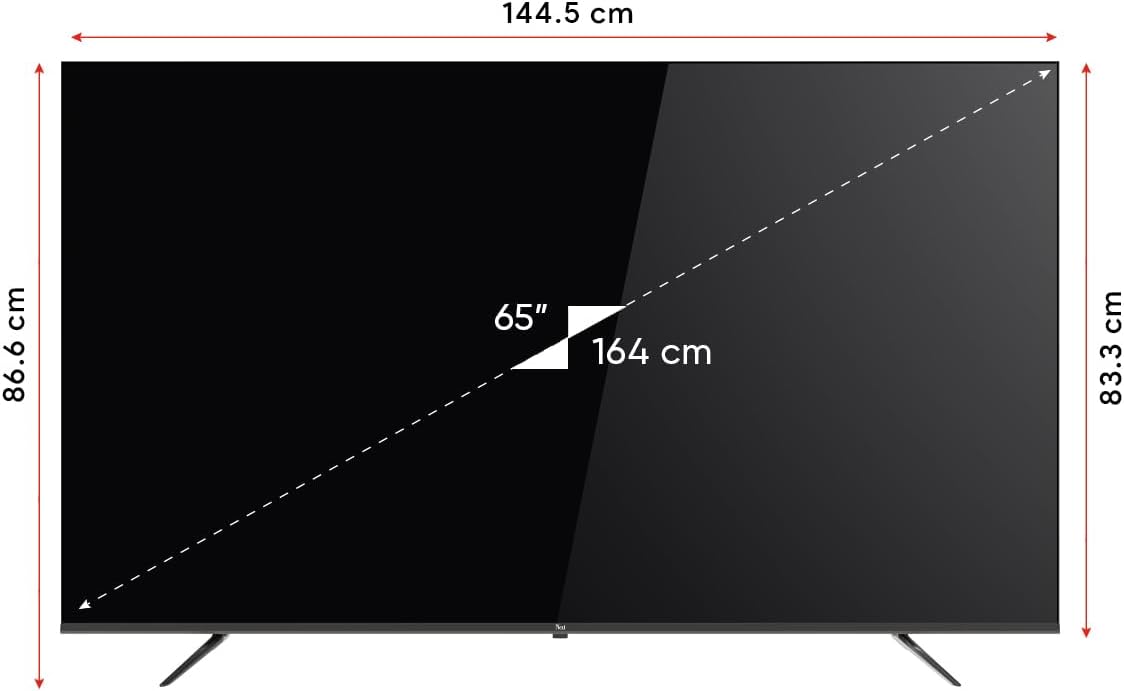
Image 8.1: TV dimensions (144.5 cm width, 86.6 cm height, 65" / 164 cm diagonal).
9. Warranty and Support
Your Next YE-65GFSG8-QLED TV comes with a manufacturer's warranty:
- Warranty Period: 2 Years Manufacturer Warranty.
- Support: For technical assistance, warranty claims, or further inquiries, please refer to the contact information provided in your warranty card or visit the official Next website.
Related documentsYE-65GFSG8-QLED


Ask a question about this manual
Ask about setup, troubleshooting, compatibility, parts, safety, or missing instructions. Manuals+ will review the question and use this page’s manual context to help answer it.