
1. Introduction
This manual provides detailed instructions for the BIEGEDY Android 13 Tablet 10 Inch PC, Model B22. Please read this manual thoroughly before using your device to ensure proper operation and to maximize its lifespan. Keep this manual for future reference.

Image 1.1: BIEGEDY Android 13 Tablet B22. This image displays the tablet's front view, highlighting its 10-inch screen with key specifications like 5G Wi-Fi, 12GB RAM, 128GB ROM, and Android 13 operating system. The tablet is shown in a blue finish, accompanied by icons representing included accessories such as a screen protector, USB cable, power adapter, and a protective case.
2. Package Contents
Verify that all items are present in the package:
- BIEGEDY Android 13 Tablet (Model B22)
- Protective Case
- Protective Film (Screen Protector)
- 128GB Micro SD Card
- USB Charging Cable
- Power Adapter
- User Manual (this document)
3. Device Overview
Familiarize yourself with the physical features and ports of your BIEGEDY Tablet.

Image 3.1: Tablet Physical Layout. This diagram illustrates the various components of the BIEGEDY Tablet B22, including the Power on/off button, Volume +/-, 3.5mm Headphone Jack, Reset button, Double Speaker, 5MP Front camera, 8MP Rear camera with Lights Flash, Micro SD Card Slot, and Type-C Port.
- Power Button: Located on the top edge, used to power on/off or wake/sleep the device.
- Volume Buttons: Located on the top edge, used to adjust audio volume.
- 3.5mm Headphone Jack: Located on the top edge, for connecting wired headphones.
- Reset Button: A small pinhole button for force restarting the device if it becomes unresponsive.
- Double Speakers: Located on the side for audio output.
- 5MP Front Camera: For video calls and selfies.
- 8MP Rear Camera with Flash: For taking photos and videos.
- Micro SD Card Slot: Located on the side, for expanding storage.
- Type-C Port: Located on the side, for charging and data transfer.
4. Setup
4.1 Initial Charging
Before first use, fully charge the tablet. Connect the provided USB cable to the Type-C port on the tablet and the power adapter. Plug the adapter into a wall outlet. The battery indicator on the screen will show charging status.
4.2 Power On/Off
- To Power On: Press and hold the Power button until the BIEGEDY logo appears.
- To Power Off: Press and hold the Power button until a power menu appears. Select "Power off."
- To Sleep/Wake: Briefly press the Power button.
4.3 Initial Setup Wizard
Upon first power-on, the tablet will guide you through an initial setup process:
- Select your preferred language.
- Connect to a Wi-Fi network (see section 4.4).
- Set up your Google account or skip for later.
- Review and accept terms and conditions.
- Set up screen lock (PIN, pattern, or password).
4.4 Wi-Fi Connection
To access the internet, connect your tablet to a Wi-Fi network.
- Go to Settings > Network & internet > Wi-Fi.
- Toggle Wi-Fi On.
- Select your desired network from the list.
- Enter the password if prompted, then tap Connect.
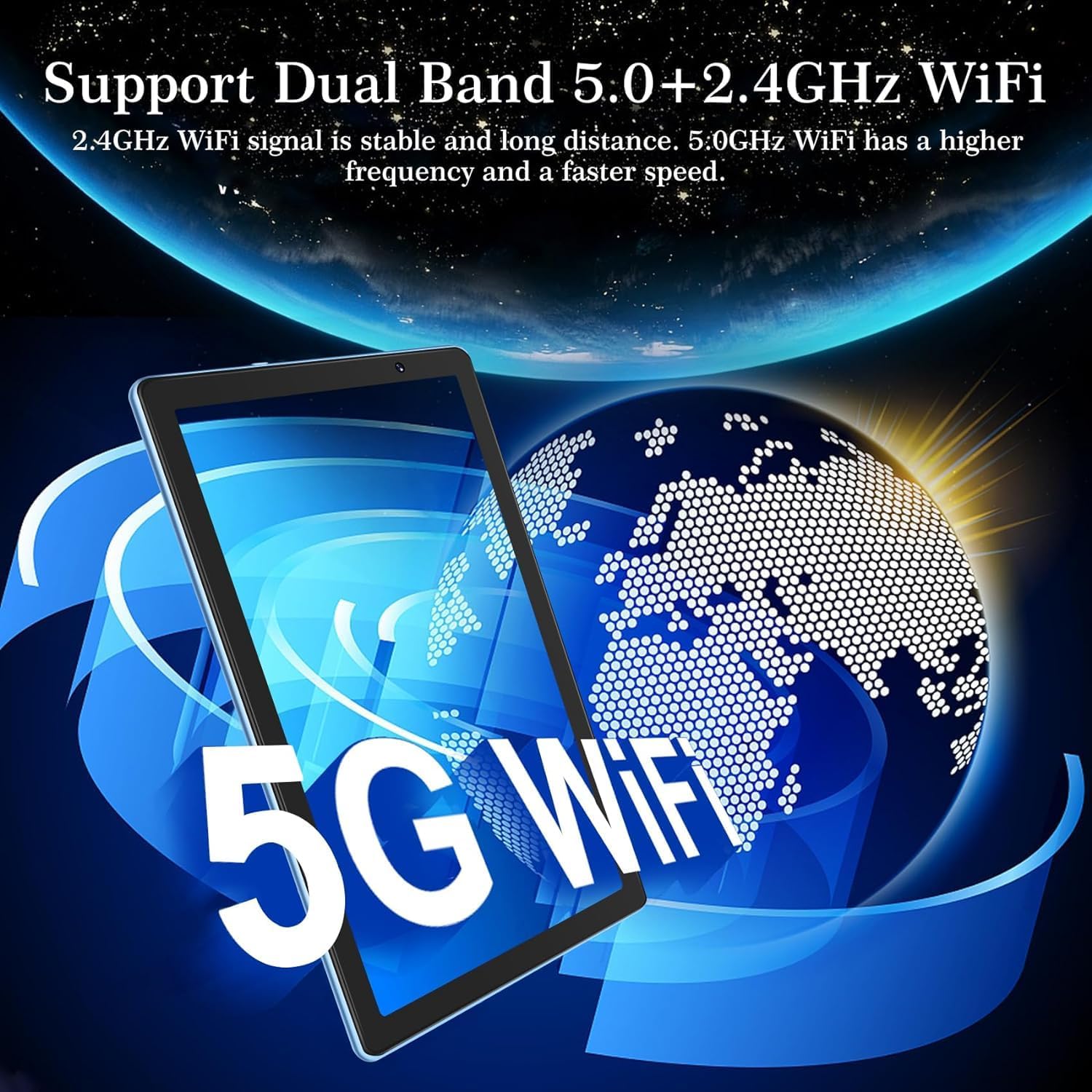
Image 4.1: Dual Band Wi-Fi Support. This image highlights the tablet's capability to support both 2.4GHz and 5GHz Wi-Fi frequencies, indicating stable and faster network connections.
4.5 Micro SD Card Installation
The tablet supports Micro SD cards up to 512GB for expanded storage. A 128GB Micro SD card is included.
- Locate the Micro SD card slot on the side of the tablet.
- Carefully insert the Micro SD card into the slot until it clicks into place.
- The tablet will detect the card and may prompt you to format it for internal or portable storage. Follow the on-screen instructions.
5. Operating Instructions
5.1 Basic Navigation
- Tap: To select an item or open an app.
- Swipe: To scroll through screens or lists.
- Pinch: To zoom in or out on images and web pages.
- Long Press: To access contextual menus or move icons.
5.2 App Management
The tablet comes with Android 13 and supports Google Mobile Services (GMS), allowing access to the Google Play Store for downloading applications.

Image 5.1: GMS Certified Tablet with Apps. This image shows the tablet screen displaying the YouTube app interface along with icons for other popular applications like Facebook, Amazon, LinkedIn, and TikTok, signifying its GMS certification and access to a wide range of Android apps.
- Install Apps: Open the Play Store app, search for your desired app, and tap Install.
- Uninstall Apps: Long-press an app icon on the home screen or app drawer, then drag it to "Uninstall" or select "App info" and choose "Uninstall."
- Update Apps: Open the Play Store, tap your profile icon, then select "Manage apps & device" to check for updates.
5.3 Connecting Bluetooth Devices
Pair your tablet with Bluetooth headphones, keyboards, or other accessories.
- Ensure the Bluetooth device is in pairing mode.
- On your tablet, go to Settings > Connected devices > Bluetooth.
- Toggle Bluetooth On.
- Tap "Pair new device" and select your device from the list.
- Confirm the pairing code if prompted.
5.4 Using the Cameras
The tablet features a 5MP front camera and an 8MP rear camera.
- Open the Camera app.
- Tap the camera switch icon to toggle between front and rear cameras.
- Tap the shutter button to take a photo or start/stop video recording.
- Access settings within the camera app for modes like panorama, portrait, or filters.
5.5 Storage Management
Your tablet has 128GB of internal storage, expandable with a Micro SD card up to 512GB.
- View Storage: Go to Settings > Storage to see usage details.
- Manage Files: Use the pre-installed "Files" app to browse, move, or delete files on internal storage and the Micro SD card.
- Clear Cache: Regularly clear app caches to free up space. Go to Settings > Apps, select an app, then tap "Storage & cache" and "Clear cache."
5.6 Battery Management
The tablet is equipped with a 6000mAh battery.

Image 5.2: High Capacity Battery. This image highlights the tablet's 6000mAh battery and provides estimated usage times for various activities: 5 hours of web browsing, 4 hours of HD video, 4 hours of gaming, 8 hours of music, 9 hours of calling, and 72 hours of standby.
- Check Battery Usage: Go to Settings > Battery to see which apps are consuming the most power.
- Battery Saver: Enable Battery Saver mode to extend battery life when needed.
- Charging: Use the provided charger for optimal charging speed. Avoid extreme temperatures while charging.
6. Maintenance
6.1 Cleaning
- Use a soft, lint-free cloth to clean the screen and body of the tablet.
- For stubborn smudges, slightly dampen the cloth with water or a screen cleaner.
- Avoid using harsh chemicals or abrasive materials.
6.2 Software Updates
Regularly check for and install software updates to ensure optimal performance and security.
- Ensure the tablet is connected to Wi-Fi and has sufficient battery.
- Go to Settings > System > System update.
- Follow the on-screen instructions to download and install any available updates.
7. Troubleshooting
If you encounter issues with your tablet, refer to the following common solutions:
- Tablet not turning on: Ensure the tablet is charged. Connect it to the charger for at least 30 minutes, then try powering it on again. If unresponsive, try pressing the Reset button with a thin pin.
- Tablet freezes or is unresponsive: Press and hold the Power button for about 10-15 seconds to force a restart. If this doesn't work, use the Reset button.
- Wi-Fi connection issues: Ensure Wi-Fi is enabled in Settings. Restart your Wi-Fi router. Forget the network and reconnect.
- Slow performance: Close unused apps. Clear app caches. Restart the tablet. Check for system updates. Consider uninstalling rarely used apps.
- Apps crashing: Ensure the app is updated. Clear the app's cache and data (Settings > Apps > [App Name] > Storage & cache). Reinstall the app if necessary.
- Charging issues: Ensure the charging cable and adapter are securely connected and undamaged. Try a different outlet.
8. Specifications
Key technical specifications for the BIEGEDY Android 13 Tablet B22:
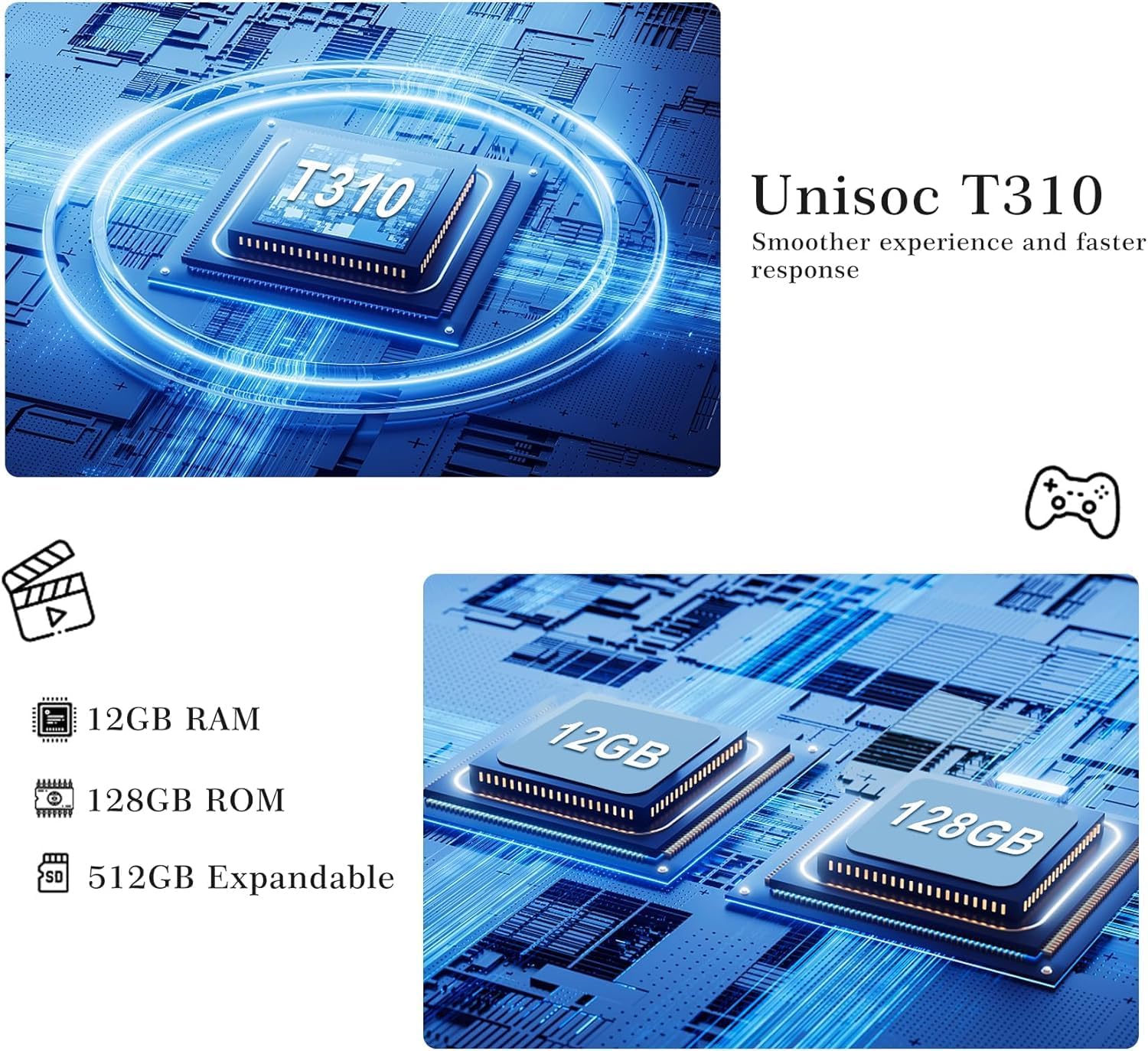
Image 8.1: Processor and Memory Configuration. This image illustrates the Unisoc T310 processor, along with representations of 12GB RAM and 128GB ROM chips, emphasizing the tablet's internal hardware for smoother performance.
| Feature | Specification |
|---|---|
| Model | B22 |
| Operating System | Android 13 |
| Processor | Octa-Core 2.0 GHz (ARM, Unisoc T310) |
| RAM | 12GB (6GB physical + 6GB memory expansion) |
| Internal Storage (ROM) | 128GB |
| Expandable Storage | Micro SD/TF card up to 512GB |
| Display Size | 10.1 Inches |
| Display Resolution | 1280 x 800 HD IPS |
| Front Camera | 5 Megapixels |
| Rear Camera | 8 Megapixels |
| Wi-Fi | 5G/2.4G Dual Band (802.11ac) |
| Bluetooth | Bluetooth 5.0 |
| Battery Capacity | 6000mAh |
| Ports | Type-C, 3.5mm Headphone Jack, Micro SD Card Slot |
| Dimensions (LxWxH) | 1 x 15 x 7.5 inches |
9. Warranty and Support
BIEGEDY provides comprehensive customer support for your tablet.
- Lifetime Technical Support: Assistance is available for the lifespan of your product.
- Customer Service: If you have any questions or require assistance, please contact BIEGEDY customer service. Our staff will respond within 24 hours.
For support, please refer to the contact information provided with your purchase or on the official BIEGEDY website.