
JOMAA B0D8TN87Y2
JOMAA Mini Bluetooth Foldable Keyboard User Manual
Model: B0D8TN87Y2
Introduction
The JOMAA Mini Bluetooth Foldable Keyboard is a compact and versatile input device designed for enhanced productivity on mobile devices. Its aluminum alloy construction ensures durability, while the silent keys provide a comfortable typing experience. This manual will guide you through the setup, operation, and maintenance of your new keyboard.
Getting Started
Package Contents
Upon unboxing your JOMAA Mini Bluetooth Foldable Keyboard, please ensure all items are present:
- JOMAA Mini Bluetooth Foldable Keyboard
- USB Charging Cable
- Instruction Manual
- Flannel Storage Bag

Image: The JOMAA Mini Bluetooth Foldable Keyboard, shown unfolded with its integrated stand, alongside the included flannel storage bag.
Charging the Keyboard
The keyboard features a built-in rechargeable lithium battery. Before first use, or when the battery is low, connect the provided USB charging cable to the keyboard's charging port and a compatible USB power source. A full charge takes approximately 2 hours.

Image: A close-up view of the keyboard's side, illustrating the USB charging head connected to the charging port.
Powering On/Off
To power on the keyboard, simply unfold it. To power off, fold the keyboard closed. The magnetic suction mechanism ensures secure closure and automatic power management.

Image: A hand demonstrating the compact, folded state of the JOMAA keyboard, highlighting its portability.
Bluetooth Pairing
The JOMAA keyboard supports connection to up to three Bluetooth-enabled devices. Follow these steps to pair your keyboard:
- Ensure the keyboard is powered on.
- On your device (smartphone, iPad, tablet), navigate to the Bluetooth settings.
- The keyboard will appear as a discoverable device (e.g., "B.O.W" or "MINI_KEYBOARD"). Select it to initiate pairing.
- If prompted, enter any displayed pairing code on the keyboard and press Enter.
- To switch between paired devices, use the dedicated Bluetooth memory keys (e.g., Fn + Q, W, or E) as indicated on the keyboard.
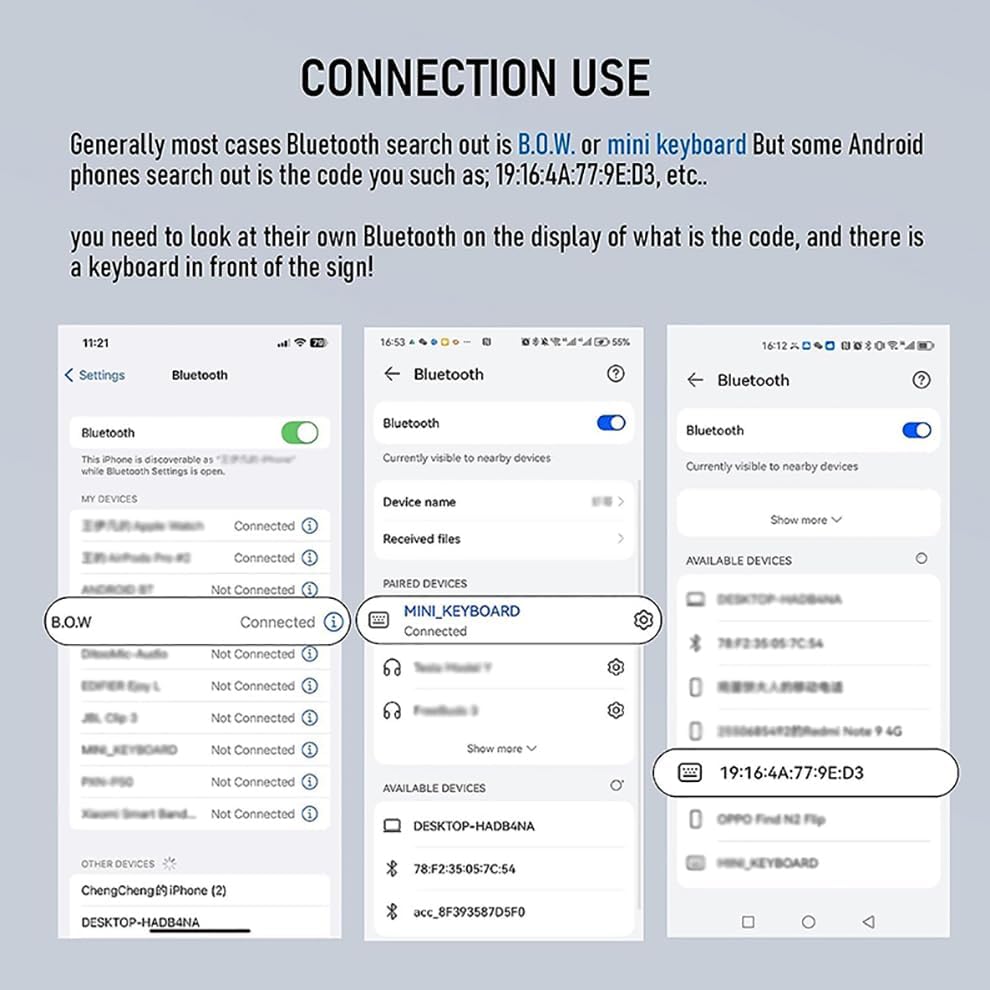
Image: A visual guide demonstrating the Bluetooth connection process on various mobile devices, showing how to find and select the keyboard for pairing.
Video: A demonstration of the JOMAA Foldable Bluetooth Mini Keyboard, showcasing its unboxing, features, and ease of connection with various devices.
Operating Instructions
Using the Magnetic Stand
The keyboard features a hidden magnetic stand that can be deployed to hold your smartphone or tablet (up to 11 inches) for an optimal viewing and typing angle. The stand is designed for stability, but larger devices may not be as secure.

Image: The JOMAA keyboard in use, with an iPad securely positioned on its integrated magnetic stand, demonstrating a typical setup for productivity.

Image: The JOMAA keyboard with a smartphone on its magnetic stand, illustrating its use with smaller mobile devices in a typical workspace setting.
Function Shortcuts
The keyboard includes various function shortcuts to enhance your efficiency. These shortcuts may vary slightly between Apple and Android devices. Refer to the diagram below for common functions:
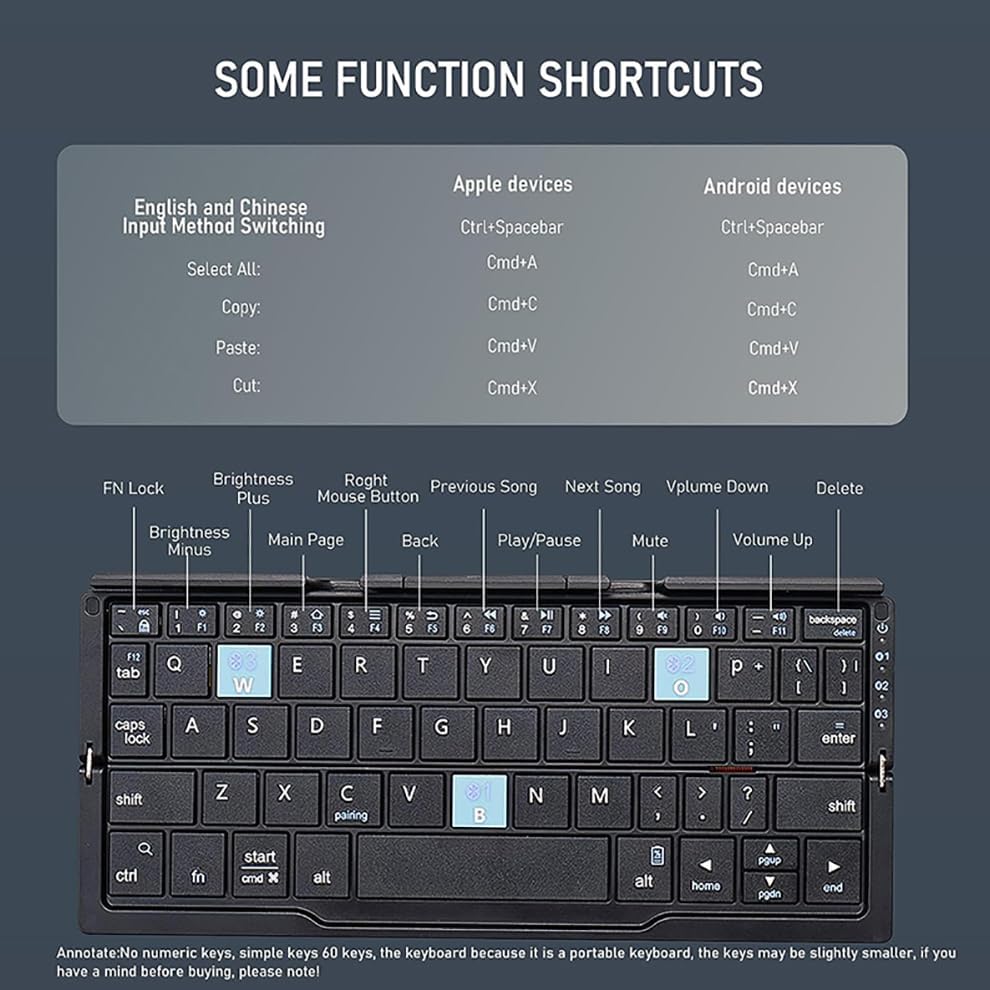
Image: A detailed diagram illustrating various function shortcuts available on the JOMAA keyboard, with specific commands for both Apple and Android operating systems.
| Function | Apple Devices | Android Devices |
|---|---|---|
| English and Chinese Input Method Switching | Ctrl+Spacebar | Ctrl+Spacebar |
| Select All | Cmd+A | Cmd+A |
| Copy | Cmd+C | Cmd+C |
| Paste | Cmd+V | Cmd+V |
| Cut | Cmd+X | Cmd+X |
Maintenance
Cleaning
To clean your keyboard, gently wipe the surface with a soft, dry cloth. For stubborn dirt, a slightly damp cloth can be used, ensuring no moisture enters the internal components. Avoid using harsh chemicals or abrasive materials.
Battery Care
To prolong the life of your keyboard's lithium battery:
- Avoid fully discharging the battery frequently.
- Store the keyboard in a cool, dry place when not in use for extended periods.
- Charge the keyboard regularly, even if not in constant use, to maintain battery health.
Troubleshooting
Connection Issues
- Ensure Bluetooth is enabled on your device.
- Make sure the keyboard is fully charged.
- Try unpairing and re-pairing the keyboard with your device.
- Ensure the keyboard is within the operating distance of 10 meters from your device.
Typing Inaccuracies (Ghost Keys)
- Ensure the keyboard is on a stable, flat surface.
- Check for any physical obstructions or debris under the keys.
- Restart both the keyboard (by folding and unfolding) and your connected device.
Stand Stability Issues
- The magnetic stand is optimized for devices under 11 inches. Larger devices may not be stable.
- Ensure the stand is fully extended and locked into place.
Specifications

Image: A detailed diagram outlining the physical dimensions and key technical specifications of the JOMAA Mini Bluetooth Foldable Keyboard.
| Feature | Detail |
|---|---|
| Product Dimensions (Unfolded) | 7.97"L x 1.83"W x 1.83"H (approx. 202.5mm x 46.51mm) |
| Item Weight | 9.1 ounces |
| Material | Aluminum Alloy and ABS Plastic |
| Color | Black |
| Number of Keys | 59 |
| Connectivity Technology | Bluetooth |
| Compatible Devices | Smartphones, iPads, Tablets (iOS, Android) |
| Operating Distance | Up to 10 meters |
| Modulation System | GFSK |
| Operation Voltage | 3.1-4.2V |
| Operation Current | <3mA |
| Standby Current | <0.3mA |
| Sleeping Current | <0.1mA |
| Charging Current | ≤250mA |
| Charging Time | ≤2 hours |
| Lithium Battery Capacity | 160mAh |
| Uninterrupted Working Time | ≥50 hours |
| Standby Time | ≥150 days |
| Lithium Battery Life | 3 years |
| Included Components | USB Cable |
Warranty and Support
For warranty information or technical support regarding your JOMAA Mini Bluetooth Foldable Keyboard, please refer to the product packaging or contact JOMAA customer service directly. Contact details are typically provided on the manufacturer's official website or within the product's retail packaging.
Related Documents - B0D8TN87Y2
 |
JOMAA Foldable Bluetooth Keyboard User Manual User manual for the JOMAA Foldable Bluetooth Keyboard, a 2.4G wireless folding keyboard with a PU leather cover, compatible with iPhone, iPad, smartphones, and tablets. |
 |
JOMAA IBOX 11 Bluetooth Folding Keyboard with Touchpad User Manual Comprehensive user manual for the JOMAA IBOX 11 Bluetooth folding keyboard. Includes setup instructions, Bluetooth pairing and device switching, touchpad gestures for Windows and iOS, detailed product specifications, and essential safety guidelines. |
 |
JOMAA Two-Fold Leather Case Keyboard User Manual - Bluetooth Connectivity & Touchpad Guide Comprehensive user manual for the JOMAA two-fold leather case keyboard, detailing Bluetooth connection for Windows, iOS, and Android, touchpad functions, technical specifications, troubleshooting, and safety guidelines. |
 |
JOMAA Ergonomic Folding Wireless Keyboard User Manual User manual for the JOMAA Ergonomic Folding Wireless Keyboard (Model DF047), detailing features, Bluetooth and 2.4G connectivity, technical specifications, system compatibility, status indicators, FAQ, maintenance, and safety information. |
 |
JOMAA Rainbow LED Wireless Keyboard and Mouse Combo User Manual User manual for the JOMAA Rainbow LED Wireless Keyboard and Mouse Combo, covering setup, FAQ, and safety instructions. |
 |
JOMAA TM255M Vertical Trackball Mouse User Manual User manual for the JOMAA TM255M ergonomic vertical trackball mouse, detailing features, setup, and safety instructions for wireless computer and laptop use. |
Ask a question about this manual
Ask about setup, troubleshooting, compatibility, parts, safety, or missing instructions. Manuals+ will review the question and use this page’s manual context to help answer it.